
1. Introduction
Thank you for choosing the JWQPO Indoor Camera. This manual provides detailed instructions for setting up, operating, and maintaining your camera to ensure optimal performance and security for your home. Please read this manual thoroughly before use and retain it for future reference.
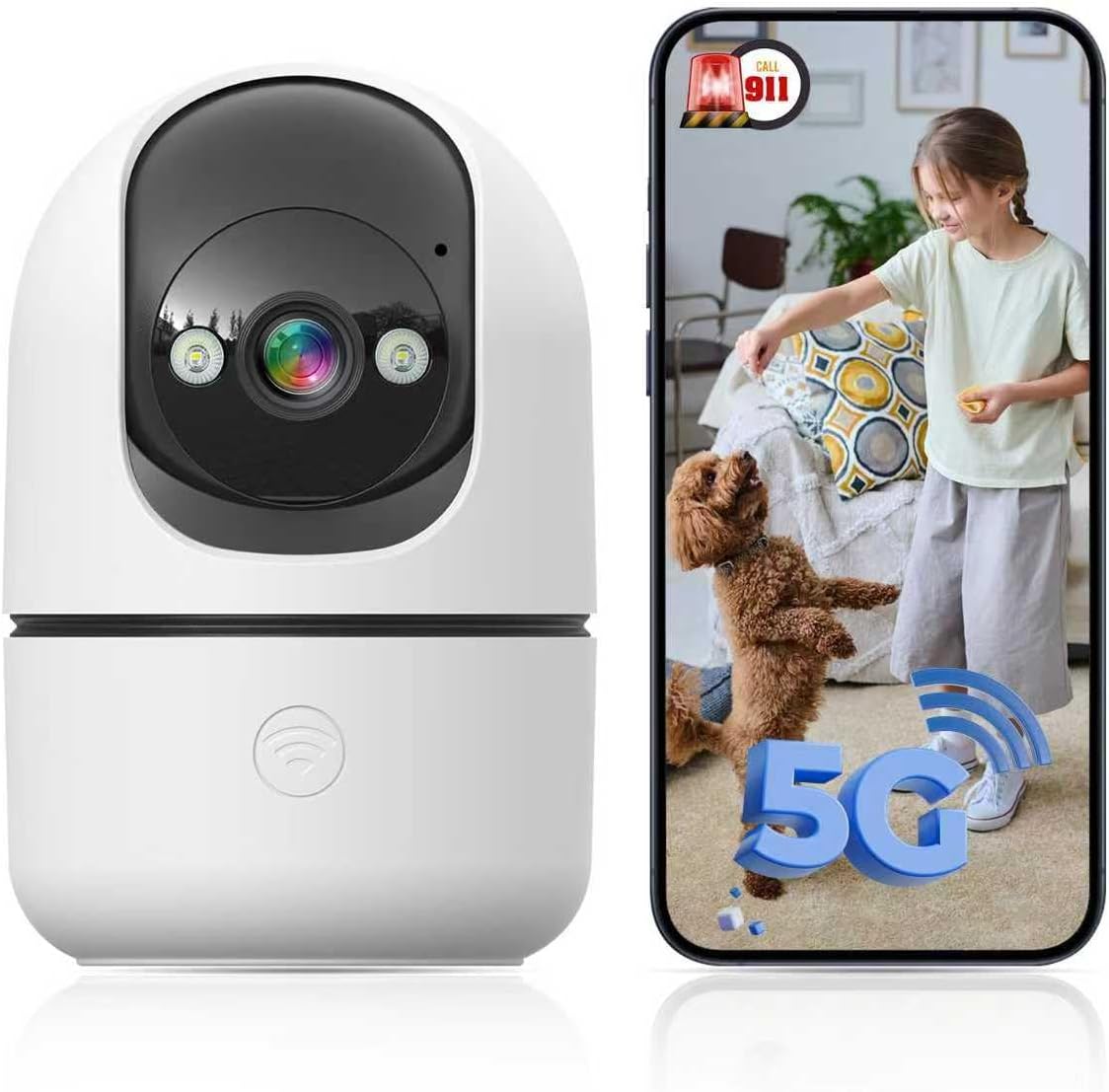
Image 1.1: JWQPO Indoor Camera and its mobile application interface.
2. Product Overview
2.1 Package Contents
- JWQPO Indoor Camera (1 unit)
- Power Adapter
- USB Power Cable
- Mounting Accessories (screws, wall anchors)
- Instruction Manual (this document)
2.2 Key Features
- Dual-Band Wi-Fi Connectivity: Supports both 2.4GHz and 5GHz networks for stable connection.
- 2K High-Definition Video: Captures clear and detailed footage.
- 360° Pan and Tilt: Offers a wide viewing angle with flexible horizontal (355°) and vertical (90°) rotation.
- Full-Color Night Vision: Provides clear color images even in low-light conditions.
- AI Motion Detection: Intelligently distinguishes between people, vehicles, and pets to reduce false alarms.
- Two-Way Audio: Built-in microphone and speaker for clear communication.
- Emergency 911 Alert: One-click direct dialing to 911 via the app (requires cloud storage subscription).
- Flexible Storage: Supports local storage via Micro SD card (up to 128GB, sold separately) and cloud storage (subscription required).
- Multi-User Sharing: Allows sharing camera access with family members.
3. Setup Guide
3.1 Download the App
Search for "InstaVision" in your mobile app store or scan the QR codes below to download the official application.

Image 3.1: Scan QR codes to download the InstaVision app.
App Store: InstaVision Smart & Safe Home
Google Play: InstaVision Smart & Safe Home
3.2 Power On and Connect to Wi-Fi
- Connect the camera to a power source using the provided USB cable and power adapter. The camera will power on and indicate readiness for setup (refer to LED indicator status in the app for details).
- Ensure your smartphone is connected to your home Wi-Fi network (supports both 2.4GHz and 5GHz).
3.3 Add Device to App
- Open the InstaVision app and create an account or log in.
- Tap the "+" icon to add a new device.
- Select the camera model (e.g., "2111" or similar identifier).
- Follow the in-app instructions to scan the QR code displayed on your phone with the camera lens. Hold the phone approximately 4-8 inches (10-20 cm) from the camera.
- Once the camera successfully scans the QR code, it will connect to your Wi-Fi network. Follow the remaining prompts to complete the setup.
4. Operating Instructions
4.1 Live View and Pan/Tilt Control
After successful setup, open the InstaVision app and select your camera to view the live feed. Use the on-screen controls to remotely pan (horizontal 355°) and tilt (vertical 90°) the camera lens to monitor different areas of your room.

Image 4.1: Camera pan and tilt capabilities for comprehensive coverage.
4.2 Two-Way Audio
The camera features a built-in microphone and speaker. In the live view interface, tap the microphone icon to speak through the camera, and listen to audio from the camera's environment. This allows for real-time communication with individuals near the camera.

Image 4.2: Demonstrating two-way audio communication.
4.3 Night Vision
The camera automatically switches to night vision mode in low-light conditions. It offers both infrared night vision for clear black-and-white images and full-color night vision for detailed color footage, ensuring visibility around the clock.

Image 4.3: Full-color night vision vs. infrared night vision.
4.4 Motion Detection and AI Recognition
The camera's high-precision sensors detect abnormal intrusions and suspicious movements. With AI recognition, it can accurately distinguish between people, vehicles, and pets, sending instant alerts to your phone and reducing false alarms. You can customize alert settings within the app.
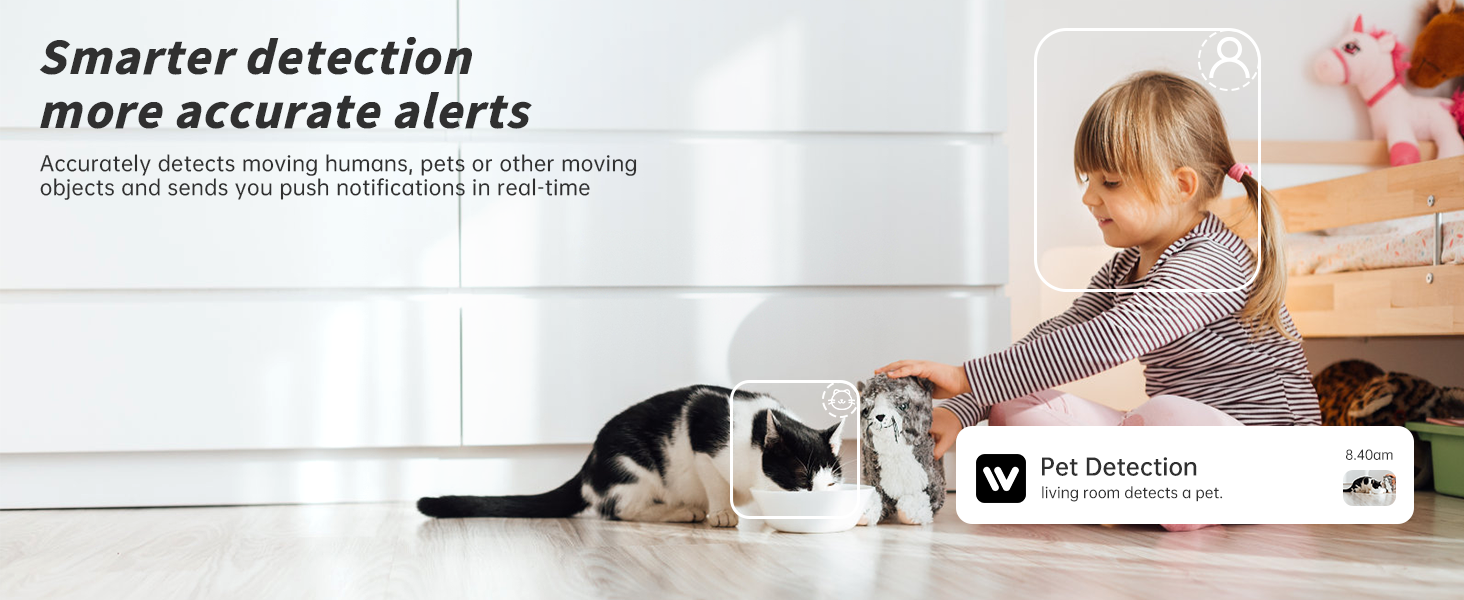
Image 4.4: AI-powered pet detection alert.
4.5 Storage Options
The camera offers two storage methods for recorded footage:
- Local Storage: Insert a Micro SD card (up to 128GB, sold separately) into the camera's designated slot for continuous recording.
- Cloud Storage: A paid subscription service provides secure cloud storage for your footage. This option also enables the 911 emergency call feature. All cloud data is stored within the United States, adhering to data security laws.

Image 4.5: Local Micro SD card and cloud storage options.
4.6 911 Emergency Call Feature
In emergencies, the InstaVision app allows one-click direct dialing to 911. This feature automatically sends your location and real-time video footage to emergency services. Note: This feature requires an active cloud storage subscription.
4.7 Multi-User Sharing
You can share access to your camera with family members or trusted individuals directly through the app's settings. This allows multiple users to view the live feed and receive alerts.

Image 4.6: Multi-user sharing interface.
5. Maintenance
- Cleaning: Gently wipe the camera lens and body with a soft, dry cloth. Avoid using harsh chemicals or abrasive materials.
- Firmware Updates: Regularly check the InstaVision app for available firmware updates. Keeping your camera's firmware updated ensures optimal performance, security, and access to new features.
- Placement: Ensure the camera is placed on a stable surface or securely mounted to prevent accidental falls.
6. Troubleshooting
If you encounter issues with your JWQPO Indoor Camera, please refer to the following common problems and solutions:
- Camera Offline:
- Check if the camera is powered on and the power adapter is securely connected.
- Verify your Wi-Fi network is active and the camera is within range.
- Restart the camera and your Wi-Fi router.
- Ensure your Wi-Fi password has not changed.
- Poor Video Quality:
- Ensure a strong Wi-Fi signal. Move the camera closer to the router if necessary.
- Clean the camera lens gently with a soft cloth.
- Check your internet connection speed.
- No Motion Detection Alerts:
- Verify motion detection is enabled in the app settings.
- Adjust the motion detection sensitivity.
- Ensure the camera has a clear view of the area you wish to monitor.
- Check the app's notification settings on your phone.
- Two-Way Audio Issues:
- Ensure your phone's volume is up and the app has microphone permissions.
- Check the camera's microphone and speaker settings in the app.
For further assistance, please refer to the in-app help section or contact customer support.
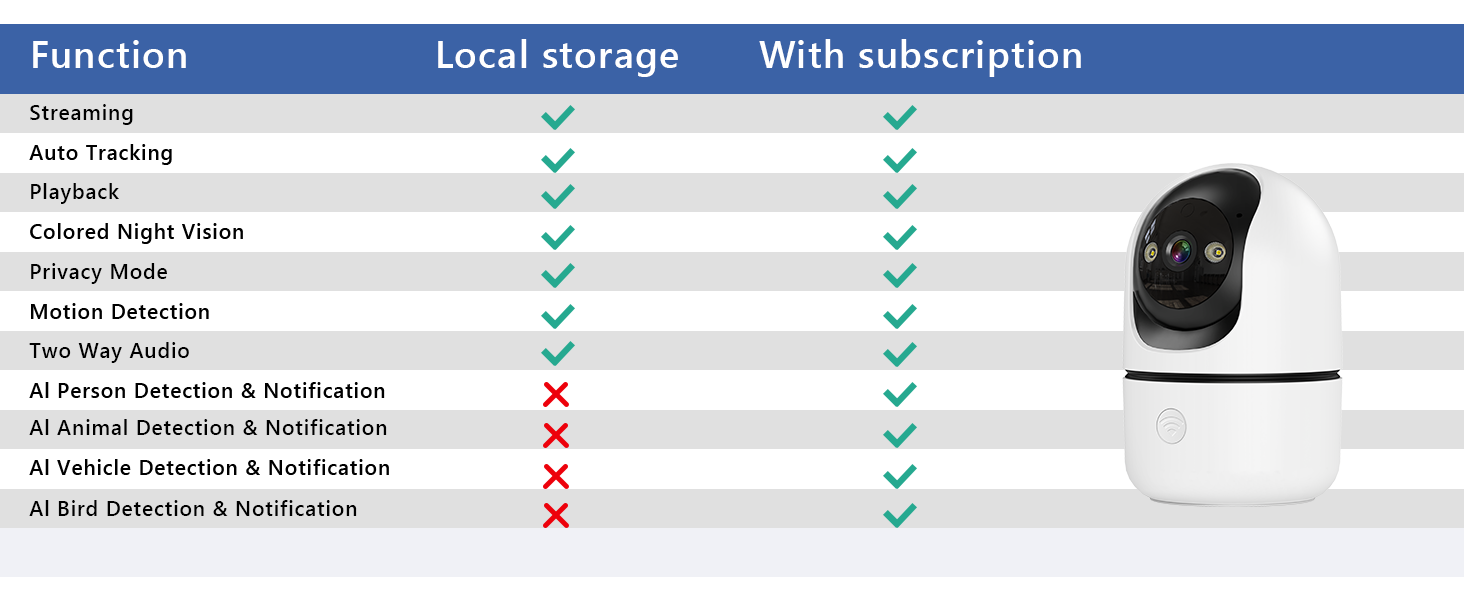
Image 6.1: Feature comparison: Local storage vs. Cloud subscription.
7. Specifications
| Feature | Specification |
|---|---|
| Model Number | TCP2111-W30V |
| Indoor/Outdoor Usage | Indoor |
| Video Capture Resolution | 2K |
| Connectivity Technology | Wireless (2.4GHz/5GHz Wi-Fi) |
| Pan/Tilt Range | Horizontal 355°, Vertical 90° |
| Special Features | Night Vision (Full-Color), AI Motion Detection, Two-Way Audio |
| Storage Options | Micro SD Card (up to 128GB), Cloud Storage (subscription) |
| Power Source | Corded Electric |
| Item Weight | 9.6 ounces |
| Product Dimensions | 1 x 1 x 1 inches |
8. Warranty and Support
For warranty information, please refer to the product packaging or contact your retailer. For technical support or inquiries, please reach out to JWQPO customer service:
- Customer Hotline: +1-888-9716718
- Work Time: Pacific Standard Time 6:00 PM - 3:00 AM, Monday to Friday