
1. Introduction
Thank you for choosing the YLEEBG P60 Android 15 Tablet. This manual provides essential information for setting up, operating, and maintaining your device. Please read it thoroughly to ensure optimal performance and longevity of your tablet.
Package Contents
Verify that all items listed below are included in your package:
- 1 x YLEEBG P60 10.1-inch Android Tablet
- 1 x Bluetooth Keyboard
- 1 x Wireless Mouse
- 1 x Stylus Pen
- 1 x Tablet Case
- 1 x Protective Film
- 1 x USB Charger
- 1 x USB-C Cable
- 1 x User Manual
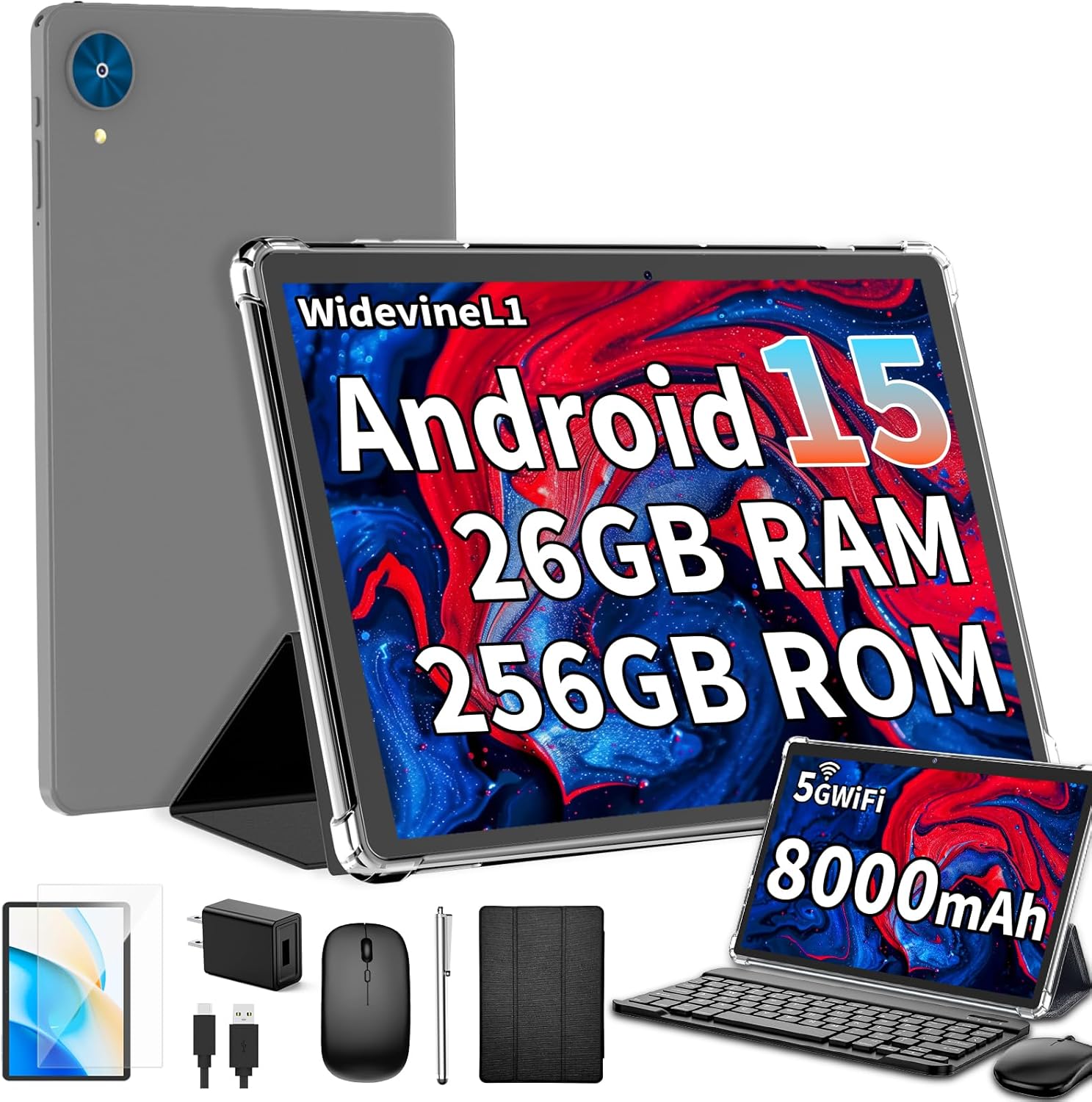
Image 1.1: YLEEBG P60 Tablet and its complete accessory set, including the tablet, keyboard, mouse, stylus, and protective case.
Video 1.1: An unboxing and overview of the YLEEBG P60 Tablet and its accessories, demonstrating the contents of the package.
2. Setup
2.1 Initial Power On and Charging
- Charge the Tablet: Connect the USB-C cable to the tablet's charging port and the USB charger. Plug the charger into a power outlet. The battery indicator will show charging status.
- Power On: Press and hold the power button located on the side of the tablet until the YLEEBG logo appears on the screen.
- Initial Setup: Follow the on-screen prompts to select your language, connect to a Wi-Fi network, and set up your Google account.
2.2 Connecting Accessories
Your YLEEBG P60 tablet comes with a Bluetooth keyboard and a wireless mouse for enhanced productivity.
2.2.1 Bluetooth Keyboard
- Charge the Keyboard: Ensure the Bluetooth keyboard is charged.
- Turn On Bluetooth: On your tablet, go to Settings > Connected devices > Bluetooth and toggle it On.
- Pair Keyboard: Turn on the Bluetooth keyboard. It should appear in the list of available devices on your tablet. Tap on the keyboard name to pair. Follow any on-screen instructions, such as entering a pairing code.
2.2.2 Wireless Mouse
- Insert USB Receiver: Locate the small USB receiver for the wireless mouse, usually stored in the mouse's battery compartment. Insert this receiver into the USB-A port on the tablet's USB-C adapter (if applicable) or a compatible USB hub.
- Power On Mouse: Turn on the wireless mouse. The tablet should automatically detect and connect to the mouse.

Image 2.1: The YLEEBG P60 Tablet highlighting its 5G WiFi and Bluetooth 5.0 capabilities, essential for connecting to networks and accessories.
3. Operating Instructions
3.1 Basic Navigation
- Touchscreen Gestures: Use standard Android gestures such as tap, swipe, pinch-to-zoom, and long-press to interact with the tablet.
- Home Screen: Swipe up from the bottom to access the app drawer. Swipe left or right to navigate between home screens.
- Notifications & Quick Settings: Swipe down from the top of the screen to view notifications and access quick settings toggles (Wi-Fi, Bluetooth, brightness, etc.).
3.2 Using the Stylus
The included stylus can be used for precise input, drawing, and navigation. Simply touch the stylus tip to the screen as you would with your finger.

Image 3.1: Demonstrates the versatility of the YLEEBG P60 Tablet in various settings, including using the stylus for precise input.
3.3 Keyboard and Mouse Functionality
Once connected, the Bluetooth keyboard and wireless mouse transform your tablet into a portable workstation.
- Keyboard Input: Type directly into text fields and use standard keyboard shortcuts.
- Mouse Navigation: Use the mouse to control the cursor on the screen, click, and scroll, similar to a desktop computer.
3.4 Split-Screen Mode
Android 15 supports split-screen multitasking, allowing you to run two apps side-by-side:
- Open the first app you want to use.
- Swipe up from the bottom of the screen and hold to access recent apps.
- Tap the app icon at the top of the first app's card and select Split top.
- Choose the second app from your recent apps or app drawer.

Image 3.2: The YLEEBG P60 Tablet demonstrating its split-screen functionality, allowing users to multitask efficiently.
4. Features and Performance
The YLEEBG P60 is designed for a smooth and responsive user experience, powered by the latest Android 15 operating system.
- Operating System: Android 15 offers enhanced privacy controls, improved system fluency, and faster application cold start acceleration.
- Memory & Storage: Equipped with 26GB RAM (4GB physical + 22GB virtual) and 256GB internal storage, expandable up to 2TB via a Micro SD card.
- Display: A 10.1-inch IPS display with 1280x800 resolution provides clear and vibrant visuals, suitable for media consumption and productivity.
- Processor: Features an Octa-Core T606 processor for efficient performance across various applications.
- Battery Life: An 8000mAh battery supports extended usage, with Type-C low-temperature fast charging.
- Connectivity: Supports 2.4Ghz/5Ghz Wi-Fi for stable internet and Bluetooth 5.0 for reliable accessory connections.
- Cameras: Includes a 5MP front camera and a 13MP rear camera for video calls and casual photography.

Image 4.1: A visual summary of the YLEEBG P60 Tablet's key features and specifications.

Image 4.2: Illustrates the extended battery life of the 8000mAh battery for different usage scenarios.
5. Maintenance
5.1 Battery Care
- Avoid extreme temperatures, which can degrade battery performance.
- Do not leave the tablet fully charged or fully discharged for extended periods.
- Use only the provided charger and cable to prevent damage.
5.2 Cleaning
- Use a soft, lint-free cloth to clean the screen and body of the tablet.
- For stubborn smudges, lightly dampen the cloth with water or a screen-safe cleaner.
- Avoid using harsh chemicals or abrasive materials.
5.3 Software Updates
Regularly check for and install system updates to ensure your tablet has the latest features, security patches, and performance improvements. Go to Settings > System > System update.
6. Troubleshooting
If you encounter issues with your YLEEBG P60 tablet, refer to the following common solutions:
| Problem | Solution |
|---|---|
| Tablet does not power on | Ensure the tablet is charged. Connect to the charger and wait a few minutes before attempting to power on again. |
| Cannot connect to Wi-Fi | Check if Wi-Fi is enabled in Quick Settings. Restart your router and the tablet. Verify the Wi-Fi password. |
| Bluetooth accessories not pairing | Ensure Bluetooth is enabled on the tablet and the accessory is in pairing mode. Recharge the accessory if it's battery-powered. |
| Slow performance | Close unused applications. Clear cache for frequently used apps. Restart the tablet. Ensure sufficient storage space. |
| Screen unresponsive | Restart the tablet. If the issue persists, perform a factory reset (data will be lost, back up first). |
For further assistance, please contact YLEEBG customer support.
7. Specifications
Detailed technical specifications for the YLEEBG P60 Android 15 Tablet:
| Feature | Specification |
|---|---|
| Standing Screen Display Size | 10.1 Inches |
| Screen Resolution | 1280 x 800 pixels |
| Max Screen Resolution | 1280*800 Pixels |
| Processor | 1.6 GHz (Octa-Core Unisoc T606) |
| Graphics Coprocessor | T606 |
| Chipset Brand | AMD (Note: Product description states Unisoc, this might be a discrepancy in source data) |
| Card Description | Integrated |
| Wireless Type | 802.11b, 802.11n (2.4Ghz/5Ghz Wi-Fi) |
| Average Battery Life (in hours) | 16 Hours (8000mAh) |
| Brand | YLEEBG |
| Series | P60 |
| Item Model Number | P60 |
| Operating System | Android 15 |
| Item Weight | 2.1 pounds |
| Product Dimensions | 10.7 x 7.5 x 2.5 inches |
| Color | Black |
| Rear Webcam Resolution | 5 MP |
| Processor Brand | Unisoc |
| Flash Memory Size | 256 GB |
| Batteries | 1 Lithium Polymer batteries required. (included) |
| Memory Storage Capacity | 256 GB |
| Screen Size | 10.1 Inches |
| Display Resolution Maximum | 1280*800 Pixels |
8. Warranty and Support
For warranty information and customer support, please refer to the documentation included in your product packaging or visit the official YLEEBG website. Keep your purchase receipt as proof of purchase for warranty claims.