
1. Introduction
The MOMILLA PlaySmart Kids Smart Phone is an educational and entertainment device designed for children aged 3-8. It features a dual camera, over 200 educational games, robust parental controls, and a 3.97-inch touchscreen. This manual provides essential information for setup, operation, maintenance, and troubleshooting to ensure a safe and enriching experience for your child.
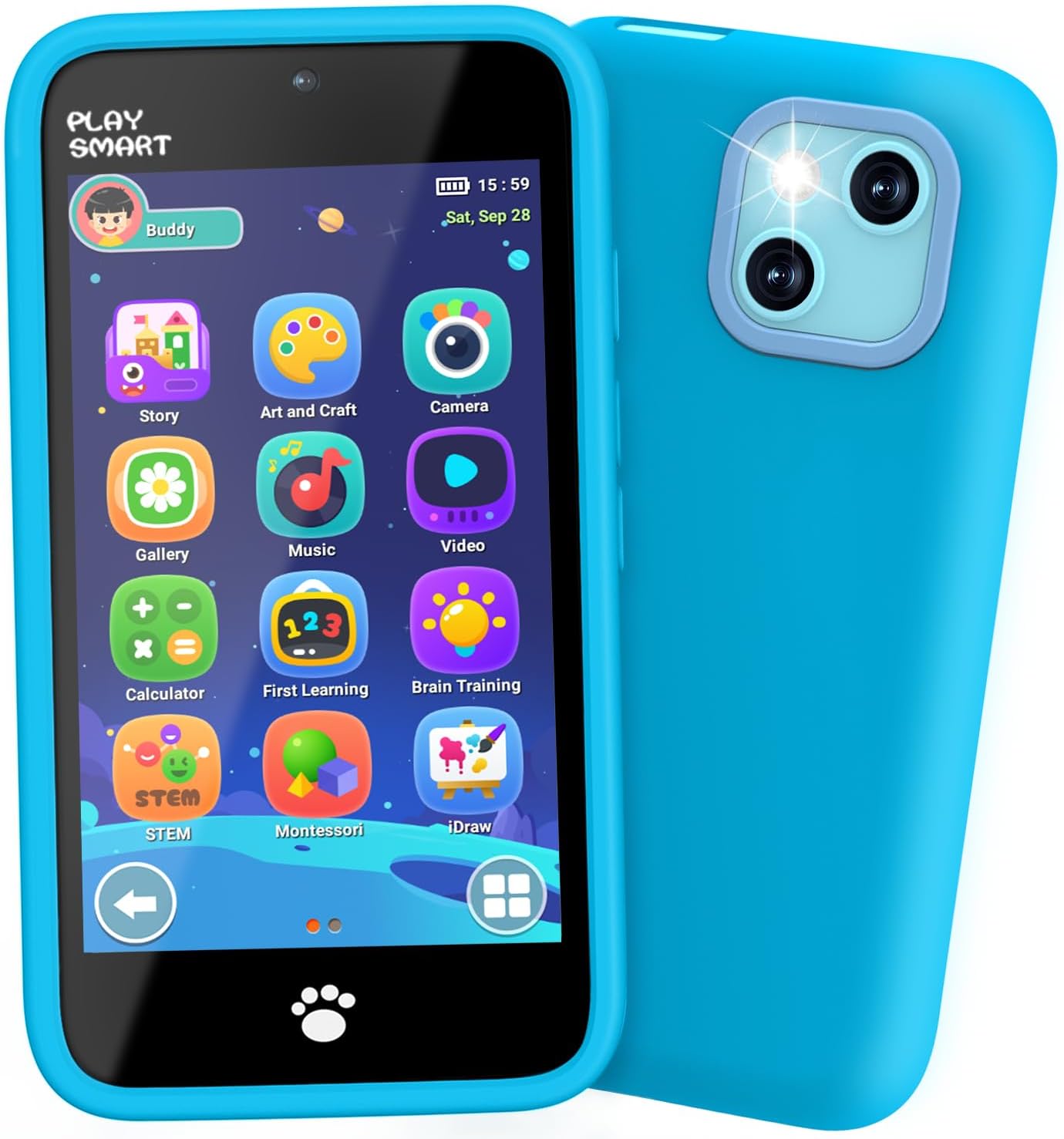
Image 1: The MOMILLA PlaySmart Kids Smart Phone, featuring its vibrant blue protective case and a display of various application icons.
2. What's in the Box
- Kids Toys Phone with Cute Phone Case (1)
- Charging Cable (1)
- Lanyard (1)
- User Manual (1)
3. Product Features
3.1. Educational Games
The PlaySmart phone comes pre-loaded with over 200 educational puzzle games designed to support learning in various areas, including ABCs, 123s, critical thinking, creative art, STEM, and Montessori principles. New games are available daily, ensuring continuous engagement and learning opportunities.
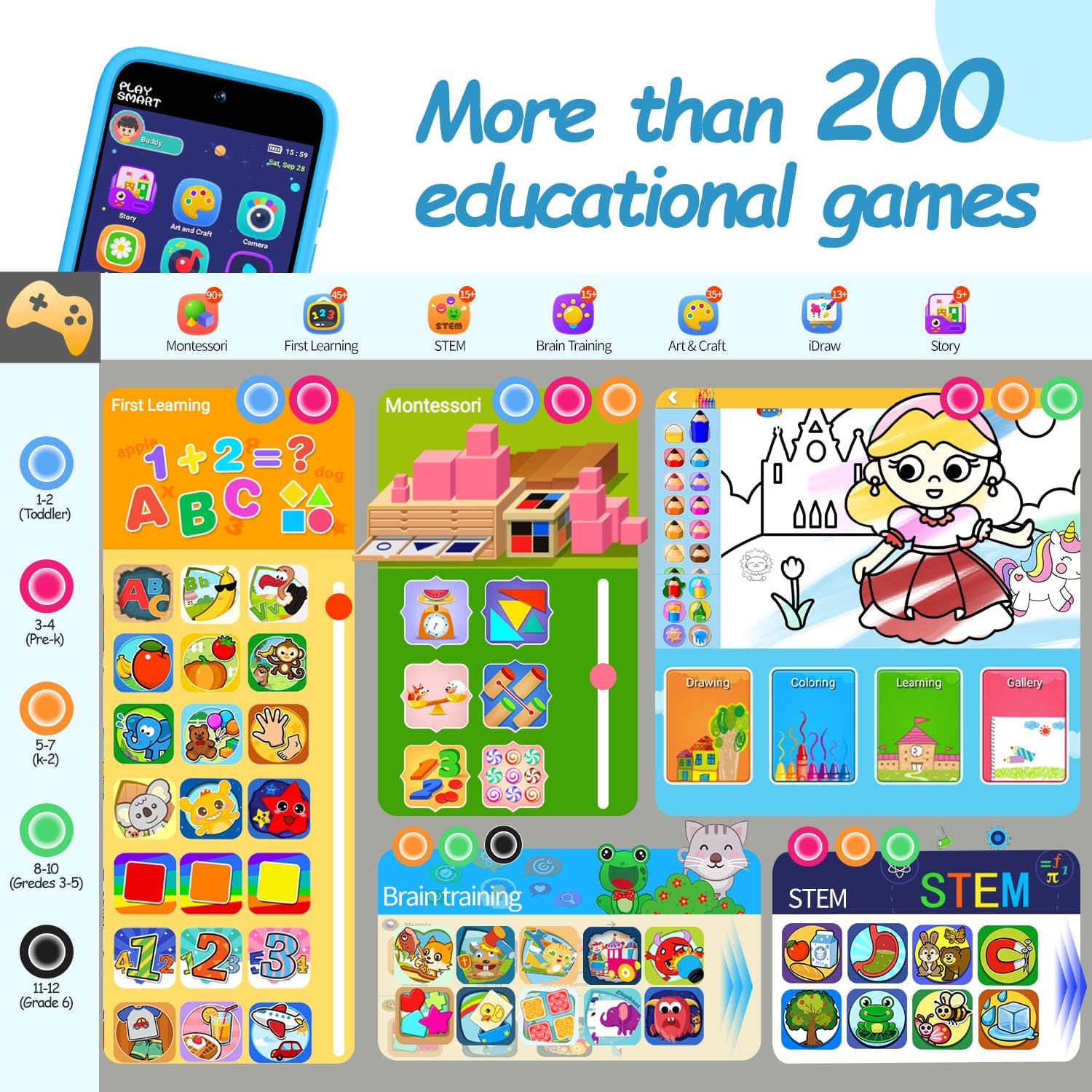
Image 2: The PlaySmart phone showcasing its extensive library of over 200 educational games, categorized for different age groups and learning types.
3.2. Dual Camera Functionality
Equipped with dual cameras, the device allows children to capture photos and videos. It includes fun photo features such as silly stickers and cute frames to enhance creativity and personalize their visual content.
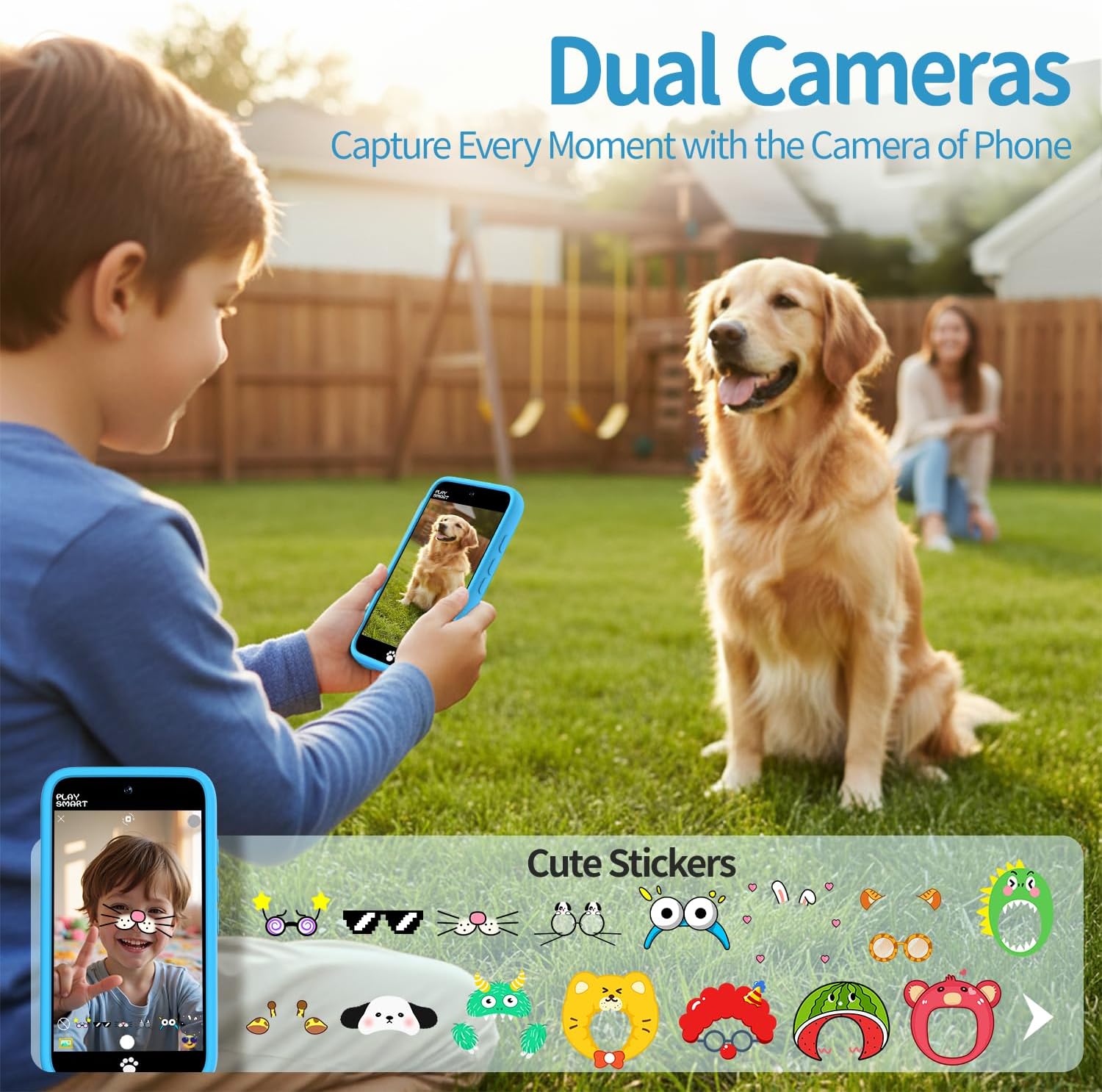
Image 3: A child using the dual camera feature of the PlaySmart phone to photograph a dog, with an overlay demonstrating the available fun stickers and frames.
3.3. Parental Control System
The integrated parental control system enables guardians to manage screen time, approve applications, set healthy time limits, and track usage statistics. This ensures a safe and balanced digital experience for children.

Image 4: The PlaySmart phone's parental control interface, illustrating options for setting time limits, managing multiple user accounts, and restricting app access.
3.4. Display and Storage
The device features a spacious 3.97-inch display, optimized for young eyes. It includes 8GB of built-in memory for storing photos, videos, and other content, along with a long-lasting 1500mAh battery.
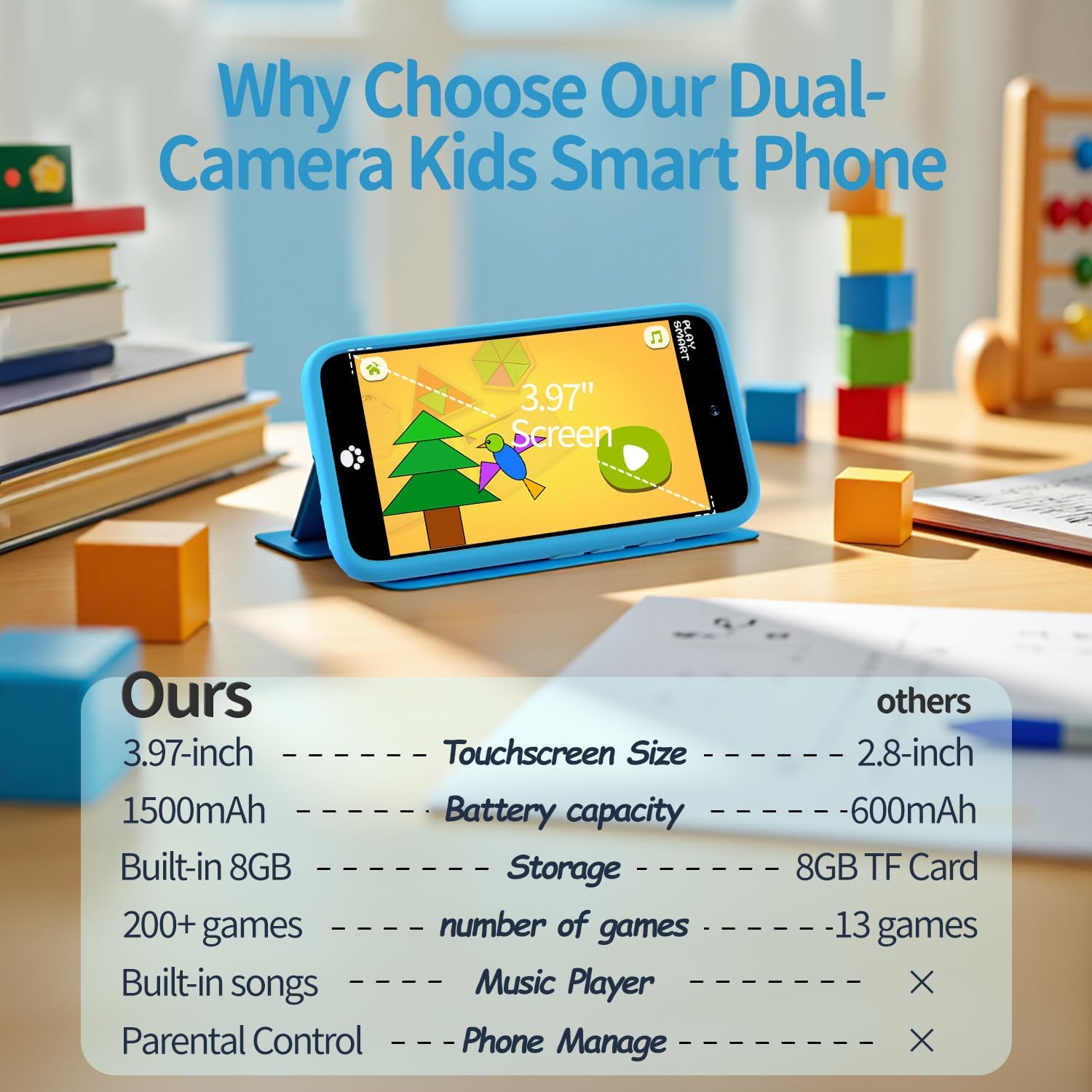
Image 5: A visual comparison detailing the PlaySmart phone's key specifications, including its 3.97-inch touchscreen, 1500mAh battery, and 8GB internal storage.
3.5. Additional Features
The PlaySmart phone also includes features like bedtime stories and sleeping white noise, designed to assist children in winding down and falling asleep.

Image 6: A child engaging with the PlaySmart phone, illustrating its bedtime stories and sleeping white noise features for relaxation.
4. Setup
4.1. Charging the Device
Before first use, fully charge the PlaySmart phone using the provided USB-C charging cable. Connect the cable to the device's charging port and a compatible USB power adapter (not included).
4.2. Power On/Off
To power on the device, press and hold the power button located on the side until the screen illuminates. To power off, press and hold the power button again and follow the on-screen prompts.
4.3. Initial Setup and Profile Creation
Upon first power-on, you may be guided through an initial setup process. This includes setting the date and time, and creating a user profile for your child. Parental controls can be configured during or after this step.
5. Operating Instructions
5.1. Navigation
The PlaySmart phone features a responsive touchscreen for navigation. Swipe left or right to browse through app pages. Tap on an icon to launch an application. The home button (paw print icon) at the bottom of the screen will always return you to the main menu.
5.2. Using Applications
Explore the various pre-loaded applications by tapping their icons. Each app is designed for intuitive use by young children. For specific app instructions, refer to the in-app guides or the general user manual.
6. Media Integration
6.1. Camera and Gallery
Access the 'Camera' app to take photos and record videos. Use the on-screen controls to switch between front and rear cameras, apply fun stickers, and frames. Captured media is stored in the 'Gallery' app.
6.2. Music and Video Player
The 'Music' app allows playback of built-in songs. The 'Video' app is for viewing pre-loaded or transferred video content. Ensure the volume is set to a safe level for your child's hearing.
Video 1: An official product video demonstrating the MOMILLA Kids Toys Smart Phone's features, including its dual camera and various applications.
7. Parental Control Settings
To access parental control settings, navigate to the dedicated 'Parental Control' section, typically secured by a password. Here you can:
- Set Time Limits: Configure daily or weekly usage limits for the device.
- Manage Applications: Select which apps your child can access.
- View Statistics: Monitor your child's activity and usage patterns.
- Create User Accounts: Set up individual profiles for multiple children.
8. Maintenance
8.1. Cleaning
Clean the device with a soft, dry cloth. Avoid using harsh chemicals or abrasive materials. The silicone case can be removed for separate cleaning if necessary.
8.2. Storage
Store the PlaySmart phone in a cool, dry place away from direct sunlight and extreme temperatures when not in use. Ensure it is fully charged before long-term storage.
9. Troubleshooting
- Device not turning on: Ensure the battery is charged. Connect to the charger and wait a few minutes before attempting to power on again.
- Screen unresponsive: Try restarting the device by holding down the power button.
- Apps not loading: Ensure sufficient storage space. Restarting the device may also resolve minor software glitches.
- Parental control issues: Double-check your password and settings. If forgotten, refer to the full user manual for reset procedures.
10. Specifications
| Feature | Detail |
|---|---|
| Product Dimensions | 5.67 x 4.8 x 0.75 inches |
| Item Weight | 6.4 ounces |
| Item Model Number | PlaySmart |
| Manufacturer Recommended Age | 36 months - 12 years |
| Manufacturer | MOMILLA |
11. Safety Information
- Age Appropriateness: Suitable for children over 3 years old.
- Choking Hazard: Contains small parts not suitable for children under 3 years. Adult supervision is recommended.
- Battery Safety: Do not attempt to replace the battery. Use only the provided charging cable.
- Eye Safety: Avoid prolonged exposure to the screen to prevent visual impairment.
12. Warranty and Support
For warranty information, technical support, or any product-related inquiries, please refer to the contact details provided in the original product packaging or visit the official MOMILLA website.