
1. Product Overview
This manual provides instructions for the SIXWIN Android 13 Car Stereo, designed for Ford Transit 350 Cargo Vans manufactured between 2018 and 2024. This unit features a 9-inch touch screen with Android 13 operating system, 4GB RAM, and 64GB internal storage. Key functionalities include wireless CarPlay, Android Auto, Bluetooth 5.0, GPS navigation, Wi-Fi connectivity, network radio, weather forecast display, and support for a backup camera.

Image 1.1: SIXWIN Android 13 Car Stereo main display.
2. What's in the Box
Verify that all components listed below are included in your package:
- 1 x Car Stereo
- 1 x Power Cable
- 1 x GPS Antenna
- 1 x Rear Camera Input Cable
- 1 x RCA Cable
- 2 x USB Cables
- 2 x Mounting Brackets
- 1 x Backup Camera
- 1 x Microphone
- 1 x Radio Housing
- 1 x Extended Line
- 1 x Instruction Manual
- 4 x Screws

Image 2.1: Contents of the package and unit dimensions.
3. Installation Guide
3.1 Compatibility Check
This car stereo is specifically designed for Ford Transit 350 Cargo Vans from 2018 to 2024. Ensure your vehicle's central control panel matches the compatible configuration (Option A) as shown in the image below. If your vehicle has Option B, please contact customer support for alternative recommendations.

Image 3.1: Vehicle dashboard compatibility check.
3.2 Wiring Connections
Follow the wiring diagram carefully. Connect the power cable, RCA input/output, USB cables, GPS antenna, and radio antenna to their respective ports on the back of the unit. The reversing camera input cable must be connected even if a reversing camera is not immediately used, to ensure proper Bluetooth and Wi-Fi functionality.
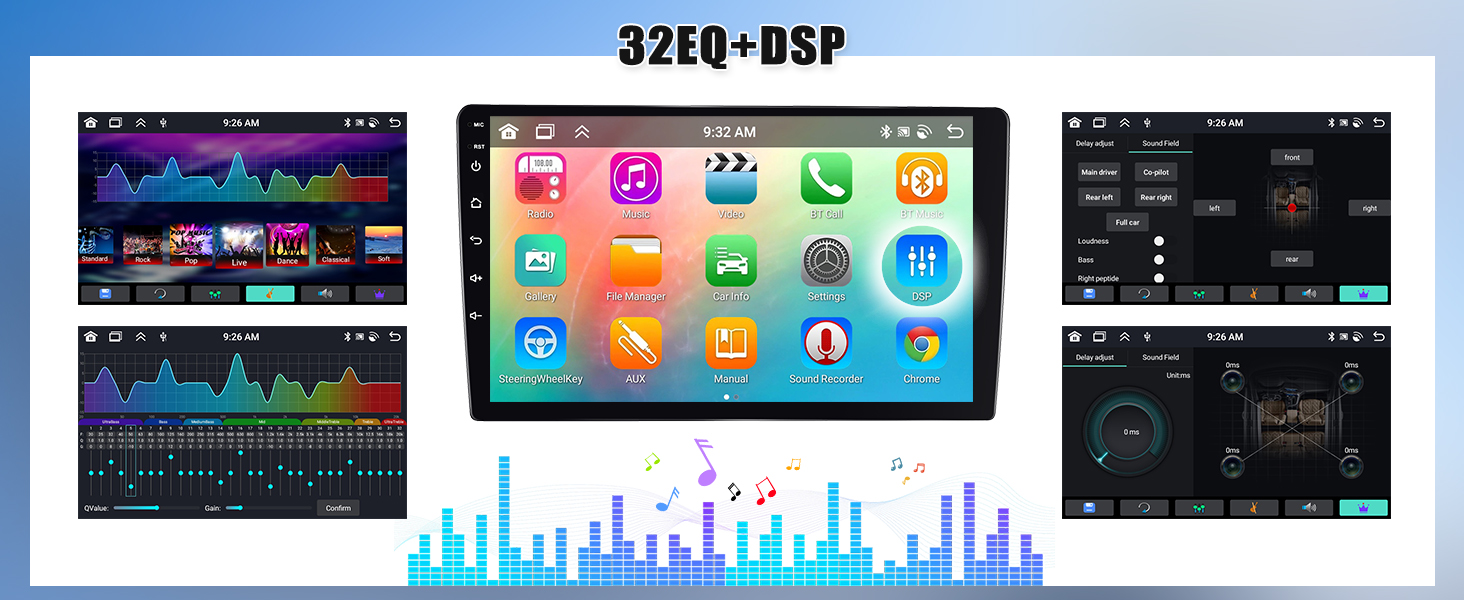
Image 3.2: Product display with labeled ports for connections.
3.3 Backup Camera Wiring
To connect the AHD backup camera:
- Connect the Red Cable (1) to the positive pole of the car's reversing light cable.
- Connect the Black Cable (2) to the negative pole of the car's reversing light cable.
- The other two red extension cables (3) and (4) do not require connection.
- The white plug from the camera input cable must be connected to the main device.
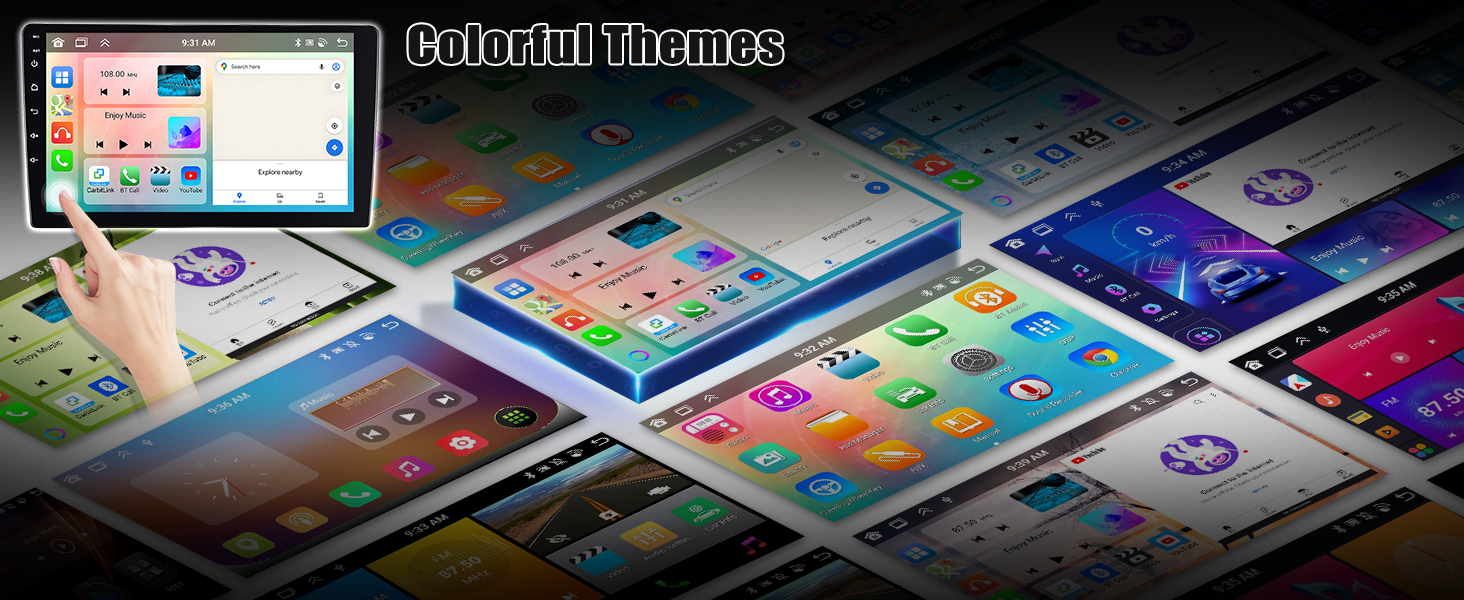
Image 3.3: Backup camera and CANbus connection diagram.
4. Operating Instructions
4.1 Wireless CarPlay and Android Auto
The unit supports both wireless and wired CarPlay and Android Auto. Connect your smartphone to the stereo to access navigation, phone contacts, messages, music, and more. Voice control via Siri or Google Assistant is available. Note: Android Auto does not support Samsung phones.

Image 4.1: CarPlay, Android Auto, and 59UI interface examples.
4.2 Bluetooth 5.0
Pair your mobile device via Bluetooth 5.0 for hands-free calling, Bluetooth music streaming, and phonebook synchronization. An external microphone can be connected for clearer call quality.
4.3 Network Radio and FM/RDS
Access mainstream radio stations from various countries via the network radio feature. The unit also supports traditional FM radio with RDS (Radio Data System) and allows storage of up to 18 radio stations.

Image 4.2: Bluetooth, FM/RDS Radio, and DSP 32EQ interfaces.
4.4 GPS Navigation and Wi-Fi
The car stereo includes built-in GPS navigation, supporting both online and offline maps. Utilize the 'Here We Go' app for offline navigation by downloading necessary map data. Connect to Wi-Fi to access online navigation, browse the internet, and download applications.

Image 4.3: Wi-Fi, GPS Navigation, and Network Radio features.
4.5 Weather Forecast and UI Customization
The unit can display a weekly weather forecast. Personalize your interface with 59 UI desktop themes and 19 wallpaper options.

Image 4.4: Weather forecast, split screen, and wallpaper customization.
4.6 Split Screen Function
The three-split screen function allows you to run multiple applications simultaneously, such as navigation, music, and another app, enhancing multitasking capabilities.
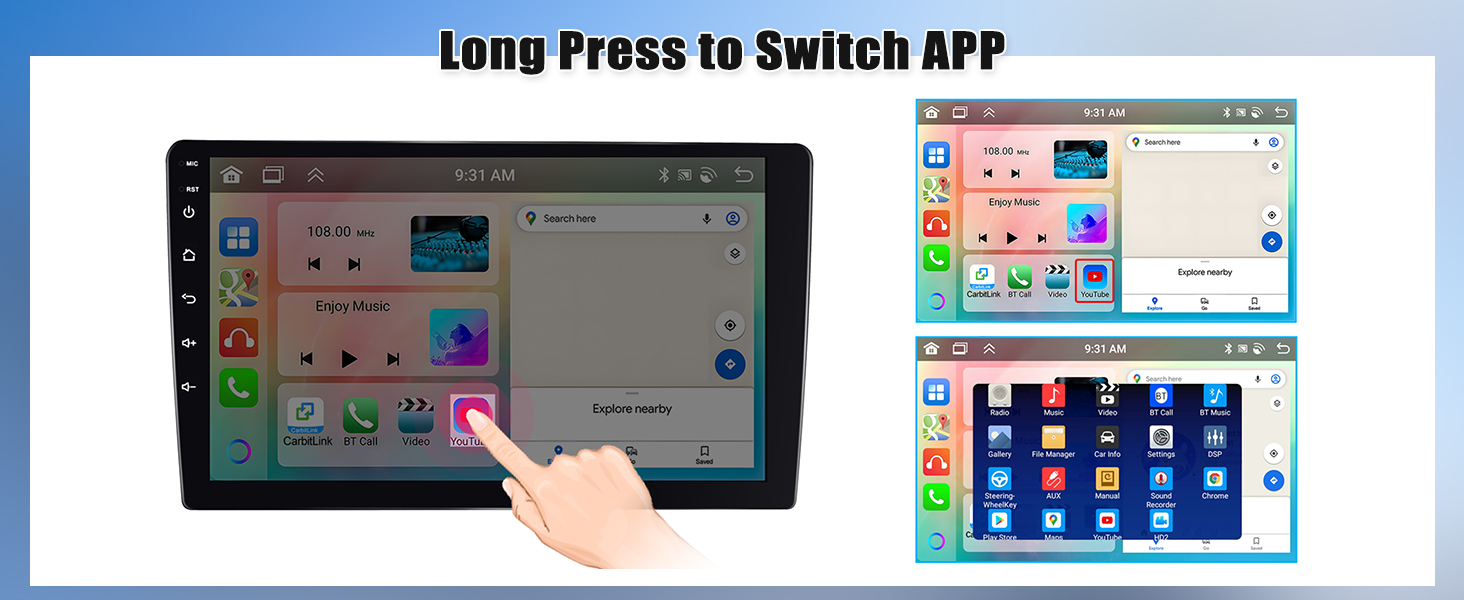
Image 4.5: Three-split screen functionality.
4.7 Mirror Link
Mirror Link functionality allows you to display your smartphone screen on the car stereo. It supports one-way control for iOS devices (via Wi-Fi) and two-way control for Android devices (via Wi-Fi/USB).
4.8 Steering Wheel Control
The unit supports steering wheel controls, allowing you to manage functions like switching songs, adjusting volume, and answering calls without taking your hands off the wheel. This enhances driving safety and convenience.
4.9 Backup Camera Display
When reversing your vehicle, the connected AHD backup camera automatically displays the rear view on the stereo screen, assisting with safer parking and maneuvering.

Image 4.6: Mirror Link, Steering Wheel Control, and Backup Camera features.
4.10 Voice Assistant
Utilize the voice assistant feature for hands-free operation, including navigation commands, music playback, and calling contacts.
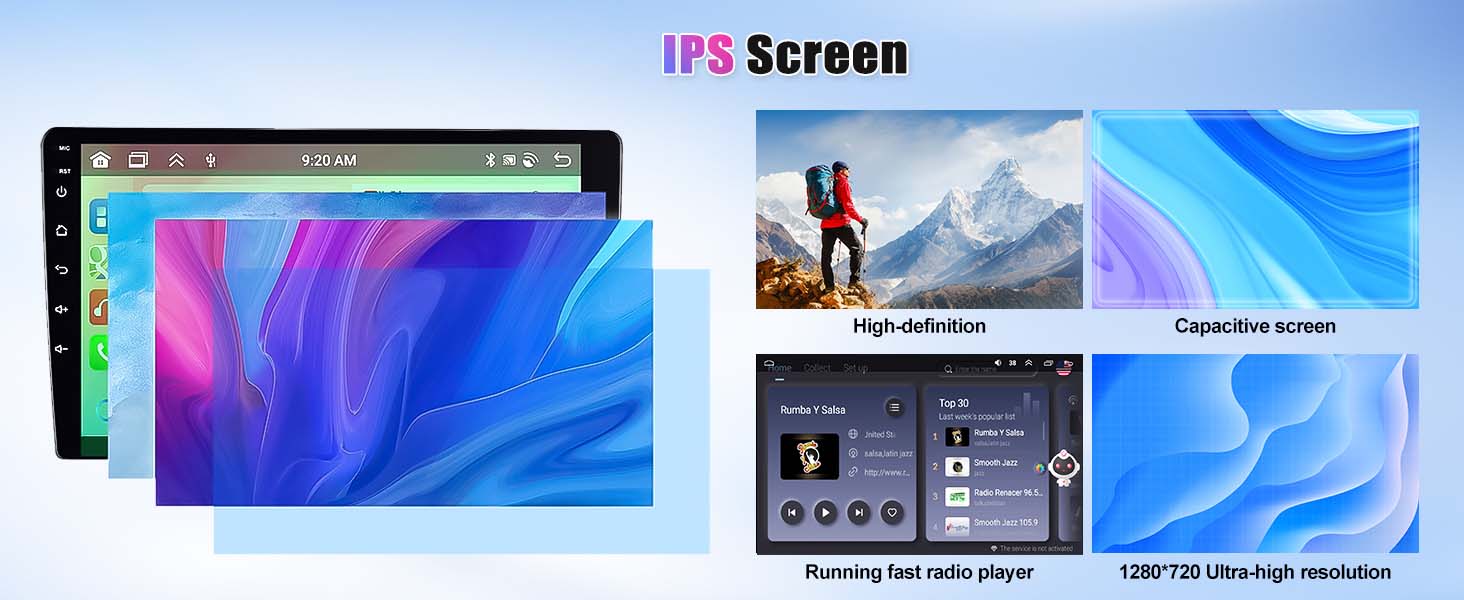
Image 4.7: Voice assistant functionality.
5. Specifications
| Item Weight | 3.29 pounds |
| Product Dimensions | 1 x 1 x 1 inches |
| Item Model Number | A7246A3454A4MI2 |
| Display Size | 9 Inch (10.1 Inches listed in some specifications, refer to product for exact size) |
| Operating System | Android 13 |
| Memory/Storage | 4G RAM + 64G ROM |
| Bluetooth Version | 5.0 |
| Special Features | Bluetooth, GPS Navigation, WiFi, Rear View Camera Input, Touchscreen, Wireless CarPlay and Android Auto |
| Connectivity Technology | Wireless |
| Audio Output Mode | Stereo |
6. Maintenance
To ensure the longevity and optimal performance of your car stereo, follow these general maintenance guidelines:
- Cleaning: Use a soft, dry cloth to clean the screen and exterior. Avoid abrasive cleaners or solvents that could damage the display or finish.
- Temperature: Avoid exposing the unit to extreme temperatures, both hot and cold, for extended periods.
- Software Updates: Periodically check for and install any available software updates to ensure optimal performance and access to new features.
- Power: Ensure the vehicle's electrical system is stable to prevent power surges that could harm the unit.
7. Troubleshooting
If you encounter issues with your SIXWIN car stereo, consider the following basic troubleshooting steps:
- No Power: Check all power connections and the vehicle's fuse box. Ensure the ignition is on.
- No Sound: Verify speaker connections, volume settings, and audio source selection.
- Bluetooth Connection Issues: Ensure Bluetooth is enabled on both the stereo and your phone. Try unpairing and re-pairing the devices.
- GPS Signal Loss: Ensure the GPS antenna is properly installed and has a clear view of the sky.
- Touchscreen Unresponsive: Try restarting the unit. If the issue persists, a factory reset might be necessary (consult support before performing).
- Backup Camera Not Displaying: Check the camera's power and video signal connections. Ensure the reversing camera input cable is correctly connected to the main unit.
For more complex issues or persistent problems, please contact customer support.
8. Warranty and Support
The SIXWIN Android 13 Car Stereo comes with a 1-year warranty from the date of purchase. For warranty claims, technical assistance, or any questions regarding the product, please contact our customer support team.
Online Help and User Manual: sixwin_vip@163.com

Image 8.1: Customer support contact information.