
1. Introduction
This manual provides essential information for setting up, operating, and maintaining your HP 17 Laptop. Please read this guide thoroughly to ensure proper use and to maximize the lifespan of your device. For additional assistance, refer to the support section.

Figure 1.1: Front view of the HP 17 Laptop, highlighting its 17.3-inch display and key software/hardware features.
2. What's in the Box
Verify that all items are present in the packaging:
- HP 17 Laptop
- Power Adapter and Cable
- Quick Start Guide (if included)
Note: Additional accessories may be included depending on your specific purchase configuration.
3. Setup
3.1 Initial Power-On
- Connect the power adapter to the laptop's AC smart pin port and then to a power outlet.
- Open the laptop lid. The laptop may power on automatically, or you may need to press the power button.
- Follow the on-screen instructions to complete the Windows 11 Pro setup. This includes selecting your region, connecting to a Wi-Fi network, and creating a user account.
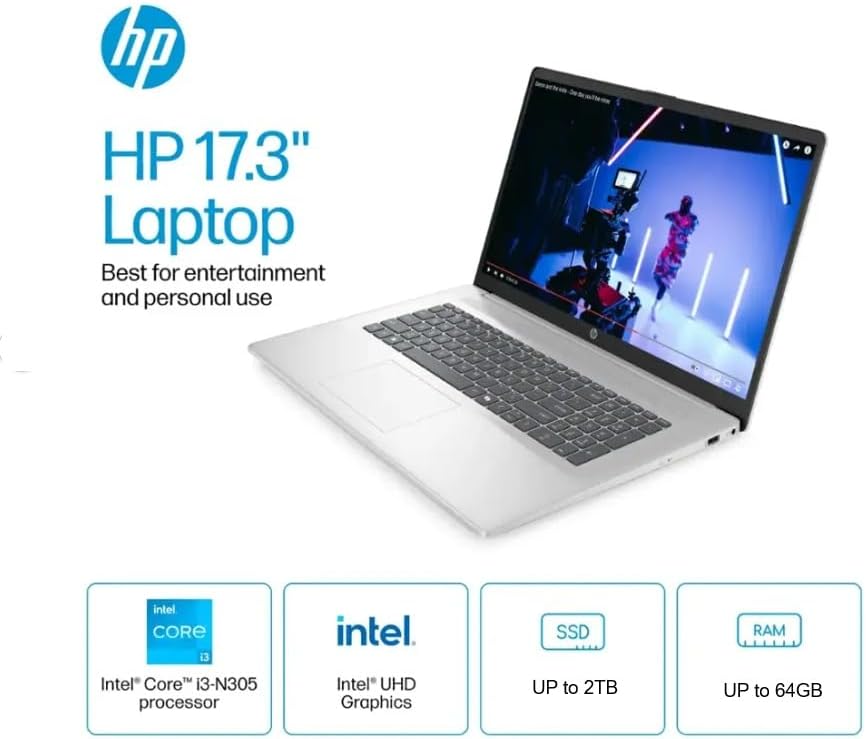
Figure 3.1: Overview of the HP 17.3" Laptop, highlighting its core components like the Intel Core i3-N305 processor, Intel UHD Graphics, and expandable storage/RAM.
3.2 Microsoft Office 2024 Activation
Your laptop comes with Microsoft Office LTSC Professional Plus 2024 pre-installed and activated. No product key is required. To ensure continued functionality:
- Do not install Microsoft Office 365, as this may invalidate the Office 2024 license.
- Launch any Office application (e.g., Word, Excel) to confirm activation.
4. Operating Your Laptop
4.1 Keyboard and Touchpad
The laptop features a full-size, soft grey keyboard with a numeric keypad for efficient data entry. The integrated touchpad supports multi-touch gestures for navigation.

Figure 4.1: Side view of the HP 17 Laptop, illustrating the engineered lift-hinge for improved typing comfort and airflow.
4.2 Ports and Connectivity
Your HP 17 Laptop is equipped with various ports for connecting external devices:
- USB Type-A: For connecting standard USB devices like mice, keyboards, or external drives.
- USB Type-C: A versatile port for data transfer and connecting compatible devices.
- HDMI: For connecting to external displays or projectors.
- Headphone/Microphone Combo: For audio input and output.
- AC Smart Pin: For connecting the power adapter.

Figure 4.2: Detailed view of the laptop's side ports, including USB Type-A, USB Type-C, HDMI, and the headphone/microphone combo jack.
4.3 Wireless Communication
The laptop supports Wi-Fi 6 for high-speed internet access and Bluetooth for connecting wireless peripherals.
5. Features and Specifications
Below are the technical specifications for your HP 17 Laptop (Model TPN-I139_320M3AV):
| Feature | Specification |
|---|---|
| Processor | Intel Core i3-N305 (8 Cores, up to 3.8 GHz) |
| Operating System | Windows 11 Pro |
| Display | 17.3" HD+ (1600 x 900), Anti-glare, 250 nits |
| Graphics | Intel UHD Graphics |
| RAM | 16GB DDR4 (Configurable up to 64GB) |
| Storage | 256GB PCIe NVMe M.2 SSD (Configurable up to 2TB) |
| Wireless Connectivity | Wi-Fi 6, Bluetooth |
| Ports | 2x USB Type-A, 1x USB Type-C, 1x HDMI 1.4b, 1x Headphone/Microphone Combo, 1x AC Smart Pin |
| Keyboard | Full-size with numeric keypad |
| Dimensions (WxDxH) | 15.78 x 10.15 x 0.78 inches |
| Weight | 4.6 pounds (approx.) |
| Color | Silver |
| Battery | 1 Lithium Ion battery (included) |

Figure 5.1: The HP 17 Laptop demonstrating its multitasking capabilities with an Intel Core i3 processor and Wi-Fi 6 connectivity.

Figure 5.2: The HP 17 Laptop designed for user comfort, featuring HP Fast Charge and a spacious click pad.
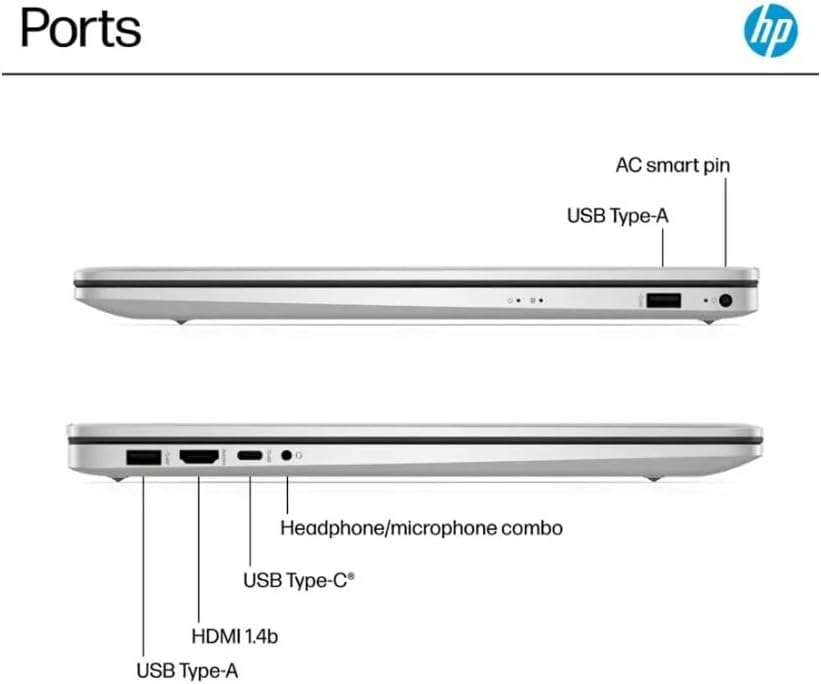
Figure 5.3: The HP 17 Laptop showcasing the Microsoft Copilot feature, designed to enhance productivity.

Figure 5.4: Physical dimensions and weight of the HP 17 Laptop for portability reference.

Figure 5.5: The HP 17 Laptop's environmental certifications, including EPEAT Gold and ENERGY STAR, and its use of recycled materials.
6. Maintenance
Proper maintenance ensures the longevity and optimal performance of your laptop.
6.1 Cleaning
- Use a soft, lint-free cloth to clean the screen. For stubborn marks, dampen the cloth slightly with water or a screen-cleaning solution.
- Wipe the keyboard and chassis with a soft, dry cloth. Avoid harsh chemicals.
- Periodically use compressed air to clear dust from vents to prevent overheating.
6.2 Battery Care
- Avoid fully discharging the battery frequently.
- Store the laptop in a cool, dry place if not used for extended periods.
- For optimal battery health, keep the battery charge between 20% and 80% when possible.
6.3 Software Updates
Regularly check for and install Windows updates and HP driver updates to ensure system stability and security.
7. Troubleshooting
This section addresses common issues you might encounter.
7.1 Laptop Does Not Power On
- Ensure the power adapter is securely connected to both the laptop and a working power outlet.
- Verify the power outlet is functional by plugging in another device.
- If the battery is completely drained, allow it to charge for at least 30 minutes before attempting to power on again.
7.2 Wi-Fi Connectivity Issues
- Check if Wi-Fi is enabled in Windows settings.
- Restart your router and modem.
- Ensure you are within range of your Wi-Fi network.
- Update your Wi-Fi drivers through Windows Update or HP Support Assistant.
7.3 Slow Performance
- Close unnecessary applications running in the background.
- Check for and install any pending Windows updates.
- Run a disk cleanup and defragmentation (for HDD, not necessary for SSD).
- Scan for malware or viruses.
- Ensure adequate ventilation to prevent overheating.
8. Warranty and Support
Your HP 17 Laptop is covered by a standard manufacturer's warranty. For detailed warranty terms and conditions, please refer to the documentation included with your product or visit the official HP support website.
For technical support, driver downloads, and service information, please visit the HP Support Website.
When contacting support, have your laptop's model number (TPN-I139_320M3AV) and serial number ready.