Introduction
Thank you for choosing the Generic H155-383 Dual-Band Wi-Fi 5G Router. This device is designed to provide high-speed internet connectivity for your home, gaming, or small office environment. It supports all SIM cards, offering versatile network access, and features Quality of Service (QoS) to prioritize network traffic. This manual will guide you through the setup, operation, maintenance, and troubleshooting of your router.
Package Contents
Please verify that all items are present in your package:
- Generic H155-383 Dual-Band Wi-Fi 5G Router
- Power Adapter (Charger)
- Ethernet Cable
- Quick Start Guide (if included)
Setup
Follow these steps to set up your Generic H155-383 router:
1. Insert SIM Card
Locate the SIM card slot on the router. Gently insert your activated SIM card into the slot until it clicks into place. Ensure the SIM card is inserted in the correct orientation as indicated on the device.
2. Connect Power
Connect the provided power adapter to the router's power port and then plug it into a standard electrical outlet. The router will power on automatically.
3. Initial Connection
You can connect to the router via Wi-Fi or Ethernet cable.
- Wi-Fi Connection: On your computer or mobile device, search for available Wi-Fi networks. Select the network name (SSID) found on the label at the bottom of your router. Enter the Wi-Fi password (Key) provided on the same label.
- Ethernet Connection: Connect one end of the Ethernet cable to one of the LAN ports on the back of the router and the other end to your computer's Ethernet port.

Figure 1: Rear view of the H155-383 router, illustrating the power input, two Ethernet ports, and the SIM card slot. This is where you connect the power adapter and Ethernet cable, and insert your SIM card.
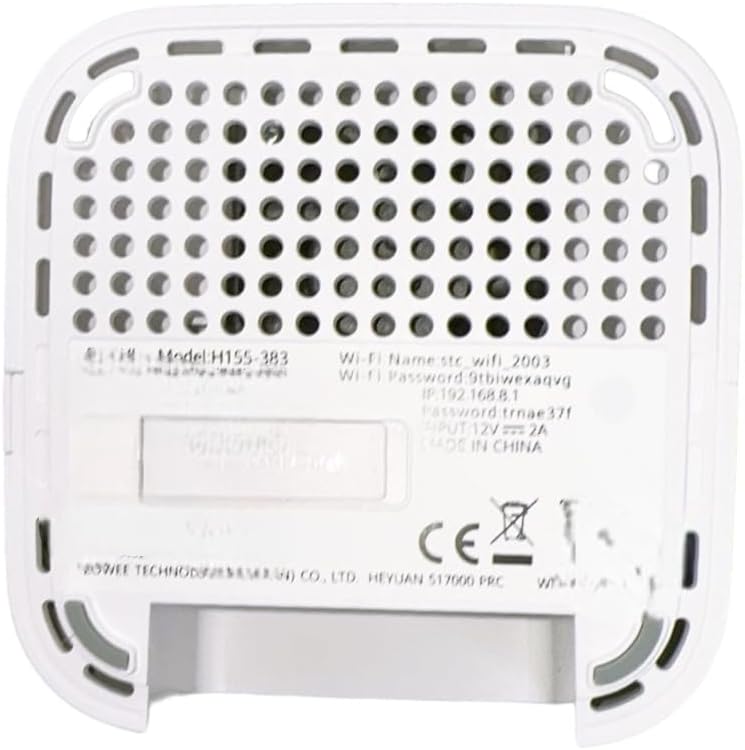
Figure 2: The bottom label of the H155-383 router, displaying essential information such as the model number, default Wi-Fi network name (SSID), initial Wi-Fi password, and the router's default IP address for web interface access.
4. Access Web Interface
Open a web browser (e.g., Chrome, Firefox) and type the default IP address (e.g., 192.168.8.1, as shown on the bottom label) into the address bar and press Enter. You will be prompted to enter a username and password. Refer to the bottom label or the Quick Start Guide for default login credentials.
Operating Instructions
Connecting Devices
Once the router is set up and connected to the internet, you can connect your devices:
- Wi-Fi: On your wireless devices (smartphones, tablets, laptops), select your router's Wi-Fi network name (SSID) from the list of available networks and enter the password.
- Ethernet: For wired connections, plug an Ethernet cable from your device into one of the available LAN ports on the router.
Managing Wi-Fi Settings
It is recommended to change the default Wi-Fi network name (SSID) and password for security reasons. Access the router's web interface (as described in the Setup section) and navigate to the Wi-Fi settings. Here you can:
- Change the Wi-Fi network name (SSID).
- Set a strong, unique Wi-Fi password.
- Configure dual-band settings (2.4GHz and 5GHz networks).
Quality of Service (QoS)
The H155-383 router features QoS, allowing you to prioritize certain types of network traffic or specific devices. This is particularly useful for applications like online gaming or video streaming, ensuring a smoother experience by allocating more bandwidth to them. Consult the router's web interface for QoS configuration options.
Maintenance
To ensure optimal performance and longevity of your router:
- Firmware Updates: Regularly check the manufacturer's website for firmware updates. Updating the firmware can improve performance, add new features, and enhance security.
- Cleaning: Keep the router in a clean, dust-free environment. Use a soft, dry cloth to clean the exterior. Do not use liquid cleaners or aerosols.
- Placement: Place the router in a central location, away from obstructions and other electronic devices that may cause interference, to maximize Wi-Fi coverage.
- Factory Reset: If you encounter persistent issues or forget your login credentials, you can perform a factory reset. Locate the reset button (often a small pinhole) on the router, press and hold it for about 10 seconds with a paperclip until the lights flash. Warning: A factory reset will erase all custom settings and restore the router to its default configuration.
Troubleshooting
Here are solutions to common issues you might encounter:
- No Internet Connection:
- Check if the SIM card is properly inserted and activated.
- Ensure the router is powered on and all indicator lights are functioning correctly.
- Restart the router by unplugging it from the power source for 30 seconds and then plugging it back in.
- Verify your internet service provider (ISP) settings in the router's web interface.
- Slow Wi-Fi Speed:
- Ensure the router is placed in an open area, away from obstacles and interference.
- Check if too many devices are connected to the network, potentially saturating bandwidth.
- Utilize the QoS feature to prioritize critical devices or applications.
- Try connecting to the 5GHz band if your device supports it, as it generally offers faster speeds with less interference.
- Cannot Access Router Web Interface:
- Ensure your device is connected to the router's network (Wi-Fi or Ethernet).
- Verify that you are typing the correct IP address (e.g., 192.168.8.1) into the browser.
- Clear your browser's cache and cookies, or try a different browser.
- If you forgot the login credentials, perform a factory reset (see Maintenance section).
Specifications
| Feature | Description |
|---|---|
| Brand | Generic |
| Model Name | H155-383 |
| Special Feature | Quality of Service (QoS) |
| Frequency Band Class | Dual-Band (2.4GHz & 5GHz) |
| Wireless Communication Standard | 802.11ac (Wi-Fi 5) |
| Compatible Devices | Router |
| Recommended Uses | Home, Gaming, Small Office |
| Included Components | Charger, Ethernet Cable |
| Connectivity Technology | 5G, Ethernet, Wi-Fi |
| Color | White |
| Operating System | RouterOS |
| Number of Ports | 2 (Ethernet) |
| Wi-Fi Generation | Wi-Fi 5 |
| Modem Compatibility | Yes |
| Communication Protocol | Wi-Fi, 5G, Ethernet |
| Frequency | 5 GHz |
| Item Weight | 250 grams |
| Manufacturer | China |
| UPC | 724129262025 |
| ASIN | B0F92JZ57N |
Warranty and Support
Warranty Information
This Generic H155-383 Dual-Band Wi-Fi 5G Router comes with a 1-year limited warranty from the date of purchase. This warranty covers manufacturing defects and workmanship under normal use. It does not cover damage caused by misuse, accidents, unauthorized modifications, or external factors.
Please retain your proof of purchase for warranty claims.
Technical Support
For technical assistance, troubleshooting beyond this manual, or warranty inquiries, please refer to the contact information provided by your retailer or the manufacturer's official support channels. You may find additional resources, FAQs, and updated drivers/firmware on the manufacturer's website.


