
1. Introduction
This manual provides essential instructions for the proper installation, operation, maintenance, and troubleshooting of your FANPYY Ricoh GH2220 Printhead. To ensure optimal performance and longevity of the printhead, please read this guide thoroughly before use and retain it for future reference.
2. Safety Information
- Always wear appropriate personal protective equipment (PPE), such as gloves and eye protection, when handling printheads and inks.
- Ensure the printer is powered off and disconnected from the power source before installing or removing the printhead.
- Avoid touching the nozzle plate of the printhead directly to prevent damage or contamination.
- Store printheads in their original packaging in a cool, dry place away from direct sunlight and extreme temperatures.
- Dispose of used printheads and ink cartridges according to local environmental regulations.
3. Product Overview
The FANPYY Ricoh GH2220 Printhead is a high-precision component designed for sublimation and UV flatbed inkjet printers. It features advanced technology for clear and detailed printing results across various applications.
Key Features:
- High Precision Printing: Utilizes advanced thermal sensing for high clarity and fine line reproduction.
- Wide Compatibility: Designed to be compatible with various thermal printer models and adaptable to different paper widths.
- Durable Design: Constructed from wear-resistant materials, offering a lifespan of up to 50KM printing length, with corrosion and high-temperature resistance.
- Fast Response & Energy Saving: Low power design with quick-responding heating elements to improve efficiency and reduce energy consumption.
Printhead Components:
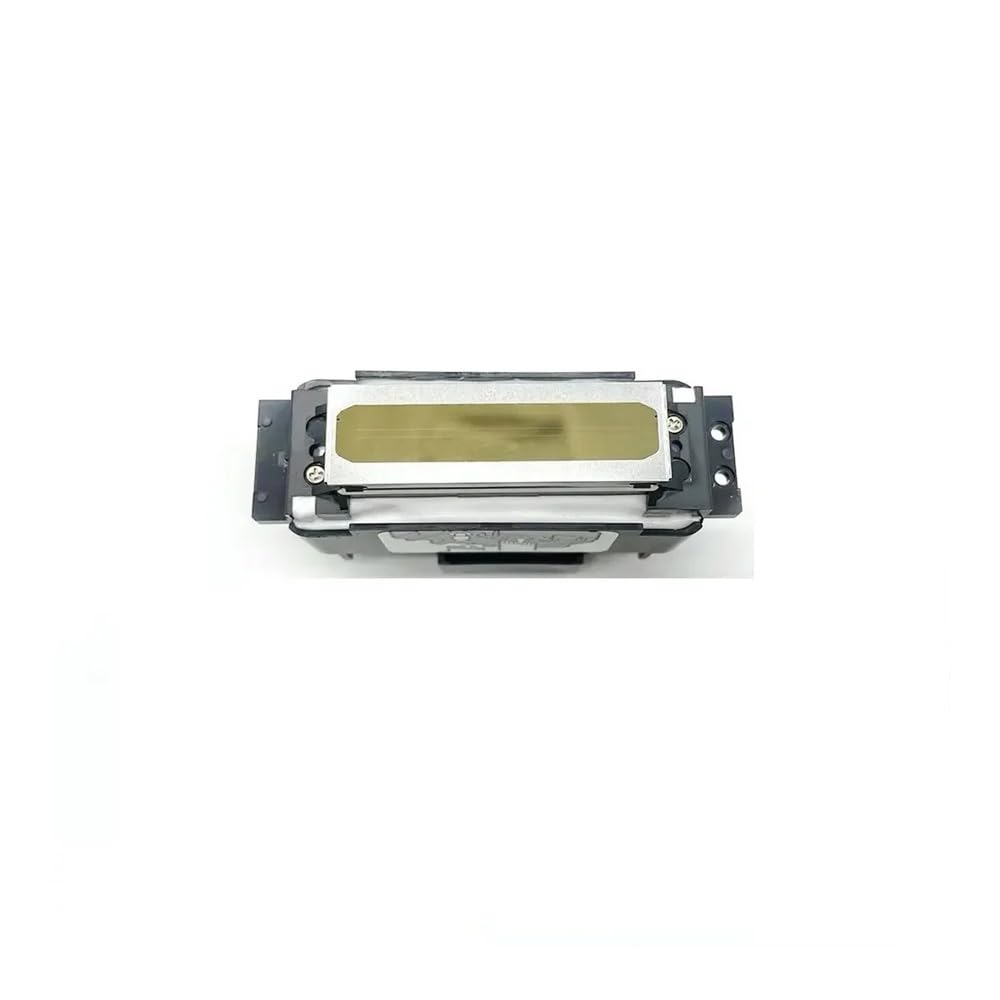
Image 3.1: Front view of the FANPYY Ricoh GH2220 Printhead, showing the ink inlets and an illustrative diagram for proper insertion into a printer carriage.

Image 3.2: The FANPYY Ricoh GH2220 Printhead with its yellow protective cover, which should be removed before installation. This cover protects the delicate nozzle plate during shipping and handling.
4. Setup and Installation
Printhead installation should ideally be performed by a qualified technician or an experienced user familiar with printer hardware. Incorrect installation can lead to damage to the printhead or the printer.
General Installation Steps:
- Power Off Printer: Ensure the printer is completely turned off and unplugged from the power outlet.
- Access Printhead Carriage: Open the printer's access cover to locate the printhead carriage. Refer to your printer's specific manual for instructions on accessing this area.
- Remove Old Printhead (if applicable): Carefully unlatch and remove the old printhead, if replacing one. Be mindful of any residual ink.
- Prepare New Printhead: Remove the new FANPYY Ricoh GH2220 Printhead from its packaging. Carefully remove any protective tapes or covers (e.g., the yellow protective cover shown in Image 3.2) without touching the nozzle plate.
- Insert Printhead: Align the new printhead with the slot in the carriage. Gently push it down until it clicks into place. Ensure it is seated firmly and correctly. The diagram on the printhead (Image 3.1) indicates the correct insertion direction.
- Connect Ink Lines: Attach the ink supply lines to the corresponding inlets on the printhead. Ensure a secure and leak-free connection.
- Close Printer: Close all printer covers and secure them.
- Power On and Initialize: Plug in and power on the printer. The printer may perform an initial setup or calibration cycle. Follow any on-screen prompts.
- Perform Test Print: Run a nozzle check or test print to verify proper installation and ink flow.
5. Operating Guidelines
To maximize the performance and lifespan of your FANPYY Ricoh GH2220 Printhead, adhere to the following operating guidelines:
- Ink Compatibility: Use only high-quality, compatible sublimation or UV inks recommended for Ricoh GH2220 printheads. Using incompatible inks can cause clogging or damage.
- Environmental Conditions: Operate the printer in a stable environment with controlled temperature and humidity as specified by your printer manufacturer.
- Regular Usage: Avoid long periods of inactivity. If the printer is not used for an extended time, perform a nozzle check or print a small image periodically to prevent ink from drying in the nozzles.
- Printer Settings: Ensure your printer's software settings are correctly configured for the type of ink and media being used.
6. Maintenance
Regular maintenance is crucial for maintaining print quality and extending the life of your printhead.
Cleaning Procedures:
- Automatic Cleaning Cycles: Utilize your printer's built-in automatic cleaning functions regularly, especially if print quality degrades or after periods of inactivity.
- Manual Nozzle Cleaning: If automatic cleaning is insufficient, a gentle manual cleaning of the nozzle plate may be required. Use a lint-free swab lightly dampened with a printhead cleaning solution specifically designed for your ink type. Never wipe the nozzle plate vigorously or use abrasive materials.
- Wiper Blade and Capping Station: Regularly inspect and clean the printer's wiper blade and capping station. These components help keep the printhead nozzles clean and prevent drying.
Storage:
- If the printhead needs to be stored for an extended period, ensure it is properly cleaned and sealed in an airtight container to prevent ink from drying.
- Store in a cool, dark place, ideally in its original protective packaging.
7. Troubleshooting
This section addresses common issues you might encounter with your printhead.
| Problem | Possible Cause | Solution |
|---|---|---|
| Poor print quality (streaks, missing lines) | Clogged nozzles, low ink, incorrect printer settings. | Perform nozzle cleaning cycles. Check ink levels. Verify printer settings for media and ink type. |
| Ink leakage | Improperly connected ink lines, damaged printhead. | Ensure all ink lines are securely attached. If leakage persists, the printhead may be damaged and require replacement. |
| Printhead not recognized by printer | Improper installation, faulty printhead, printer firmware issue. | Re-install the printhead, ensuring it is seated correctly. Restart the printer. Update printer firmware if available. Contact support if the issue persists. |
| Colors are incorrect or faded | Wrong ink type, color profile issues, partially clogged nozzles. | Ensure correct ink type is used. Check color management settings in your printing software. Perform nozzle cleaning. |
If you encounter issues not listed here or if the suggested solutions do not resolve the problem, please contact FANPYY customer support.
8. Specifications
Below are the technical specifications for the FANPYY Ricoh GH2220 Printhead:

Image 8.1: Dimensions of the FANPYY Ricoh GH2220 Printhead, showing measurements of 61.8mm length, 23.3mm width, and 40.5mm height.
- Model Number: GH2220
- Printing Type: Sublimation / UV Inkjet
- Ink Colors Supported: Cyan (C), Magenta (M), Yellow (Y), Black (K)
- Voltage Compatibility: 110V, 220V
- Estimated Lifespan: Up to 50KM printing length
- Item Weight: Approximately 3.53 ounces (100 grams)
- Package Dimensions: Approximately 0.39 x 0.39 x 0.39 inches (1 x 1 x 1 cm) - Note: This refers to the shipping package, not the printhead itself. Refer to Image 8.1 for printhead dimensions.
9. Warranty and Support
FANPYY provides a 12-month warranty service for the Ricoh GH2220 Printhead from the date of purchase. This warranty covers manufacturing defects under normal use conditions.
For technical assistance, installation guidance, or to report a warranty claim, please contact FANPYY customer support. Our professional technical team is available to help resolve any installation or usage problems you may encounter.
Please retain your proof of purchase for warranty validation.