
1. Introduction
This manual provides instructions for the installation, operation, and maintenance of the ASVEGE 13.1-inch Digital Gauge Cluster, designed specifically for Ford F150 Raptor models manufactured between 2009 and 2012. This digital instrument panel replaces the original gauge cluster, offering enhanced display capabilities and retaining essential vehicle information.
Product Overview
- Display: 13.1-inch HD QLED screen with 1920*932 resolution, up to 60fps.
- Operating System: Linux-based for stability and long-term performance.
- Compatibility: Designed for Ford F150 Raptor models, years 2009-2012.
- Core Functionality: Retains all original vehicle information and functions.
- Operating Temperature: -40℃ to +80℃.
2. Compatibility and Pre-Installation Check
Ensure your vehicle is a Ford F150 Raptor manufactured between 2009 and 2012. The digital gauge cluster is designed for these specific models. Before installation, it is recommended to verify compatibility by providing your vehicle's year and a picture of the center console to customer support if you have any doubts.
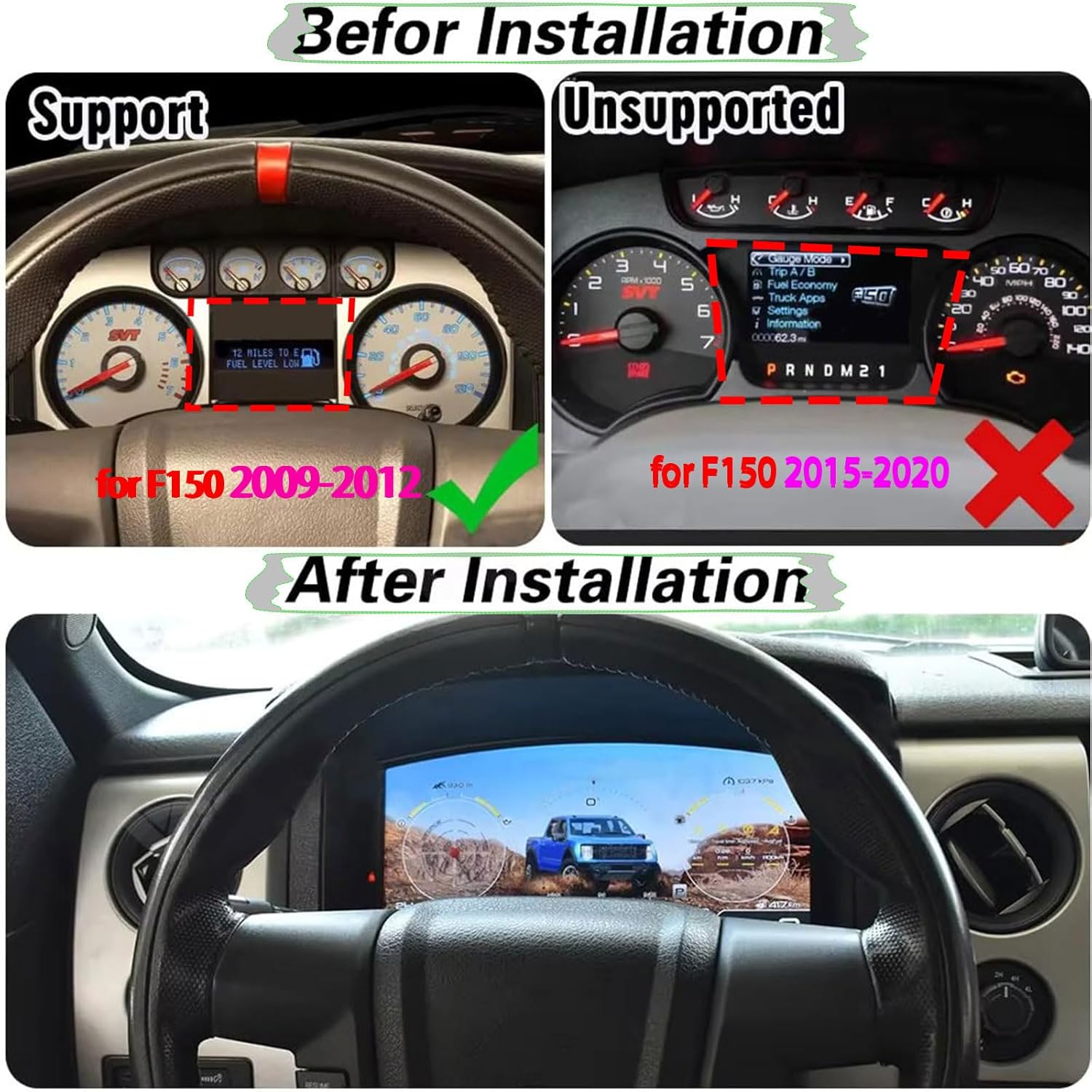
Image 1: Illustrates the difference between supported (F150 2009-2012) and unsupported (F150 2015-2020) dashboard configurations. The supported dashboard shows a traditional gauge cluster, while the unsupported one shows a different layout.
3. Setup and Installation
The ASVEGE Digital Gauge Cluster is designed for non-destructive, plug-and-play installation, requiring no drilling. Professional installation is recommended to ensure proper functionality and to avoid damage to the vehicle or product.
Package Contents
Verify that all components are present in the package before beginning installation.

Image 2: Shows the main digital gauge cluster unit, a GPS antenna, and the necessary wiring harness for installation.
Installation Steps (General Guidance)
- Preparation: Ensure the vehicle's ignition is off and the battery is disconnected to prevent electrical issues.
- Remove Original Cluster: Carefully remove the existing instrument cluster from the dashboard. Refer to your vehicle's service manual for specific removal procedures.
- Connect Wiring: Connect the provided wiring harness to the vehicle's existing connectors and to the new digital gauge cluster. Ensure all connections are secure.
- Install GPS Antenna: Mount the GPS antenna in a location with a clear view of the sky, typically on the dashboard or under the windshield, ensuring it does not obstruct the driver's view.
- Mount New Cluster: Secure the ASVEGE Digital Gauge Cluster into the dashboard opening.
- Reconnect Battery: Reconnect the vehicle's battery.
- Test Functionality: Turn on the ignition and verify that the new digital gauge cluster powers on and displays vehicle information correctly. Test all functions, including steering wheel controls.
Image 3: Depicts the digital gauge cluster successfully installed in a Ford F150 Raptor, showcasing its integrated appearance and digital display.
4. Operating Instructions
The digital gauge cluster integrates seamlessly with your vehicle's systems, providing a range of display options and functionalities.
Key Features
- Vehicle Information Display: Shows speed, RPM, fault lights, indicator lights, ACC status, TMC, fuel level, and radio information.
- Unit Support: Supports original Miles/KM, tire pressure, gas mileage, and power consumption displays.
- Steering Wheel Control: Fully compatible with original steering wheel buttons for navigation and control.
- Fast Startup: Boots in approximately 2.0 seconds, with ignition start speedometer following within 2.5 seconds.

Image 4: Visual representation of the product's main features, including smart metering, full LCD display, multiple modes, four-wheel drive display, fuel consumption monitoring, temperature alerts, and non-destructive installation.
Display Modes and Customization
The cluster offers various display modes and styles to suit driver preferences and driving conditions.
- Terrain Modes: Select from Snow, Desert, and Climbing modes to optimize display information for different driving environments.
- Display Styles: Choose from three distinct visual styles for the instrument panel layout.
- Real-time Fuel Consumption: Dynamic display of fuel consumption for efficient driving.

Image 5: Shows the digital gauge cluster interface with a real-time fuel consumption display, including graphical representations of fuel usage.

Image 6: Illustrates the three available terrain modes (Snow, Desert, Climbing) on the digital gauge cluster, each with a distinct visual theme.

Image 7: Presents three distinct interface styles or themes that can be selected for the digital gauge cluster display.
5. Maintenance
To ensure the longevity and optimal performance of your digital gauge cluster, follow these maintenance guidelines:
- Cleaning: Use a soft, lint-free cloth to gently wipe the screen. For stubborn smudges, slightly dampen the cloth with water or a screen-safe cleaner. Avoid abrasive materials or harsh chemicals.
- Software Updates: The device supports OTA (Over-The-Air) updates. Periodically check for and install available software updates to ensure the system is running the latest features and improvements.
- Environmental Conditions: Operate the unit within the specified temperature range of -40℃ to +80℃. Avoid exposing the unit to extreme temperatures or direct sunlight for prolonged periods when the vehicle is parked.
6. Troubleshooting
If you encounter any issues with your ASVEGE Digital Gauge Cluster, refer to the following basic troubleshooting steps. For complex problems, contact customer support.
- No Power/Display:
- Check all wiring connections to ensure they are secure.
- Verify the vehicle's battery is properly connected and charged.
- Ensure the vehicle's ignition is on.
- Incorrect Information Displayed:
- Confirm the unit is correctly configured for your specific vehicle model year.
- Perform a system reset if available in the settings menu.
- Steering Wheel Controls Not Responding:
- Ensure all wiring related to steering wheel controls is correctly connected.
- Check the unit's settings for steering wheel control configuration options.
If these steps do not resolve the issue, please contact ASVEGE customer support for assistance.
7. Specifications
| Feature | Detail |
|---|---|
| Brand | ASVEGE |
| Model Compatibility | Ford F150 Raptor (2009-2012) |
| Display Size | 13.1 Inches |
| Display Resolution | 1920*932 HD QLED, max 60fps |
| Operating System | Linux |
| Memory | 1+4GB |
| Material | Plastic |
| Item Weight | 3.65 pounds |
| Package Dimensions | 18.31 x 8.66 x 6.69 inches |
| Working Temperature | -40℃ to +80℃ |
| Startup Time | ~2.0 seconds (ignition start speedometer < 2.5s) |
8. Warranty Information
The ASVEGE Digital Gauge Cluster comes with a one-year warranty from the date of purchase. This warranty covers manufacturing defects and malfunctions under normal use. Please retain your proof of purchase for warranty claims. For warranty service, contact ASVEGE customer support.
9. Customer Support
For any questions regarding installation, operation, troubleshooting, or warranty, please contact ASVEGE customer support. We offer online installation and usage services to assist you.
Contact Information:
- Email: asvegeus@gmail.com
- Email: asvegeus@outlook.com

Image 8: Depicts a customer service representative, indicating available support for product inquiries and assistance.