
OGMOYT SGT116
OGMOYT All-in-One POS Terminal User Manual
Model: SGT116
1. Introduction
This manual provides comprehensive instructions for the setup, operation, maintenance, and troubleshooting of your OGMOYT SGT116 All-in-One POS Terminal. Please read this manual carefully before using the device to ensure proper functionality and longevity. This terminal is designed for various business environments requiring efficient point-of-sale operations.
2. Product Overview and Components
The OGMOYT SGT116 is an integrated POS system featuring dual displays, a built-in thermal printer, and robust processing capabilities.

Figure 2.1: Front view of the OGMOYT SGT116 All-in-One POS Terminal, showing the main 11.6-inch touchscreen display and the integrated thermal printer.
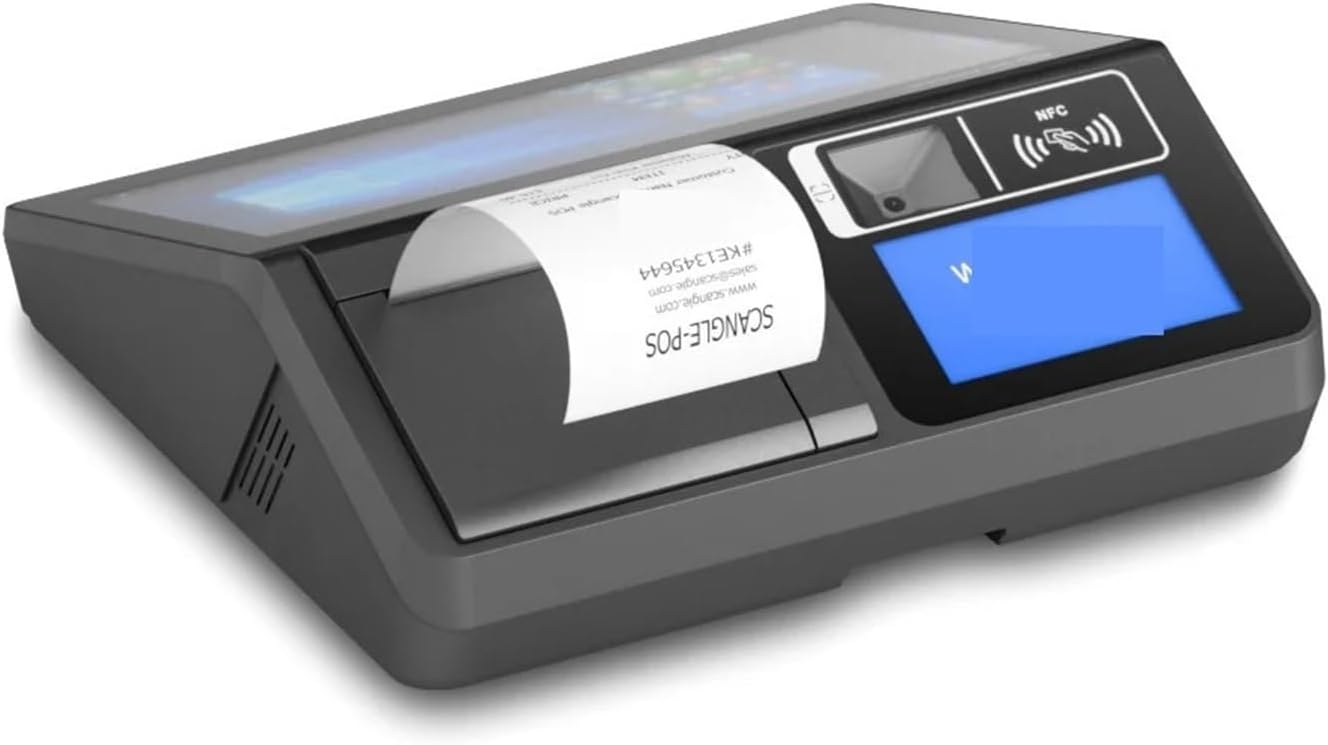
Figure 2.2: Side view of the POS terminal, highlighting the 5.6-inch IPS WVGA customer-facing display, the integrated thermal printer output, and NFC reader area.

Figure 2.3: Close-up view of the 11.6-inch IPS HD main display, demonstrating its clarity and the Windows operating system interface.

Figure 2.4: Detailed view of the 5.6-inch customer-facing display, capable of showing transaction amounts, QR codes for payment, and advertisements.
3. Setup
- Unpacking: Carefully remove the POS terminal and all accessories from the packaging. Verify that all components listed in the packing list are present.
- Power Connection: Connect the power adapter to the DC input port on the terminal and then plug it into a standard electrical outlet.
- Initial Boot: Press the power button to turn on the device. The system will boot up, typically displaying the Windows 10 Pro operating system. Follow any on-screen prompts for initial setup, such as language selection and network configuration.
- Network Setup: Connect the terminal to your network via Ethernet cable or Wi-Fi. For Wi-Fi, navigate to network settings within the operating system and select your desired network.
- Peripheral Connection (Optional): Connect any external peripherals such as barcode scanners, cash drawers, or external printers to the available USB or serial ports as needed.
4. Operating Instructions
The OGMOYT SGT116 operates on Windows 10 Pro, allowing for flexible software integration.
4.1 Main Display Usage (11.6-inch Touchscreen)
- Touch Navigation: Interact with the operating system and POS software using the 10-point capacitive touchscreen.
- Software Installation: Install your preferred POS software application compatible with Windows 10 Pro.
- System Settings: Access Windows settings for system configuration, user management, and security.
4.2 Customer Display Usage (5.6-inch WVGA Screen)
- Transaction Display: The customer display automatically shows transaction details, including item prices, totals, and change due, as configured by your POS software.
- Payment QR Codes: For supported payment methods, QR codes can be displayed for customer scanning.
- Advertisement: The screen can be configured to display promotional content or welcome messages when not actively processing a transaction.
4.3 Integrated Thermal Printer
- Paper Loading: Open the printer cover, insert a new thermal paper roll (typically 80mm width), ensuring the paper feeds correctly from the bottom. Close the cover securely.
- Printing Receipts: Receipts are automatically printed upon completion of a transaction, as dictated by your POS software settings.
5. Maintenance
- Cleaning: Regularly clean the touchscreen and exterior surfaces with a soft, lint-free cloth slightly dampened with a non-abrasive cleaner. Avoid spraying liquids directly onto the device.
- Software Updates: Periodically check for and install operating system and POS software updates to ensure optimal performance and security.
- Data Backup: Regularly back up important transaction data and system configurations to an external storage device or cloud service.
- Printer Maintenance: Clean the thermal print head periodically with an alcohol swab to prevent print quality issues.
6. Troubleshooting
| Issue | Possible Cause | Solution |
|---|---|---|
| Terminal does not power on | Power cable loose; Power adapter faulty; Power outlet issue | Check power cable connection; Try a different power outlet; Contact support if adapter is suspected faulty. |
| Touchscreen unresponsive | Software glitch; Screen calibration issue; Hardware fault | Restart the terminal; Recalibrate touchscreen via OS settings; Contact support if issue persists. |
| Printer not printing | No paper; Paper jammed; Driver issue; Printer head dirty | Load paper correctly; Clear jam; Reinstall printer drivers; Clean print head. |
| Customer display blank | Cable loose; Software not configured to output to display | Check display cable connection; Verify POS software settings for customer display. |
7. Specifications
- Main Display: 11.6 inch IPS HD display (1366*768 pixel or 1920*1080 pixel), 10-Dot Capacitive Touchscreen
- Customer Display: 5.6 inch IPS WVGA screen
- Processor: High-performing Quad-core processor
- Memory: Up to 512GB expandable memory (specific RAM not detailed in provided information)
- Operating System: Windows 10 Pro OS
- Connectivity: (Details not specified, typically includes Ethernet, Wi-Fi, USB ports)
- Integrated Peripherals: Thermal Printer, NFC Reader
- Manufacturer: OGMOYT
- Country of Origin: China
8. Warranty and Support
Specific warranty terms and conditions are not detailed within this manual. Please refer to the product packaging, purchase documentation, or the official OGMOYT website for comprehensive warranty information. For technical support, service, or parts, please contact your vendor or the manufacturer's customer service department. Keep your purchase receipt and product serial number readily available when seeking support.
Ask a question about this manual
Ask about setup, troubleshooting, compatibility, parts, safety, or missing instructions. Manuals+ will review the question and use this page’s manual context to help answer it.