Gloryes A980

Gloryes A980 4-Channel Mirror Dash Cam User Manual

Comprehensive instructions for installation, operation, and maintenance.

Introduction

Thank you for choosing the Gloryes A980 4-Channel Mirror Dash Cam. This device is designed to provide comprehensive surveillance for your vehicle, offering 360-degree recording, advanced safety features, and convenient connectivity. This manual will guide you through the setup, operation, and maintenance of your new dash cam system to ensure optimal performance and longevity.

Gloryes A980 4-Channel Mirror Dash Cam with multiple camera views

Image: The Gloryes A980 4-Channel Mirror Dash Cam displaying multiple camera views, highlighting its comprehensive surveillance capabilities.

The Gloryes A980 features a 12-inch touch screen, four recording channels (front, rear, and two internal cameras), GPS tracking, Wi-Fi connectivity for app control, infrared night vision, and a backup camera function. It also includes essential features like parking mode, G-sensor, and loop recording to protect your vehicle and provide critical evidence when needed.

Package Contents

Please verify that all items listed below are included in your package:

  • Gloryes A980 Mirror Dash Cam Unit
  • Rear Camera
  • GPS Module
  • Car Charger
  • Charging Cable
  • Hardwire Kit (for Parking Mode functionality)
  • 128GB SD Card
  • User Manual (this document)
Components of the Gloryes A980 Mirror Dash Cam package

Image: An overview of the Gloryes A980 Mirror Dash Cam and its included accessories, such as the GPS module, SD card, and USB adapter.

Setup and Installation

Proper installation is crucial for the optimal performance of your dash cam. Follow these steps carefully.

1. Mirror Dash Cam Installation

  1. Attach the main mirror dash cam unit to your vehicle's existing rearview mirror using the provided straps. Ensure it is securely fastened and does not obstruct your view.
  2. Adjust the angle of the front camera lens on the mirror unit to capture the desired view of the road ahead.
Gloryes A980 Mirror Dash Cam mounted on a rearview mirror

Image: The Gloryes A980 Mirror Dash Cam securely strapped over a vehicle's existing rearview mirror, showing its integrated design.

2. Rear Camera Installation

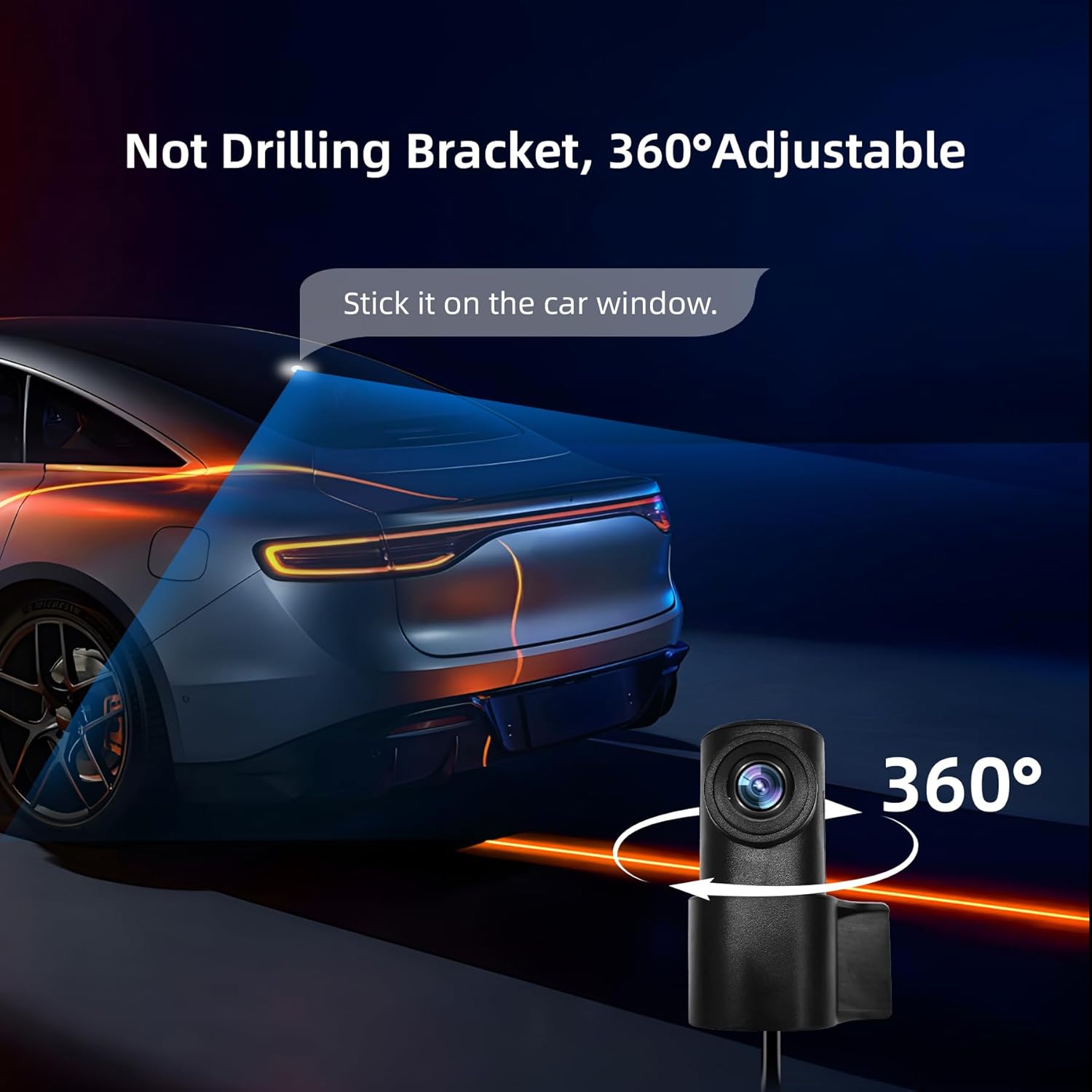
  1. Mount the rear camera on the rear windshield or license plate area. For optimal backup camera functionality, mount it above the license plate.
  2. Route the rear camera cable to the main mirror unit. Ensure the cable is tucked away neatly to avoid interference with vehicle operations.
  3. Connect the rear camera cable to the designated port on the main mirror unit.
  4. If using the backup assist feature, connect the red wire from the rear camera cable to your vehicle's reverse light power wire.
Adjustable 360-degree rear camera for the Gloryes A980

Image: A detailed view of the rear camera, illustrating its 360-degree adjustable bracket for flexible mounting and optimal viewing angles.

3. GPS Module Connection

Connect the external GPS module to the main mirror unit. Position the GPS module on your dashboard or windshield where it has a clear view of the sky for accurate signal reception.

Gloryes A980 GPS module

Image: The compact GPS module included with the Gloryes A980, designed for precise location and speed tracking.

4. Power Connection

  1. Insert the provided 128GB SD card into the dash cam's SD card slot. Ensure it is inserted correctly until it clicks into place.
  2. Connect the car charger to your vehicle's 12V power outlet (cigarette lighter socket) and then to the main mirror unit.
  3. For 24-hour parking mode functionality, install the included hardwire kit according to its separate instructions. This provides continuous power to the dash cam even when the vehicle is off.

Operating Instructions

1. Power On/Off and Basic Recording

  • The dash cam will automatically power on and begin recording when your vehicle's ignition is turned on (if connected via car charger).
  • To manually power on/off, press and hold the power button located on the side of the mirror unit.
  • Recording status is indicated by a flashing red "REC" icon on the screen.

2. 12-inch Touch Screen Interface

The 12-inch touch screen allows for intuitive control and viewing. Swipe gestures and taps are used to navigate menus and switch camera views.

  • Swipe Left/Right: Switch between different camera views (front, rear, inside, multi-view).
  • Tap: Select menu options or confirm settings.
  • Brightness Control: Adjust screen brightness directly from the touch interface.
Gloryes A980 12-inch smart touch screen interface

Image: The 12-inch smart touch screen of the Gloryes A980, demonstrating touch, swipe, and brightness control functionalities for easy navigation.

3. 4-Channel Recording

The A980 records simultaneously from four cameras, providing a comprehensive 360-degree view around and inside your vehicle.

  • Front Camera: Records the road ahead.
  • Rear Camera: Records the view behind the vehicle.
  • Internal Cameras (2): Record the vehicle's interior, useful for ride-sharing drivers or monitoring passengers.
Gloryes A980 4-channel driving recording display

Image: A visual representation of the Gloryes A980's 4-channel recording capability, showing simultaneous views from the front, rear, left, and right internal cameras.

The internal cameras can capture various scenarios, including passenger activity, potential incidents, or simply monitoring children or pets during travel.
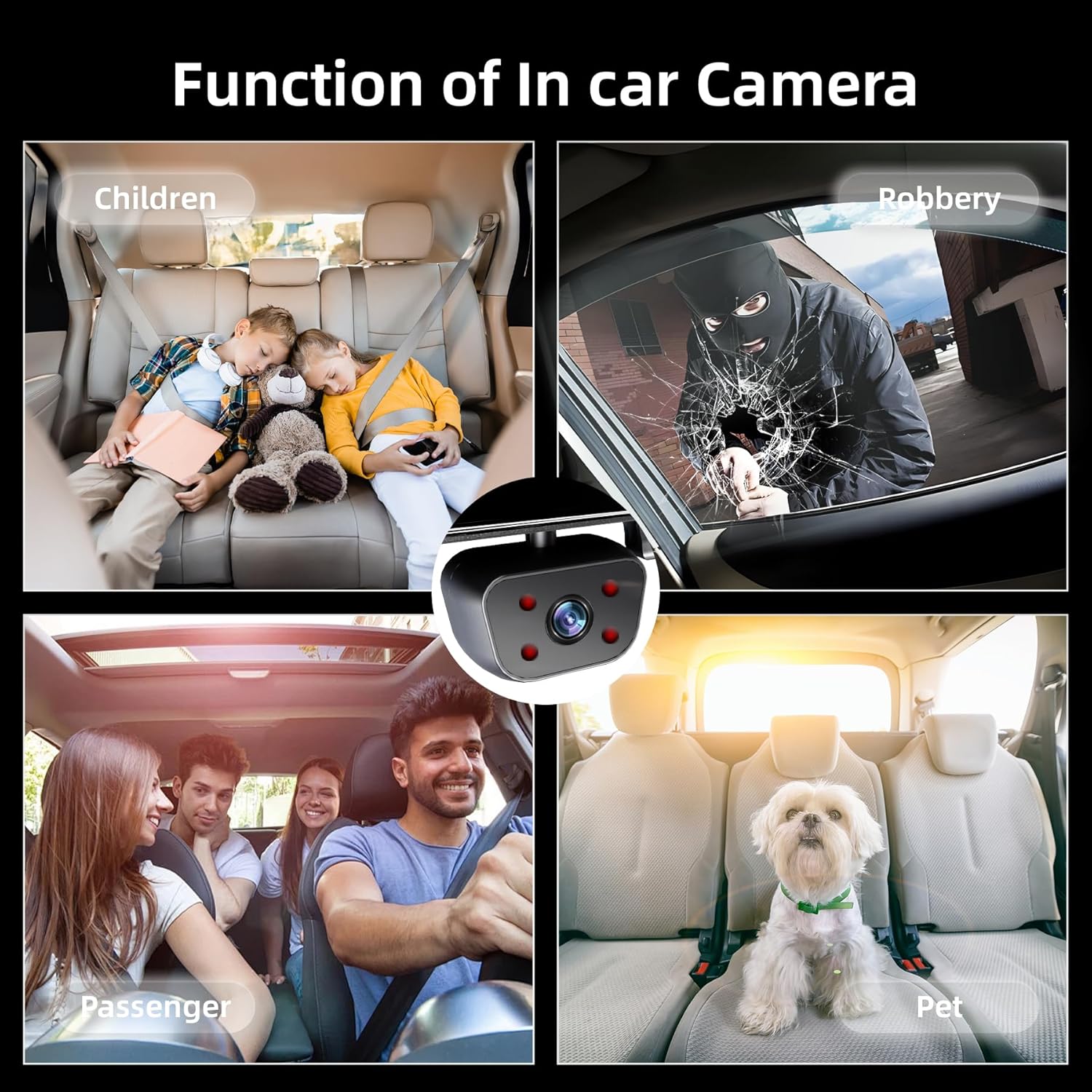
In-car camera functions for Gloryes A980

Image: Examples of in-car camera functions, illustrating its utility for monitoring children, passengers, pets, and as a deterrent against theft.

4. Wi-Fi and App Connectivity

Connect your dash cam to the dedicated mobile application via Wi-Fi for convenient access to recordings and settings.

  1. Download the "Viidure" app from the App Store or Google Play.
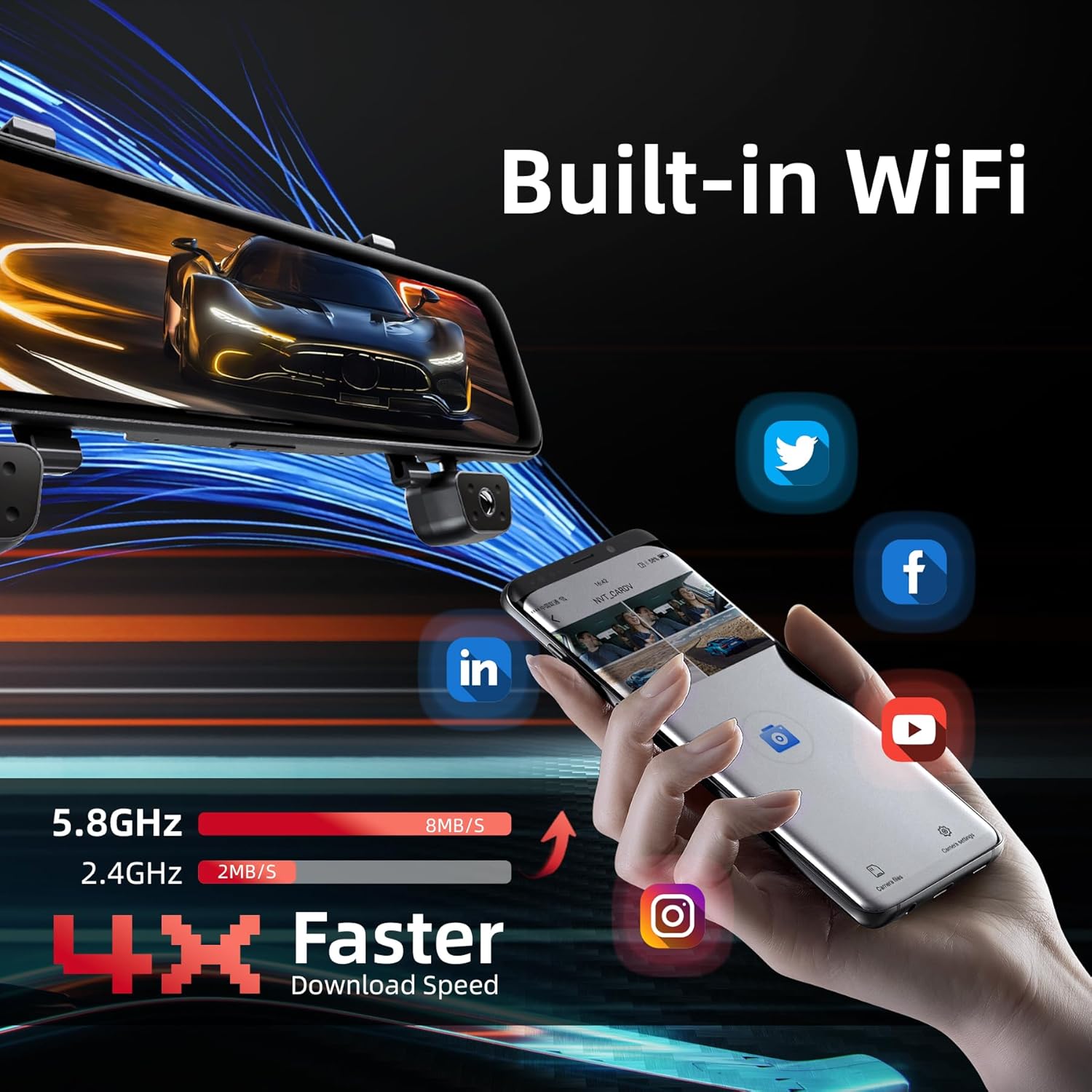
  2. Enable Wi-Fi on your dash cam and connect your smartphone to the dash cam's Wi-Fi network.
  3. Use the app to view live footage, playback recorded videos, download files to your phone, and adjust settings. The 5.8GHz Wi-Fi offers faster download speeds.
Gloryes A980 Wi-Fi and app control for faster downloads

Image: A smartphone connected to the dash cam via Wi-Fi, demonstrating the app's interface for managing recordings and highlighting faster 5.8GHz download speeds.

5. GPS Tracking

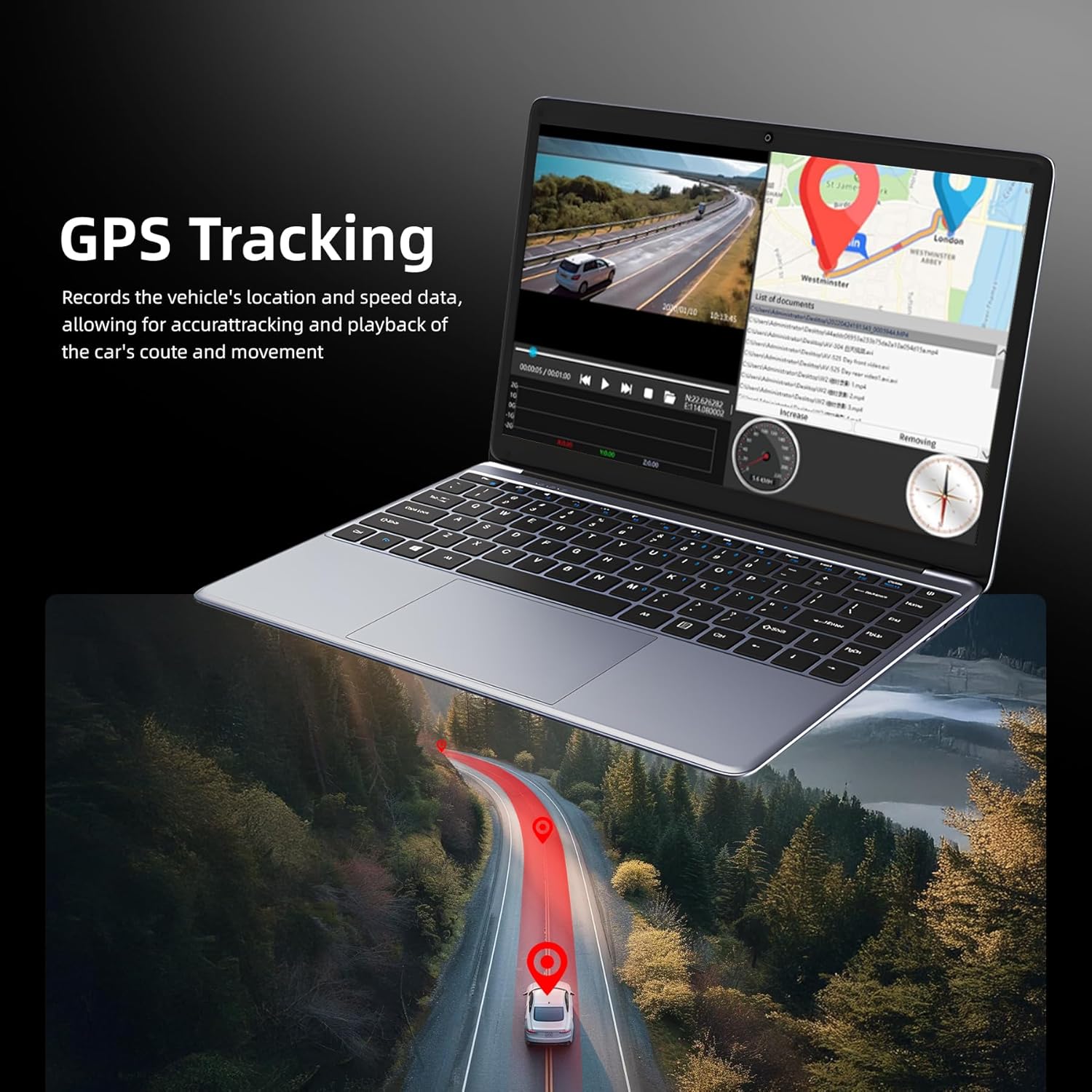
The external GPS module records your vehicle's location, speed, and timestamps, providing crucial data for incident reconstruction.

  • GPS data is embedded into video files and can be viewed using the dedicated playback software on a computer or through the mobile app.
  • Ensure the GPS module has a clear line of sight to the sky for accurate tracking.
Gloryes A980 GPS tracking showing route and speed data

Image: A laptop screen displaying GPS tracking data, including vehicle route, speed, and location, overlaid on a map for forensic-grade trip documentation.

6. Parking Mode (24-Hour Surveillance)

When connected via the hardwire kit, the dash cam can monitor your vehicle continuously even when parked.

  • The dash cam will automatically switch to parking mode when the ignition is off.
  • It can record in time-lapse mode (1 frame per second) or normal recording mode, depending on settings.
  • G-sensor detection will trigger emergency recording if an impact is detected while parked.
Gloryes A980 24-hour parking mode with car under protective dome

Image: A visual representation of the 24-hour parking mode, showing a car protected by a shield, indicating continuous surveillance when the vehicle is parked.

7. G-Sensor and Loop Recording

  • G-Sensor: Detects sudden impacts or collisions and automatically locks the current video segment to prevent it from being overwritten.
  • Loop Recording: The dash cam continuously records in short segments (e.g., 1, 3, or 5 minutes). When the SD card is full, the oldest unlocked files are automatically overwritten to make space for new recordings, ensuring continuous operation. Locked files are protected.
Gloryes A980 loop recording feature visualization

Image: A sequence of video frames illustrating the loop recording process, showing how old footage is overwritten while important, locked footage is preserved.

8. Backup Camera Functionality

When the vehicle is shifted into reverse (and the rear camera is correctly wired to the reverse light), the dash cam screen will automatically display the rear camera view with parking guidelines, assisting with safer parking maneuvers.

Gloryes A980 reversing assist with parking guidelines

Image: The dash cam screen displaying a wide-angle rear view with parking guidelines, indicating the reversing assist feature for easier parking.

Maintenance

1. SD Card Management

  • Formatting: It is recommended to format the SD card regularly (e.g., once a month) to maintain optimal recording performance and prevent data corruption. This can usually be done through the dash cam's settings menu.
  • Replacement: SD cards have a limited lifespan. If you experience frequent recording errors or card abnormalities, consider replacing the SD card with a new, high-quality Class 10 or U3 card.

2. Cleaning

  • Lenses: Gently wipe the camera lenses with a soft, lint-free cloth to ensure clear video quality. Avoid abrasive materials or harsh chemicals.
  • Screen: Use a microfiber cloth to clean the touch screen. Do not spray cleaning solutions directly onto the screen.
  • Unit: Wipe the main unit and cables with a dry or slightly damp cloth.

Troubleshooting

If you encounter issues with your Gloryes A980 dash cam, refer to the following common problems and solutions.

ProblemPossible CauseSolution
Dash cam does not power on.No power from car charger/hardwire kit; loose connection.Check car charger connection and vehicle's 12V outlet. Ensure hardwire kit is correctly installed and receiving power.
"Memory card abnormal" error.SD card error, corruption, or incompatibility.Format the SD card via the dash cam settings. If the issue persists, replace the SD card with a new, high-quality Class 10 or U3 card.
Poor video quality (blurry, dark).Dirty lenses; protective film still on; low light conditions; tinted windows.Clean camera lenses. Ensure protective films are removed. Adjust exposure settings if available. Note that heavy window tint can affect rear camera night vision.
GPS signal not acquired or inaccurate.GPS module obstructed; poor satellite reception.Ensure the GPS module is placed in an open area with a clear view of the sky (e.g., dashboard, upper windshield). Avoid metallic obstructions.
Wi-Fi connection issues with app.Incorrect Wi-Fi password; app not updated; dash cam Wi-Fi not enabled.Verify Wi-Fi password. Ensure dash cam Wi-Fi is enabled. Update the mobile app to the latest version. Restart both dash cam and phone.
Recordings are not saving or are being overwritten too quickly.SD card full (no loop recording); G-sensor sensitivity too high; faulty SD card.Ensure loop recording is enabled. Format the SD card. Adjust G-sensor sensitivity to a lower setting if too many "locked" files are being created unnecessarily. Replace SD card if issues persist.

If the problem persists after trying these solutions, please contact Gloryes customer support for further assistance.

Specifications

FeatureDetail
Model NameA980
Product Dimensions11.88"D x 4.44"W x 7.09"H
Item Weight2.09 pounds
Display12-inch Touch Screen
Video Capture Resolution1080p (for main cameras)
Connectivity TechnologyUSB, Wireless (Wi-Fi)
Special Features360 Degree Recording, G-Sensor, Loop Recording, Night Vision (IR), Touch Screen, GPS, Parking Mode
Mounting TypeRearview Mirror Mount
Included ComponentsCar Charger, Charging Cable, Hardwire Kit, User Manual
ColorBlack
ManufacturerGloryes

Warranty and Support

Your Gloryes A980 4-Channel Mirror Dash Cam comes with the following:

  • 1-Year Warranty: Covers manufacturing defects and malfunctions under normal use.
  • 30-Day Hassle-Free Return Policy: For complete peace of mind.

For any questions, technical assistance, or warranty claims, please contact Gloryes customer service. Our professional support team is available 24/7 to assist you.

Please refer to your purchase documentation or the official Gloryes website for specific contact information.
Related Documents - A980

Preview Gloryes A800 Four Channel Dash Cam User Manual
Comprehensive user manual for the Gloryes A800 four-channel dash cam, detailing installation, product features, key functions, app connectivity, and troubleshooting steps.
Preview CREWORKS Swing-Away Heat Press Instruction Manual - Models SJYHPM Series
Comprehensive instruction manual for the CREWORKS Swing-Away Heat Press, covering safety, specifications, parts, assembly, operation, settings, troubleshooting, and maintenance for models SJYHPM230, SJYHPM2938, and SJYHPM3838.
Preview Prensa Térmica Abatible CREWORKS - Manual de Usuario
Manual de usuario detallado para la prensa térmica abatible CREWORKS. Incluye información de seguridad, especificaciones, instrucciones de ensamblaje, operación, mantenimiento y solución de problemas para los modelos SJYHPM y HPM.
Preview Kenwood OWKM001 Chef Kitchen Machine: Features, Specifications, and Attachments
Detailed overview of the Kenwood OWKM001 Chef Kitchen Machine, highlighting its key benefits, capabilities, technical specifications, included accessories, and compatible attachments. Learn about its powerful 1000W motor, planetary mixing action, and versatile use.
Preview Rolex Day-Date 228348RBR KW Yellow Gold Diamonds Champagne Dial Replica
Detailed information and specifications for the Rolex Day-Date 228348RBR KW Yellow Gold Diamonds Champagne Dial replica watch. Features include wholesale price, 1:1 replica quality, and worldwide shipping. Learn about availability and shipping times.