
Introduction
This manual provides detailed instructions for the setup, operation, and maintenance of your Zetronix Atom 4K UltraHD DIY Surveillance Kit. Please read this manual thoroughly before using the device to ensure proper functionality and to maximize its performance.
The Atom 4K is a compact and versatile surveillance device designed for discreet recording. It features 4K UltraHD video resolution, motion detection, and expandable storage, making it suitable for various monitoring needs.
Package Contents
Verify that all items listed below are included in your package:
- Atom 4K DIY Camera Kit (main module with flexible camera ribbon)
- Remote Control
- Set of Button Attachments (various styles for concealment)
- Rechargeable Lithium-Ion Battery (2000mAh)
- USB Charging Cable
- User Manual
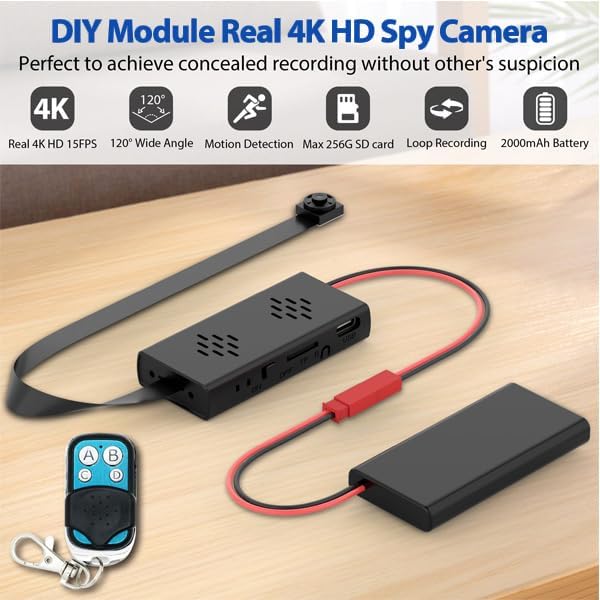
Figure 1: Atom 4K DIY Camera Kit components.
Setup
1. Charging the Battery
Connect the provided USB charging cable to the camera module's Type-C port and a standard USB power adapter (not included). The device can record while charging, allowing for unlimited surveillance time when plugged in. A full charge provides approximately 4-5 hours of continuous recording time.
2. Inserting the MicroSD Card
The Atom 4K supports MicroSD cards up to 256GB (not included). Locate the MicroSD card slot on the main module. Gently insert the MicroSD card with the gold contacts facing down until it clicks into place. Ensure the card is properly formatted (FAT32 recommended) for optimal performance. A 256GB card can store up to 25 hours of footage.
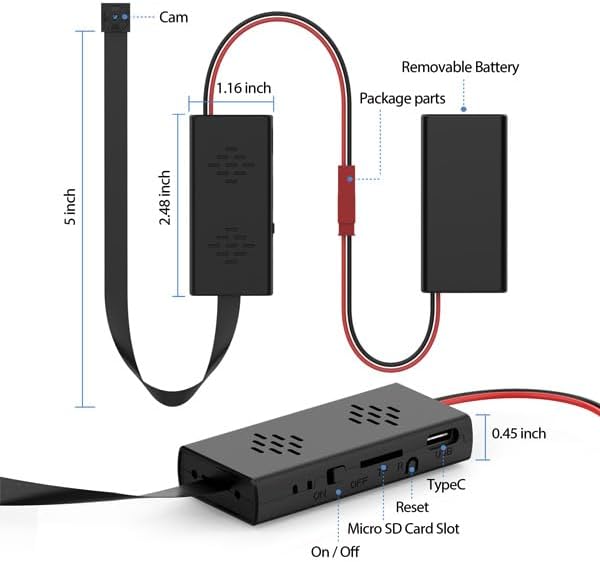
Figure 2: Atom 4K module with MicroSD card slot and dimensions.
3. Attaching Button Camera Attachments
The kit includes various button attachments to help disguise the camera lens. Carefully attach the desired button over the camera lens on the flexible ribbon cable. These attachments facilitate discreet placement in various objects or for use as a body camera, allowing for natural surveillance without drawing attention.
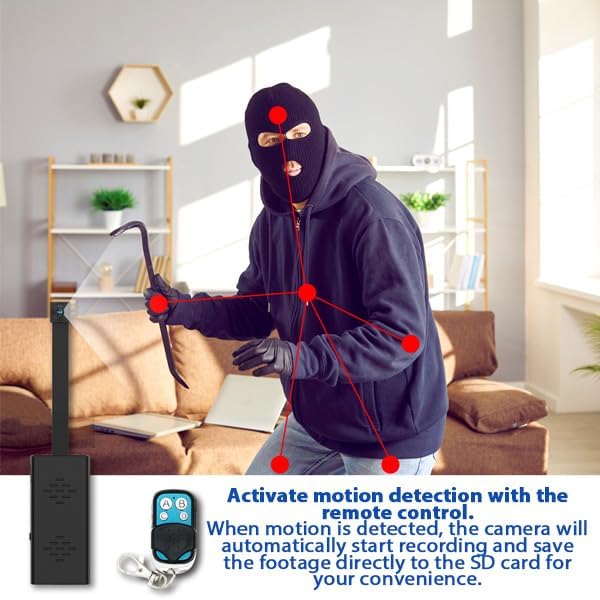
Figure 3: Diverse camera lens attachments for concealment.
Operating Instructions
1. Powering On/Off
Locate the ON/OFF switch on the main module. Slide the switch to the "ON" position to power on the device. To power off, slide the switch to the "OFF" position.
2. Recording Modes
The Atom 4K supports two primary recording modes, controlled via the remote:
- Continuous Recording: Press the designated button on the remote (e.g., 'A') to start continuous recording. The camera will record until the battery is depleted or the MicroSD card is full.
- Motion Activated Recording: Press the designated button on the remote (e.g., 'B') to activate motion detection. The camera will automatically begin recording only when motion is detected, saving battery life and storage space. This is ideal for long-term security solutions.
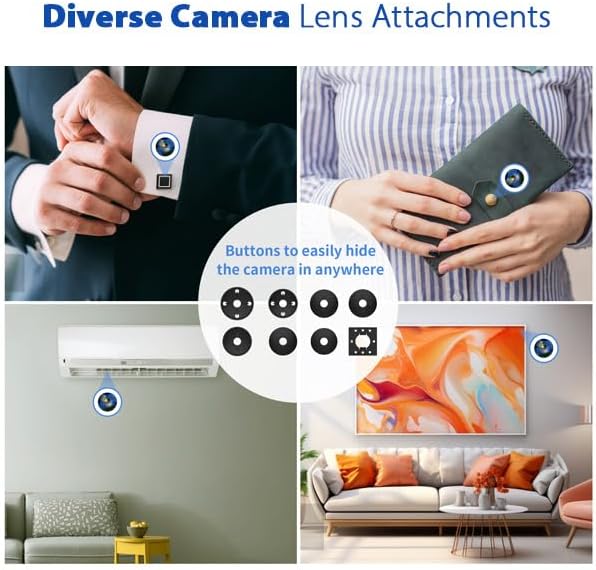
Figure 4: Motion activated recording in action.
3. Using the Remote Control
The included handheld remote control allows for discreet operation from up to 55 square feet away. Use it to instantly start/stop recording or switch between recording modes. Specific button functions are typically:
- Button A: Start Continuous Video Recording
- Button B: Start Motion Activated Video Recording
- Button C: Stop Recording / Save File
- Button D: Take Photo (if supported by model)
4. Loop Recording
The camera features automatic loop recording. When the MicroSD card reaches its capacity, the system will automatically overwrite the oldest video files to make space for new recordings. Video files are typically saved in 10-minute segments. Approximately 9-10GB of storage is used per hour of 4K footage.
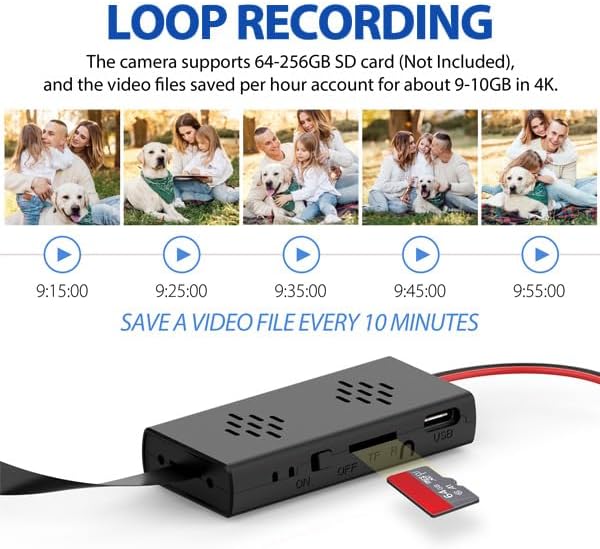
Figure 5: Loop recording functionality.
5. Date & Time Stamps
Date and time stamps can be optionally displayed in the corner of your video or photo footage. This feature is useful for documentation and evidence purposes. To set or adjust the date and time, connect the device to a computer and modify the configuration file (usually a text file) located on the MicroSD card. Follow the instructions within that file.
Maintenance
- Battery Care: Recharge the battery regularly, especially if the device will be stored for extended periods. Avoid fully draining the battery frequently to prolong its lifespan. The included Lithium-Ion battery is designed for durability.
- MicroSD Card Management: Periodically back up important footage from your MicroSD card to a computer. Formatting the MicroSD card every few months can help maintain optimal recording performance and prevent data corruption.
- Cleaning: Use a soft, dry, lint-free cloth to gently clean the camera lens and the device's exterior. Avoid using harsh chemicals, solvents, or abrasive materials, which can damage the device.
- Storage: When not in use, store the device in a cool, dry place away from direct sunlight, high humidity, and extreme temperatures.
Troubleshooting
| Problem | Possible Cause | Solution |
|---|---|---|
| Device does not power on. | Battery is depleted; power switch is in the "OFF" position. | Charge the battery fully; ensure the power switch is slid to the "ON" position. |
| Not recording or recording stops unexpectedly. | MicroSD card is full or corrupted; battery is low; incorrect recording mode selected. | Replace or format the MicroSD card; charge the battery; verify the correct recording mode is activated via the remote control. |
| Poor video quality. | Camera lens is dirty or obstructed; insufficient lighting in the recording area. | Clean the camera lens carefully; ensure adequate lighting for optimal video capture. |
| Remote control not responding. | Device is out of remote's operating range; remote control battery may be low. | Ensure you are within 55 square feet of the device; replace the remote control battery if applicable. |
Resetting the Device
If the device becomes unresponsive or exhibits unusual behavior, locate the reset pinhole on the main module (refer to Figure 2 for its general location). Use a thin, non-metallic object (such as a straightened paperclip) to gently press and hold the reset button for a few seconds. This action will restart the device without erasing any recorded data.
Specifications
| Feature | Detail |
|---|---|
| Model Name | Atom 4K (ATOM-4K-NA) |
| Video Capture Resolution | 4K UltraHD (4096 effective resolution) at 15FPS |
| Viewing Angle | 120 Degrees (Wide Angle) |
| Battery Type | 2000mAh Rechargeable Lithium-Ion |
| Battery Life | Approximately 4-5 hours of recording |
| Storage Support | MicroSD cards up to 256GB (not included) |
| Connectivity Protocol | RF (for remote control) |
| Product Dimensions (Main Module) | 2 x 1 x 1 inches (L x W x H) |
| Usage Environment | Indoor, Outdoor |
| Video Capture Format | MPEG-4 |

Figure 6: 4K UltraHD High Definition Camera capability.
Warranty and Support
Zetronix is dedicated to providing high-quality security technology and reliable customer support. Our products are designed for dependable performance and long-term reliability. For any questions, technical assistance, or warranty claims regarding your Atom 4K DIY Surveillance Kit, please contact Zetronix customer support.
Our U.S.-based support team is available to assist you. Please visit the official Zetronix website for the most up-to-date support information, contact details, and warranty terms.