
1. Introduction
Thank you for choosing the Titorion 60% Mechanical Gaming Keyboard. This compact and high-performance keyboard is designed for gamers and enthusiasts, featuring hot-swappable switches, vibrant RGB lighting, and durable construction. This manual will guide you through the installation, operation, and maintenance of your new keyboard.

Image 1.1: The Titorion 60% Mechanical Gaming Keyboard in white, showcasing its compact design and RGB backlighting.
2. Product Features
- Hot-Swappable Switches: Easily change switches without soldering, allowing for customization and simplified maintenance. The keyboard includes extra switches and a switch puller.
- Anti-Ghosting: Supports simultaneous key presses, ensuring every command is registered accurately during intense gaming sessions.
- Rainbow LED Backlighting: Features dynamic RGB lighting effects to enhance your gaming setup.
- Double Injection Keycaps: Durable keycaps with legends that will not wear off over time.
- Removable USB-C Cable: A 1.5-meter detachable USB-C cable for easy portability and replacement.
- Compact 60% Layout: A space-saving design with 69 keys, ideal for minimalist setups and travel.

Image 2.1: Illustration of DRINKEY switches and the removable USB-C cable, highlighting key features.

Image 2.2: Close-up showing the Double Injection keycap construction and the keyboard's overall dimensions.
3. Setup Guide
- Unpack the Keyboard: Carefully remove the keyboard and all accessories from the packaging.
- Connect the USB Cable: Insert the USB-C end of the provided cable into the port on the back of the keyboard. Connect the standard USB-A end to an available USB port on your computer, gaming console (PS4, PS5, Xbox 360, Xbox One), or notebook.
- Driver Installation: The keyboard is plug-and-play. Your operating system (Windows, macOS, Linux) will automatically detect and install the necessary drivers. No additional software is required for basic functionality.
- Placement: Position the keyboard comfortably on your desk.
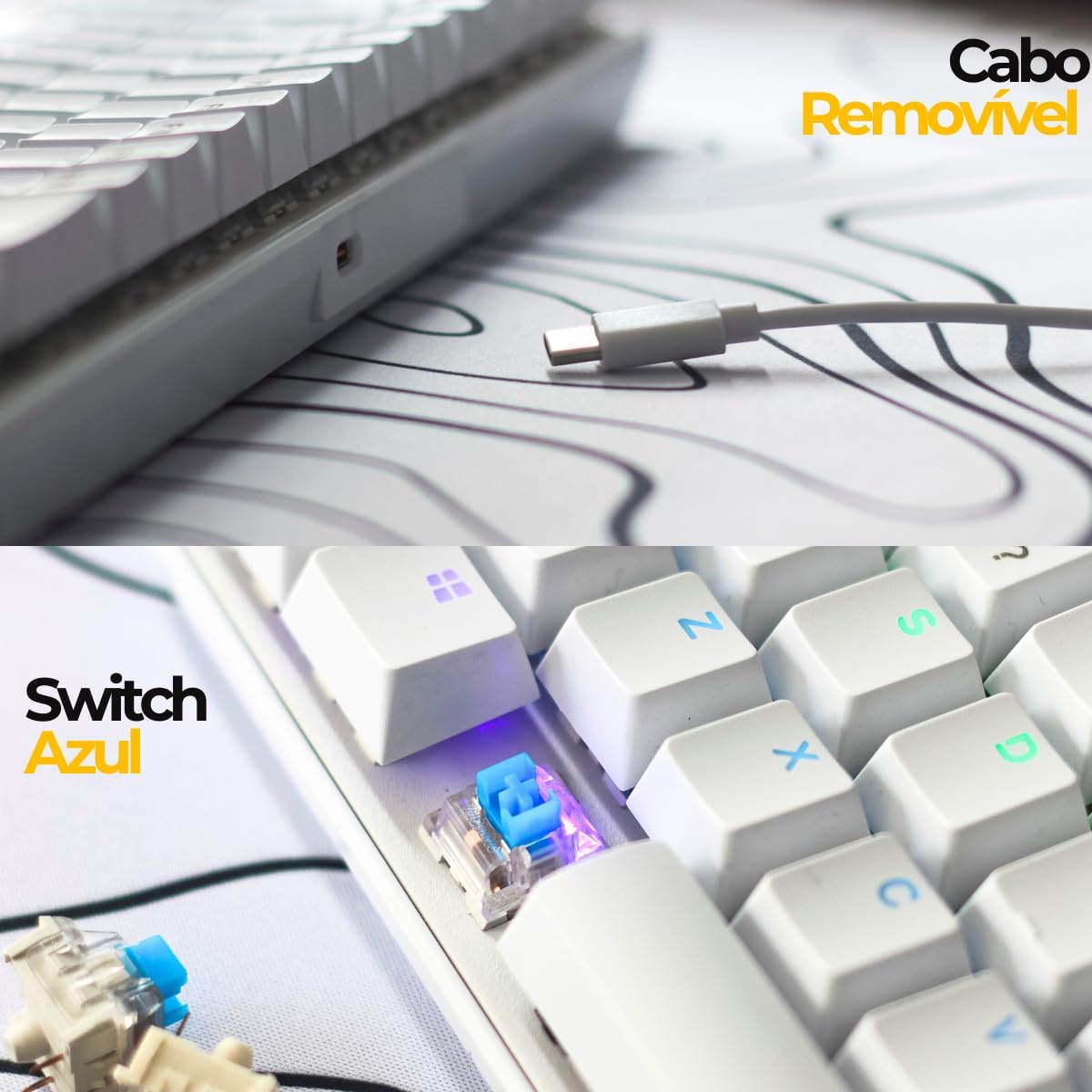
Image 3.1: Detail of the removable USB-C cable connecting to the keyboard and a close-up of a blue mechanical switch.
4. Operating Instructions
4.1 Basic Usage
The Titorion 60% keyboard functions like a standard keyboard. Due to its compact 60% layout, some functions are accessed via the Function (Fn) key combined with other keys.
4.2 RGB Lighting Control
The keyboard features Rainbow LED backlighting with various effects. Specific key combinations using the Fn key are typically used to cycle through lighting modes, adjust brightness, and change speed. Refer to the keyboard's keycap legends for specific Fn key combinations related to lighting control (e.g., Fn + \| for mode, Fn + [{ or ]} for brightness/speed).
4.3 Anti-Ghosting
The anti-ghosting feature ensures that all keys pressed simultaneously are registered. This is particularly beneficial in gaming where multiple key inputs are often required at once.

Image 4.1: A screen displaying an anti-ghosting test, showing multiple keys being registered simultaneously.
5. Maintenance
5.1 Hot-Swap Switch Replacement
Your keyboard comes with hot-swappable switches, allowing for easy replacement without soldering. This is useful for customizing your typing experience or replacing a faulty switch.
- Remove Keycap: Use a keycap puller (not included, but often comes with switch pullers) to gently remove the keycap from the switch you wish to replace.
- Remove Switch: Use the included switch puller to grip the top and bottom clips of the switch. Gently pull the switch straight up and out of the keyboard plate.
- Insert New Switch: Align the pins of the new switch with the holes on the PCB. Press the switch firmly and evenly until it clicks into place. Ensure the pins are not bent.
- Replace Keycap: Place the keycap back onto the new switch.

Image 5.1: A switch puller and extra mechanical switches, demonstrating the hot-swap capability.

Image 5.2: Visual guide to the hot-swap feature, showing how switches are removed and replaced using the included tools.
5.2 Cleaning
To maintain your keyboard's performance and appearance:
- Disconnect the keyboard from your computer before cleaning.
- Use a can of compressed air to remove dust and debris from between the keycaps.
- Wipe the keycaps and keyboard surface with a soft, slightly damp cloth. Avoid using harsh chemicals or abrasive materials.
- For deeper cleaning, keycaps can be removed (using a keycap puller) and washed with mild soap and water, then thoroughly dried before reattaching.
6. Troubleshooting
- Keyboard Not Responding:
- Ensure the USB cable is securely connected to both the keyboard and the computer.
- Try connecting the keyboard to a different USB port.
- Test the keyboard on another computer to rule out system-specific issues.
- Specific Key Not Working:
- Due to the hot-swappable design, a faulty switch can be easily replaced. Refer to Section 5.1 for instructions on replacing switches.
- Ensure no debris is lodged under the keycap or switch.
- RGB Lighting Not Working/Incorrect:
- Check if the lighting is turned off or set to a very low brightness using the Fn key combinations.
- Restart your computer.
- Input Lag or Ghosting:
- Ensure no background applications are consuming excessive system resources.
- Verify the keyboard is connected directly to a USB port on your computer, not through a hub or extender.
7. Specifications

Image 7.1: A detailed table outlining the technical specifications of the Titorion TM001 keyboard.
| Feature | Detail |
|---|---|
| Brand | Titorion |
| Model | TM001 |
| Material | Plastic |
| Architecture | Mechanical |
| Hot Swap | Yes |
| Switch Type | Blue |
| Illumination | Rainbow LED |
| Layout | ABNT2 (Portuguese Brazil) |
| Number of Keys | 69 |
| Connectivity | Wired (Removable USB Type-C) |
| Cable Length | 1.5 meters |
| Compatible Devices | PC, Notebook, PS4, PS5, Xbox 360, Xbox One |
| Product Dimensions (L x W x H) | 28 x 15 x 4 cm |
| Product Weight | 520 g |

Image 7.2: Visual representation of the keyboard's dimensions, including length, width, and height.
8. Warranty and Support
For warranty information and technical support, please refer to the documentation provided at the time of purchase or contact your retailer. Titorion aims to provide reliable products and customer satisfaction.