
1. Introduction
This manual provides detailed instructions for the setup, operation, and maintenance of your RSHTECH 11-in-1 USB C Docking Station Dual Monitor (Model RSH-T11H). Please read this manual thoroughly before using the product to ensure optimal performance and safety.
2. Product Features
- 11-in-1 Connectivity: Expands a single USB-C port into 2x HDMI, 3x USB 3.2 Gen 2 (2C+1A), 2x USB 3.0, 100W Power Delivery, Gigabit Ethernet, and SD/TF card slots.
- Dual Monitor Support: Connects to two external displays via HDMI, supporting resolutions up to 4K@60Hz for dual displays or 8K@30Hz for a single display.
- Ultra-Fast Data Transfer: Features USB 3.2 Gen 2 ports with speeds up to 10Gbps and USB 3.0 ports with speeds up to 5Gbps for efficient data transfer.
- 100W Power Delivery: Provides up to 85W pass-through charging to your host laptop (100W input minus 15W for hub operation).
- Gigabit Ethernet: Ensures stable and reliable wired network connectivity at speeds up to 1000Mbps.
- SD/TF Card Reader: Integrated card slots for convenient photo and video transfers.
- Durable Design: High-quality aluminum alloy housing for excellent heat dissipation and durability.
3. Package Contents
- RSHTECH 11-in-1 USB C Docking Station (Model RSH-T11H)
- Instruction Manual
- Warranty Card
4. Product Overview (Ports and Indicators)
Familiarize yourself with the various ports and their functions on your docking station:
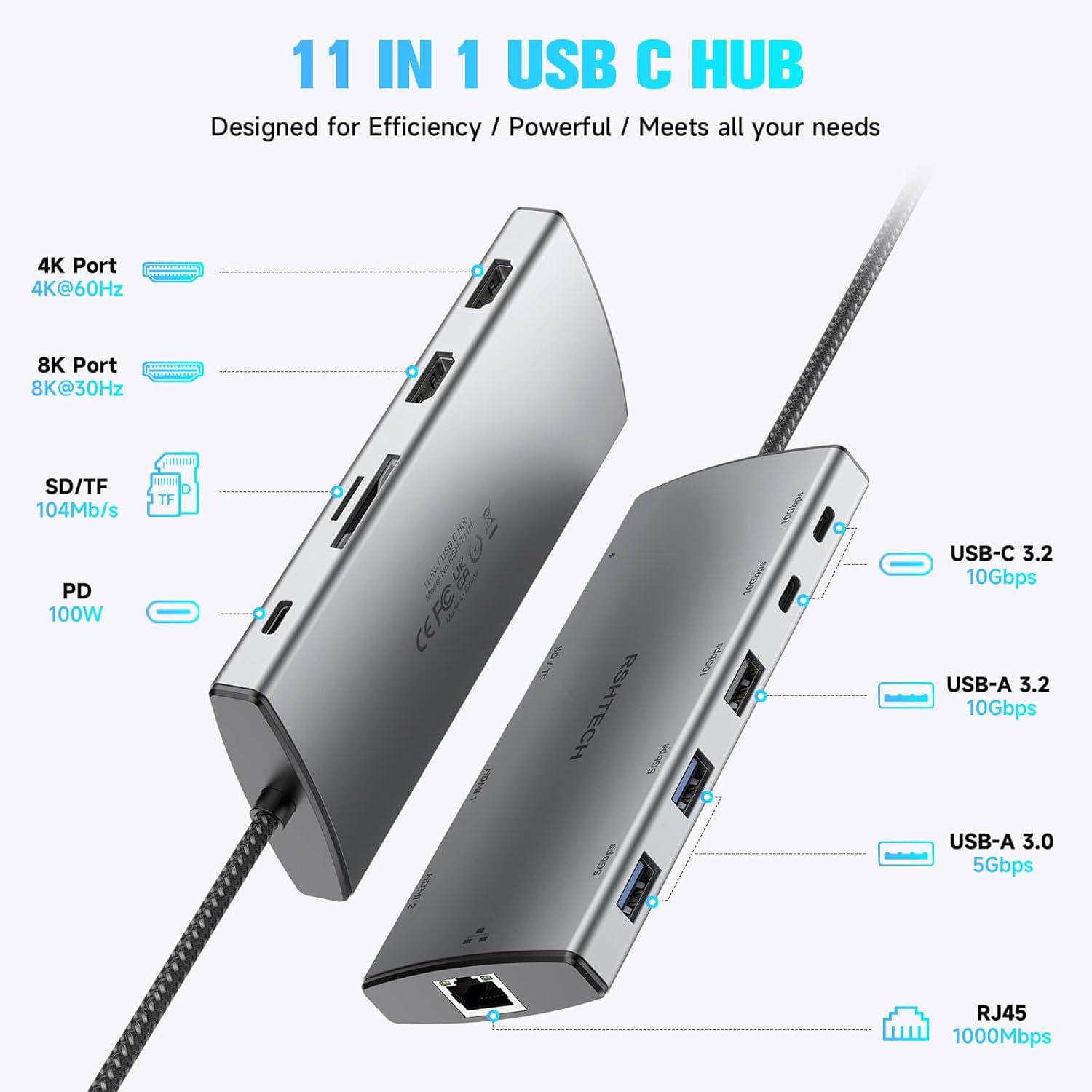
Figure 1: RSHTECH 11-in-1 USB C Hub with port labels.
This image displays the RSHTECH 11-in-1 USB C Hub from an angled perspective, highlighting its various ports. Labels indicate: 4K Port (4K@60Hz), 8K Port (8K@30Hz), SD/TF Card Reader (104MB/s), PD 100W (Power Delivery), USB-C 3.2 (10Gbps), USB-A 3.2 (10Gbps), USB-A 3.0 (5Gbps), and RJ45 (1000Mbps Gigabit Ethernet).
- USB-C Host Connector: Connects to your laptop's USB-C port.
- HDMI 1 (8K@30Hz): Connects to an external display for video output.
- HDMI 2 (4K@60Hz): Connects to a second external display for video output.
- USB-C 3.2 Gen 2 (10Gbps) x2: For high-speed data transfer with USB-C devices.
- USB-A 3.2 Gen 2 (10Gbps) x1: For high-speed data transfer with USB-A devices.
- USB-A 3.0 (5Gbps) x2: For standard data transfer with USB-A devices.
- PD (Power Delivery) USB-C (100W): Connect your laptop's USB-C power adapter here to charge your laptop and power the hub.
- RJ45 Gigabit Ethernet: Connect an Ethernet cable for wired network access.
- SD Card Slot: For reading SD, SDHC, SDXC cards.
- TF Card Slot: For reading Micro SD, Micro SDHC, Micro SDXC cards.
5. Setup Instructions
5.1 Connecting to Your Host Device
- Connect the integrated USB-C cable from the RSHTECH docking station to an available USB-C port on your laptop or host device. Ensure the USB-C port on your host device supports video output (DisplayPort Alternate Mode) and Power Delivery for full functionality.
5.2 Power Delivery
- For optimal performance and to charge your laptop, connect your laptop's original USB-C power adapter to the PD USB-C port on the docking station. The hub will reserve approximately 15W for its own operation, delivering up to 85W to your host device.
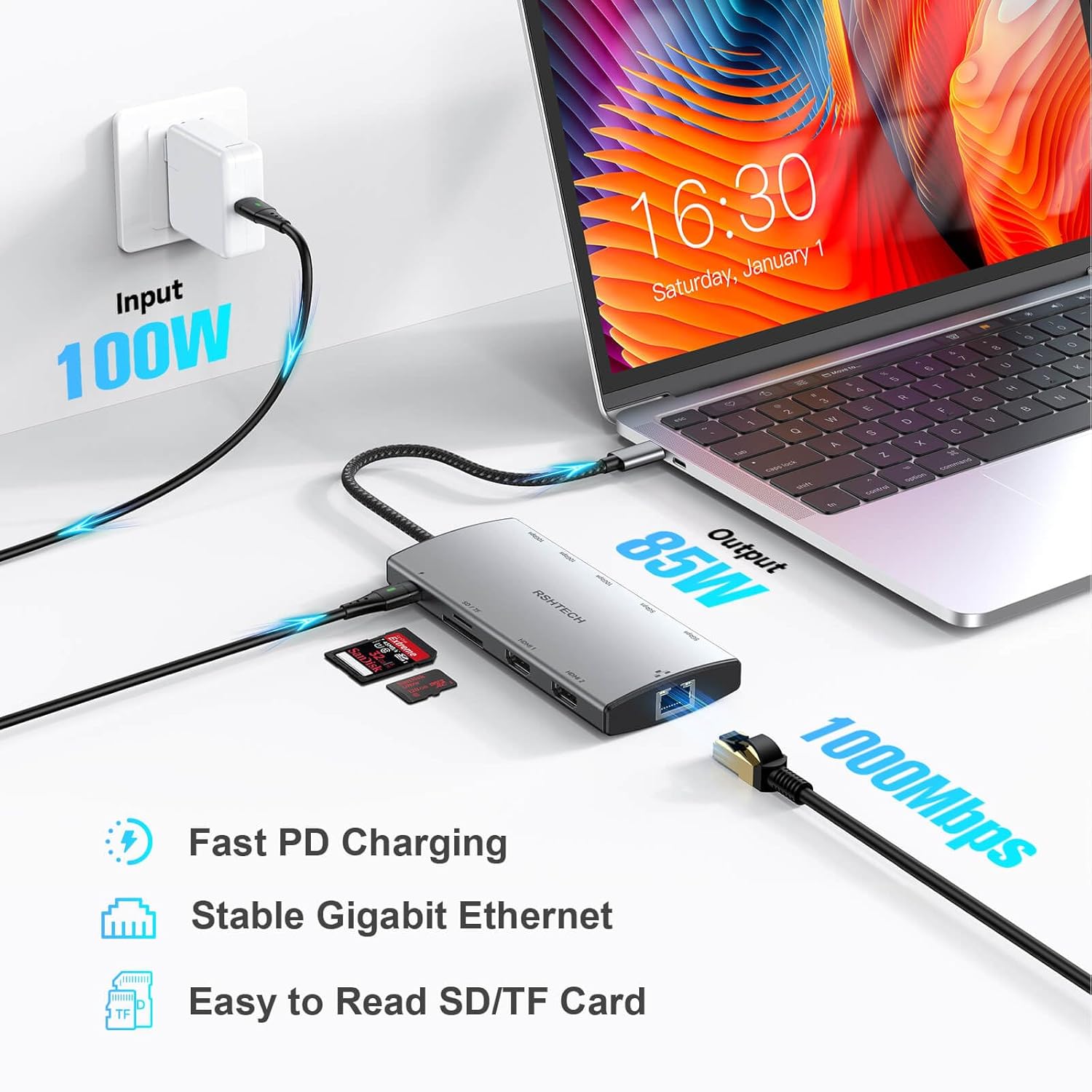
Figure 2: Power Delivery and Connectivity.
This image illustrates the power delivery capabilities of the hub, showing a 100W input from a power adapter, with 85W output to a connected laptop. It also depicts connections for Gigabit Ethernet and SD/TF card readers, emphasizing fast PD charging, stable Ethernet, and easy card access.
5.3 Display Connections (HDMI)
Connect your external monitors to the HDMI ports on the docking station using high-quality HDMI cables.
- Single Display: Use either HDMI 1 (up to 8K@30Hz) or HDMI 2 (up to 4K@60Hz).
- Dual Displays: Use both HDMI 1 and HDMI 2. The maximum resolution for dual displays is 4K@60Hz.

Figure 3: Ultra HD Visual Experience.
This image demonstrates the hub's capability to deliver an Ultra HD visual experience, with a laptop connected to a large external monitor displaying high-resolution graphics. It highlights support for single display mode up to 8K@30Hz and dual display mode up to 4K@60Hz.
Display Resolution Table:
| Systems | Host Device DP Version | Output Port | Single Display Max Resolution | Dual Display Max Resolution |
|---|---|---|---|---|
| Windows | HDMI 2.0 | 4K HDMI / 4K DP | 4K@30Hz | 1080@60Hz |
| HDMI 2.1 | 4K HDMI / 4K DP | 8K@30Hz | 4K@60Hz | |
| Mac OS | HDMI 2.0 | 4K HDMI / 4K DP | 4K@30Hz | 4K@30Hz |
| HDMI 2.1 | 8K HDMI | 8K@30Hz | 4K@30Hz |
Note: Display capabilities depend on your host device's USB-C port specifications (DisplayPort Alt Mode version) and operating system.
5.4 Data Ports (USB, SD/TF)
- Connect your USB devices (flash drives, external hard drives, keyboards, mice, etc.) to the appropriate USB-A or USB-C data ports.
- Insert SD or TF cards into their respective slots for data access.
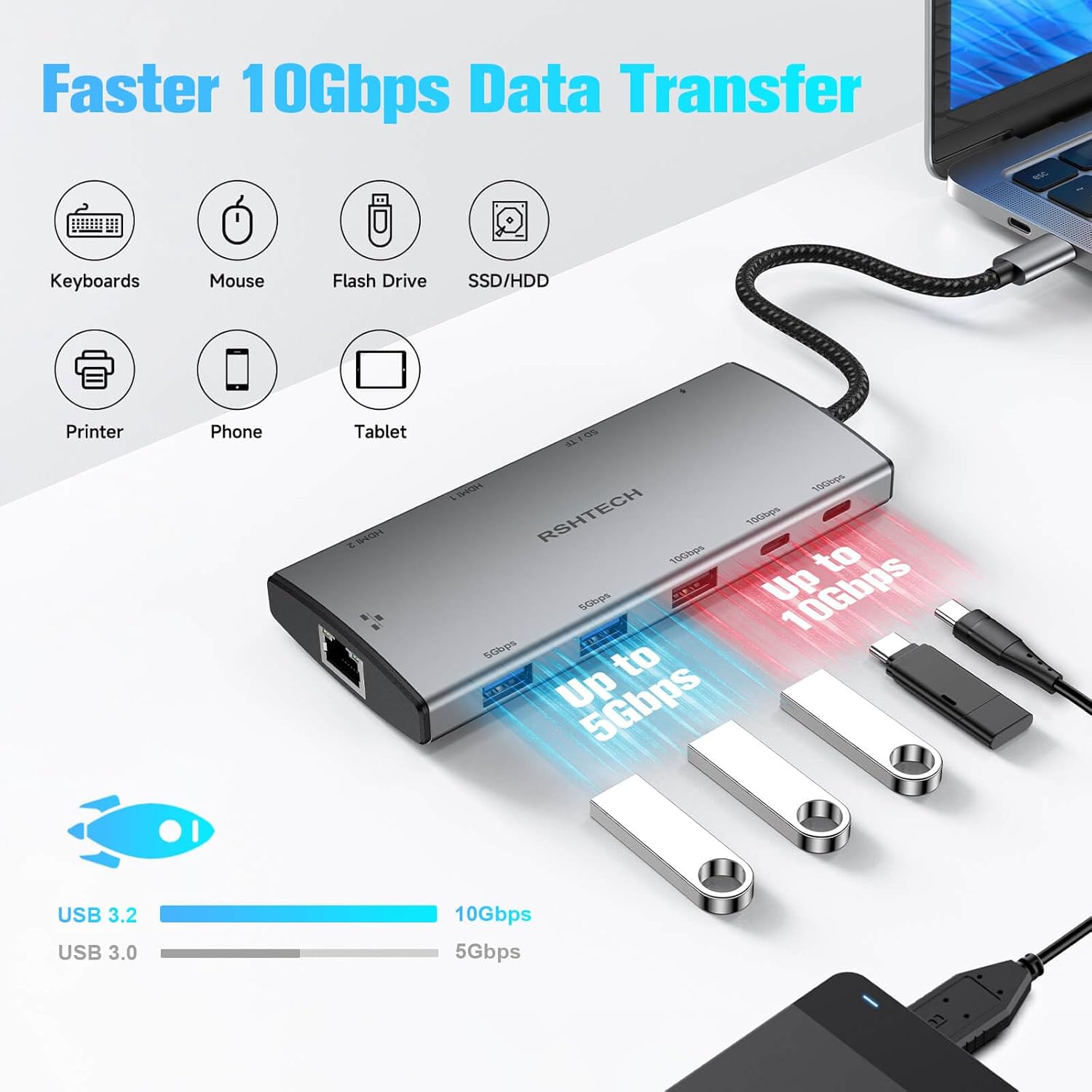
Figure 4: High-Speed Data Transfer.
This image shows the RSHTECH hub connected to a laptop, with multiple USB devices such as keyboards, mice, flash drives, SSD/HDDs, printers, phones, and tablets plugged into its various USB ports. It visually emphasizes the faster 10Gbps data transfer speeds of USB 3.2 ports and 5Gbps for USB 3.0 ports.
5.5 Gigabit Ethernet
- Connect an Ethernet cable from your router or network switch to the RJ45 port on the docking station for a stable wired internet connection.
6. Operating Instructions
- Plug and Play: The RSHTECH docking station is designed for plug-and-play operation. No additional drivers are typically required for most operating systems.
- Safe Disconnection: Always safely eject any connected storage devices (USB drives, SD/TF cards) from your operating system before physically disconnecting them from the hub to prevent data corruption.
- Heat Dissipation: The aluminum alloy casing is designed to dissipate heat. It is normal for the hub to feel warm during extended use, especially when multiple high-power devices or displays are connected.
7. Display Configuration (Windows/Mac OS)
After connecting your external displays, you may need to configure display settings in your operating system.
7.1 Windows OS
- Right-click on your desktop and select "Display settings."
- Here you can detect displays, arrange them, and choose display modes (Extend, Duplicate, Second screen only).
7.2 Mac OS
- Go to "System Settings" (or "System Preferences") > "Displays."
- You can arrange displays, set resolutions, and choose between "Extend" or "Mirror" modes.
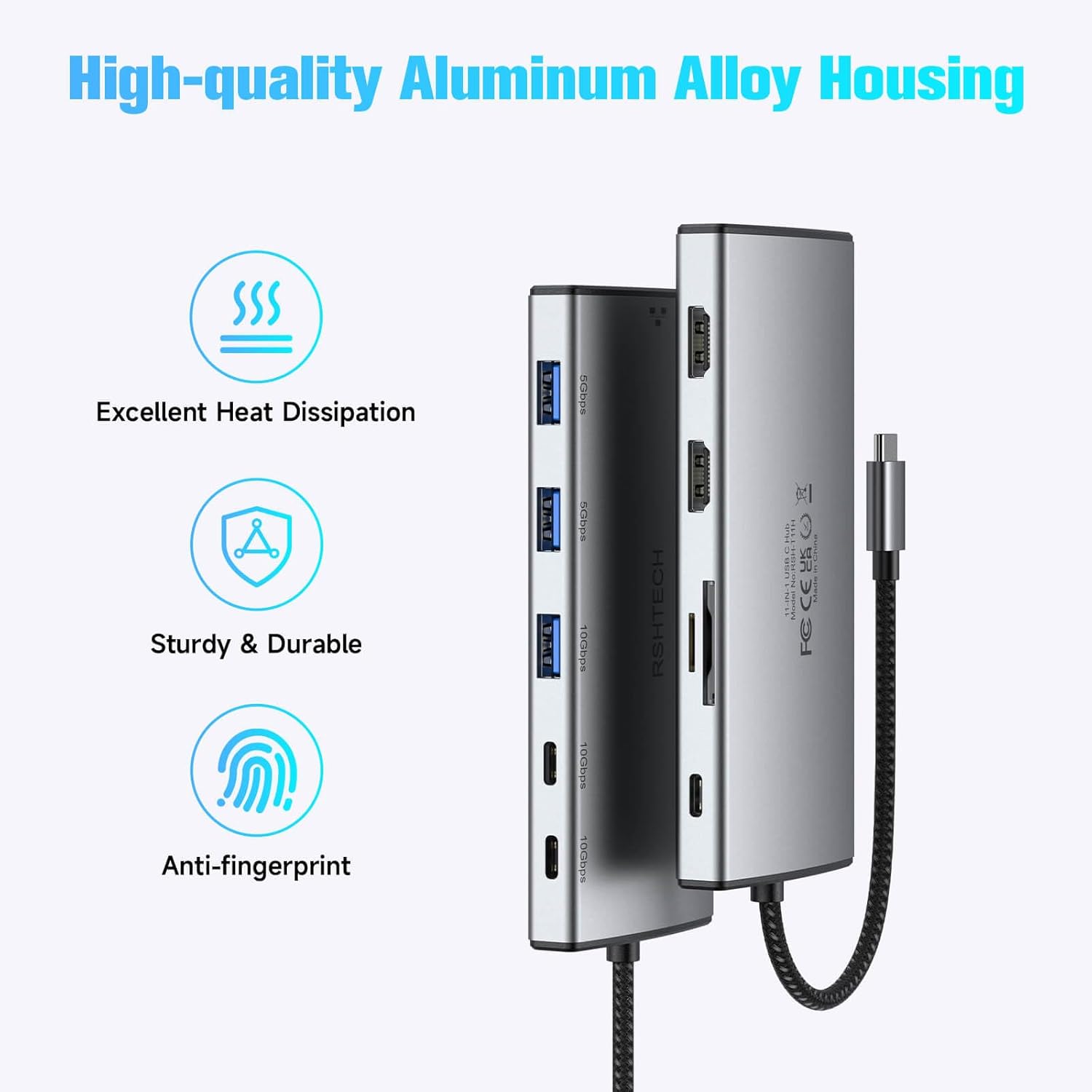
Figure 5: Multiple Display Modes.
This image illustrates various multi-display configurations for both Windows and Mac OS. For Windows, it shows options like extended desktop (A, B, C) and mirrored displays (A, A). For Mac OS, it shows extended desktop (A, B) and mirrored displays (A, A), demonstrating how the hub supports different display setups with a laptop and two external monitors.
8. Troubleshooting
- No Display Output:
- Ensure your host device's USB-C port supports DisplayPort Alternate Mode.
- Check all cable connections (USB-C to host, HDMI to monitors).
- Verify monitor input sources are correctly selected.
- Try restarting your host device.
- Reduce display resolution if experiencing instability, especially with older HDMI cables or host devices.
- No Power Delivery/Charging:
- Ensure your laptop's power adapter is connected to the PD USB-C port on the hub.
- Verify your laptop's USB-C port supports Power Delivery.
- Check if the power adapter is functioning correctly.
- USB Devices Not Recognized:
- Reconnect the USB device.
- Try connecting the device to a different USB port on the hub.
- Ensure the device is functioning when connected directly to your host device.
- Ethernet Not Working:
- Check the Ethernet cable connection to both the hub and your router/switch.
- Verify network settings on your host device.
- Ensure your router/switch is functioning correctly.
- Hub Feels Warm:
- It is normal for the hub to generate some heat during operation, especially under heavy load (e.g., multiple displays, fast charging, high-speed data transfer). The aluminum casing is designed for heat dissipation. If it becomes excessively hot to touch, disconnect it and contact support.
- Screen Flickering/Instability:
- Ensure all cables are securely connected and not being moved or jostled.
- Try using different, high-quality HDMI cables.
- Reduce the display resolution or refresh rate to see if the issue persists.
9. Specifications
| Feature | Specification |
|---|---|
| Model Number | RSH-T11H |
| Dimensions | 6.85 x 3.19 x 0.91 inches |
| Item Weight | 5.3 ounces |
| Color | Grey |
| Host Interface | USB Type-C |
| Video Output | 2 x HDMI (1x 8K@30Hz, 1x 4K@60Hz) |
| USB Data Ports | 2 x USB-C 3.2 Gen 2 (10Gbps), 1 x USB-A 3.2 Gen 2 (10Gbps), 2 x USB-A 3.0 (5Gbps) |
| Power Delivery | Up to 100W input, 85W pass-through to host |
| Ethernet | Gigabit Ethernet (RJ45, 10/100/1000Mbps) |
| Card Reader | SD and TF (Micro SD) |
| Compatible Devices | Desktops, Digital Cameras, Gaming Consoles, Laptops, Monitors |
| Manufacturer | Shenzhen Rong Sheng Hui Electronics Co., Ltd |
10. Maintenance
- Keep the docking station clean and free from dust. Use a soft, dry cloth for cleaning.
- Avoid exposing the device to extreme temperatures, humidity, or direct sunlight.
- Do not attempt to disassemble or repair the device yourself. This may void your warranty.
- Handle with care to prevent physical damage.
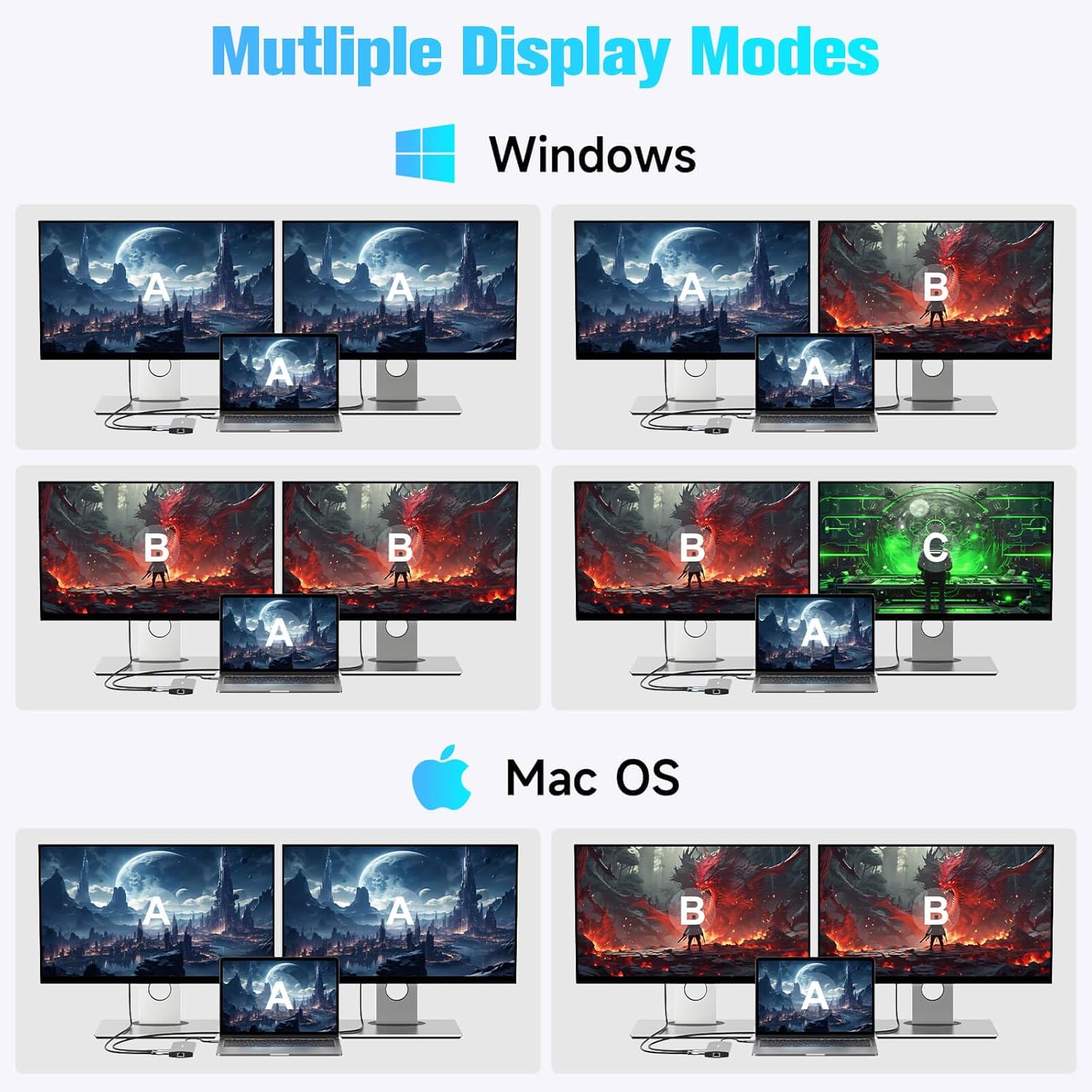
Figure 6: High-Quality Aluminum Alloy Housing.
This image showcases the robust design of the RSHTECH hub, featuring its high-quality aluminum alloy housing. Icons and text indicate key benefits such as excellent heat dissipation, sturdy and durable construction, and an anti-fingerprint finish, contributing to the product's longevity and performance.
11. Warranty and Support
Your RSHTECH 11-in-1 USB C Docking Station comes with a warranty. Please refer to the included warranty card for specific terms and conditions. For technical support or warranty claims, please contact RSHTECH customer service through the vendor's official channels or the platform where the product was purchased.
Additional protection plans may be available for purchase:
- 3-Year Protection Plan
- 4-Year Protection Plan
- Complete Protect (monthly subscription covering multiple eligible purchases)