
1. Introduction
This manual provides detailed instructions for the installation, operation, and maintenance of your EKAT 9-inch Android Car Stereo. This unit is specifically designed for BMW Mini Cooper F55, F56, and F57 models manufactured between 2014 and 2019, specifically those with 5 doors and without the original equipment manufacturer (OEM) navigation screen.
The stereo features an Android 13 operating system, 2GB RAM, 64GB ROM, Wireless CarPlay, Android Auto, GPS navigation, WiFi connectivity, FM/RDS radio, steering wheel control compatibility, and an AHD reverse camera input.
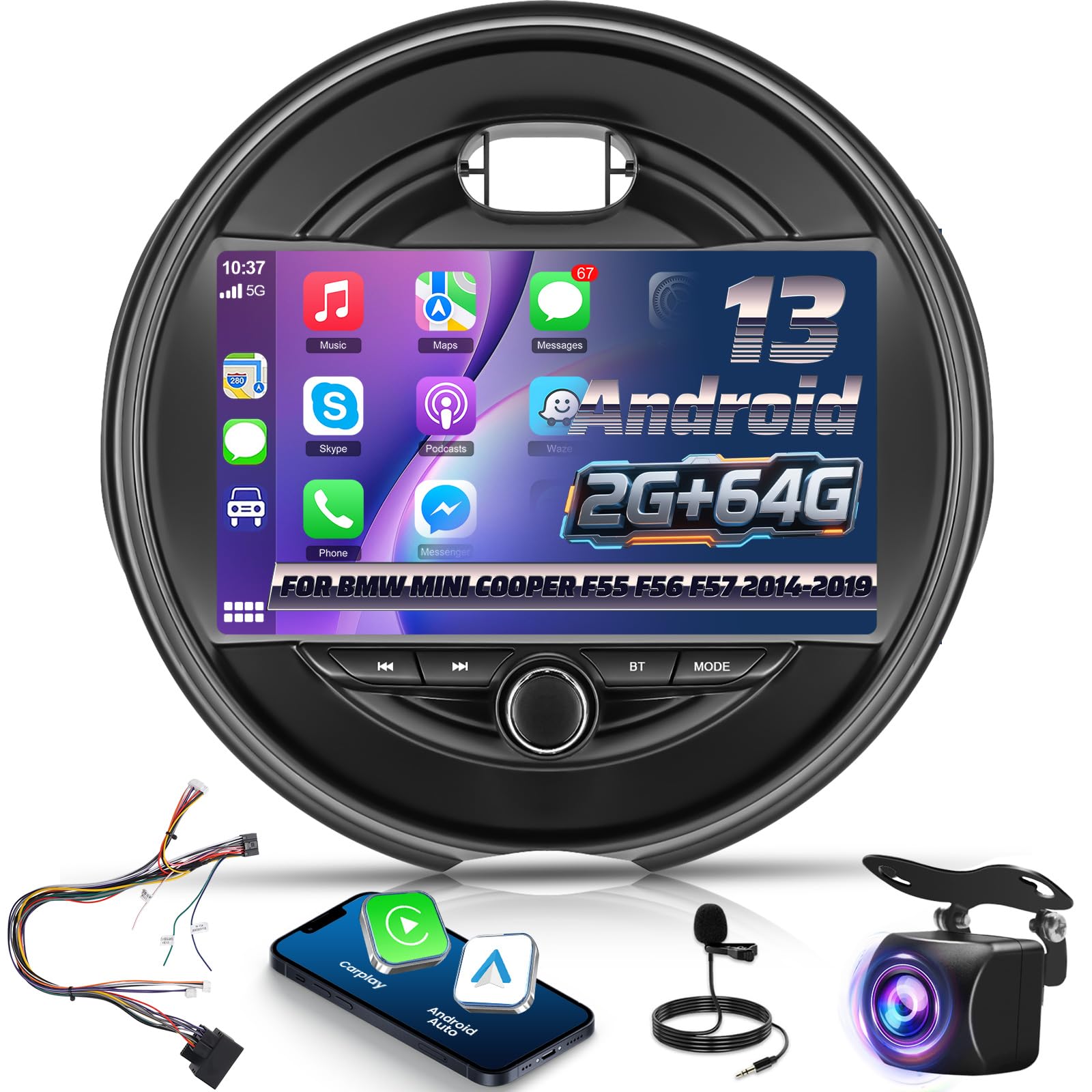
Image: The EKAT 9-inch Android Car Stereo unit, showcasing its design and interface.
2. Package Contents
Before installation, please verify that all components listed below are present in your package:

Image: A visual representation of all items included in the EKAT car stereo package.
- Car Radio Unit
- Power Cable
- Installation Tool
- USB Cable
- GPS Antenna
- Reverse Input Cable
- Rear Camera
- Microphone (MIC)
- RCA Cable
- Radio Antenna
- Accessories
- Canbus Decoder (if applicable to your vehicle configuration)
- Instruction Manual (this document)
3. Setup and Installation
Professional installation is highly recommended for this product. Incorrect wiring can damage the unit or your vehicle's electrical system. Ensure the vehicle's battery is disconnected before beginning installation.
3.1. Pre-Installation Check
Before fully installing the unit, connect all necessary cables and test the basic functions (power, audio, touchscreen, radio, camera input) to ensure proper operation.

Image: Comparison showing the vehicle's dashboard before and after the EKAT car stereo installation.
3.2. Wiring Connections
Carefully connect the power cable, USB cables, GPS antenna, radio antenna, and any other accessory cables to their respective ports on the car stereo unit and the vehicle's wiring harness.
3.2.1. Reverse Camera Wiring
To connect the backup camera, follow these steps:
- Connect the Red Cable (1) to the positive pole of the car's reversing light cable.
- Connect the Black Cable (2) to the negative pole of the car's reversing light cable.
- The other two red extension cables (3 and 4) do not need to be connected.

Image: Detailed wiring diagram for the backup camera connection.
3.2.2. CANBUS Decoder and Steering Wheel Control
If your vehicle requires a CANBUS decoder (included with some models), ensure it is connected correctly. The CANBUS decoder facilitates communication between the stereo and your vehicle's systems, including steering wheel controls.
- Without CANBUS Decoder: Connect the plugs or the steering wheel control wires (Key1/Key2) into the power cable to the corresponding port or wire of your original car. Then, go to Steering Wheel key manual match to activate the button function.
- With CANBUS Decoder: Connect the CANBUS before powering on the machine. Then, follow this path: Car Settings > Factory > Put Password [000000] > CarType Setting > select the correct protocol brand program for your car model and year.

Image: Instructions for connecting steering wheel controls with and without a CANBUS decoder.
4. Operating Instructions
4.1. Power On/Off and Basic Interface
Press the power button to turn the unit on or off. The 9-inch HD touchscreen provides a clear and responsive interface for all functions.

Image: The 2.5D HD IPS touchscreen with specifications highlighted.
4.2. Wireless CarPlay & Android Auto
Connect your iPhone or Android smartphone wirelessly or via USB to access CarPlay or Android Auto. This allows for voice-assisted controls and integration of your phone's features, including music, navigation, calls, and messages, directly on the stereo screen.
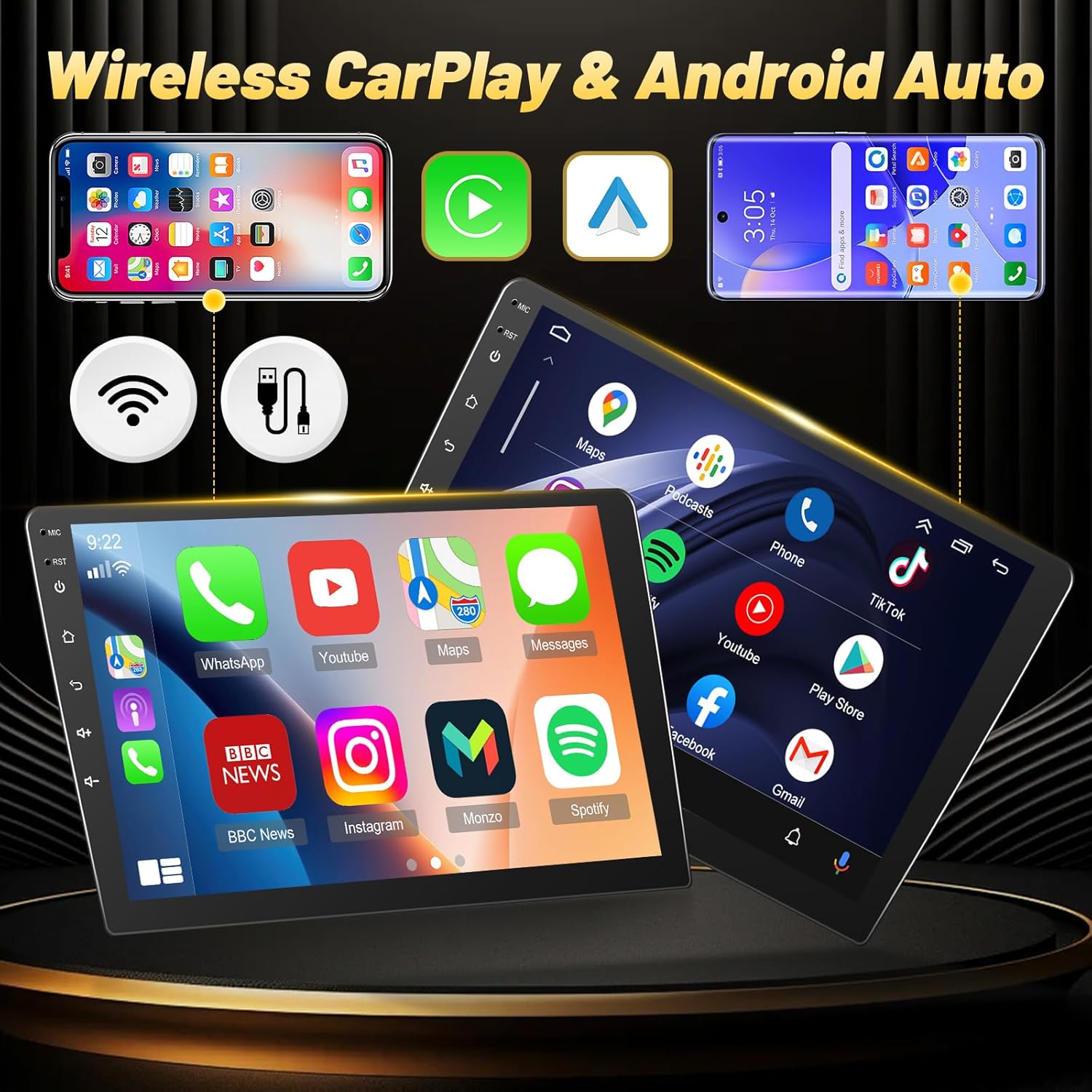
Image: Examples of Wireless CarPlay and Android Auto interfaces.

Image: Further examples of Wireless CarPlay and Android Auto functionality.
4.3. GPS Navigation and WiFi
The unit includes a built-in GPS module for offline navigation. Connect to a WiFi hotspot to use online maps (e.g., Waze) and download additional applications from the Google Play Store.

Image: GPS navigation and WiFi connectivity features.

Image: GPS navigation interface with DSP sound processing.
4.4. Bluetooth Functionality
Pair your smartphone via Bluetooth for hands-free calling, automatic phone book synchronization, and wireless music playback.

Image: Bluetooth connectivity for media and calls.
4.5. FM/RDS Radio
Tune into your favorite radio stations. The RDS (Radio Data System) feature displays station information, song titles, and other relevant data where available.

Image: FM/RDS Radio interface.
4.6. Steering Wheel Control
The unit supports your vehicle's original steering wheel controls, allowing you to manage audio playback, volume, and calls without taking your hands off the wheel. Configuration may be required as described in Section 3.2.2.
4.7. Reverse Camera Display
When the vehicle is shifted into reverse gear, the touchscreen will automatically display the image from the connected AHD rear view camera, providing a wide 170° field of view and enhanced night vision.
4.8. Split Screen Functionality
Utilize the split-screen feature to run two applications simultaneously, such as navigation and music playback, or a web browser and a video.

Image: Split screen functionality displaying two applications simultaneously.
4.9. Audio Equalizer (EQ) and DSP
Customize your audio experience with the built-in equalizer and Digital Sound Processor (DSP). Adjust frequency bands, balance, and fader settings to optimize sound output for your vehicle's acoustics.

Image: Audio Equalizer (EQ) and DSP settings.
4.10. Desktop Themes
The unit offers 28 types of desktop themes, allowing you to personalize the appearance of your car stereo's interface.
5. Maintenance
To ensure the longevity and optimal performance of your car stereo, follow these maintenance guidelines:
- Screen Cleaning: Use a soft, lint-free cloth to gently wipe the touchscreen. For stubborn smudges, slightly dampen the cloth with water or a screen-safe cleaner. Avoid harsh chemicals or abrasive materials.
- Software Updates: Periodically check for available software updates via the system settings. Updates can improve performance, add new features, and fix bugs. Ensure a stable internet connection during updates.
- Environmental Conditions: Avoid exposing the unit to extreme temperatures, direct sunlight for prolonged periods, or excessive moisture.
6. Troubleshooting
If you encounter issues with your EKAT car stereo, please refer to the following common problems and solutions:
| Problem | Possible Cause | Solution |
|---|---|---|
| Unit does not power on | Loose power connection, blown fuse | Check all power cables and vehicle fuses. Ensure the unit is correctly wired to the car's power supply. |
| No sound output | Speaker wires disconnected, volume too low, incorrect audio source selected | Verify speaker wire connections. Adjust volume. Select the correct audio source (e.g., FM, Bluetooth, CarPlay). Check EQ/DSP settings. |
| Steering wheel controls not working | Incorrect CANBUS setup or wiring | Refer to Section 3.2.2 for CANBUS and steering wheel control setup. Ensure correct protocol is selected in settings. |
| GPS signal lost or inaccurate | GPS antenna obstruction or faulty connection | Ensure the GPS antenna is mounted in a clear location with an unobstructed view of the sky. Check antenna connection to the unit. |
| Bluetooth connection issues | Device not in pairing mode, interference | Ensure Bluetooth is enabled on both the stereo and your phone. Put your phone in pairing mode. Try restarting both devices. |
| Microphone quality is poor | Microphone placement, faulty microphone | Ensure the microphone is positioned correctly, away from vents or noise sources. Check microphone connection. Consider testing with an alternative microphone if available. |
| Lost internal sound notifications (e.g., door chime, blinker sound) | CANBUS communication issue, incorrect wiring | This often indicates a CANBUS communication problem. Double-check all wiring connections, especially those related to the CANBUS decoder. Ensure the correct car type protocol is selected in the factory settings. Consult a professional installer. |
| Speed display (MPH/KM/H) issues | Software setting, display limitation | Check the unit's settings for options to adjust speed unit display (MPH/KM/H) or display illumination. If the issue persists, it may be a software or hardware limitation. |
If the problem persists after attempting these solutions, please contact customer support.
7. Specifications
- Brand: EKAT
- Model Name: EKAT (F55 F56 F57 variant)
- Compatible Vehicle Type: BMW Mini Cooper F55 F56 F57 (2014-2019, 5 Door without OEM Nav Screen)
- Screen Size: 9 Inches
- Operating System: Android 13
- Memory Storage Capacity: 64 GB (ROM), 2 GB (RAM)
- Display Type: IPS
- Touch Screen Type: Capacitive
- Connectivity Technology: Bluetooth, Wi-Fi
- Supported Satellite Navigation System: GPS
- Special Features: AHD Rear View Camera, Steering Wheel Control, Android Auto, Split Screen, WiFi, GPS Navigation, Wireless Carplay, EQ/DSP
- Audio Output Mode: Stereo
- Mounting Type: Dashboard Mount
- Included Components: Car Radio, GPS Antenna, Installation Cable, Instruction manual, Rear Camera
- Item Weight: 1.87 Kilograms
8. Warranty and Support
8.1. Warranty Information
This EKAT car stereo unit comes with a 2-year warranty from the date of purchase. This warranty covers manufacturing defects and malfunctions under normal use. Please retain your proof of purchase for warranty claims.
8.2. Customer Support
For technical assistance, troubleshooting beyond this manual, or warranty claims, please contact the seller (HSJMG) or EKAT customer support. You can typically find contact information through your purchase platform or the manufacturer's official website.

Image: Guide on how to contact the seller for support.