
MechLands AJ139 V2 MC
AJAZZ AJ139 V2 MC Gaming Mouse User Manual
Brand: MechLands | Model: AJ139 V2 MC
1. Introduction
This manual provides detailed instructions for the setup, operation, maintenance, and troubleshooting of your AJAZZ AJ139 V2 MC Gaming Mouse. Please read this manual thoroughly before using the product to ensure optimal performance and longevity.

Image: The AJAZZ AJ139 V2 MC Gaming Mouse in white, shown alongside its magnetic charging base.
2. Key Features
- Precision with PAW3311 Sensor & 12,000 DPI: Equipped with the advanced PAW3311 optical sensor, offering superior precision and accurate movement tracking. Adjustable DPI up to 12,000, with 300 IPS speed and 35G acceleration for responsive control.
- Durable Micro-Switches: Features precisely calibrated micro-switches designed for clear, responsive, and reliable clicks. These switches have a lifespan of up to 80 million clicks.
- Magnetic Charging Base with RGB Lights: Includes a charging dock with RGB lighting for convenient charging and enhanced aesthetics. The mouse can be placed on the dock for automatic charging.
- Lightweight & Ergonomic Design: Weighs only 66 grams, minimizing wrist strain during extended use. The solid body provides a comfortable and smooth grip, facilitating precise movements.
- 3 Modes Connectivity: Supports Bluetooth, 2.4GHz wireless (via USB dongle), and USB-C wired modes for versatile connectivity across various devices and systems.

Image: An overview of the mouse's key features, including 3 modes connectivity, adjustable DPI, PAW3311 sensor, 1000Hz polling rate, 66g lightweight design, and streamlined ergonomic shape.
3. Setup
3.1 Package Contents
Before proceeding, ensure all items are present:
- AJAZZ AJ139 V2 MC Gaming Mouse
- Magnetic Charging Base
- USB-C Cable
- 2.4GHz USB Receiver (typically stored in the mouse)
- User Manual (this document)
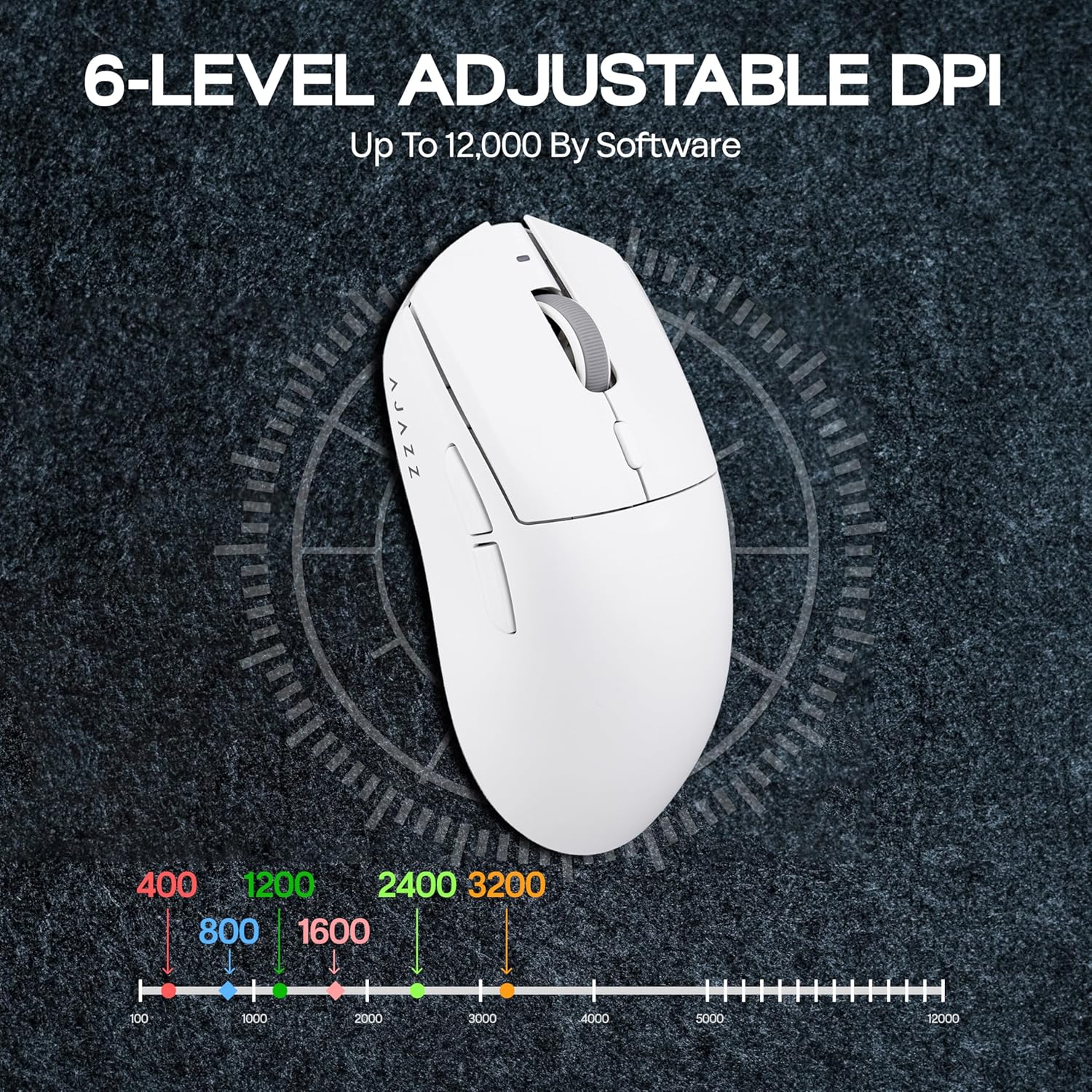
Image: The complete package contents, including the mouse, charging dock, USB cable, and documentation.
3.2 Initial Charging
It is recommended to fully charge the mouse before first use. Connect the magnetic charging base to a USB power source using the provided USB-C cable. Place the mouse onto the charging base, ensuring the magnetic contacts align. The RGB lighting on the base and mouse will indicate charging status.

Image: The AJAZZ AJ139 V2 MC mouse magnetically connected to its charging dock, illustrating the charging process.
3.3 Connectivity Options
The AJAZZ AJ139 V2 MC mouse offers three connection modes:
- 2.4GHz Wireless: For optimal gaming performance. Locate the USB receiver inside the mouse's bottom compartment and plug it into an available USB port on your computer.
- Bluetooth 5.0: For general use and portability. Activate Bluetooth on your device and pair with "AJAZZ AJ139 V2 MC".
- USB-C Wired: For direct connection and simultaneous charging. Connect the mouse directly to your computer using the USB-C cable.

Image: The mouse positioned on a laptop, demonstrating its 2.4GHz wireless, Bluetooth 5.0, and USB-C wired connectivity options.
4. Operating Instructions
4.1 Button Functions
Familiarize yourself with the mouse's multi-functional buttons:
- Left Button: Standard left-click function.
- Right Button: Standard right-click function.
- Scroll Wheel: Scrolls content up/down. Can also be pressed for middle-click.
- DPI Button: Cycles through preset DPI levels.
- Forward Button: Navigates forward in web browsers or applications.
- Backward Button: Navigates backward in web browsers or applications.
- Light Effect/Pair Button: Controls RGB lighting modes and initiates Bluetooth pairing.
- Mouse Switch: Power on/off and mode selection (2.4G, OFF, BT).

Image: A detailed diagram labeling the scroll wheel, DPI button, forward/backward buttons, left/right buttons, mouse switch, light effect/pair button, and receiver indicator on the mouse.
4.2 Adjusting DPI
The mouse features adjustable DPI settings up to 12,000. Press the DPI button located behind the scroll wheel to cycle through different sensitivity levels. Each press will change the DPI, indicated by a change in the mouse's LED color or pattern.

Image: A visual representation of the 6-level adjustable DPI settings, ranging from 400 to 12,000, with corresponding color indicators.
4.3 Software Customization
For advanced customization, including macros, precise DPI settings, polling rate adjustments, and button remapping, download the official software from the MechLands website. Long-pressing the DPI button may directly open the web driver for software access.
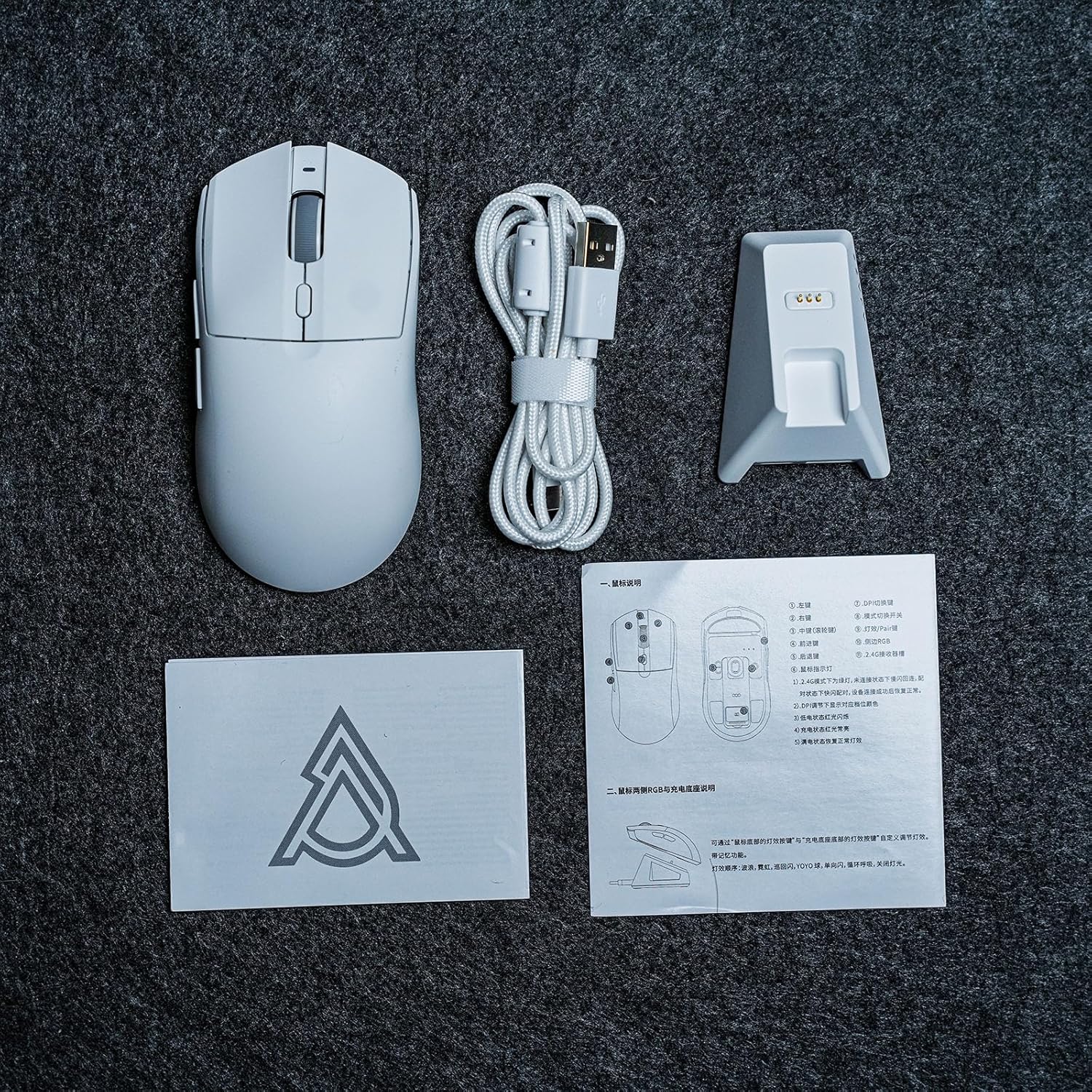
Image: Screenshots of the programmable web driver interface, showing options for macros, DPI speed, polling rate adjustments, and button settings.
4.4 RGB Lighting Control
The mouse and charging base feature customizable RGB lighting. Use the Light Effect/Pair Button to cycle through various lighting modes and effects. Refer to the software for more granular control over lighting synchronization and patterns.
5. Maintenance
- Cleaning: Use a soft, dry cloth to clean the mouse and charging base. Avoid using harsh chemicals or abrasive materials.
- Storage: When not in use for extended periods, store the mouse in a cool, dry place.
- Battery Care: To prolong battery life, avoid fully discharging the mouse frequently. Charge it regularly using the provided charging base or USB-C cable.
6. Troubleshooting
| Problem | Possible Cause | Solution |
|---|---|---|
| Mouse not responding | Low battery, incorrect connection mode, receiver not plugged in (2.4GHz), Bluetooth not paired. | Charge the mouse. Ensure the mouse switch is set to the correct mode (2.4G/BT). Re-insert the USB receiver. Re-pair Bluetooth. Try wired mode. |
| Lag or disconnections in wireless mode | Interference, distance from receiver, low battery. | Move closer to the receiver/device. Ensure no strong interference sources nearby. Charge the mouse. |
| DPI adjustment not working | Software conflict, button malfunction. | Ensure no conflicting software is running. Try resetting the mouse (if applicable, refer to software). Contact support if issue persists. |
| RGB lights not working | Lighting mode off, software setting. | Press the Light Effect/Pair Button to cycle modes. Check software settings for lighting control. |
7. Specifications
| Feature | Detail |
|---|---|
| Brand | MechLands |
| Model | AJ139 V2 MC |
| Color | White |
| Connectivity Technology | 2.4GHz Wireless, Bluetooth, USB-C Wired |
| Movement Detection Technology | Optical (PAW3311 Sensor) |
| DPI Range | Up to 12,000 DPI (Adjustable) |
| Polling Rate | 1000Hz (2.4G & USB-C) |
| Battery Capacity | 500mAh |
| Weight | 66 grams |
| Dimensions (Approx.) | 125.3 x 63.3 x 38.1 mm (Length x Width x Height) |
| Special Features | Ergonomic Design, Lightweight, Portable, Programmable Buttons, Rechargeable, Magnetic Charging Base |
| Compatibility | Windows, Mac, Android |
8. Warranty and Support
MechLands provides a standard manufacturer's warranty for the AJAZZ AJ139 V2 MC Gaming Mouse. Please refer to the warranty card included in your package for specific terms and conditions. For technical support, driver downloads, or further assistance, please visit the official MechLands website or contact their customer service.
Official MechLands Store: Visit Store