
1. Introduction
The ienRon 11-Port Gigabit PoE Switch is designed to provide reliable and high-speed network connectivity with Power over Ethernet (PoE) capabilities. This unmanaged switch features 8 PoE+ ports, 2 Gigabit uplink ports, and 1 SFP fiber port, making it suitable for various applications including IP cameras, wireless access points (APs), and business networks. Its plug-and-play design ensures easy installation without complex configuration.
This manual provides detailed instructions for setting up, operating, and maintaining your ienRon Gigabit PoE Switch. Please read it thoroughly before use to ensure proper functionality and safety.
2. Product Features
- High-Speed Connectivity: 11-port Gigabit PoE switch with 8 PoE+ ports (802.3af/at), 2 uplink ports, and 1 SFP fiber port. Supports 20Gbps full-duplex bandwidth.
- Smart Power Delivery: 120W total PoE budget with up to 30W per port. Automatically detects and delivers optimal power to connected devices while protecting non-PoE equipment.
- Easy Installation: Features a one-touch VLAN switch for port isolation or communication. No configuration required for immediate use.
- Durable Construction: Heavy-duty metal housing with a fanless design for silent 24/7 operation, even under high network loads.
- Advanced Protection: Includes 6000V surge protection with triple safeguards for data security, equipment safety, and stable long-term performance.
3. Package Contents
Please verify the contents of your package. If any items are missing or damaged, contact your retailer or ienRon customer support.
- ienRon 11-Port Gigabit PoE Switch
- Power Adapter/Cable
- User Manual (this document)
- Mounting Accessories (if applicable)
Note: Specific accessories may vary. Please refer to the product packaging for a complete list of included items.
4. Physical Overview
Familiarize yourself with the ports and indicators on your ienRon Gigabit PoE Switch.

Figure 4.1: Front and Rear Panel of the ienRon 11-Port Gigabit PoE Switch. This image shows the layout of the SFP port, Uplink ports, PoE Link ports, and the ON/OFF switch for VLAN functionality on the front, and the AC power input on the rear.
- PoE Link Ports (1-8): 10/100/1000Mbps RJ45 ports that provide both data and power (PoE/PoE+).
- Uplink Ports (9-10): 1000Mbps RJ45 ports for connecting to a router, NVR, or other network devices.
- SFP Port (11): Gigabit SFP slot for fiber optic connections, offering extended reach and higher bandwidth.
- VLAN Switch: Toggles VLAN functionality ON/OFF. When ON, ports 1-8 are isolated from each other.
- Power Input: AC 100-240V power connector.
5. Setup and Installation
The ienRon Gigabit PoE Switch is designed for plug-and-play operation, requiring minimal setup.
5.1 Basic Connection
- Power Connection: Connect the provided power cable to the AC power input on the switch and then to a standard electrical outlet.
- Network Uplink: Connect one of the Gigabit Uplink ports (9 or 10) or the SFP port (11) to your router, NVR, or main network backbone using an Ethernet cable or SFP module and fiber cable, respectively.
- PoE Device Connection: Connect your PoE-compatible devices (e.g., IP cameras, wireless access points, VoIP phones) to the PoE Link ports (1-8) using standard Ethernet cables. The switch will automatically detect and provide power to these devices.
- Non-PoE Device Connection: You can also connect non-PoE network devices to the PoE Link ports. The switch will only provide data connectivity to these devices, protecting them from unwanted power.
5.2 VLAN Functionality
The switch features a physical VLAN switch for enhanced network security and performance.

Figure 5.1: VLAN Switch in action. This image illustrates how the VLAN switch isolates ports 1-8, preventing direct communication between devices connected to these ports while allowing them to communicate with uplink ports.
- VLAN OFF (Default): All ports (1-11) can communicate with each other. This is suitable for most standard network setups.
- VLAN ON: When the VLAN switch is set to ON, ports 1-8 are isolated from each other. Devices connected to these ports can only communicate with the Uplink ports (9-10) and SFP port (11), but not with each other. This enhances security and prevents broadcast storms in specific scenarios, such as surveillance networks.
Note: Change the VLAN switch position only when the switch is powered off or during a planned network maintenance window to avoid potential network disruptions.
6. Operation
6.1 Powering On/Off
Once the power cable is connected, the switch will power on automatically. There is no separate power button. To power off, disconnect the power cable from the switch or the electrical outlet.
6.2 Power over Ethernet (PoE)
The 8 PoE+ ports (1-8) automatically detect and supply power to IEEE 802.3af/at compliant devices. Each PoE port can deliver up to 30W, with a total power budget of 120W for the entire switch.

Figure 6.1: Power over Ethernet (PoE) capability. This image demonstrates the switch providing up to 30W of power per port to connected devices like an IP camera, simplifying installation by eliminating separate power cables.
When a PoE device is connected, the switch negotiates the power requirements. If a non-PoE device is connected, the switch will only provide data, ensuring the device is not damaged by power delivery.
6.3 Network Performance
The Gigabit ports support 10/100/1000Mbps speeds, providing high-speed data transfer for demanding applications. The SFP port offers flexible fiber connectivity for longer distances or higher bandwidth requirements.

Figure 6.2: Seamless Network Experience. This image depicts a user working on a laptop, symbolizing the smooth and lag-free network performance provided by the ienRon switch, supported by its 2.5Gbps internal bandwidth, metal case, and plug-and-play design.
7. Applications
The ienRon 11-Port Gigabit PoE Switch is versatile and suitable for various environments and compatible devices.

Figure 7.1: Compatible Products. This image shows icons representing various compatible devices such as Televisions, Monitors, Computers, Routers, Games Consoles, and Printers, highlighting the switch's broad applicability.

Figure 7.2: Various Usage Scenarios. This image illustrates the switch's suitability for different environments including Home, Office, School, and Hospital settings, demonstrating its flexibility for diverse networking needs.
Common compatible devices include Access Points (WAPs), Gaming Consoles, IP Phones, IoT Devices, and IP Cameras. The switch can be deployed in home networks, small to medium-sized offices, schools, and healthcare facilities.
8. Maintenance
The ienRon Gigabit PoE Switch is designed for reliable, low-maintenance operation due to its fanless design and durable metal housing.
- Cleaning: Use a soft, dry cloth to clean the exterior of the switch. Do not use liquid or aerosol cleaners. Ensure the device is powered off before cleaning.
- Ventilation: Ensure adequate airflow around the switch. Do not block ventilation openings.
- Environment: Operate the switch within the recommended temperature range (up to 55 Degrees Celsius) and humidity levels to ensure optimal performance and longevity.
- Cable Management: Keep network cables organized and free from kinks or excessive bends to prevent signal loss or damage.
9. Troubleshooting
If you encounter issues with your ienRon Gigabit PoE Switch, refer to the following common troubleshooting steps:
- No Power:
- Ensure the power cable is securely connected to both the switch and a working electrical outlet.
- Verify the power outlet is functional by plugging in another device.
- No Network Connection:
- Check that Ethernet cables are securely connected to both the switch and the connected devices.
- Verify the status of the link/activity LEDs on the switch ports. A solid light indicates a link, and a blinking light indicates activity.
- Ensure the connected device is powered on and functioning correctly.
- If using the SFP port, ensure the SFP module and fiber cable are correctly installed and compatible.
- PoE Device Not Receiving Power:
- Confirm that the connected device is IEEE 802.3af/at compliant.
- Check the power requirements of the device and ensure the total PoE budget (120W) of the switch is not exceeded.
- Try connecting the device to a different PoE port on the switch.
- Ensure the Ethernet cable is not damaged and is capable of carrying power (e.g., Cat5e or Cat6).
- VLAN Issue:
- If devices on ports 1-8 cannot communicate with each other, check the VLAN switch position. If it's ON, this is expected behavior. Set it to OFF if you require inter-port communication.
If these steps do not resolve the issue, please contact ienRon customer support for further assistance.
10. Specifications
Detailed technical specifications for the ienRon 11-Port Gigabit PoE Switch.
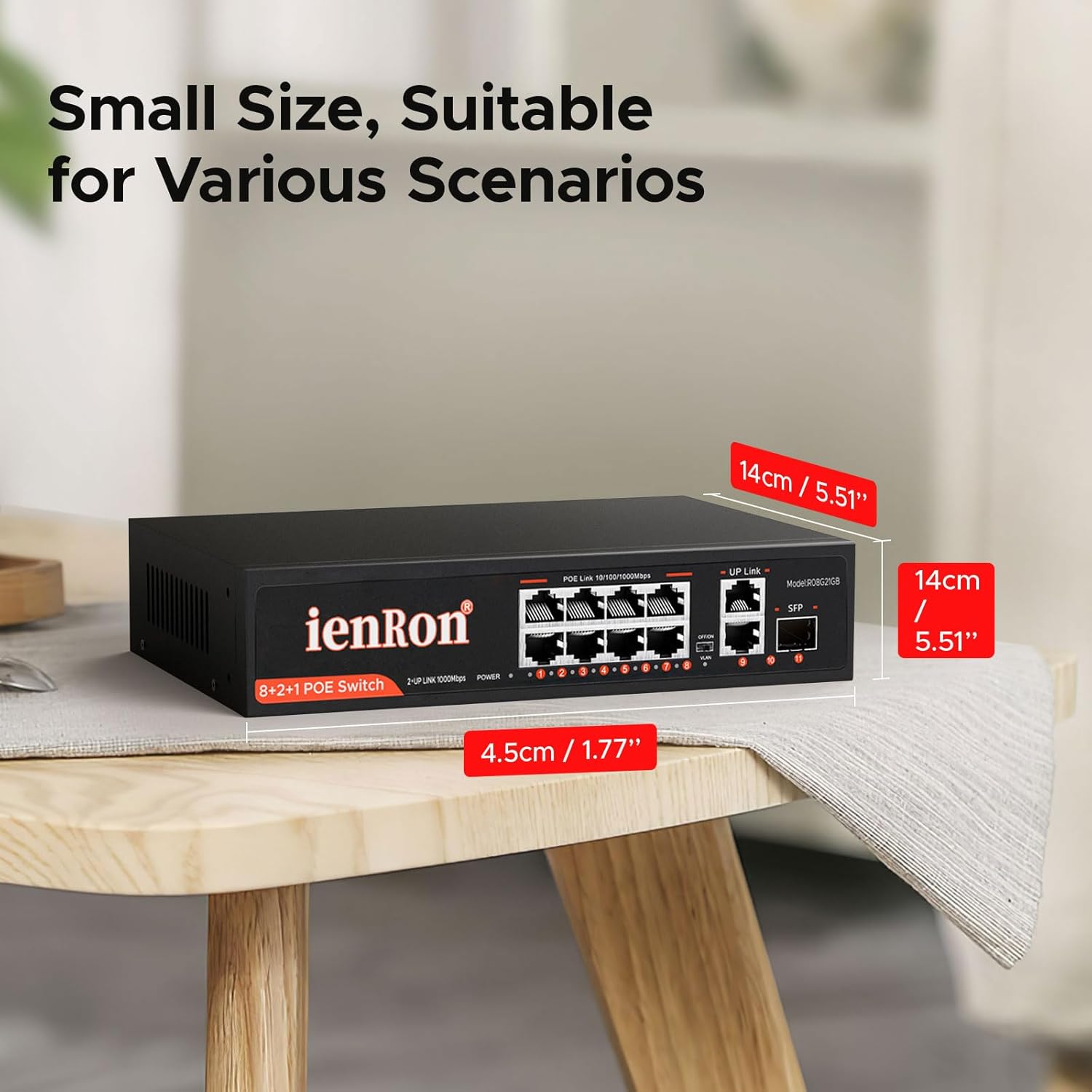
Figure 10.1: Physical Dimensions. This image provides the length, width, and height measurements of the ienRon 11-Port Gigabit PoE Switch, indicating its compact size suitable for various installations.
| Feature | Description |
|---|---|
| Brand | ienRon |
| Model Number | 11-Port| 8*1000M POE+2*Uplink+1* SFP |
| Number of Ports | 11 (8 PoE+, 2 Gigabit Uplink, 1 SFP+) |
| PoE Standard | IEEE 802.3af/at |
| Max PoE Power Per Port | 30 Watts |
| Total PoE Budget | 120 Watts |
| Data Transfer Rate | 1000 Megabits Per Second (Gigabit) |
| Switch Type | Unmanaged Gigabit Ethernet |
| VLAN Function | One-touch switch for port isolation (ports 1-8) |
| Surge Protection | 6000V |
| Case Material | Metal |
| Cooling | Fanless |
| Voltage | 52 Volts |
| Current Rating | 2.3 Amps |
| Maximum Power Consumption | 120 Watts |
| Upper Temperature Rating | 55 Degrees Celsius |
| Item Dimensions (L x W x H) | 7.87" x 5.5" x 1.77" (20cm x 14cm x 4.5cm) |
| Item Weight | 1.9 Pounds (0.86 kg) |
11. Warranty Information
The ienRon 11-Port Gigabit PoE Switch comes with a ONE YEAR limited warranty from the date of purchase. This warranty covers defects in materials and workmanship under normal use.
The warranty does not cover damage caused by:
- Accident, abuse, misuse, or neglect.
- Unauthorized modification or repair.
- Improper installation or operation not in accordance with this manual.
- External causes such as power surges or natural disasters.
To claim warranty service, please retain your proof of purchase and contact ienRon customer support.
12. Customer Support
For technical assistance, warranty inquiries, or any questions regarding your ienRon 11-Port Gigabit PoE Switch, please contact our customer support team.
- Website: Visit the official ienRon website for FAQs, support resources, and contact information.
- Email: Refer to your product packaging or the ienRon website for the support email address.
- Phone: Refer to your product packaging or the ienRon website for customer service phone numbers.
When contacting support, please have your product model number (11-Port| 8*1000M POE+2*Uplink+1* SFP) and purchase information readily available.