
1. Product Overview
The Connorddo Android 15 Car Stereo (Model ZJ7258) is a 10.1-inch IPS touch screen head unit designed for Ford F150 models from 2009 to 2014. This unit integrates advanced features such as wireless Apple CarPlay, Android Auto, Mirror Link, GPS navigation, FM radio, steering wheel control (SWC), and WiFi connectivity. It operates on an Android 15 system with 4GB RAM and 64GB ROM, providing a responsive and versatile in-car entertainment and navigation experience.
2. Package Contents
Verify that all components are present in the package:
- 1 x Connorddo Android 15 Car Stereo Head Unit (Model ZJ7258)
- 1 x Backup Camera
- 1 x RCA Cable
- 1 x Microphone (Wheat Head)
- 1 x Connecting Line (Wiring Harness)
- 1 x User Manual (Printed)
- 1 x Radio Antenna
- 1 x Protocol Box (CAN-BUS module)
- 1 x GPS Antenna
- 2 x USB Cables
- Installation Tools (Pry tool, Screws - typically included)

Figure 2.1: Illustration of all items included in the package, such as the 10.1-inch head unit, various cables, antennas, protocol box, and backup camera.
3. Compatibility
This Android 15 Car Stereo is compatible with Ford F150 models manufactured between 2009 and 2014. Before installation, ensure to verify the year, size, and center console shape of your vehicle to confirm proper fitment.

Figure 3.1: Visual guide for Ford F150 dashboard compatibility, indicating which console types are suitable for installation.
4. Key Features
4.1 Wireless Apple CarPlay & Android Auto & Mirror Link
The head unit supports wireless Apple CarPlay and Android Auto. Connect your smartphone via Wi-Fi and Bluetooth to access navigation, calls, music, and other applications directly on the car stereo display. Wireless Mirror Link functionality is also supported for screen mirroring from your device.

Figure 4.1: Display showing the Apple CarPlay and Android Auto interfaces, highlighting app integration and wireless connectivity.
4.2 Android 15 System & Memory (4GB RAM + 64GB ROM)
Equipped with an Android 15.0 operating system, 4GB of RAM, and 64GB of internal storage (ROM). This configuration ensures smooth multitasking, fast app response, and ample space for installing applications from the Application Store. This unit supports Wi-Fi and network connectivity for online services.
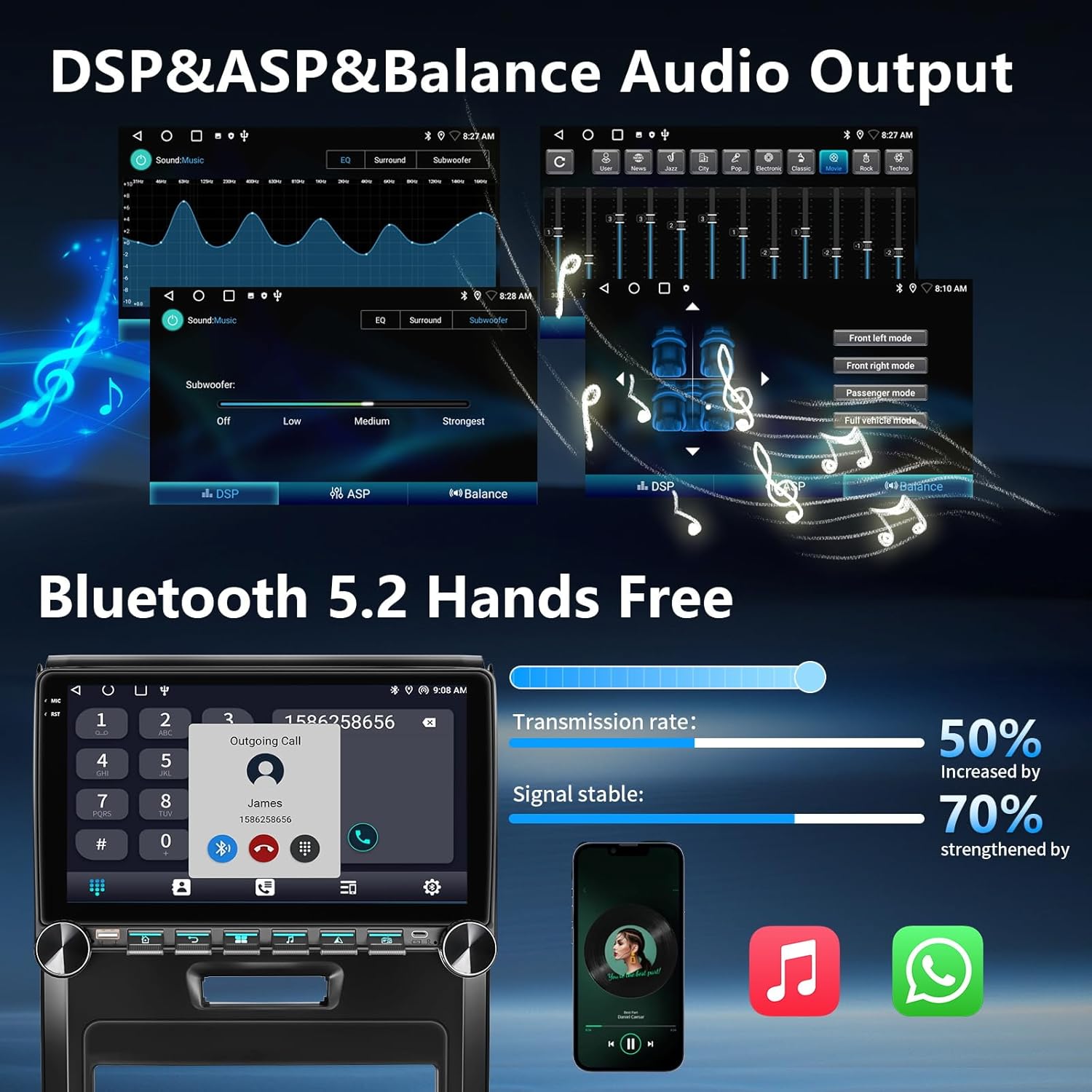
Figure 4.2: Visual representation of the Android 15 operating system and internal memory specifications.
4.3 GPS Navigation & 5G WiFi
The head unit features a built-in GPS module and an external GPS antenna for accurate online and offline map navigation. Preloaded offline map data for North America is included. It supports 5G WiFi hotspot connection, allowing access to online navigation apps, social media, and other internet services via the Play Store.

Figure 4.3: Screenshots demonstrating GPS navigation with various map apps and 5G WiFi internet browsing capabilities.
4.4 Full RCA Output & Split Screen
The unit provides full RCA video output, enabling connection to external displays such as car headrest monitors for rear-seat entertainment. The split-screen function allows two different applications to be displayed simultaneously on the 10.1-inch screen.

Figure 4.4: Example of the split-screen feature, displaying a navigation map alongside a music player.
4.5 Steering Wheel Control (SWC)
Supports original steering wheel controls for convenient operation of the stereo without taking your hands off the wheel. Functions such as volume adjustment, track skipping, and call management can be mapped to your vehicle's existing steering wheel buttons.
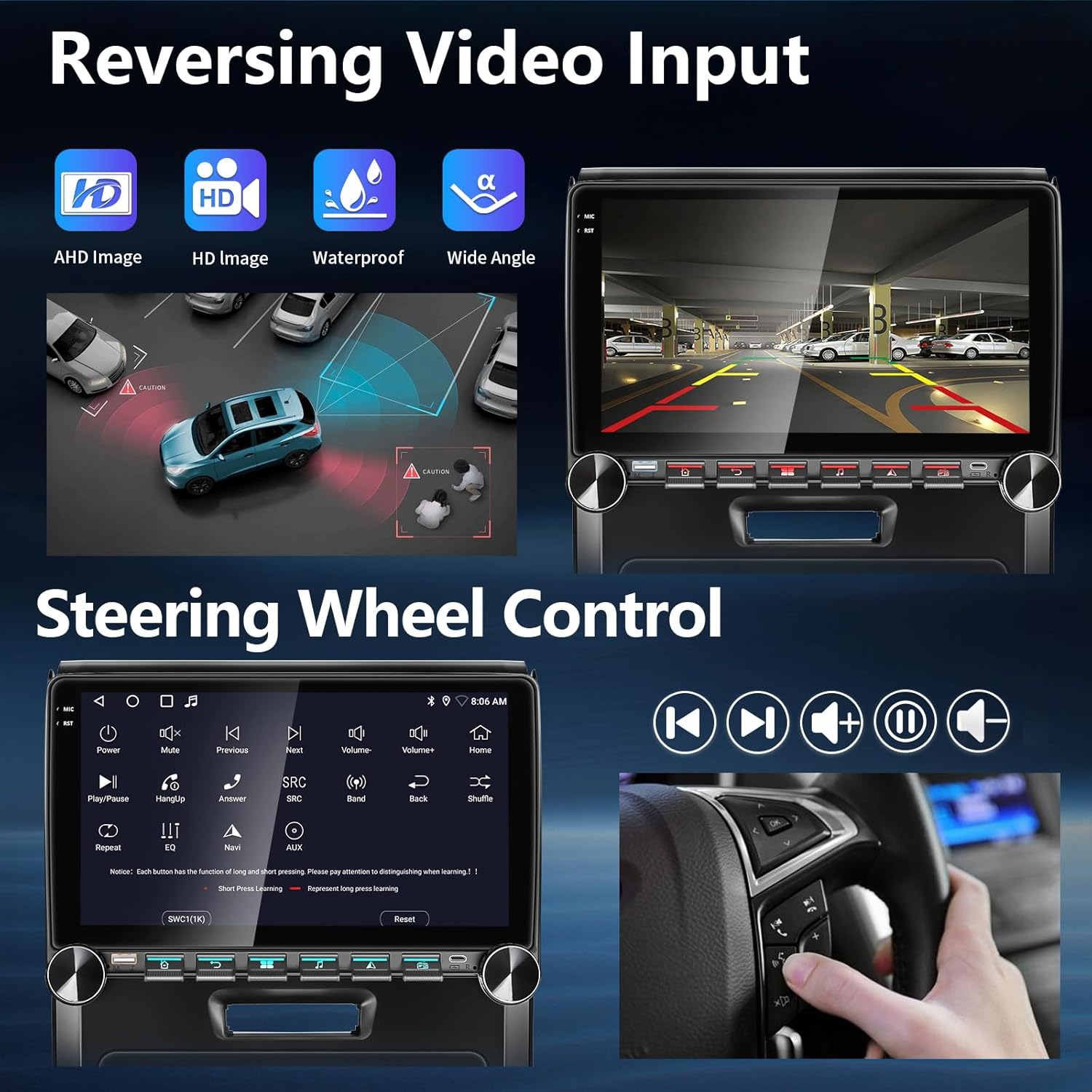
Figure 4.5: Illustration of the steering wheel control interface and how it integrates with the vehicle's steering wheel buttons.
4.6 Reversing Video Input & Backup Camera
The unit includes a backup camera and supports reversing video input, providing a clear view of the area behind your vehicle when reversing. This enhances safety and simplifies parking maneuvers.

Figure 4.6: Example of the reversing camera display on the head unit, showing parking guidelines.
4.7 DSP & Audio Output
Integrated Digital Signal Processor (DSP) and advanced audio output features allow for precise sound customization. Adjust equalizer settings, subwoofer levels, and sound field to optimize your in-car audio experience.
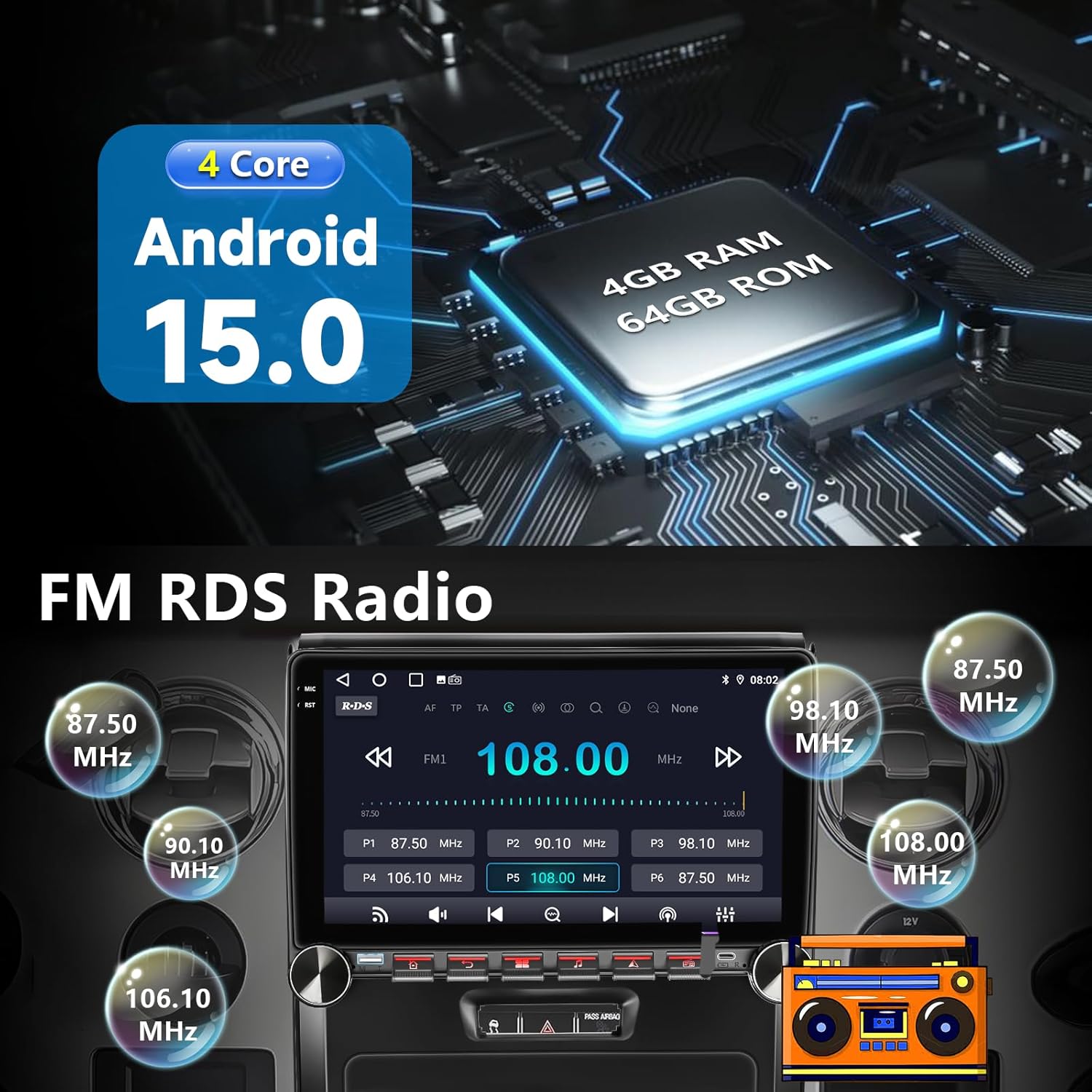
Figure 4.7: Screenshots of the DSP and audio settings, including equalizer and sound field adjustments.
4.8 FM RDS Radio
Features an FM RDS tuner radio, allowing you to listen to your favorite radio stations with clear reception. RDS (Radio Data System) provides additional information such as station name and song titles where available.
Figure 4.8: Display of the FM radio interface, showing frequency selection and RDS information.
4.9 10.1 Inch QLED Screen & UI Themes
The unit boasts a 10.1-inch QLED IPS touch screen with a resolution of 1280x720 pixels, offering vibrant colors and clear visuals. It also provides 25 UI theme options for personalized interface customization.

Figure 4.9: Visual comparison of screen quality and various user interface themes available for selection.
5. Setup & Installation
Professional installation is recommended. Refer to the detailed wiring diagram provided in the included user manual for specific connections. The following videos provide a visual guide for the installation process and key programming.
5.1 Installation Guide for Ford F150 2009-2012
Video 5.1: This video demonstrates the step-by-step process of installing the car radio in a Ford F150 model from 2009-2012. It covers removal of the old unit and installation of the new head unit.
5.2 Installation Guide for Ford F150 /250/350 2004-2016
Video 5.2: This video provides an installation guide for Ford F150, F250, and F350 models from 2004-2016, which may offer additional insights for your F150 2009-2014 installation.
5.3 Customizing Key Button Shortcut Functions
Video 5.3: This video explains how to customize the shortcut functions for the physical buttons on the car radio, allowing for personalized control.
6. Operating Instructions
6.1 Connecting Wireless CarPlay/Android Auto
To connect your smartphone wirelessly:
- Ensure Bluetooth and Wi-Fi are enabled on both your smartphone and the car stereo.
- On the car stereo, navigate to the "Bluetooth" application.
- Search for your phone's Bluetooth name on the car stereo and tap to connect.
- Enter the provided passcode (usually "0000" or "1234") on your phone when prompted.
- Once paired, the system will prompt you to connect to CarPlay or Android Auto. Confirm the connection.
Video 6.1: This video illustrates the process of connecting your smartphone for wireless CarPlay functionality.
6.2 Using GPS Navigation
The unit comes with preloaded offline maps. For online navigation, connect to a Wi-Fi hotspot and download your preferred navigation apps from the Play Store. Ensure the external GPS antenna is properly installed for optimal signal reception.
6.3 Adjusting Audio Settings (DSP)
Access the "DSP" or "Equalizer" settings from the main menu to customize sound profiles. You can adjust frequency bands, set subwoofer output, and configure sound balance for different seating positions (e.g., Driver, Co-pilot, All).
6.4 Changing UI Themes
The unit offers 25 different UI themes. To change the theme, navigate to the "Settings" menu, then "General" or "Display" (exact path may vary), and look for "Home Launcher Selection" or "UI Theme Option." Select your desired theme.
Video 6.2: This video demonstrates how to change the user interface (UI) theme on the car radio.
7. Maintenance
To ensure the longevity and optimal performance of your car stereo, follow these maintenance guidelines:
- Screen Cleaning: Use a soft, lint-free cloth slightly dampened with a screen cleaner or water to clean the touch screen. Avoid harsh chemicals or abrasive materials.
- Software Updates: Periodically check for software updates to ensure you have the latest features and bug fixes. Updates can usually be found in the system settings or on the manufacturer's website.
- Cable Connections: Ensure all cables are securely connected. Loose connections can lead to intermittent functionality or poor performance.
- Environmental Conditions: Avoid exposing the unit to extreme temperatures, direct sunlight for prolonged periods, or excessive moisture.
8. Troubleshooting
If you encounter issues with your Connorddo Android 15 Car Stereo, refer to the following common troubleshooting steps:
- No Power/Screen Blank:
- Check all power connections to ensure they are secure.
- Verify the vehicle's fuse related to the radio is intact.
- If the screen is dim or black on startup, check "Developer Options" in system settings for "Stay Awake" feature (refer to Video 8.1).
- CAN-BUS Module Issues (e.g., dashboard display in KM instead of Miles):
- Ensure the correct CAN-BUS module is installed and configured for your specific vehicle model and year.
- Access "Factory Settings" (password 3368 or 123456) and verify "Mileage unit switching" is set to "Miles" (refer to Video 8.1).
- Bluetooth Connectivity Problems:
- Ensure Bluetooth is enabled on both the stereo and your smartphone.
- Delete previous pairings and attempt to re-pair the devices.
- Restart both the stereo and your phone.
- Steering Wheel Controls Not Working:
- Ensure the SWC wiring is correctly connected according to the wiring diagram.
- Access the "Steering Wheel Setting" in the unit's settings to program or re-program the buttons.
- Incorrect Time/Date:
- Go to "Settings" > "System" > "Date & Time".
- Disable "Use network-provided time" and "Use network-provided time zone" to manually set the time and date.
Video 8.1: This video demonstrates various settings and functions, including how to adjust mileage units and manage boot screen behavior, which can help resolve common issues.
9. Specifications
| Feature | Specification |
|---|---|
| Model Number | ZJ7258 |
| Operating System | Android 15 |
| RAM | 4GB |
| ROM | 64GB |
| Screen Size | 10.1 Inches |
| Display Resolution | 1280 x 720 pixels |
| Display Type | QLED IPS Touch Screen |
| Connectivity | Wireless Apple CarPlay, Android Auto, Mirror Link, Bluetooth, USB, Wi-Fi (5G) |
| Navigation | Built-in GPS Module, External GPS Antenna, Offline Maps (North America) |
| Audio Output Mode | Surround, DSP, FM Tuner |
| Included Components | 1 x Backup Camera |
| Item Weight | 4.86 pounds |
| Package Dimensions | 18.31 x 14.72 x 4.96 inches |
10. Warranty and Support
The Connorddo Android 15 Car Stereo comes with a one-year free replacement warranty. For any technical assistance, troubleshooting, or warranty claims, please contact customer service. Support is available 7 days a week, 24 hours a day.