
1. Introduction
This manual provides detailed instructions for the installation, operation, and maintenance of your SOLAFANS 96V 60A Modbus MPPT Solar Charge Controller. Please read this manual thoroughly before installation and use to ensure proper function and safety.
2. Safety Instructions
Always observe the following safety precautions to prevent personal injury or damage to the controller:
- Ensure all connections are correct and secure before powering on the system.
- Do not connect an inverter, battery, or appliances with high power motors directly to the DC load terminals. Connect these to the battery.
- The controller is designed for indoor use in a well-ventilated area. Avoid exposure to direct sunlight, high temperatures, and moisture.
- Only qualified personnel should perform installation and maintenance.
- Wear appropriate personal protective equipment (PPE) during installation.
Charge Protection Features
The controller includes comprehensive charge protection to safeguard your system:
- Overcharge protection
- Overcurrent protection
- Overdischarge protection
- Short circuit protection
- Reverse current protection
- Overvoltage protection
- Reverse connection protection
- High temperature protection
- Recovery protection

Image: The controller features multiple protection mechanisms to ensure safe and reliable operation of your solar power system.
3. Product Overview
The SOLAFANS 96V 60A Modbus MPPT Solar Charge Controller is an advanced device designed for efficient solar power management. It features a 4.3-inch HD touch screen, multi-language support, Bluetooth connectivity, and various battery reactivation capabilities.
Key Features:
- Multi-language Support: English, Chinese, Japanese.
- HD 4.3" Touch Screen: Intuitive interface with auto sleep mode.
- Built-in Bluetooth Applet: For remote monitoring and control.
- RS485 or MODBUS Communication: Flexible communication protocols.
- Battery Reactivation: Automatically wakes up dead batteries when solar power is available.
- Wide Battery Compatibility: Supports Lead acid, Gel, Liquid, and Lithium batteries.
- High Efficiency: PV module utilization rate up to 99%, conversion efficiency up to 98.1%.
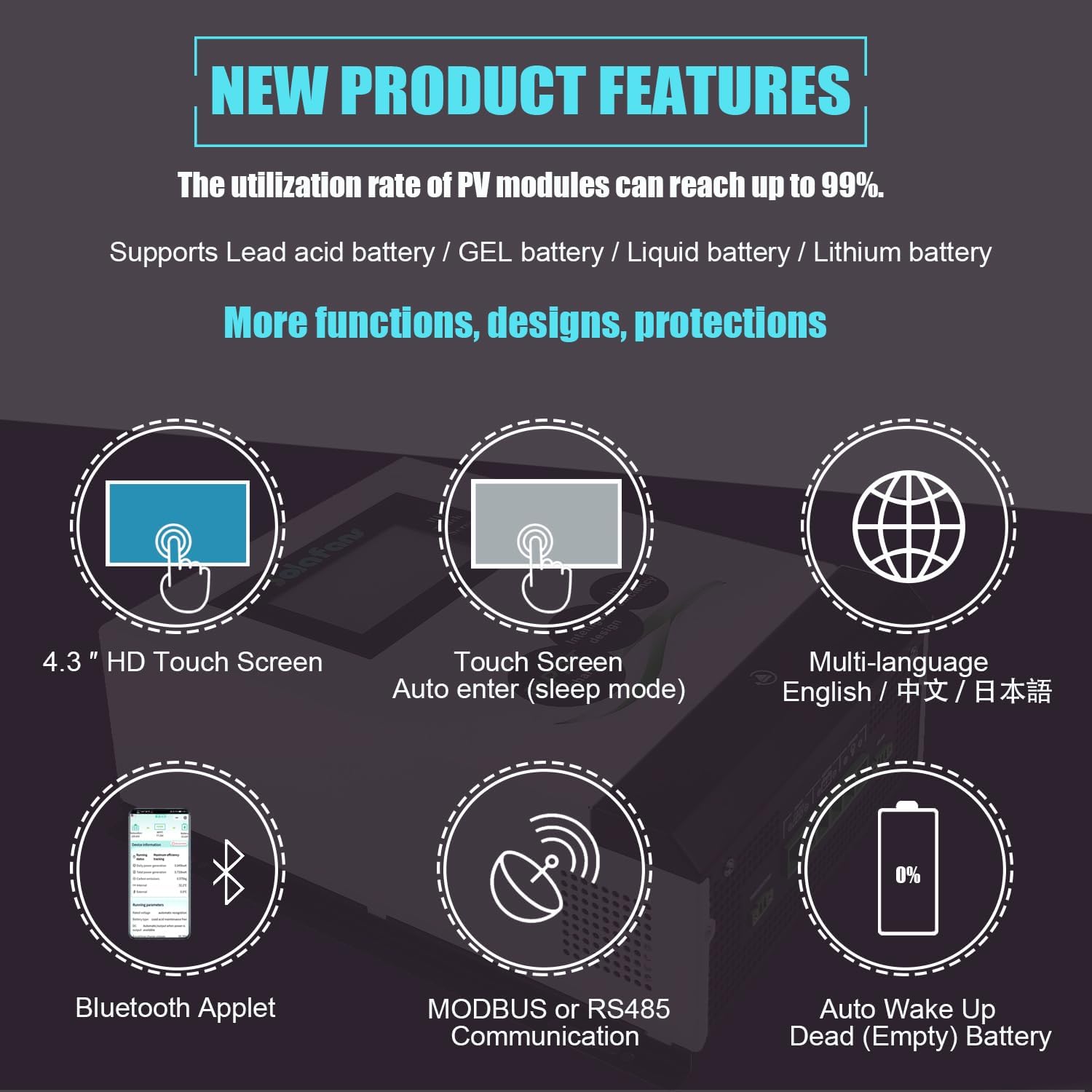
Image: Visual representation of the controller's main features, including its touch screen, multi-language options, and communication capabilities.
4. Setup
4.1 Component Identification
Familiarize yourself with the controller's components before installation.
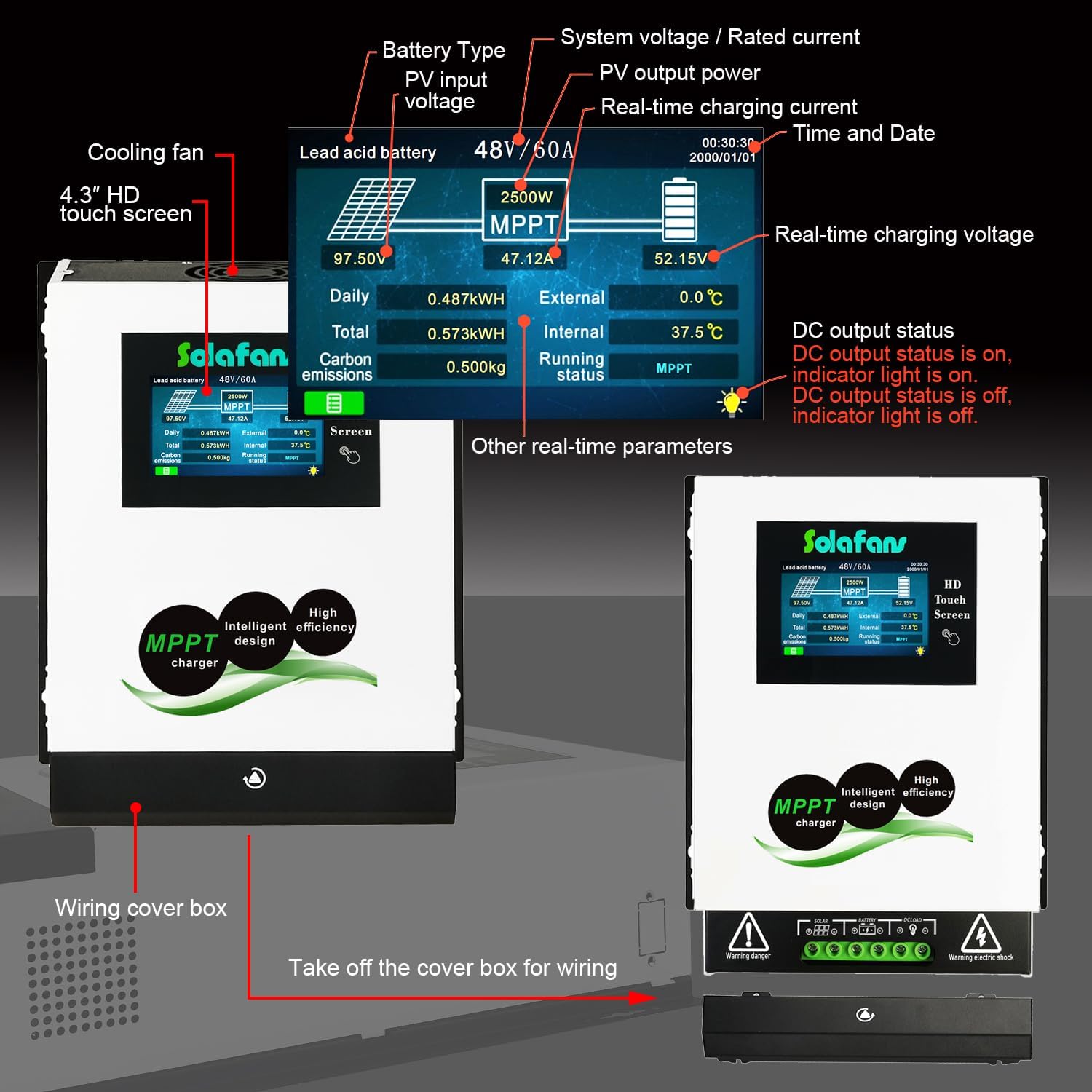
Image: Front view of the controller showing the HD touch screen and key indicators. The wiring cover box is located at the bottom.
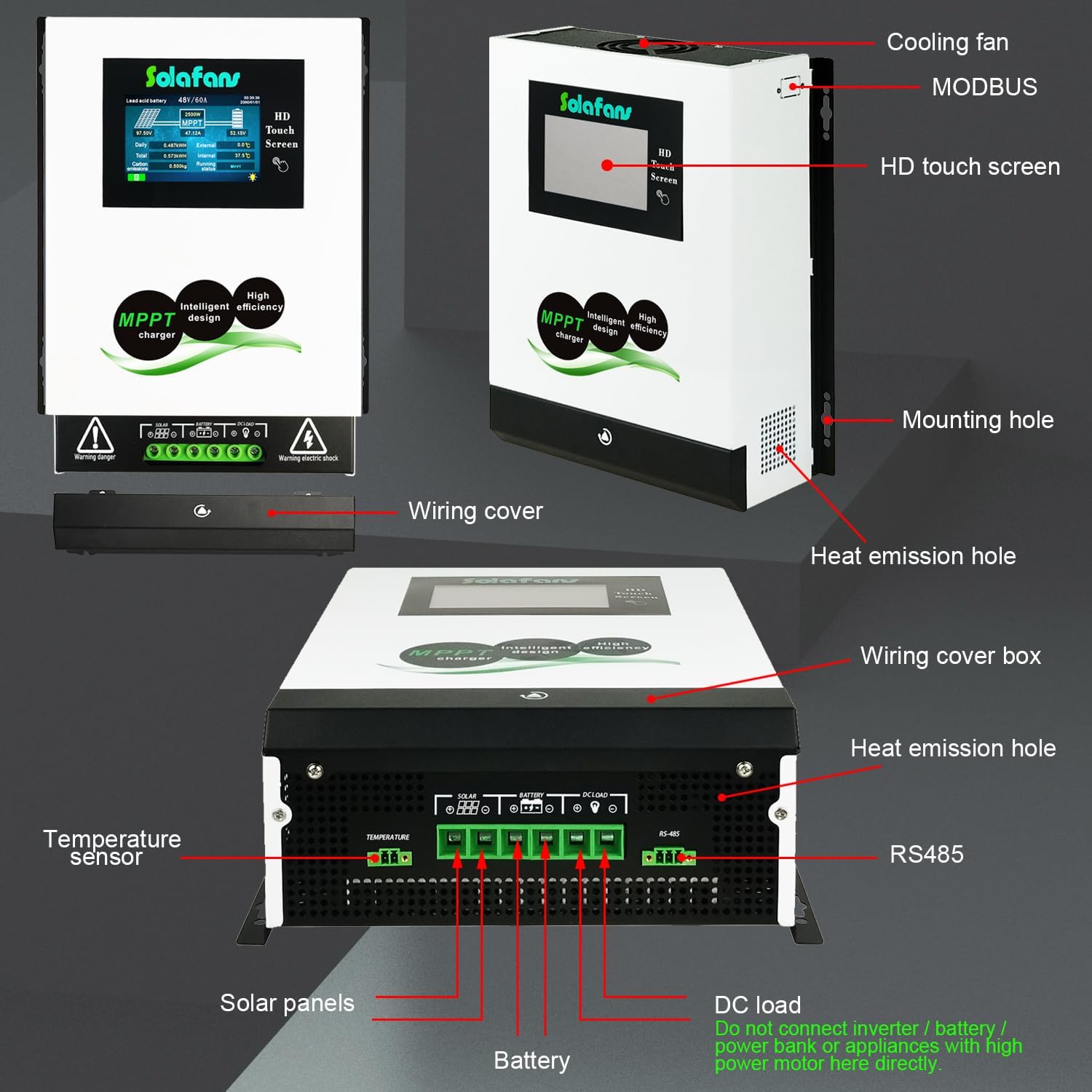
Image: Rear and side view of the controller, detailing connection points for solar panels, battery, and DC load, along with communication ports and cooling features.
4.2 Wiring Connections
Follow these steps for proper wiring:
- Connect the Battery: Always connect the battery to the controller first. Ensure correct polarity.
- Connect Solar Panels: After the battery, connect the solar panels to the controller. Ensure correct polarity and that the PV input voltage is within the controller's specifications.
- Connect DC Load (Optional): If using the DC load output, connect your DC loads. Important: Do not connect inverters, power banks, or high-power motor appliances directly to the DC load terminals. Connect these to the battery.
The controller supports both RS485 and MODBUS communication protocols. Choose the appropriate protocol based on your system requirements.

Image: Comparison of RS485 and MODBUS communication options for the controller.
5. Operating Instructions
5.1 Touch Screen Interface
The 4.3-inch HD touch screen allows for easy monitoring and configuration. Navigate through menus by tapping the icons. The screen will auto-enter sleep mode after a period of inactivity.
Video: Demonstrates the functionality and navigation of the SOLAFANS controller's touch screen display, including language selection and viewing system status, current curve, power curve, fault records, parameter settings, DC output settings, communication settings, and display settings.
5.2 Bluetooth App Connection
The controller features a built-in Bluetooth applet for remote monitoring and control via your smartphone. Ensure your phone's GPS and Bluetooth are enabled.
- Open the WeChat application on your smartphone.
- Search for the mini program named "JUYUAN SOLAR".
- Select the program and connect to your device via Bluetooth.
- You can add the mini program to your phone's home screen for quick access.
Note: Some mobile phones may require authorization for WeChat in the phone's settings (App -> WeChat -> Permissions -> Dropzone -> Allow). Deleting WeChat will also delete the mini program.
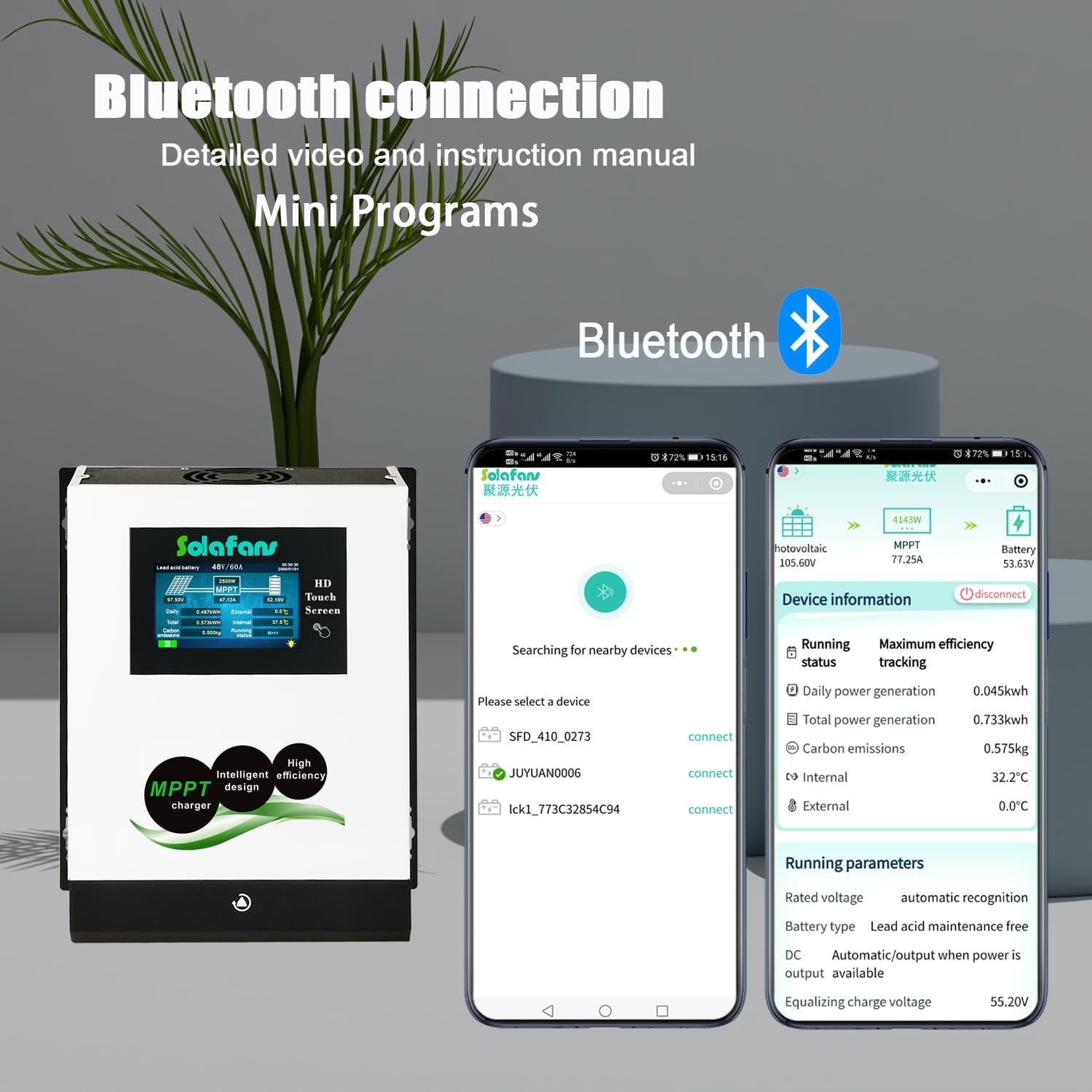
Image: Illustrates the Bluetooth connection process and the mobile application interface for monitoring the controller.
Video: A step-by-step guide on how to connect and use the Bluetooth mini program with the SOLAFANS solar charge controller, including enabling GPS and Bluetooth, searching for the 'JUYUAN SOLAR' program in WeChat, connecting to the device, and adding the program to the home screen.
5.3 Parameter Settings
Access the parameter settings via the touch screen to configure battery type, voltage, and charging limits. The default password for settings is typically found in the user manual (page 19 for some models).
- Battery Type: Select from Lead acid, Gel, Liquid, or Lithium battery.
- Battery Rated Voltage: Can be set to Auto (48V-96V) or manually to 60V, 72V, 84V, 96V.
- Charging Parameters: Adjust equalizing charge voltage, floating charge voltage, overvoltage protection, overvoltage recovery, overdischarge protection, overdischarge recovery, and maximum charging current limit.
5.4 DC Load Control
The DC output control mode can be set to Auto, Time control, or PV control. This allows for flexible management of connected DC loads.
6. Maintenance
Regular maintenance ensures optimal performance and longevity of your solar charge controller.
- Cleaning: Periodically clean the exterior of the controller and ensure the cooling fan and heat emission holes are free from dust and debris. Use a dry, soft cloth.
- Connection Check: Regularly inspect all wiring connections for tightness and signs of corrosion.
- Environmental Check: Ensure the installation environment remains within specified temperature and humidity ranges.
7. Troubleshooting
If you encounter issues, refer to the fault record query on the touch screen for diagnostic information. Common issues and their solutions are listed below:
- No Power Display: Check battery connections and solar panel input. Ensure the battery is connected first.
- No Charging: Verify solar panel connections and voltage. Check for shading on solar panels.
- Battery Not Fully Charged: Review parameter settings for battery type and charging limits.
- DC Load Not Working: Check DC output settings (Auto, Time, PV control) and ensure the load is within the controller's capacity. Confirm connections.
- Communication Issues: For Bluetooth, ensure GPS and Bluetooth are enabled on your phone and the 'JUYUAN SOLAR' mini program has necessary permissions. For Modbus/RS485, check wiring and communication settings.
8. Specifications
| Feature | Description |
|---|---|
| Model | 96V 60A Modbus |
| Display Type | Touchscreen (4.3" HD) |
| Max Solar Panel Input Voltage | DC 180V (Working), DC 220V (Open Circuit) |
| Battery Voltage Support | 48V, 60V, 72V, 84V, 96V (Auto/Manual Set) |
| Max Charging Current | 60A |
| Max PV Input Power (96V) | 6600W |
| Battery Types Supported | Lead acid, Gel, Liquid, Lithium battery |
| Communication | Modbus, Bluetooth Applet |
| Conversion Efficiency | Up to 98.1% |
| Product Dimensions | 9.69"L x 3.94"W x 11.89"H |
| Item Weight | 7.26 pounds (3.3 Kilograms) |
| Material | Metal (Iron shell and aluminum cooling plate) |
| Certifications | FCC, TELEC / Giteki / MIC, CE, PSE, SGS, METI Registration |

Image: Detailed specifications table for various controller capacities, including maximum PV input power for different voltage configurations.
9. Warranty and Support
SOLAFANS products are manufactured with high-quality standards. For warranty information and technical support, please refer to the product packaging or contact SOLAFANS customer service through your purchase platform. Ensure you have your product model and purchase date available when contacting support.