
Introduction
Thank you for choosing the DurayLoly 55" Gaming Desk. This desk is designed to enhance your gaming or work experience with its spacious design, integrated LED lighting, convenient power outlets, and versatile storage solutions. This manual provides detailed instructions for assembly, operation, maintenance, and troubleshooting to ensure optimal use of your new desk.
Safety Information
- Read all instructions carefully before assembly and use.
- Keep small parts away from children and pets to prevent choking hazards.
- Ensure all screws and fasteners are securely tightened before use. Periodically check and re-tighten as needed.
- Do not overload the desk or shelves beyond their specified weight capacities. Refer to the specifications section for details.
- Place the desk on a level surface to prevent tipping.
- Avoid exposing the desk to excessive moisture or direct sunlight.
- Use only the provided power adapter for the LED lights and power outlets.
Parts List
Before beginning assembly, verify that all components are present and undamaged. If any parts are missing or damaged, please contact customer support.

Unboxing and Component Overview
This video demonstrates the unboxing process and initial layout of all components for the DurayLoly Gaming Desk, including the wooden panels, metal frames, and hardware. (Relevant segment: 0:00-0:06)
Assembly Instructions
Follow these steps carefully for a smooth assembly process. All necessary tools and hardware are included.
- Prepare the Area: Clear a spacious, clean, and level area for assembly.
- Identify Parts: Lay out all components and hardware, matching them with the provided parts list in the manual.
- Assemble the Frame: Begin by connecting the main metal frame components using the designated screws. Ensure all connections are snug but do not fully tighten until all parts are aligned.
- Attach Desktop and Shelves: Secure the main desktop panel and the monitor stand shelves to the frame. The side shelves can be installed on either the left or right side according to your preference.
- Install Drawer: Assemble the fabric drawer and insert it into its designated slot. The drawer handle should be attached to the front panel.
- Integrate Power Station: Carefully place the integrated power and charging station into its cutout on the desktop and secure it. Connect the power cable.
- Attach Accessories: Install the side hooks for headphones or other accessories.
- Final Tightening: Once all parts are in place and aligned, fully tighten all screws and fasteners.
- Adjust Leveling Feet: Adjust the non-slip feet at the bottom of the desk to ensure stability on uneven floors.
Assembled Desk Overview
This segment showcases the fully assembled desk, highlighting the functional drawer, convenient side hooks, and the dynamic color-changing LED lights in action. (Relevant segment: 0:06-0:10)
Operating Instructions
LED Lighting System
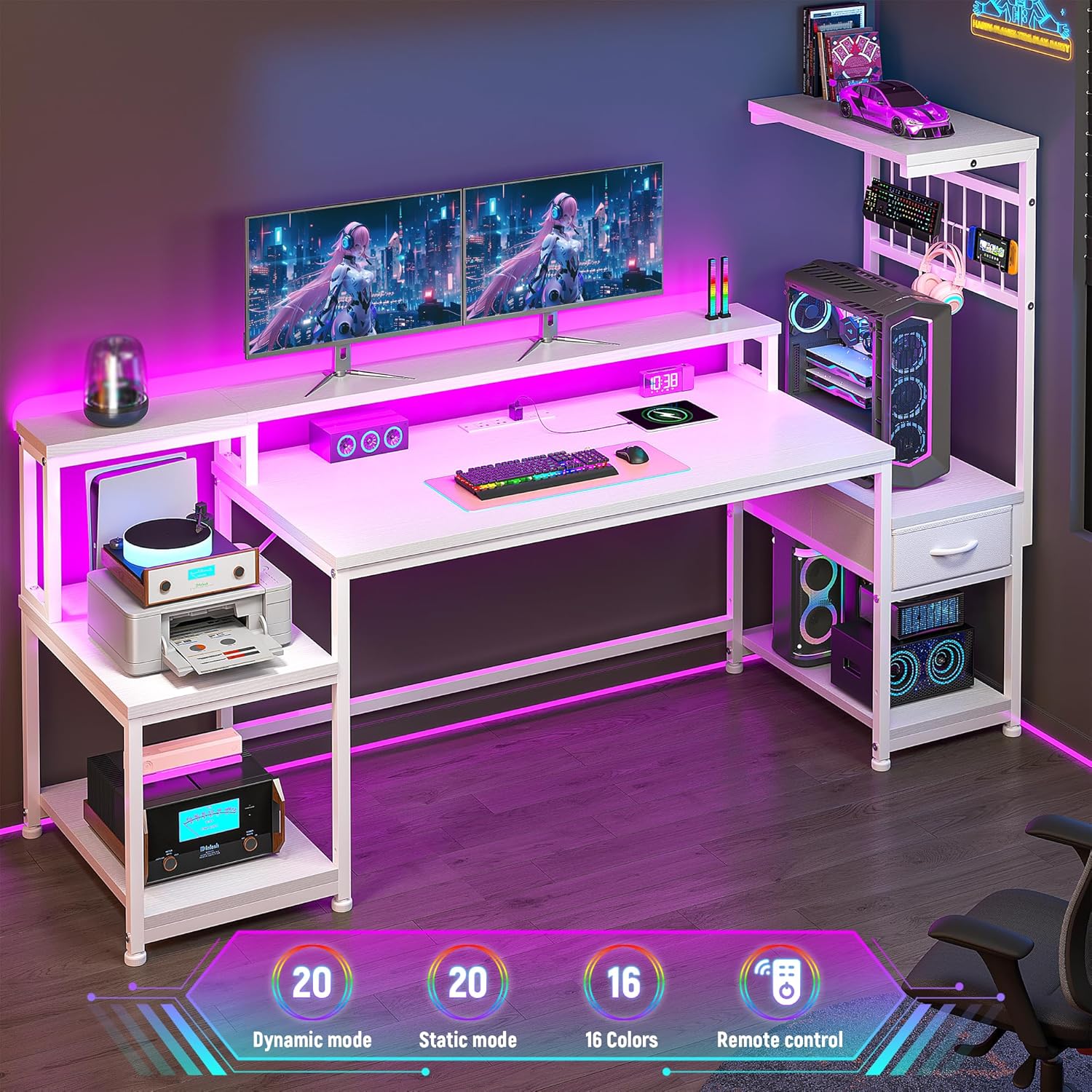
The desk features an integrated LED strip with various lighting options. Use the provided remote control to manage the lights.
- Power On/Off: Press the power button on the remote to turn the lights on or off.
- Color Selection: Use the color buttons (e.g., Red, Green, Blue, White) to select a static color.
- Dynamic Modes: Press the 'MODE' button to cycle through 20 dynamic lighting modes.
- Brightness Adjustment: Use the 'BRIGHT +' and 'BRIGHT -' buttons to increase or decrease the light intensity.
- Speed Adjustment: In dynamic modes, use the 'SPEED +' and 'SPEED -' buttons to adjust the speed of the lighting effects.
- Memory Function: The system will remember your last setting when powered off and on.
LED Remote Control Demonstration
A demonstration of the remote control for the LED lighting system, showing how to select colors, modes, and adjust brightness. (Relevant segment: 0:10-0:15)
Integrated Power & Charging Station
The desk includes a built-in power strip for convenient access to power and charging.
- AC Outlets: Plug in your computer, monitors, or other AC-powered devices into the three 125V/12A AC outlets.
- USB Port: Use the 5V/2A USB port to charge smartphones, tablets, or other USB-powered accessories.
- Type-C Port: The 5V/2A Type-C port provides fast charging for compatible devices.
- Ensure the desk's main power cable is securely plugged into a wall outlet for the power station to function.

Power Connections Demonstration
This clip details the integrated power strip, illustrating the USB, Type-C, and AC outlets for connecting and charging devices. (Relevant segment: 0:15-0:20)
Features Overview
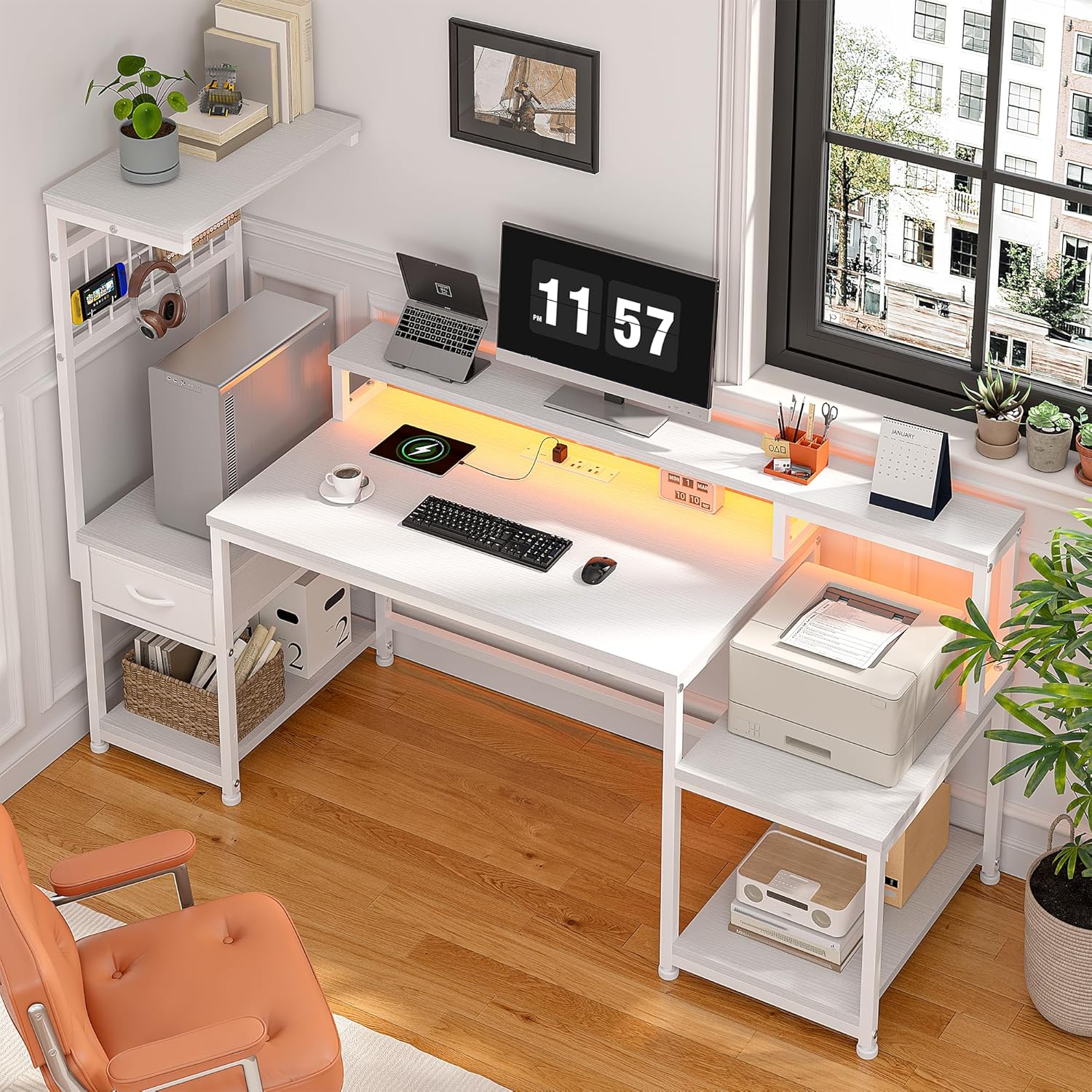
- Spacious Practical Desktop: A 55"x19.6" countertop provides ample space for laptops, keyboards, and other devices, maintaining a tidy workspace. Constructed with a premium metal frame and quality board for stability, durability, and scratch/water resistance.
- Flexible Storage Solutions: Reversible shelving adapts to your space, allowing installation on the left or right. Roomy shelves organize gear, while two built-in hooks keep headphones, gaming mice, or cables within reach.
- Dynamic LED Lighting: Features an LED strip with 20 static colors, 20 dynamic modes, and memory controls to reduce eye strain, boost focus, and set the mood.
- Integrated Power & Charging Station: Includes 3 AC outlets, 1 Type-C, and 1 USB port, supporting up to 5 devices simultaneously for seamless charging.
- Ergonomic Home Office Monitor Stand: Elevates your monitor to an optimal height for an ergonomic viewing angle, reducing neck and spine strain and freeing up desk space.


Maintenance
- Cleaning: Wipe the desk surfaces with a soft, damp cloth. Avoid harsh chemicals or abrasive cleaners that may damage the finish.
- Dusting: Regularly dust the desk and LED strip to maintain optimal performance and appearance.
- Connection Checks: Periodically inspect all electrical connections for the LED lights and power outlets to ensure they are secure.
- Fastener Checks: Every few months, check all screws and fasteners and re-tighten them if necessary to maintain stability.
Troubleshooting
- LED Lights Not Working:
- Ensure the LED strip is properly connected to the power source and the desk's main power cable is plugged into a functional wall outlet. Check the remote control battery and ensure there are no obstructions between the remote and the LED receiver.
- Power Outlets Not Functioning:
- Verify that the desk's main power cable is securely plugged into a live wall outlet. Check for any tripped circuit breakers in your home. Ensure devices plugged into the outlets are working correctly.
- Desk Wobbles or is Unstable:
- Check that all assembly screws are fully tightened. Adjust the leveling feet at the bottom of the desk legs to compensate for uneven floor surfaces.
- Drawer Does Not Slide Smoothly:
- Ensure the fabric drawer is correctly assembled and inserted. Check for any obstructions in the drawer's path.
Specifications
| Feature | Detail |
|---|---|
| Brand | DurayLoly |
| Shape | Rectangular |
| Desk Design | Computer Desk |
| Product Dimensions | 19.6"D x 55"W x 51"H |
| Color | White |
| Style | Modern |
| Base Material | Metal |
| Top Material Type | Wood |
| Finish Type | Painted |
| Number Of Shelves | 2 |
| Maximum Height | 51 Inches |
| Required Assembly | Yes |
| Warranty Type | Limited |
Warranty & Support
The DurayLoly 55" Gaming Desk comes with a limited warranty. For specific details regarding warranty coverage and duration, please refer to the warranty card included with your product or contact DurayLoly customer support.
If you encounter any issues during assembly or operation, or if you have questions about your product, please contact our dedicated customer support team for assistance. Contact information can typically be found on the product packaging or on the official DurayLoly website.