
S30
S30 Voice Translator User Manual
Model: S30
1. Introduction
The S30 Voice Translator is a multi-language, real-time translation device designed for travel, learning, and communication. It integrates advanced AI processing technology, including ChatGPT large model language processing, to provide accurate and efficient voice and text translation.
This manual provides essential information on setting up, operating, maintaining, and troubleshooting your S30 Voice Translator.
2. Package Contents
Upon opening the package, please verify that all items are present and in good condition:
- 1 x S30 Voice Translator
- 1 x USB Cable
- 1 x English Instruction Manual (this document)
3. Product Overview
The S30 Voice Translator features a compact design with a 3.0-inch HD touch screen and a 5-megapixel HD camera. It supports various translation modes and connectivity options.

Figure 3.1: Front and back view of the S30 Voice Translator, showcasing its compact size and camera lens on the back. The front displays the main interface with options for online, offline, conversational, and photo translation.

Figure 3.2: The S30 Automatic Translator highlighting its key features: Conversational translation, One-click translation, Online translation, Offline translation, Photo translation, Group translation, and ChatGPT integration.
4. Setup
4.1 Charging the Device
Before first use, fully charge the S30 Voice Translator using the provided USB cable. Connect the USB cable to the device's charging port and the other end to a standard USB power adapter (not included) or a computer's USB port.
- The battery indicator on the screen will show charging status.
- A full charge typically takes approximately 2-3 hours.
4.2 Powering On/Off
- To Power On: Press and hold the power button (usually located on the side) until the screen lights up.
- To Power Off: Press and hold the power button until a power-off option appears on the screen, then select "Power Off".
4.3 Network Connection (Wi-Fi / 4G SIM)
For online translation features, the device requires an internet connection.
4.3.1 Wi-Fi Connection
- From the main screen, navigate to "Settings".
- Select "Wi-Fi" and turn it on.
- Choose your desired Wi-Fi network from the list.
- Enter the password if prompted and connect.
4.3.2 4G SIM Card Installation (Optional)
The S30 supports 4G full Netcom for mobile data. Insert a compatible Nano-SIM card into the designated slot on the device.
- Ensure the device is powered off before inserting or removing the SIM card.
- Follow the on-screen prompts or refer to the device's physical markings for correct SIM card orientation.
5. Operating Instructions
5.1 Main Interface Navigation
The 3.0-inch HD touch screen allows for intuitive navigation. Swipe left/right or tap icons to access different functions.
Figure 5.1: The main screen of the S30 Voice Translator, showing icons for Online translation, Offline translation, Conversational translation, and Photo translation.
5.2 Online Translation (138 Languages)
This mode requires an active internet connection (Wi-Fi or 4G). It provides highly accurate translations with double microphone noise reduction.
- Tap the "Online translation" icon.
- Select the source and target languages.
- Press and hold the designated translation button (usually marked A or B, or a single button for one-click translation) and speak clearly into the microphone.
- Release the button to hear and see the translated text.
5.3 Offline Translation (19 Languages)
The S30 supports offline translation for 19 languages, allowing use without an internet connection. This feature utilizes a built-in INMT offline engine.
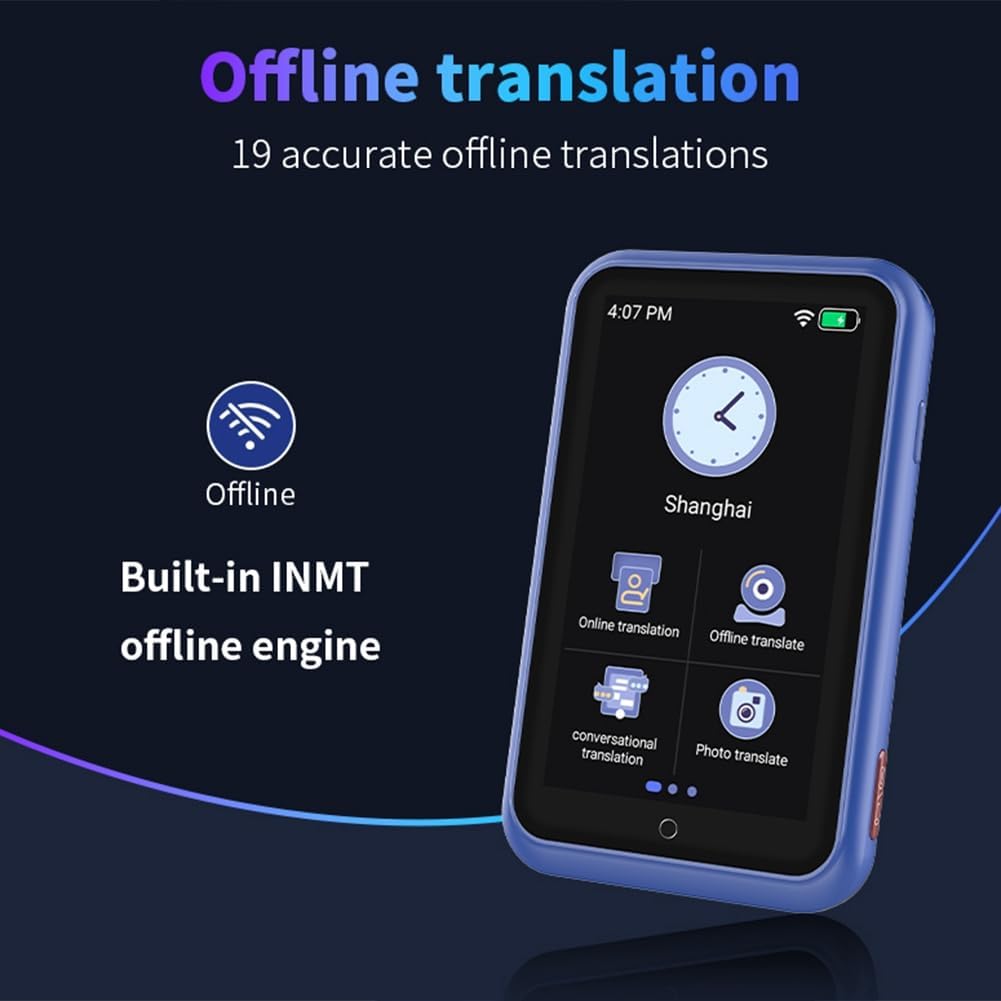
Figure 5.2: The S30 Voice Translator displaying the offline translation feature, indicating "Built-in INMT offline engine" and "19 accurate offline translations".
- Tap the "Offline translation" icon.
- Select the desired offline language pair.
- Proceed with speaking as in online translation.
5.4 Conversational Translation
This mode facilitates natural, real-time conversations by automatically recognizing languages and translating without manual button presses after initial setup.
- Access "Conversational translation" from the main menu.
- Set the two languages for the conversation.
- The device will automatically detect who is speaking and translate accordingly.
5.5 Photo Translation
Utilize the built-in 5-megapixel camera to translate text from images, signs, menus, etc. Supports 74 online photo translation languages.

Figure 5.3: The S30 Voice Translator demonstrating its photo translation capability, showing a camera icon and text indicating "Built-in 5 megapixel camera, Supports photo recognition in 74 languages."
- Tap the "Photo translation" icon.
- Point the camera at the text you wish to translate.
- Tap the capture button. The translated text will appear on the screen.
5.6 Group Translation / Group Chat
Connect with other S30 users to form multi-machine groups for cross-regional and multi-language communication. Supports up to 117 people in the same group.
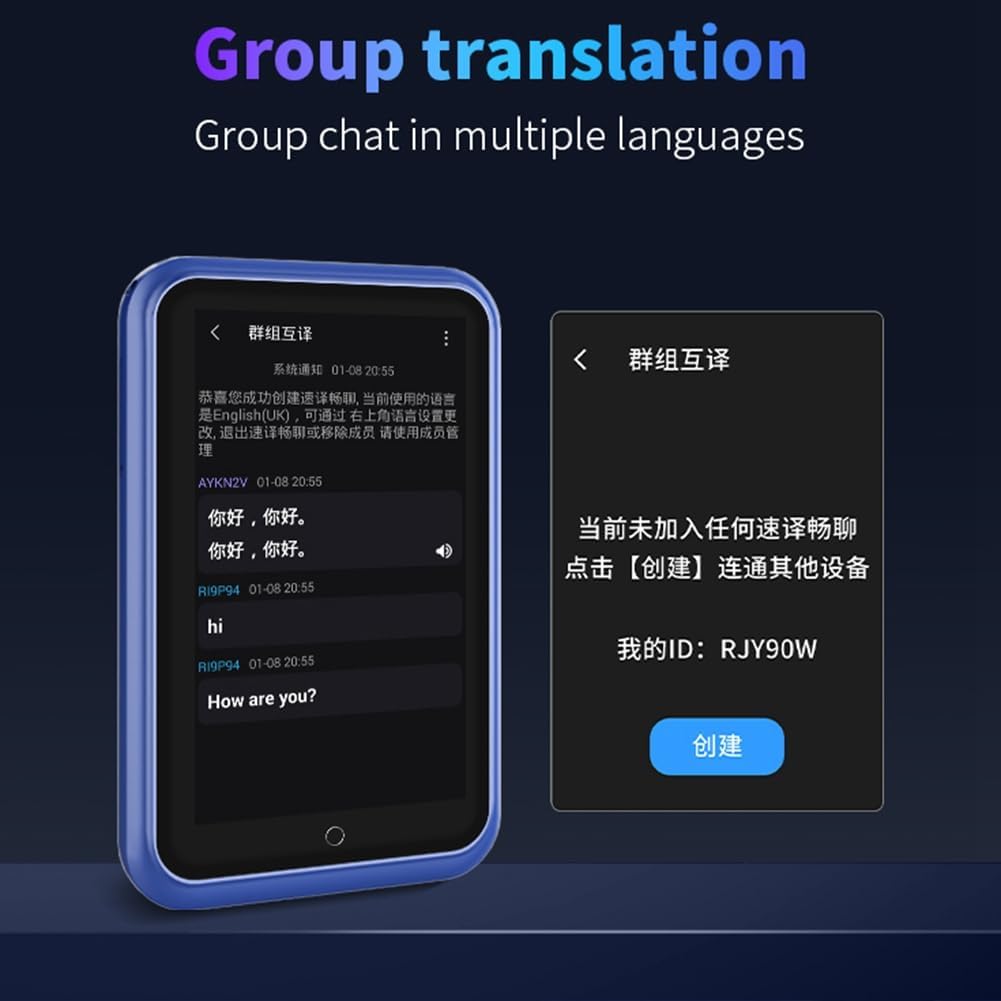
Figure 5.4: The S30 Voice Translator interface for group translation, showing a chat history and options to create or join a group.
- Select "Group translation" from the menu.
- Create a new group or join an existing one using a group ID.
- Communicate in your native language; the device will translate for other group members.
5.7 ChatGPT Integration
Leverage ChatGPT large model language processing for intelligent voice commands and interactions, providing rich and practical AI voice assistant functions.

Figure 5.5: The S30 Voice Translator displaying its ChatGPT integration, alongside other features like Simultaneous interpretation, Smart recording, Language learning, and Phone translation.
- Access the ChatGPT feature from the main menu.
- Interact with the AI assistant using voice commands for various queries and tasks.
5.8 Language Learning Mode
The S30 can assist in language learning by providing pronunciation guidance based on translations.
- Navigate to the "Language learning" section.
- Follow the on-screen instructions to practice pronunciation and vocabulary.
5.9 Other Features
- Input Translation: Supports translation for special scene text input.
- Mobile Translation: Connects with wireless terminals, browsers, and other scanning tools for easier communication.
- Exchange Rate & Unit Conversion: Supports multi-country currency conversion and various unit conversions.
6. Maintenance
6.1 Cleaning
- Use a soft, dry, lint-free cloth to clean the device's screen and body.
- Do not use abrasive cleaners, alcohol, or chemical solvents, as these may damage the device.
6.2 Storage
- Store the device in a cool, dry place away from direct sunlight and extreme temperatures.
- Avoid exposing the device to water or high humidity.
6.3 Battery Care
- To prolong battery life, avoid fully discharging the battery frequently.
- If storing the device for an extended period, charge it to about 50% before storage and recharge every few months.
7. Troubleshooting
| Problem | Possible Cause | Solution |
|---|---|---|
| Device does not power on. | Low battery. | Charge the device for at least 30 minutes. |
| No translation output. | No internet connection (for online mode); Incorrect language selection; Microphone blocked. | Ensure Wi-Fi/4G is connected; Verify language settings; Check microphone for obstructions. |
| Inaccurate translation. | Unclear speech; Background noise; Complex sentence structure. | Speak clearly and slowly; Reduce background noise; Rephrase sentences. |
| Photo translation not working. | Poor lighting; Blurry image; Text not clearly visible. | Ensure adequate lighting; Hold device steady; Position text clearly within the frame. |
| Device freezes or is unresponsive. | Software glitch. | Press and hold the power button for 10-15 seconds to force a restart. |
8. Specifications
| Feature | Description |
|---|---|
| Model | S30 |
| Display | 3.0-inch HD Touch Screen |
| Processor | Quad-core CPU + Built-in GPU (AI Processor) |
| Camera | 5 Million HD Pixels (Rear Camera) |
| Battery | 1100mAh High Performance Battery |
| Online Translation Languages | 138 Languages (with 7 English, 7 Arabic, 6 Indian, 9 Spanish accents) |
| Offline Translation Languages | 19 Languages (Built-in INMT offline engine) |
| Photo Translation Languages | 74 Languages (Online) |
| Network Connectivity | 4G Full Netcom, Wi-Fi |
| Material | Plastic |
| Color | Blue |

Figure 8.1: Diagram illustrating the Quad-core CPU and Built-in GPU, emphasizing the AI processor for smooth translation performance.
9. Warranty Information
The S30 Voice Translator comes with a 3-month warranty from the date of purchase. This warranty covers manufacturing defects and malfunctions under normal use.
The warranty does not cover damage caused by:
- Accidental damage, misuse, abuse, neglect, or improper installation.
- Unauthorized repairs or modifications.
- Damage from liquids, fire, earthquake, or other external causes.
- Normal wear and tear.
Please retain your proof of purchase for warranty claims.
10. Customer Support
For technical support, troubleshooting assistance, or warranty inquiries, please contact your retailer or the manufacturer directly.
Manufacturer: FENGXIR
Please refer to the contact information provided at the point of purchase or on the product packaging for the most current support details.
Ask a question about this manual
Ask about setup, troubleshooting, compatibility, parts, safety, or missing instructions. Manuals+ will review the question and use this page’s manual context to help answer it.