
1. Introduction
Thank you for choosing the Generic F12 Translator. This device is designed to facilitate communication across language barriers through real-time online and offline translation capabilities. It supports voice, photo, and recording translation, making it a versatile tool for travel, business, and language learning. Please read this manual carefully to understand the device's functions and ensure proper use.
2. Safety Information
- Do not expose the device to extreme temperatures, direct sunlight, or high humidity.
- Avoid dropping or subjecting the device to strong impacts.
- Use only the provided or recommended charging accessories.
- Keep the device away from water and other liquids.
- Do not attempt to disassemble or repair the device yourself. Contact customer support for assistance.
3. Package Contents
Please check the package for the following items:
- 1 x Generic F12 Translator Machine
- 1 x USB Type-C Charging Cable
- 1 x User Manual (this document)
4. Product Overview
The F12 Translator features a 4-inch IPS display and intuitive touch controls. It is equipped with dual microphones for clear audio input and a Type-C charging port.

Figure 4.1: Front view of the F12 Translator displaying the main menu with icons for various translation modes.

Figure 4.2: Various views of the F12 Translator, highlighting its compact design, side buttons, and rear speaker/camera.
5. Setup
5.1 Charging the Device
Before first use, fully charge the F12 Translator. Connect the provided USB Type-C cable to the charging port on the device and the other end to a compatible USB power adapter (not included) or a computer's USB port.
- The charging indicator will illuminate during charging.
- A full charge typically takes approximately 2-3 hours.
5.2 Powering On/Off
- To Power On: Press and hold the Power button (usually located on the side) for a few seconds until the screen lights up.
- To Power Off: Press and hold the Power button until a power-off menu appears on the screen. Select 'Power Off' to shut down the device.
5.3 Initial Setup
Upon first power-on, you may be prompted to:
- Select your preferred system language.
- Connect to a Wi-Fi network for online translation features. Navigate to Settings > Wi-Fi and select your network.
6. Operating Instructions
6.1 Online Voice Translation
This mode allows real-time voice translation for over 139 languages, requiring an active internet connection.
- From the main menu, tap the 'Voice Translation' icon.
- Select the source and target languages on the screen.
- Press and hold the designated voice button (often indicated by a microphone icon) and speak clearly into the device.
- Release the button, and the translated speech will be played aloud and displayed on the screen.

Figure 6.1: The F12 Translator displaying a voice translation from English to Chinese, showing both input and output text.
6.2 Offline Voice Translation
The F12 Translator supports offline voice translation for 18 languages, eliminating the need for an internet connection.
- Tap the 'Offline Translation' icon from the main menu.
- Select your desired source and target languages from the available offline options.
- Press and hold the voice button, speak, and release to hear the translation.
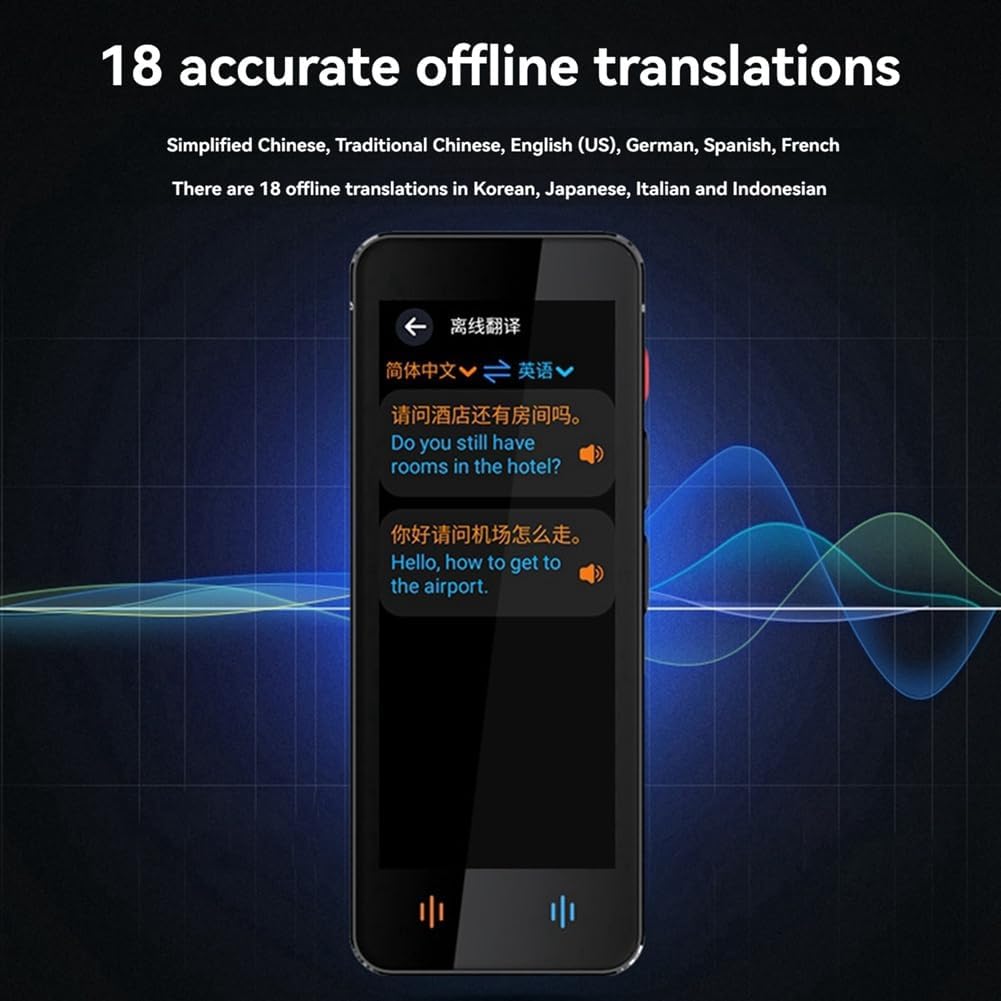
Figure 6.2: The F12 Translator demonstrating offline translation between Chinese and English, showing common phrases.
6.3 Photo Translation
Translate text from images using the built-in camera. This feature supports online photo translation in 55 languages and offline in 23 languages.
- Tap the 'Photo Translation' icon.
- Select the source and target languages.
- Point the camera at the text you wish to translate, ensuring good lighting and focus.
- Tap the capture button. The translated text will appear on the screen.
6.4 Recording Translation
Record speech and have it transcribed and translated. This feature supports 12 languages for recording transcription and offline translation.
- Tap the 'Recording Translation' icon.
- Select the desired languages.
- Tap the record button to start recording.
- Tap the stop button when finished. The device will process the recording and display the transcription and translation.

Figure 6.3: The F12 Translator's interface for recording translation, showing the original text and its translation.
6.5 Additional Features
- Multinational Conference: This mode allows for multi-person, multi-language communication. Refer to the on-screen instructions for setting up a conference.
- Language Learning: The device may include features for practicing common phrases. Access this via the relevant icon on the main menu.

Figure 6.4: The F12 Translator displaying a list of common phrases for language learning, with English and Chinese translations.
7. Maintenance
- Clean the device with a soft, dry cloth. Do not use liquid cleaners or aerosols.
- Keep the screen free from dust and fingerprints for optimal photo translation performance.
- Store the device in a cool, dry place when not in use.
8. Troubleshooting
| Problem | Possible Cause | Solution |
|---|---|---|
| Device does not power on. | Low battery or device frozen. | Charge the device for at least 30 minutes. If still unresponsive, try a hard reset (refer to device specific instructions or contact support). |
| Online translation not working. | No internet connection or weak signal. | Ensure Wi-Fi is connected and has a stable internet connection. Try moving to an area with better signal. |
| Translation accuracy is low. | Unclear speech, background noise, or complex sentence structure. | Speak clearly and at a moderate pace. Reduce background noise. Rephrase complex sentences. |
| Photo translation is blurry. | Poor lighting, camera not focused, or text too small. | Ensure adequate lighting. Hold the device steady and at an appropriate distance for focus. |
9. Specifications
- Product Model: F12
- Display: 4 inch IPS, 400 x 960 pixel resolution
- Processor: 1.3GHz quad-core A53
- Internal Storage: 1GB RAM + 16GB ROM
- Battery: 1500mAh
- Microphone: Dual microphones (main and auxiliary)
- Charging Port: Type-C
- Online Voice Translation: 139+ languages
- Offline Voice Translation: 18 languages (Simplified Chinese, Traditional Chinese, Traditional Taiwanese, Mandarin, English (US), English (UK), German, Spanish, French, Japanese, Korean, Russian, Thai, Italian, Portuguese, Dutch, Indonesian, Hindi, Vietnamese)
- Online Photo Translation: 55 languages
- Offline Photo Translation: 23 languages
- Recording Translation: 12 languages (transcription and offline translation)
- Material: Plastic
- Color: Black
10. Warranty and Support
This Generic F12 Translator comes with a 3-month warranty from the date of purchase. This warranty covers manufacturing defects under normal use. It does not cover damage caused by misuse, accidents, unauthorized modifications, or external causes.
For technical support, warranty claims, or further assistance, please contact your retailer or the manufacturer's customer service.