
Introduction
This manual provides detailed instructions for the Generic W12 Language Translator Device. Please read this guide thoroughly to understand the device's functions, setup, operation, and maintenance. Proper use will ensure optimal performance and extend the product's lifespan.
Product Overview
Key Features
- Multi-language Support: Supports 144 online languages (74 languages and 70 accents) and 16 offline language packages for diverse communication needs.
- Advanced AI Technology: Equipped with a high-performance Qualcomm chip for efficient and accurate translation, including voice and photo translation.
- Portable Design: Compact and lightweight, ideal for travel, business, and learning.
- HD Touch Screen: Features a 3.7-inch TFT (IPS) screen with 480*800 resolution for clear display and smooth interaction.
- Long-lasting Battery: Built-in 1500mAh battery provides extended use and standby time.
Device Components
The W12 Language Translator Device includes the main unit, a protective case, and a lanyard for portability.

Image: The W12 Language Translator Device shown with its protective case and a lanyard. The device features a touchscreen interface displaying options for Voice Translation, Recording, Photo Translation, Offline Translation, and Settings.
Setup
1. Initial Charging
Before first use, fully charge the device using the provided Type-C charging cable. Connect the cable to the device's Type-C interface and a compatible USB power adapter.

Image: Side profile of the W12 device, illustrating its long battery life of 8 hours continuous translation and 7 days standby, powered by a 1500mAh battery.
2. Powering On/Off
- Power On: Press and hold the power button (usually on the side) until the screen illuminates.
- Power Off: Press and hold the power button, then select "Power Off" on the screen.
3. Wi-Fi Connection
- From the main screen, tap "Settings".
- Select "Wi-Fi".
- Toggle Wi-Fi ON.
- Select your desired network from the list and enter the password if prompted.
- A stable Wi-Fi connection is required for online translation features.
4. Language Selection
- On the main screen, tap "Voice Translation".
- Tap on the language displayed for "Language A" (your native language) and select your preferred input language.
- Tap on the language displayed for "Language B" (the target language) and select the language you wish to translate into.
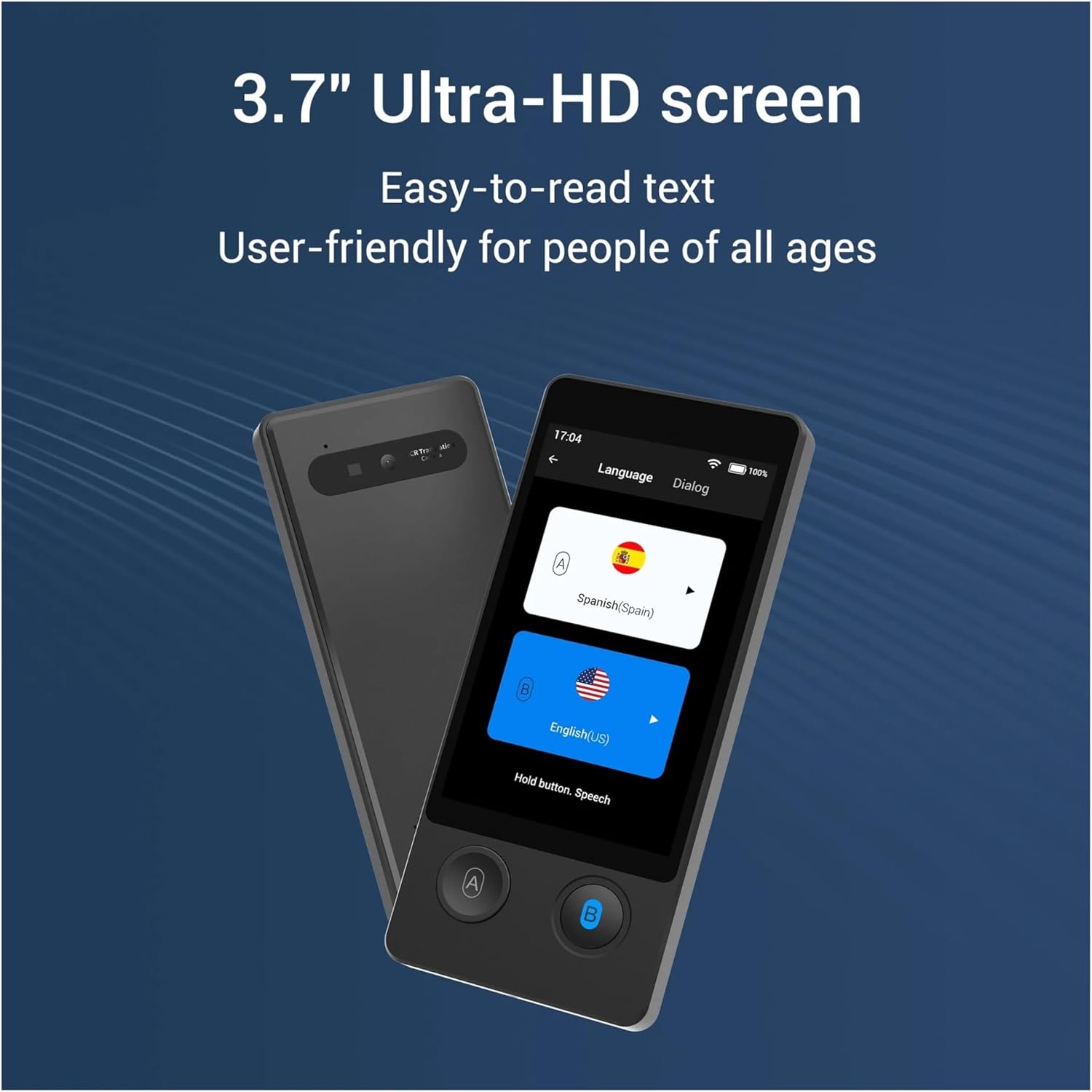
Image: The W12 device showing its 3.7-inch Ultra-HD screen with language selection interface, displaying Spanish (Spain) as Language A and English (US) as Language B. The screen is designed for easy readability.
Operating Instructions
1. Voice Translation (Online)
Ensure the device is connected to Wi-Fi.
- From the main screen, tap "Voice Translation".
- Hold down button A (usually for your native language) and speak clearly into the microphone. Release the button when finished. The device will translate and speak the text in Language B.
- Hold down button B (for the target language) and allow the other person to speak. Release the button when finished. The device will translate and speak the text in Language A.

Image: The W12 device's main screen, emphasizing its capability to translate across 74 languages and 70 accents with 98% accuracy and a 0.5-second response time.
2. Offline Translation
The device supports 16 offline languages. To use offline translation:
- From the main screen, tap "Offline Translation".
- Download the required language packages in advance while connected to Wi-Fi.
- Once downloaded, select the two languages for offline translation.
- Proceed with voice translation as described above, even without an internet connection.

Image: A person using the W12 device for offline voice translation on an airplane, illustrating its utility in environments without internet access. The image lists 16 supported offline languages.
3. Photo Translation
This feature allows you to translate text from images, such as signs or menus.
- From the main screen, tap "Photo Translation".
- Point the device's camera at the text you wish to translate.
- Tap the capture button on the screen.
- The device will process the image and display the translated text.
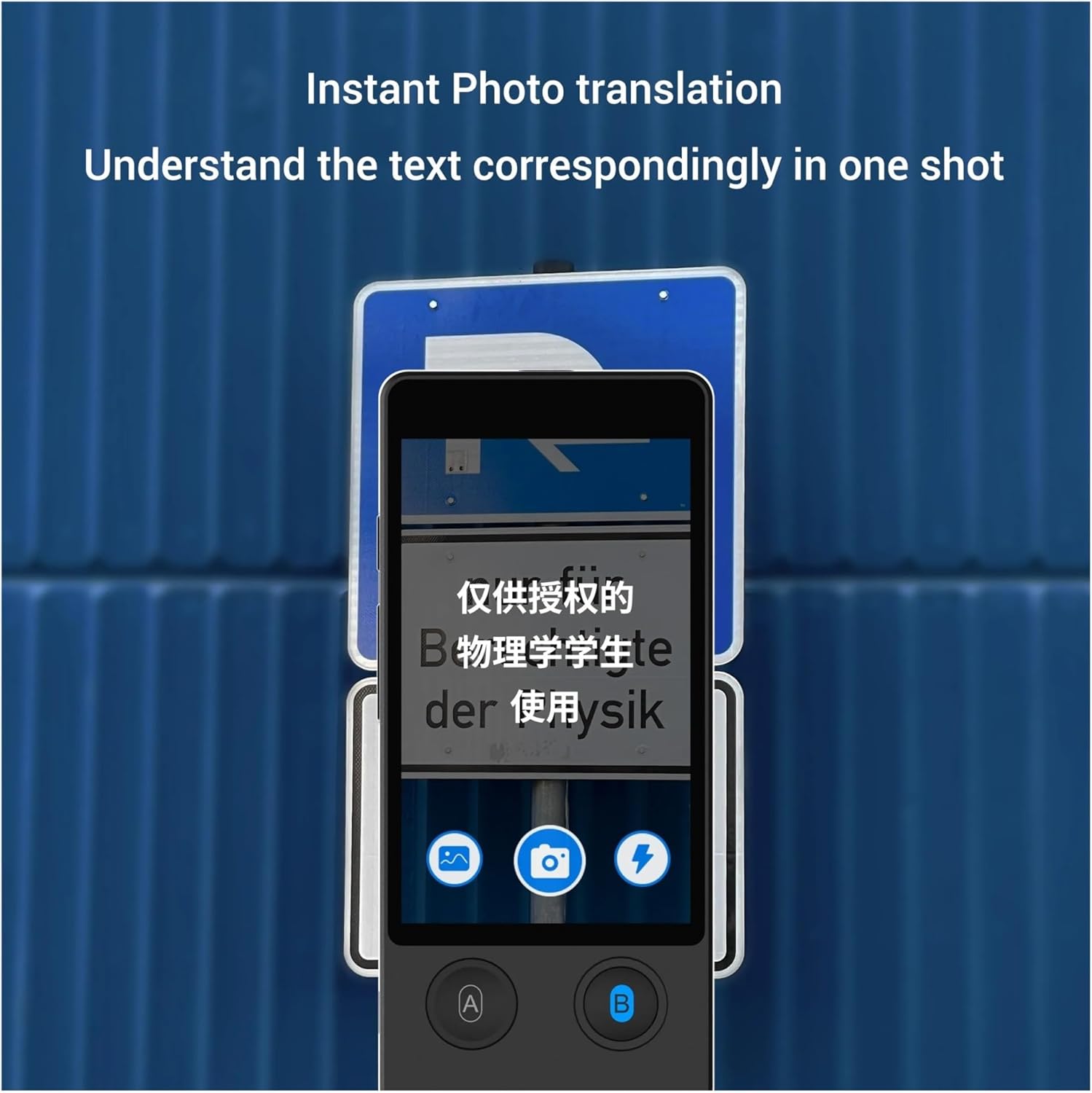
Image: The W12 device demonstrating instant photo translation, capturing text from a road sign and displaying its translation on the screen.
4. Recording
The device can record audio for later playback or translation.
- From the main screen, tap "Recording".
- Tap the record button to start recording.
- Tap the stop button to end recording.
- Recordings can be managed and played back within this section.
Maintenance
- Cleaning: Use a soft, dry cloth to clean the device's screen and body. Avoid using liquid cleaners or abrasive materials.
- Storage: Store the device in a cool, dry place away from direct sunlight and extreme temperatures.
- Battery Care: To prolong battery life, avoid fully discharging the battery frequently. Charge the device regularly.
- Software Updates: Periodically check for software updates in the "Settings" menu to ensure optimal performance and access to new features.
Troubleshooting
Common Issues and Solutions
- Device not powering on: Ensure the device is fully charged. If the issue persists, try connecting it to a power source and attempting to power on again.
- Translation not working:
- Check Wi-Fi connection for online translation.
- Ensure correct input/output languages are selected.
- Speak clearly and at a moderate pace into the microphone.
- For offline translation, verify that the necessary language packages are downloaded.
- Poor audio quality: Ensure the microphone and speaker are not obstructed. Adjust volume settings if necessary.
- Screen unresponsive: Try restarting the device. If the issue continues, ensure the screen is clean and free of debris.
- Wi-Fi connection issues:
- Verify Wi-Fi password.
- Restart your Wi-Fi router.
- Try connecting to a different Wi-Fi network if available.
Specifications
| Feature | Detail |
|---|---|
| Model | W12 |
| Online Languages | 144 languages (74 languages and 70 accents) |
| Offline Languages | 16 languages (Simplified Chinese, Traditional Chinese, English, Japanese, Korean, Russian, German, French, Spanish, Arabic, Thai, Vietnamese, Hindi, Portuguese, Italian, Indonesian) |
| Screen Size | 3.7'' TFT (IPS) |
| Screen Resolution | 480*800 |
| Battery Capacity | 1500mAh |
| Camera | 5 million pixels |
| Microphone | Dual microphone noise reduction |
| Speaker | HI-FI speaker |
| Charging Interface | Type-C |
| Network Support | 2.4G WIFI |
| Body Size | 129.8*58.8*11.2mm |
| Weight | 103g |
| Manufacturer | FENGXIR |
| Batteries Required | No (internal rechargeable battery) |
Warranty and Support
Warranty Information
This product comes with a 3-month warranty from the date of purchase. Please retain your proof of purchase for warranty claims. The warranty covers manufacturing defects but does not cover damage caused by misuse, accidents, or unauthorized modifications.
Customer Support
For technical assistance, troubleshooting not covered in this manual, or warranty inquiries, please contact your retailer or the manufacturer, FENGXIR. Refer to the product packaging or purchase documentation for specific contact details.