
1. Introduction
The BoxWave AllReader SD Card Reader is a versatile device designed for easy file transfer between various devices and memory cards. It supports both standard SD cards and microSD cards, offering multiple interface options for broad compatibility. This manual provides instructions for setting up, operating, and maintaining your AllReader SD Card Reader.
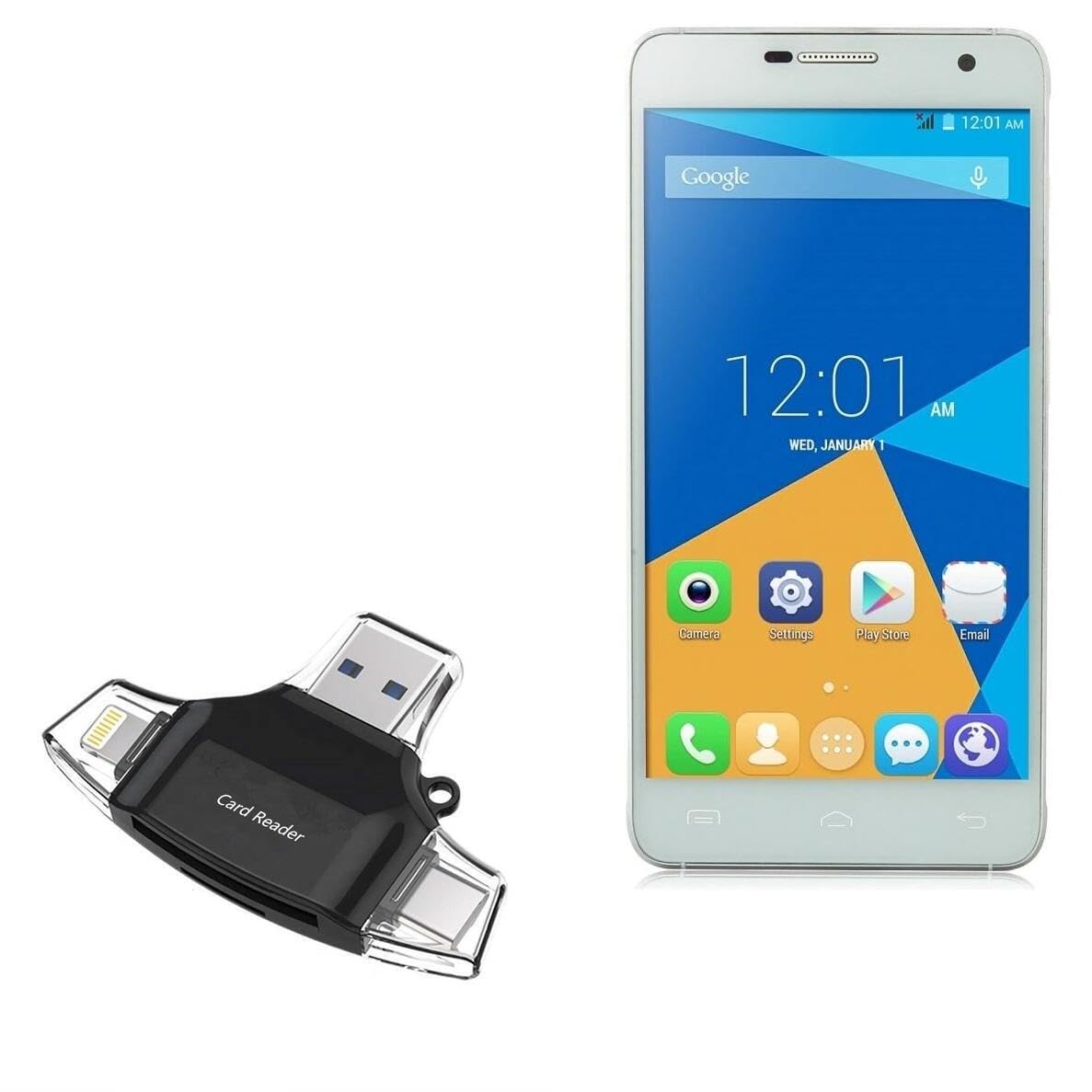
Image 1.1: The BoxWave AllReader SD Card Reader, showcasing its compact design and various connectors.
2. Product Features
- Four Interfaces: Includes USB-C, USB-A, Micro-USB, and Apple Lightning connectors for wide device compatibility.
- Easy File Transfer: Facilitates quick and direct transfer of files between memory cards and compatible devices.
- Plug and Play: No drivers or software installation required for most operating systems.
- Compact Design: Portable and easy to carry.
- Universal Card Support: Compatible with both SD and microSD card formats.
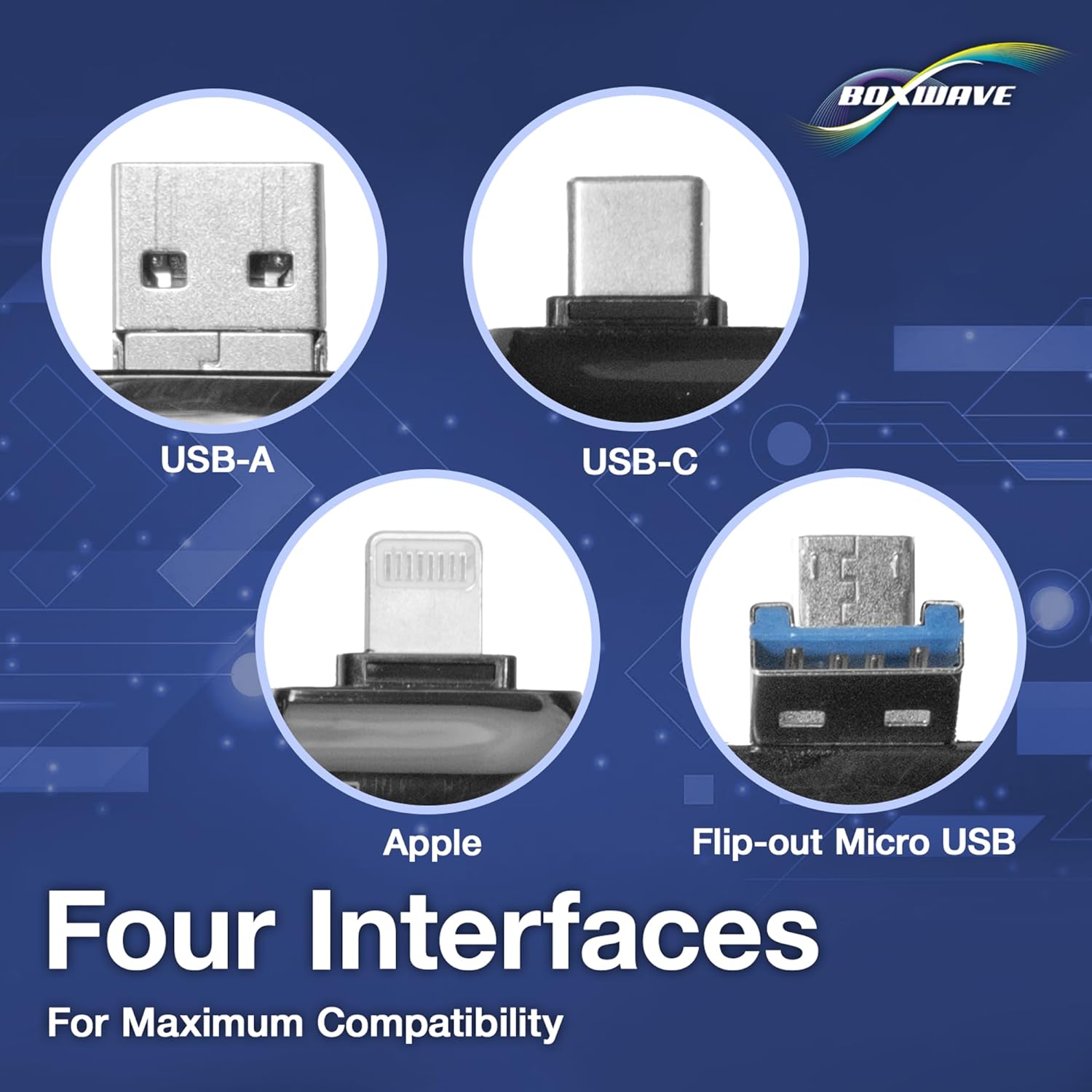
Image 2.1: Detailed view of the four distinct interfaces (USB-A, USB-C, Apple Lightning, and Flip-out Micro USB) integrated into the card reader.
3. Setup Instructions
Setting up your BoxWave AllReader SD Card Reader is a straightforward process. No software installation is typically required.
- Insert Memory Card: Gently insert your SD card or microSD card into the appropriate slot on the AllReader. Ensure the card is fully seated. The reader supports both standard SD and microSD cards.
- Connect to Device: Identify the correct connector for your device (USB-A for computers, USB-C for modern smartphones/laptops, Micro-USB for older Android devices, or Apple Lightning for iPhones/iPads). Plug the corresponding connector of the AllReader into your smartphone, tablet, or computer.
- Device Recognition: Your device should automatically detect the AllReader and the inserted memory card. A notification or file browser window may appear, indicating the card is ready for use.

Image 3.1: The card reader showing slots for both SD and microSD cards.
4. Operating Instructions
Once the AllReader is connected and recognized by your device, you can begin transferring files.
- Accessing Files: Open your device's file manager or photo gallery application. The inserted memory card will typically appear as an external storage device (e.g., "USB Storage," "SD Card," or a specific drive letter on computers).
- Transferring Files:
- To copy files from the memory card to your device: Navigate to the memory card's directory, select the desired files, and use the "Copy" or "Move" function to transfer them to a folder on your device.
- To copy files from your device to the memory card: Navigate to the files on your device, select them, and use the "Copy" or "Move" function to transfer them to a folder on the memory card.
- Safe Removal: Before disconnecting the AllReader, always safely eject the memory card from your device's operating system (if applicable) to prevent data corruption. For mobile devices, simply unplugging is usually sufficient after file transfer is complete.

Image 4.1: The AllReader in use with various devices, demonstrating its versatility for file transfer.
5. Maintenance
To ensure the longevity and optimal performance of your BoxWave AllReader SD Card Reader, follow these simple maintenance guidelines:
- Keep Clean: Use a soft, dry cloth to wipe the exterior of the card reader. Avoid using liquid cleaners or solvents.
- Protect Connectors: Keep the connectors free from dust and debris. Avoid touching the metal contacts directly.
- Store Properly: When not in use, store the card reader in a cool, dry place, away from direct sunlight and extreme temperatures.
- Handle with Care: Avoid dropping the device or subjecting it to strong impacts, as this can damage internal components.
6. Troubleshooting
If you encounter issues with your AllReader SD Card Reader, try the following troubleshooting steps:
- Reader Not Detected:
- Ensure the AllReader is firmly plugged into your device's port.
- Try a different port on your device.
- Restart your device.
- Ensure the correct connector for your device is being used.
- Memory Card Not Detected:
- Ensure the memory card is fully and correctly inserted into the AllReader's slot.
- Try using a different memory card to rule out a card issue.
- Check if the memory card is damaged or corrupted.
- Slow Transfer Speeds:
- Transfer speeds can vary based on the memory card's speed class and your device's USB port version.
- Ensure your device's port is not overloaded with other USB devices.
- Files Not Transferring:
- Check if the memory card is write-protected (some SD cards have a small lock switch).
- Ensure there is sufficient storage space on the destination device or memory card.
- Verify file permissions on your device.
7. Specifications
| Model Name | AllReader SD Card Reader |
| Brand | BoxWave |
| Interfaces | USB-C, USB-A, Micro-USB, Apple Lightning |
| Supported Card Types | SD, microSD |
| Item Weight | 6 ounces |
| ASIN | B0F8PG8WLH |
| Date First Available | July 1, 2021 |
8. Warranty and Support
For warranty information, technical support, or further assistance with your BoxWave AllReader SD Card Reader, please refer to the official BoxWave website or contact their customer service directly. Specific warranty terms and support contact details are not provided within this manual.