
1. Product Overview
The SOCLLLife G17 4K Wireless HDMI Display Adapter allows you to mirror content from your smartphone, tablet, or laptop to a larger screen such as an HDTV, projector, or monitor. It supports 4K video and audio transmission wirelessly, utilizing Airplay, Miracast, and DLNA protocols. This device eliminates the need for physical HDMI cables, offering a convenient solution for both home entertainment and professional presentations.

Image: The SOCLLLife G17 4K Wireless HDMI Display Adapter, a compact black dongle with an integrated HDMI cable and a separate USB power cable.
2. Package Contents
Please verify that all items are present in your package:
- 1 x Wireless Display Adapter (G17)
- 1 x USB-A to Micro-USB Power Cable with External Antenna
- 1 x User Manual
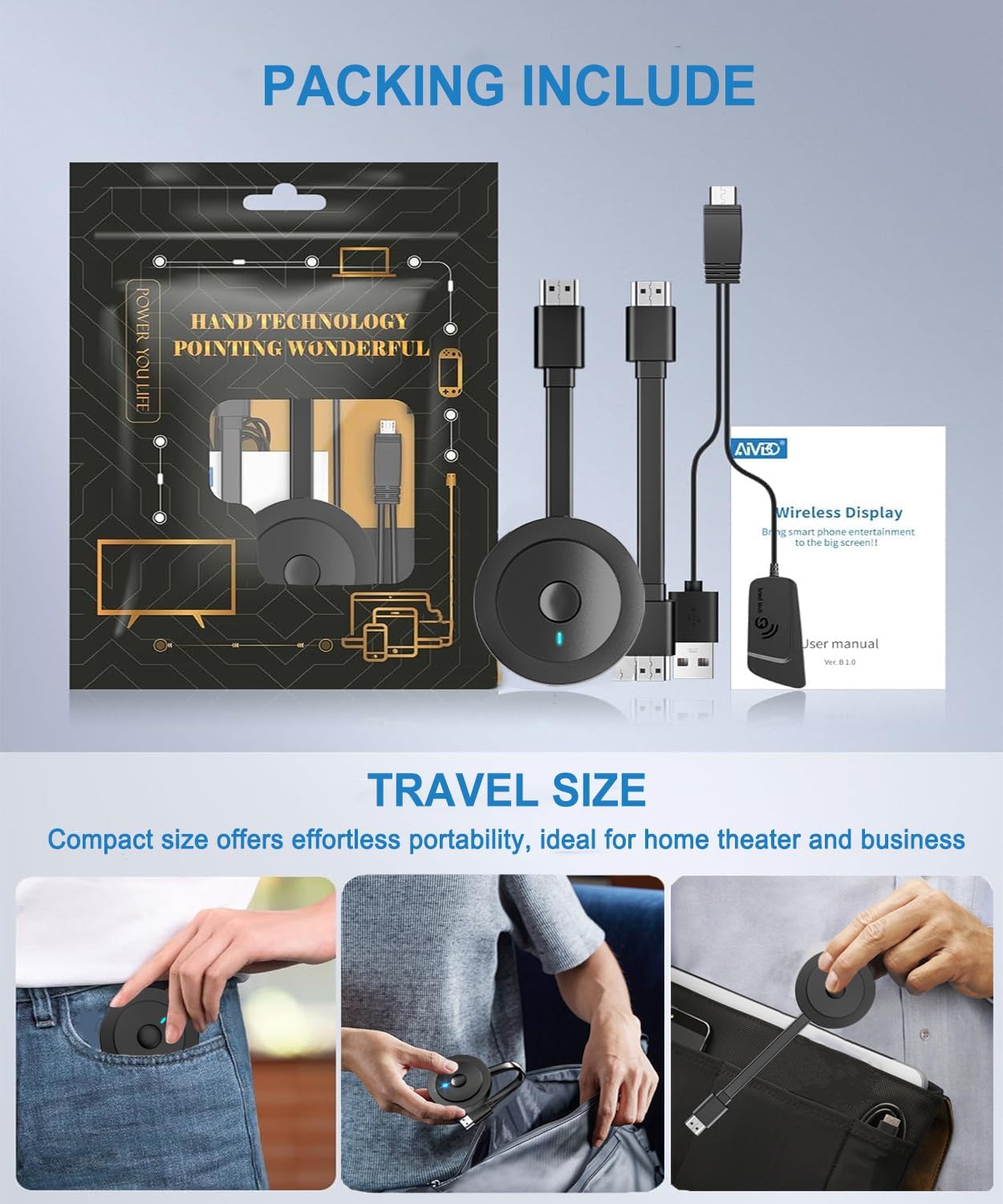
Image: The retail packaging showing the wireless display adapter, USB power cable with antenna, and user manual.
3. Setup Instructions
Follow these steps to connect and set up your SOCLLLife G17 Wireless HDMI Display Adapter.
3.1 General Connection
- Connect the Dongle: Plug the HDMI connector of the wireless display adapter into an available HDMI port on your TV, monitor, or projector.
- Power the Dongle: Connect the Micro-USB end of the power cable to the adapter and the USB-A end to a 5V/1A USB power adapter (not included) or a TV USB port for power. Ensure the adapter receives stable power.
- Select Input: Switch your TV/monitor input source to the corresponding HDMI port where the adapter is connected. You should see the setup screen displayed.

Image: A diagram illustrating the connection of the wireless HDMI adapter to a TV, monitor, or projector via HDMI and a USB power source.
3.2 Screen Mirroring for Android Devices
For Android devices, use the built-in screen mirroring function (e.g., Smart View, Wireless Projection, Cast). No additional apps are required.
- On your Android phone, swipe down from the top to access the quick settings panel.
- Tap on the 'Screen Mirroring' or 'Cast' function.
- Select the dongle's name (e.g., "AMB-XXXXX") from the list of available devices to connect.

Image: Step-by-step visual guide for connecting an Android phone to the display adapter for screen mirroring.
3.3 Screen Mirroring for iOS Devices (iPhone/iPad)
For iOS devices, you will use Airplay. Note that some HDCP-encrypted apps (like Netflix, Prime Video, Hulu) are not supported for mirroring due to copyright restrictions.
- Connect your iPhone/iPad to the dongle's Wi-Fi network (Name: AMB-XXXXX, Password: 12345678).
- Launch a web browser (e.g., Safari) on your device and access the IP address "192.168.203.1".
- Click "Internet" to connect the dongle to your home Wi-Fi network. Then, return to your iPhone's Wi-Fi settings and connect to your home Wi-Fi.
- Swipe down from the top-right corner (or up from the bottom for older models) to open Control Center. Tap 'Screen Mirroring' and select the dongle's name (e.g., "AMB-XXXXX") for synchronization.

Image: Step-by-step visual guide for connecting an iOS device to the display adapter for screen mirroring.
3.4 Screen Mirroring for Windows Devices (Windows 10 or earlier)
For Windows devices (up to Windows 10), use the built-in 'Connect to a wireless display' feature.
- Press the shortcut keys Win + P on your keyboard.
- Select 'Connect to a wireless display'.
- Choose the name of the dongle (e.g., "AMB-XXXXX Display") to connect for synchronization.

Image: Step-by-step visual guide for connecting a Windows laptop to the display adapter for screen mirroring.
3.5 Screen Mirroring for Mac OS Devices
For Mac OS devices, use the Airplay feature.
- Ensure your Mac is connected to the same Wi-Fi network as the dongle (if the dongle is connected to your home Wi-Fi).
- Click the Airplay icon in the menu bar at the top of your screen.
- Select the name of the dongle (e.g., "AMB-XXXXX") from the Airplay menu to begin mirroring.

Image: Step-by-step visual guide for connecting a Mac to the display adapter for screen mirroring.
4. Operating Instructions
The SOCLLLife G17 adapter offers flexible display modes to suit your needs.
4.1 Mirror Mode
In Mirror Mode, your device's screen content is duplicated onto the larger display in real-time. This is ideal for presentations, sharing photos, or watching videos with others.
- Supports 4K, 1080P, or 720P resolutions.
- All actions on your source device will be reflected on the mirrored screen.
4.2 Extend Mode
Extend Mode allows you to use the larger display as a secondary screen, extending your desktop space. This is useful for multitasking, such as watching a movie on the TV while browsing on your phone or laptop.
- Your source device and the external display show different content.
- Available for Windows and Mac OS devices.

Image: A visual comparison of Mirror Mode, where the laptop screen is duplicated on the TV, and Extend Mode, where the TV acts as a secondary display for the laptop.
4.3 Supported Applications
The adapter supports a wide range of applications for mirroring content.
- Android & Windows: Supports most video apps including Netflix, Prime Video, Sky Go, HBO Max, YouTube, TikTok, Zoom, WhatsApp, Safari, Facebook, Twitter, Reddit, Dailymotion, Microsoft Office, Twitch.
- iOS (iPhone/iPad/MacBook): Supports videos, photos, web browsing, and presentations from apps like Safari, YouTube, TikTok, Zoom, WhatsApp, Facebook, Twitter, Reddit, Dailymotion, Microsoft Office, Twitch.
- Important Note for iOS: Not compatible with HDCP-encrypted apps such as Netflix, Prime Video, or Hulu due to copyright protection.

Image: A list of video streaming and social media applications supported for mirroring from Windows and Android devices.

Image: A list of applications supported for iOS mirroring, with a clear indication of HDCP-protected apps that are not supported.
5. Maintenance
To ensure optimal performance and longevity of your wireless HDMI display adapter, follow these maintenance guidelines:
- Cleaning: Use a soft, dry cloth to clean the device. Avoid liquid cleaners or abrasive materials.
- Storage: Store the adapter in a cool, dry place away from direct sunlight and extreme temperatures.
- Firmware Updates: Periodically check for online firmware updates to ensure optimal performance and compatibility. Refer to the on-screen instructions or contact customer support for assistance with updates. Google Pixel phone and iPhone 17 users may need to upgrade the dongle's chip online for optimal performance.
- Power Supply: Always use a stable 5V/1A or 5V/2A USB power source. Unstable power can affect performance.
6. Troubleshooting
If you encounter issues with your SOCLLLife G17 adapter, refer to the following common problems and solutions:
- No Display on TV/Monitor:
- Ensure the HDMI adapter is securely plugged into the TV's HDMI port.
- Verify the TV input source is set to the correct HDMI port.
- Check if the adapter is receiving power (the indicator light should be on). Try a different USB power source or port.
- Unstable Connection or Lag:
- Ensure your device is within close proximity to the adapter and there are no significant obstructions.
- Check for Wi-Fi interference. Try changing your Wi-Fi channel if possible.
- Ensure the adapter is connected to a stable 5V/2A power source.
- Perform an online firmware upgrade if available, especially for newer phone models.
- Cannot Mirror HDCP-Protected Content (e.g., Netflix, Hulu on iOS):
- This is a known limitation due to copyright protection (HDCP). The adapter cannot bypass these restrictions for iOS devices.
- Android and Windows devices generally support these apps.
- Cannot Find Dongle's Wi-Fi or Device:
- Ensure the adapter is powered on and the setup screen is visible on your TV.
- Try restarting the adapter by unplugging and re-plugging the power cable.
- Long press the function button on the dongle for 15 seconds to restore factory settings.
7. Specifications
| Feature | Specification |
|---|---|
| Model Name | G17 |
| Brand | SOCLLLife |
| Connectivity Technology | Wireless |
| Connector Type | HDMI |
| Resolution | 4K (3840 x 2160) |
| Supported Protocols | Airplay, Miracast, DLNA |
| Supported OS | iOS, Android, Mac OS, Windows (up to Win 10) |
| Power Input | 5V/1A or 5V/2A via Micro-USB |
| Item Weight | 2.57 ounces |
| Product Dimensions | 3.94 x 3.94 x 1.18 inches |
8. Warranty and Support
For warranty information and technical support, please refer to the contact details provided on the product packaging or the official SOCLLLife website. If you require assistance with online chip upgrades or any other technical issues, please reach out to customer service.


