
1. Safety Information
Please read all safety instructions carefully before using this product. Keep this manual for future reference.
- Do not expose the speaker to extreme temperatures (hot or cold) or direct sunlight for extended periods.
- Avoid dropping or subjecting the speaker to strong impacts.
- Do not disassemble, repair, or modify the speaker yourself. This may void the warranty and pose safety risks.
- Keep the speaker away from water and liquids, even though it is IPX7 waterproof, ensure the charging port cover is securely closed before exposure to water.
- Use only the provided charging cable or a certified equivalent.
- Clean the speaker with a soft, dry cloth. Do not use abrasive cleaners or solvents.
2. Package Contents
Verify that all items are present in your package:
- Aowoka M6 Portable Bluetooth Speaker
- USB-C Charging Cable
- User Manual
3. Product Overview
Familiarize yourself with the buttons and ports on your Aowoka M6 speaker.
Controls and Ports Diagram

This diagram illustrates the location and function of the speaker's control buttons and input/output ports.
- Power Button: Press and hold to power on/off.
- Light Mode Button: Press to cycle through LED light modes. Press and hold to turn lights off/on.
- Volume Up / Next Track Button: Press to increase volume. Press and hold for next track.
- Volume Down / Previous Track Button: Press to decrease volume. Press and hold for previous track.
- Play/Pause / Call Button: Press to play/pause music. Press to answer/end calls. Press and hold to reject calls. Double press for TWS pairing.
- DC 5V (USB-C) Port: For charging the speaker.
- TF Card Slot: For playing music directly from a MicroSD/TF card.
- AUX Input: For wired audio connection using a 3.5mm audio cable.
4. Setup
Initial Charge
Before first use, fully charge your Aowoka M6 speaker. Connect the provided USB-C cable to the speaker's DC 5V port and the other end to a USB power adapter (not included) or a computer's USB port. The LED indicator will show charging status.

This image demonstrates connecting the USB-C charging cable to the speaker's charging port, located under a protective flap.
5. Operating Instructions
Power On/Off
- To power on, press and hold the Power button for 2 seconds. You will hear an audible prompt.
- To power off, press and hold the Power button for 2 seconds. You will hear an audible prompt.
Bluetooth Pairing
Connect your speaker to a Bluetooth-enabled device.
- Ensure the speaker is powered on and in Bluetooth pairing mode (the LED indicator will flash).
- On your device (smartphone, tablet, etc.), enable Bluetooth and search for available devices.
- Select "Aowoka M6" from the list of devices.
- Once connected, the LED indicator will stop flashing, and you will hear a confirmation sound.
The image shows the Aowoka M6 speaker wirelessly connected to a smartphone, ready for audio playback.
True Wireless Stereo (TWS) Pairing
Pair two Aowoka M6 speakers for a stereo sound experience.
- Ensure both Aowoka M6 speakers are powered on and not connected to any Bluetooth device.
- On one speaker, double-press the Play/Pause button. It will enter TWS pairing mode.
- The two speakers will automatically search and pair with each other. Once paired, you will hear a confirmation sound.
- Now, connect your device to one of the paired speakers via Bluetooth as described above. Both speakers will play audio in stereo.

This image illustrates two Aowoka M6 speakers connected via True Wireless Stereo (TWS) technology, providing a wider soundstage for audio playback from a single source.
Light Modes
The Aowoka M6 speaker features dynamic LED lights. Press the Light Mode button to cycle through various lighting effects. Press and hold the Light Mode button to turn the lights off or on.
This video demonstrates the various LED light modes of the Aowoka M6 speaker, showcasing how the lights change color and pattern.
Audio Input Modes (AUX, TF Card)
In addition to Bluetooth, the speaker supports audio playback via AUX and TF card.
- AUX Mode: Insert a 3.5mm audio cable into the AUX port. The speaker will automatically switch to AUX mode.
- TF Card Mode: Insert a MicroSD/TF card (with supported audio files) into the TF card slot. The speaker will automatically switch to TF card mode and begin playing music.
6. Maintenance
Proper care ensures the longevity of your Aowoka M6 speaker.
- Cleaning: Wipe the speaker with a soft, damp cloth. Do not use harsh chemicals or abrasive materials.
- Storage: Store the speaker in a cool, dry place away from direct sunlight and extreme temperatures.
- Battery Care: To preserve battery life, fully charge the speaker at least once every three months if not in regular use. Avoid completely draining the battery frequently.
- Water Resistance: Always ensure the rubber flap covering the charging and input ports is securely closed to maintain IPX7 water resistance.
7. Troubleshooting
If you encounter issues with your speaker, refer to the following common problems and solutions:
| Problem | Solution |
|---|---|
| Speaker does not power on. | Ensure the speaker is charged. Connect it to a power source using the USB-C cable. |
| Cannot pair via Bluetooth. | Make sure the speaker is in pairing mode. Turn off Bluetooth on other devices to avoid interference. Restart both the speaker and your device. |
| No sound or low volume. | Check the volume levels on both the speaker and your connected device. Ensure the correct audio input mode (Bluetooth, AUX, TF Card) is selected. |
| TWS pairing fails. | Ensure both speakers are fully charged and not connected to any other Bluetooth device. Place them close to each other and try the TWS pairing steps again. |
| Lights are not working. | Press the Light Mode button to cycle through modes or turn the lights on. |
8. Specifications
Key technical specifications for the Aowoka M6 Portable Bluetooth Speaker:
| Feature | Detail |
|---|---|
| Model Number | M6-US1-BKK |
| Bluetooth Version | 5.4 |
| Waterproof Rating | IPX7 |
| Battery Capacity | 1800 mAh |
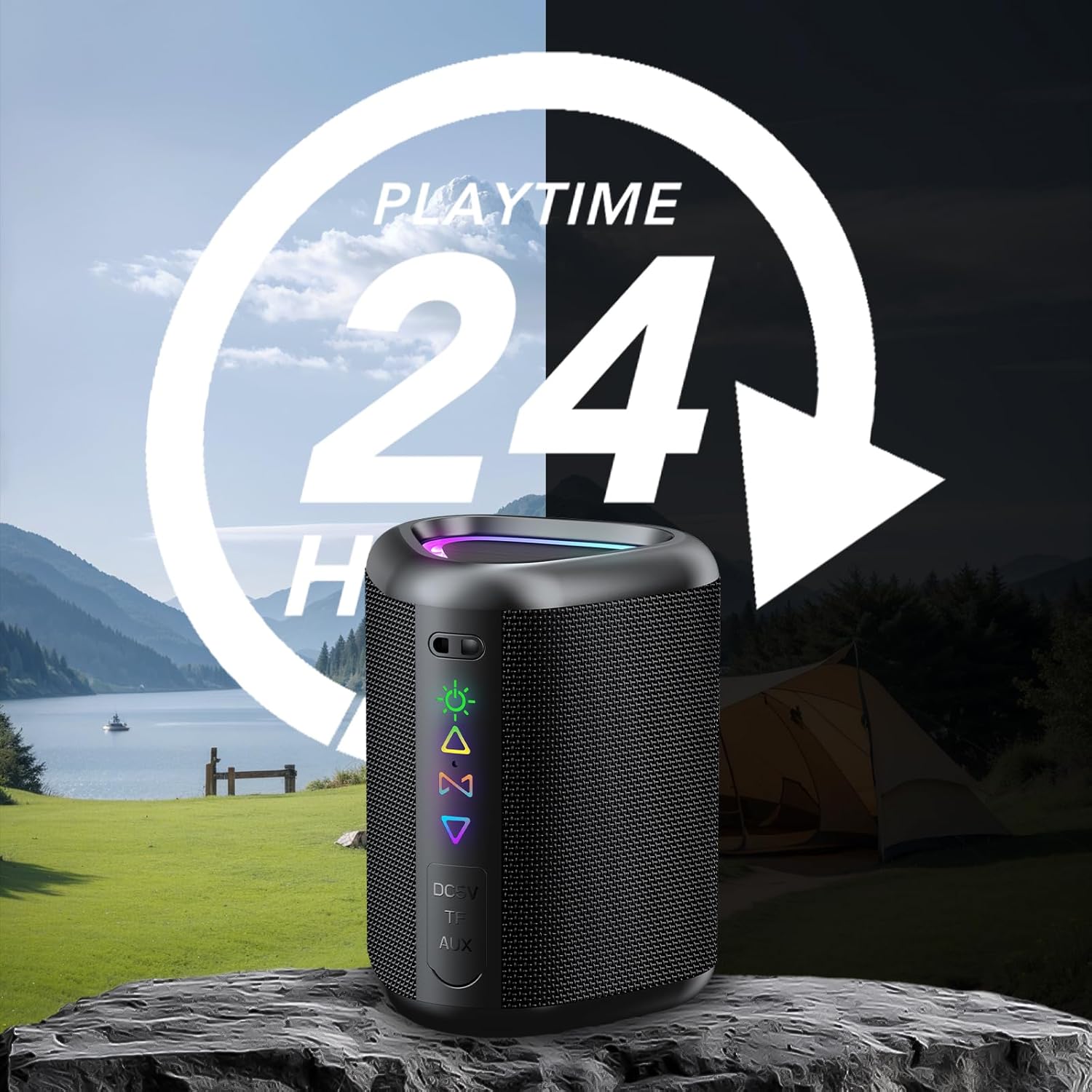
| Playtime | Up to 24 hours (varies with volume and light usage) |
| Audio Output Mode | Stereo |
| Control Method | Touch Buttons |
| Product Dimensions | 2.86 x 2.7 x 3.95 inches |
| Item Weight | 13.1 ounces |
| Power Source | Battery Powered |
| Audio Driver Type | Dynamic Driver |
9. Warranty and Support
The Aowoka M6 Portable Bluetooth Speaker comes with an extended warranty. For detailed warranty information or technical support, please refer to the warranty card included in your package or contact Aowoka customer service through the retailer where you purchased the product.
Please retain your proof of purchase for warranty claims.