1. Product Overview
The ZWXYVUT R36 Ultra is a portable retro handheld game console designed for an immersive gaming experience. It features an open-source Linux operating system, a 4.0-inch IPS display, and a large capacity battery, supporting a wide range of classic game simulators.
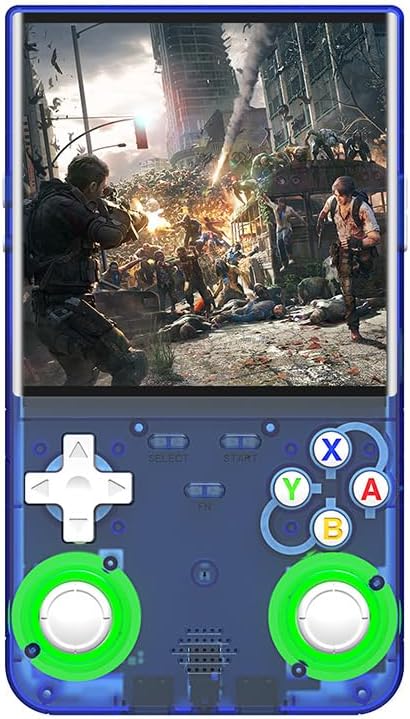
Image 1.1: Front view of the R36 Ultra console displaying a game.
2. Key Features
- Open Source Linux System: Provides a stable and responsive gaming environment with support for adding more games.
- Extensive Game Library: Pre-installed with over 40,000 games and supports more than 20 mainstream simulators.
- High-Resolution Display: 4.0-inch IPS full-viewing angle screen with 720x720 resolution and RGB color display. The screen is made of tempered glass for enhanced durability.
- Long Battery Life: Equipped with a 3000mAh lithium battery, offering up to 6 hours of gameplay on a 2-hour charge via USB Type-C.
- Portable Design: Compact and lightweight, ideal for gaming on the go. Includes built-in speakers and a 3.5mm headphone jack.
- Dual 3D Joysticks: Features responsive 3D joysticks and mechanical buttons for precise control.
- Expandable Storage: TF card slot for independent system and game storage.
- Connectivity: Supports WiFi for online multiplayer battles and OTG for external controller and large screen output.
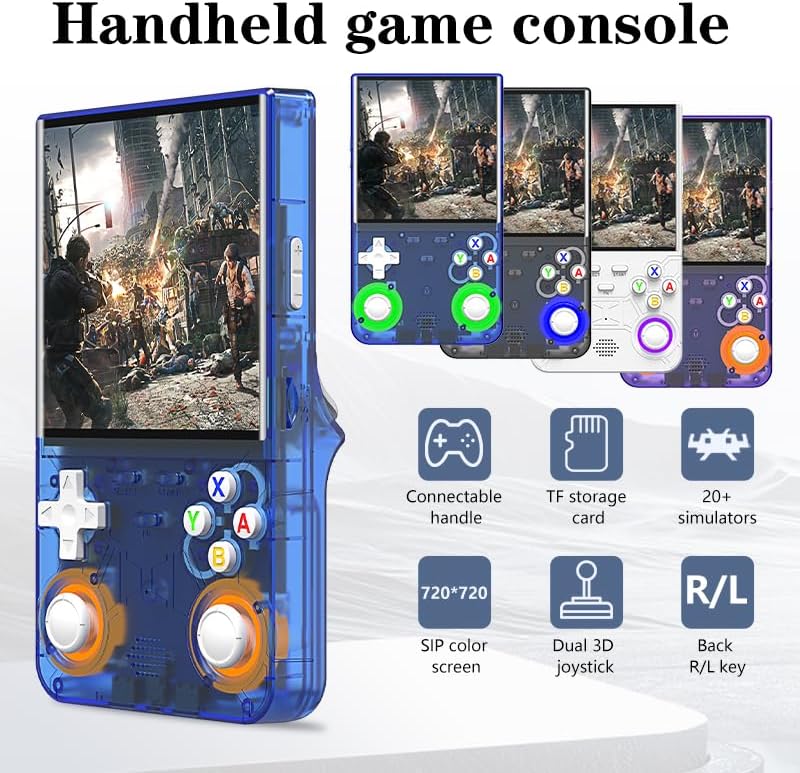
Image 2.1: Visual representation of the R36 Ultra's key features.
3. Setup
3.1 Initial Charging
Before first use, fully charge the console. Connect the provided USB Type-C cable to the console's charging port and the other end to a compatible USB power adapter (not included) or a computer's USB port. The charging indicator will illuminate during charging and turn off when fully charged.
- Charging Time: Approximately 2 hours.
- Battery Life: Up to 6 hours of continuous gameplay.
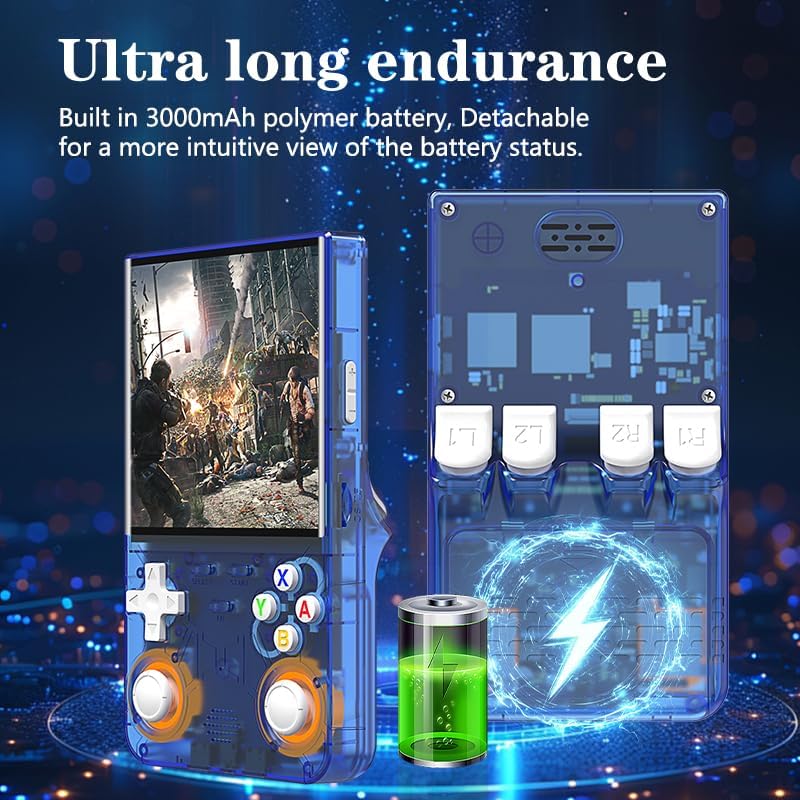
Image 3.1: Illustration of the console's battery capacity and charging.
3.2 Inserting the TF Card
The console comes with a pre-installed TF card containing the operating system and games. If you need to replace or upgrade the TF card, locate the TF card slot on the side of the console. Gently push the card into the slot until it clicks into place. To remove, push the card again until it springs out.
4. Operating Instructions
4.1 Power On/Off
- Power On: Press and hold the Power button located on the side of the console until the screen illuminates.
- Power Off: Press and hold the Power button until a shutdown menu appears, then select "Shutdown" or "Power Off". A quick press of the Power button will put the console into sleep mode.
4.2 Basic Controls
The R36 Ultra features a standard set of gaming controls:
- D-Pad: For directional movement in games and menu navigation.
- A/B/X/Y Buttons: Action buttons for gameplay.
- Dual 3D Joysticks: Analog input for precise movement in supported games.
- START/SELECT Buttons: Typically used for pausing games, confirming selections, or accessing in-game menus.
- L1/L2/R1/R2 Shoulder Buttons: Additional action buttons, often used for triggers or special abilities.
- FN Button: Function button, typically used in combination with other buttons for system shortcuts (e.g., saving/loading states, adjusting brightness).
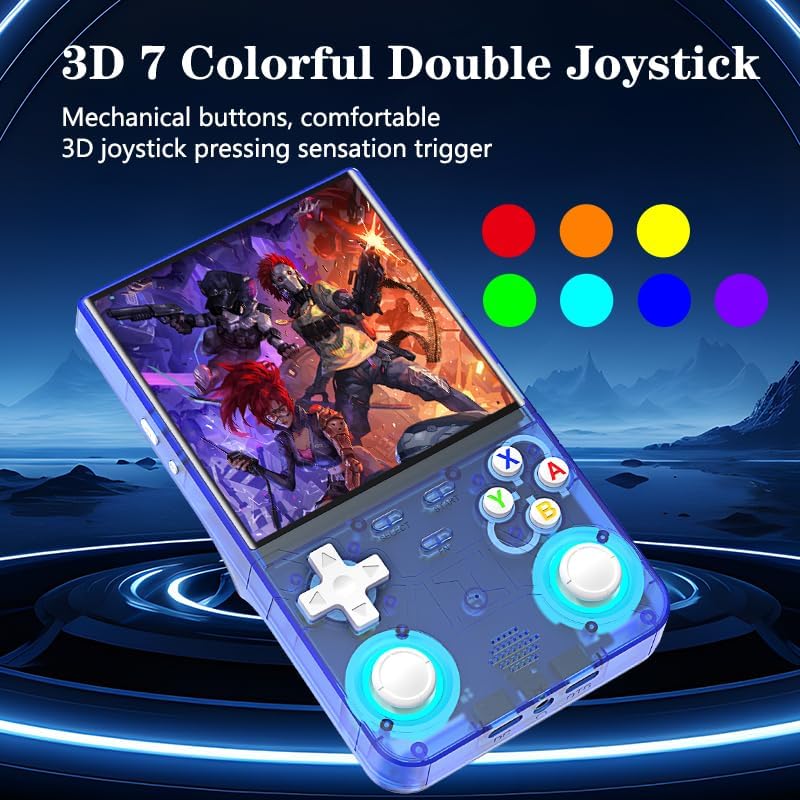
Image 4.1: Close-up of the console's control layout.
4.3 Navigating the System Menu
Use the D-Pad or left joystick to navigate through the main menu options. Press the 'A' button to select an option and the 'B' button to go back. The main menu typically displays categories for different game simulators or system settings.
4.4 Playing Games
From the main menu, select a game simulator, then browse the list of available games. Select a game to launch it. During gameplay, refer to the specific game's controls. The FN button often provides quick access to emulator-specific functions like saving/loading game states or exiting the game.
5. Game Management and Connectivity
5.1 Adding/Removing Games
Games are stored on the TF card. To add or remove games, connect the TF card to a computer using a card reader. Organize game ROMs into the appropriate folders for each simulator. Ensure ROMs are in compatible formats for the installed emulators.
5.2 WiFi Connectivity
The R36 Ultra supports WiFi for online multiplayer gaming (where supported by the emulator and game). Access WiFi settings through the system menu to connect to a wireless network.
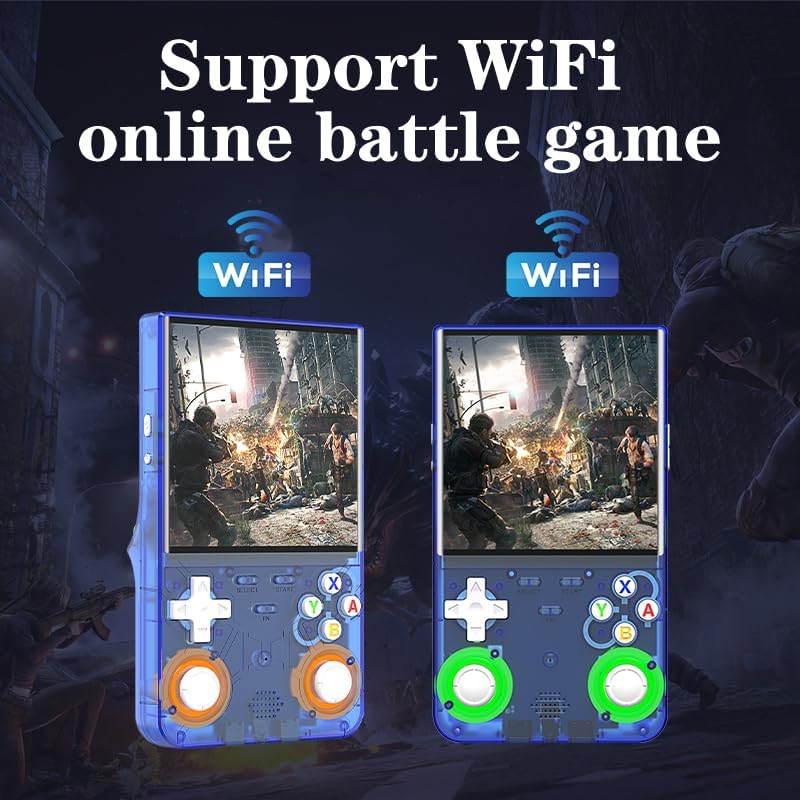
Image 5.1: Illustration of WiFi online battle game support.
5.3 External Display and Controllers (OTG)
The console features an OTG (On-The-Go) conversion interface, allowing connection to external devices. This includes:
- Large Screen Output: Connect the console to a TV or monitor using a compatible OTG adapter and HDMI cable (not included) for a larger display.
- External Handle Connection: Connect an external USB game controller via an OTG adapter for alternative control options.

Image 5.2: OTG interface for external display and controller connections.
6. Maintenance
- Screen Care: The 4.0-inch IPS screen is made of tempered glass. Clean it gently with a soft, dry, lint-free cloth. Avoid using abrasive cleaners or solvents.
- General Cleaning: Wipe the console's body with a slightly damp cloth. Do not immerse the device in water or use excessive moisture.
- Storage: Store the console in a cool, dry place away from direct sunlight and extreme temperatures.
- Battery Care: To prolong battery life, avoid fully discharging the battery frequently. If storing for an extended period, charge the battery to about 50% every few months.

Image 6.1: Detail of the console's durable IPS screen.
7. Troubleshooting
| Problem | Possible Cause | Solution |
|---|---|---|
| Console does not power on. | Low battery; system crash. | Charge the console for at least 30 minutes. If still unresponsive, try a hard reset (refer to manufacturer's specific reset procedure if available, or hold power button for 10-15 seconds). |
| Games are not loading or appear corrupted. | Corrupted game files; incorrect ROM format; TF card issue. | Ensure game ROMs are in the correct format for the emulator. Re-download game files. Check if the TF card is properly inserted or try a different TF card. |
| Screen flickering or display issues. | Software glitch; hardware issue. | Restart the console. If the problem persists, contact customer support. |
| Controls are unresponsive. | System freeze; hardware malfunction. | Restart the console. If specific buttons are consistently unresponsive, contact customer support. |
8. Specifications
| Feature | Detail |
|---|---|
| Model | R36 Ultra |
| Screen Size | 4.0 Inches IPS |
| Display Resolution | 720 x 720 pixels |
| Operating System | Open Source Linux |
| Memory Storage Capacity | 128 GB (via TF card) |
| Battery Capacity | 3000mAh Lithium |
| Battery Life | Up to 6 hours |
| Charging Time | Approximately 2 hours (USB Type-C) |
| Connectivity | WiFi, OTG (for external display/controller) |
| Material | Plastic |
| Product Dimensions | 1 x 1 x 1 inches (approximate, as per product data) |
| Item Weight | 1 pound (approximate, as per product data) |
| Manufacturer | ZWXYVUT |
9. Warranty and Support
For warranty information and technical support, please refer to the documentation provided with your purchase or contact the manufacturer directly. Keep your proof of purchase for any warranty claims.
Manufacturer: ZWXYVUT
For further assistance, visit the official ZWXYVUT support website or contact their customer service department.


