
1. Introduction
Thank you for choosing the Tccbac TC-MDC-KP06 4K UHD Home Security Camera. This device is designed to provide reliable surveillance for your home or office, offering high-resolution video, advanced night vision, and intelligent motion detection. This manual will guide you through the setup, operation, and maintenance of your camera to ensure optimal performance.
2. Package Contents
- Tccbac TC-MDC-KP06 Home Security Camera
- Charging Cable
- User Manual (this document)
3. Product Overview
The Tccbac TC-MDC-KP06 integrates a 4K UHD camera, a digital clock, and a thermometer into a discreet, compact unit. It features a wide-angle lens, advanced night vision, and remote access capabilities.

Figure 3.1: Tccbac TC-MDC-KP06 camera displaying time and temperature, with a smartphone showing its live video feed.

Figure 3.2: Overview of key features including 4K Camera, Thermometer, Clock, 5GHz Wi-Fi support, AP Hotspot mode, Night Vision, Local Storage, and Remote Viewing.
4. Setup
4.1 Charging the Device
Before initial use, fully charge the camera using the provided charging cable. Connect the cable to the camera's charging port and a standard USB power adapter (not included). The charging indicator will show the charging status.
4.2 MicroSD Card Installation
For local video storage, insert a microSD card (up to 256GB, not included) into the designated slot. Ensure the card is inserted correctly with the contacts facing the right direction. The camera supports continuous recording and motion-activated recording to the microSD card.
4.3 App Installation and Pairing
- Download the official companion app from the App Store (iOS) or Google Play Store (Android). Search for the app name provided in the quick start guide or on the product packaging.
- Register for an account and log in.
- Follow the in-app instructions to add your camera. This typically involves powering on the camera, resetting it if necessary, and connecting it to your home Wi-Fi network (5GHz Wi-Fi is supported for faster connection).
- Once paired, you will be able to view the live feed and access camera settings through the app.
4.4 Camera Placement
Position the camera in a location that provides an optimal view of the area you wish to monitor. The 150° wide-angle lens allows for broad coverage, minimizing blind spots. Ensure the camera is placed on a stable, flat surface as it is designed for freestanding installation.

Figure 4.1: The camera's 150° wide-angle lens provides extensive room coverage.

Figure 4.2: Examples of suitable placement locations, including living rooms, studies, offices, and baby rooms.
5. Operating Instructions
5.1 Live View
Open the companion app on your iOS or Android smartphone. Select your camera from the device list to access the live video feed. You can monitor your premises in real-time from anywhere with an internet connection.

Figure 5.1: Remote viewing of the camera's live feed via the app, supported by 5GHz Wi-Fi.
5.2 Recording
The camera supports continuous recording and event-based recording to the installed microSD card. You can configure recording settings within the app, including recording schedules and video quality. Recorded footage can be reviewed directly through the app.

Figure 5.2: The 4K UHD resolution captures fine details in the video feed.
5.3 Motion Detection
The camera features intelligent motion detection. When motion is detected, the camera can automatically begin recording and send real-time alerts to your smartphone. Sensitivity settings for motion detection can be adjusted in the app to minimize false alarms.

Figure 5.3: Real-time alerts are sent to your phone upon motion detection, allowing immediate access to the live stream.
5.4 Night Vision
Equipped with 8 infrared LEDs, the camera provides clear black and white images in total darkness, with a night vision range of up to 25 feet (approximately 8 meters). Night vision activates automatically in low-light conditions.

Figure 5.4: Advanced night vision provides clear surveillance up to 26 feet in complete darkness.
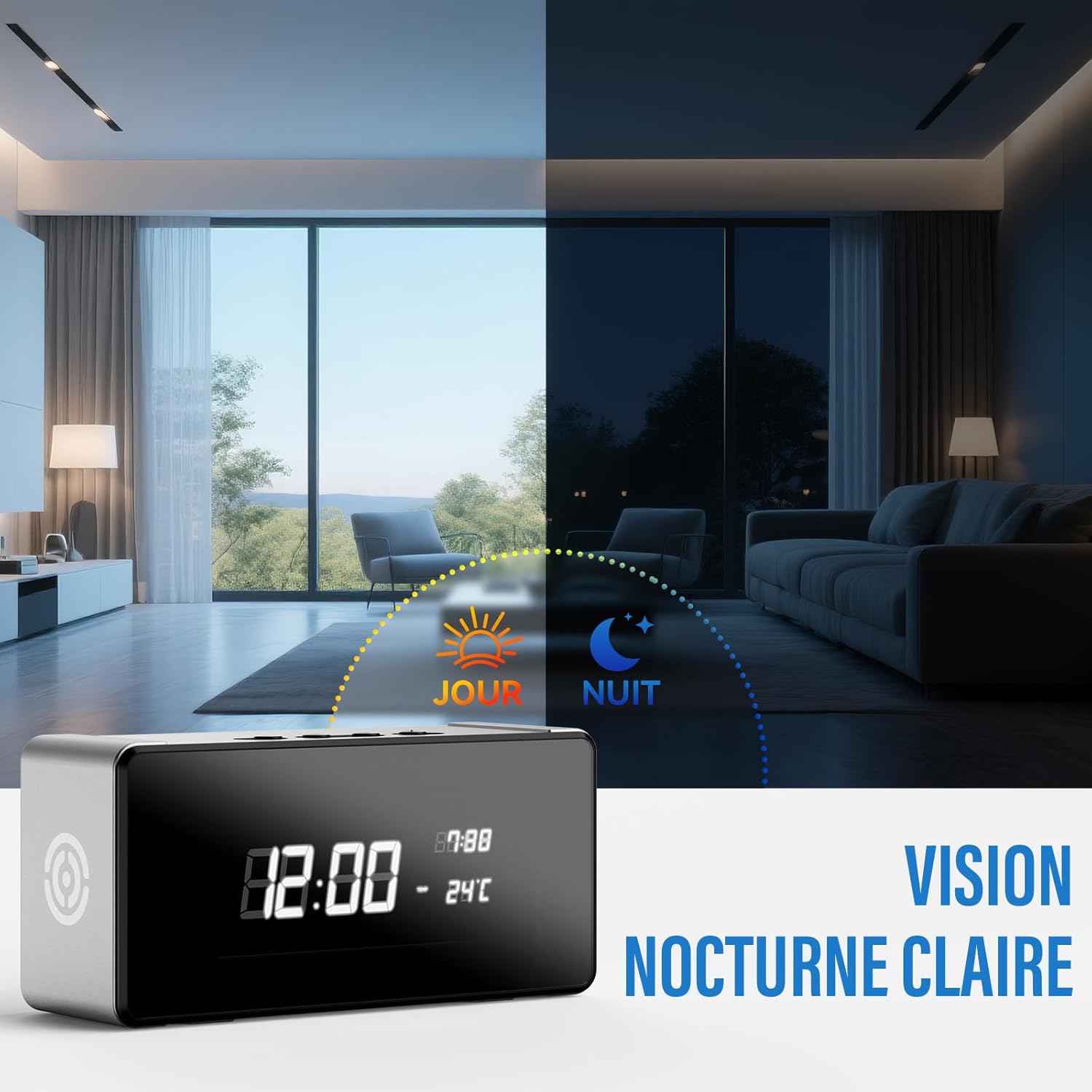
Figure 5.5: Visual comparison demonstrating the camera's clear vision during both day and night.
5.5 Multi-User Access
You can share access to your camera's live feed with multiple users (e.g., family members, colleagues) through the app. This allows several individuals to monitor the premises simultaneously.
6. Maintenance
6.1 Cleaning
To maintain optimal image quality, regularly clean the camera lens with a soft, dry, lint-free cloth. Do not use harsh chemicals or abrasive materials. The device is moisture resistant, but not waterproof; avoid direct exposure to water.
6.2 Battery Care
The camera uses a Lithium-Ion battery. For best battery life, avoid extreme temperatures and fully charge the device before long periods of inactivity. If the device will not be used for an extended time, charge it periodically to prevent deep discharge.
6.3 Firmware Updates
Periodically check the companion app for available firmware updates. Keeping your camera's firmware up-to-date ensures you have the latest features, security enhancements, and bug fixes.
7. Troubleshooting
- Camera not connecting to Wi-Fi: Ensure your Wi-Fi network is 2.4GHz or 5GHz compatible (as supported by the camera) and that the password is correct. Try moving the camera closer to the router. Reset the camera and attempt pairing again.
- No live video feed: Check your internet connection and the camera's power status. Ensure the app is updated to the latest version.
- Poor image quality: Clean the camera lens. Ensure there is adequate lighting (or that night vision is active in dark conditions). Check your network speed, as low bandwidth can affect streaming quality.
- Motion detection not working: Verify that motion detection is enabled in the app settings. Adjust sensitivity levels if necessary. Ensure the camera's view is not obstructed.
- MicroSD card not recording: Ensure the microSD card is correctly inserted and formatted within the app. Check if the card is full or corrupted. Replace the card if necessary.
- Clock resets: If the integrated clock frequently resets, ensure the camera has a stable power source and is connected to the app for time synchronization.
8. Specifications
| Feature | Specification |
|---|---|
| Model Number | TC-MDC-KP06 |
| Video Resolution | 4K Ultra HD |
| Lens Angle | 150° Wide Angle |
| Night Vision Range | Up to 25 feet (approx. 8 meters) |
| Storage | MicroSD card (up to 256GB, not included) |
| Connectivity | Wireless (Wi-Fi, Bluetooth) |
| App Compatibility | iOS, Android |
| Power Source | Battery Powered (1 Lithium Ion battery included) |
| Material | Acrylonitrile Butadiene Styrene (ABS) |
| Dimensions (L x W x H) | 16.51 x 8.89 x 6.35 cm |
| Weight | 360 g |
| Installation Type | Freestanding |
| Water Resistance | Moisture Resistant |
| Indoor/Outdoor Use | Indoor |
9. Warranty and Support
For warranty information and technical support, please refer to the contact details provided on the product packaging or the official Tccbac website. Keep your purchase receipt as proof of purchase for warranty claims.