
1. Introduction
This manual provides essential instructions for setting up, operating, and maintaining your MAXLEGEN M11S Tablet. Please read this guide thoroughly before using your device to ensure optimal performance and longevity.
2. Package Contents
Verify that all items listed below are included in your package. If any items are missing or damaged, please contact customer support.
- MAXLEGEN M11S Tablet
- Protective Case
- Bluetooth Keyboard
- Wireless Mouse
- Touch Stylus
- Charging Kit (USB-C Cable and Fast Charger)
- OTG Adapter
- SIM Ejection Tool
- User Manual (this document)

Image 2.1: MAXLEGEN M11S Tablet and its complete accessory kit, including the tablet, protective case, Bluetooth keyboard, charging kit, wireless mouse, OTG adapter, and stylus pen.
3. Product Overview
Familiarize yourself with the physical components of your MAXLEGEN M11S Tablet.
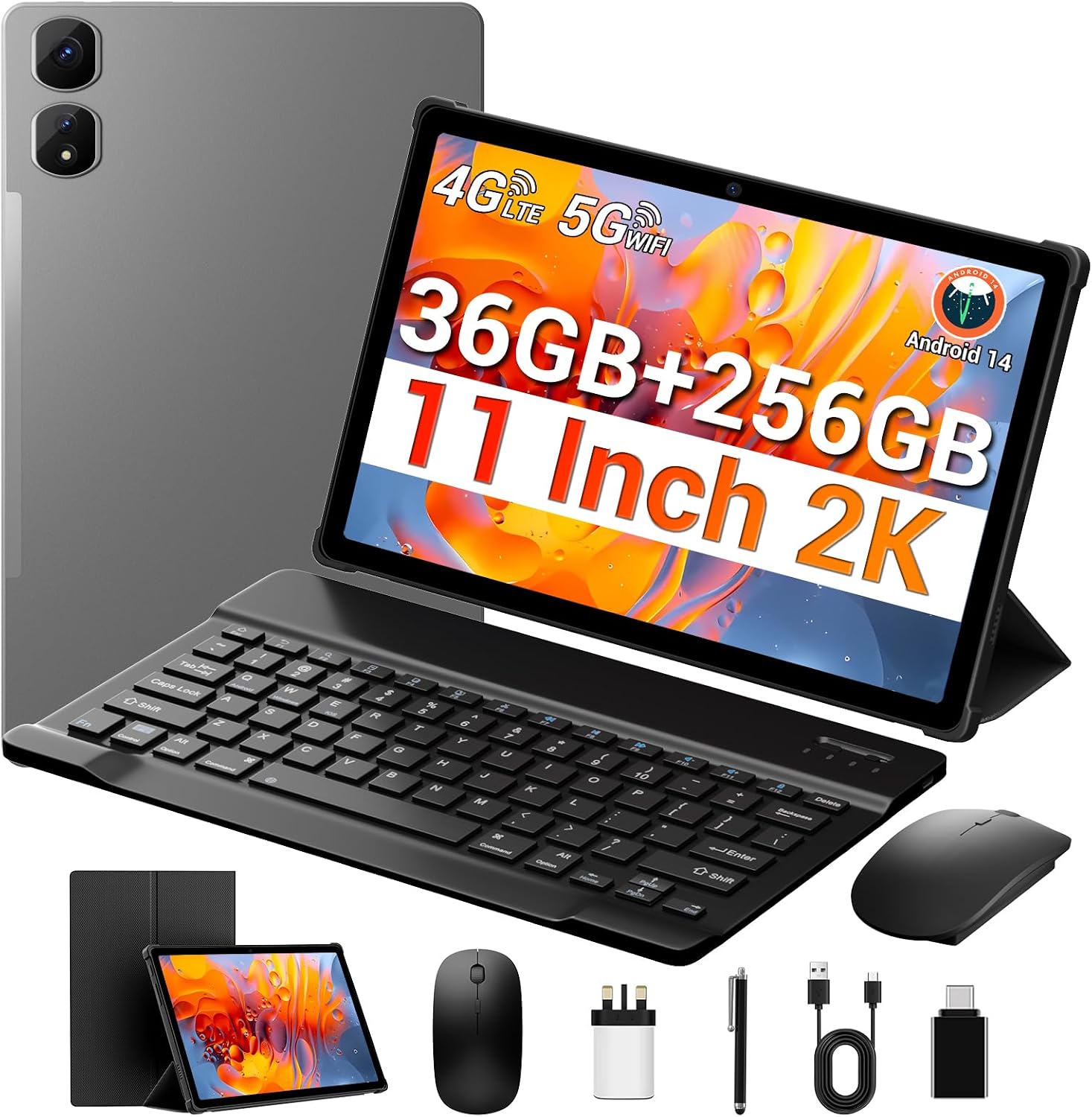
Image 3.1: The MAXLEGEN M11S Tablet displayed with its accompanying Bluetooth keyboard, wireless mouse, and other accessories, showcasing its versatile setup.
3.1 Key Features
- Display: 11-inch 2K FHD InCell (2000x1200 pixels) for vibrant visuals.
- Performance: Octa-Core 2.0GHz processor and 36GB RAM (12GB physical + 24GB virtual) for smooth multitasking.
- Storage: 256GB internal storage, expandable up to 1TB with a microSD card.
- Operating System: Android 14 for a fluid and secure user experience.
- Battery: 9580mAh for extended usage.
- Cameras: 13MP rear camera and 8MP front camera for photos and video calls.
- Connectivity: Dual SIM 4G LTE, Dual-Band Wi-Fi (5G/2.4Ghz), and Bluetooth 5.0.

Image 3.2: An overview of the MAXLEGEN M11S Tablet's key features, highlighting its 36GB RAM, 256GB ROM, Octa-Core processor, 11-inch 2K InCell display, dual SIM support, 9580mAh battery, 13MP rear and 8MP front cameras, 5G/2.4GHz WiFi, and Bluetooth 5.0 connectivity.
4. Setup
4.1 Charging the Tablet
Before first use, fully charge your tablet using the provided USB-C cable and fast charger. Connect the USB-C cable to the tablet's charging port and the charger to a power outlet. The battery indicator on the screen will show charging status.
4.2 Power On/Off
- To Power On: Press and hold the Power button until the MAXLEGEN logo appears.
- To Power Off: Press and hold the Power button, then select "Power off" from the options on the screen.
- To Restart: Press and hold the Power button, then select "Restart" from the options.
4.3 SIM Card and MicroSD Card Installation
The tablet supports dual SIM cards and a microSD card for expandable storage.
- Locate the SIM card tray on the side of the tablet.
- Insert the SIM ejection tool into the small hole next to the tray to open it.
- Place your Nano-SIM cards and/or microSD card into the designated slots on the tray. Ensure correct orientation.
- Gently push the tray back into the tablet until it clicks into place.
4.4 Initial Setup (Android 14)
Upon first power-on, follow the on-screen prompts to complete the initial setup, which includes selecting your language, connecting to Wi-Fi, setting up your Google account, and configuring security options.

Image 4.1: This image illustrates the MAXLEGEN M11S Tablet running Android 14, highlighting features like parallel vision, taskbar, confidentiality, and parental control. It also shows the memory expansion capabilities with 36GB RAM and 256GB storage, expandable up to 1TB via Micro SD.
4.5 Connecting Accessories
The MAXLEGEN M11S Tablet comes with a Bluetooth keyboard, wireless mouse, and stylus for enhanced productivity.
- Bluetooth Keyboard/Mouse: Turn on the keyboard/mouse and enable Bluetooth on your tablet (Settings > Connected devices > Bluetooth). Select the accessory from the list of available devices to pair.
- Stylus: The stylus is a passive device and does not require pairing. Simply use it directly on the screen.
5. Operating Instructions
5.1 Basic Navigation
Navigate your Android 14 tablet using touch gestures:
- Tap: Select an item.
- Swipe: Scroll through screens or lists.
- Pinch-to-zoom: Enlarge or reduce content.
- Long press: Access contextual menus or move icons.
5.2 Connectivity
- Wi-Fi: Go to Settings > Network & internet > Wi-Fi to connect to available networks. The tablet supports 5G and 2.4Ghz bands.
- 4G LTE: With a valid SIM card installed, cellular data will be available. Manage settings in Settings > Network & internet > Mobile network. The tablet supports TDD-FDD LTE and VoLTE calls.
- Bluetooth: For connecting wireless headphones, speakers, or other Bluetooth devices, go to Settings > Connected devices > Bluetooth.
5.3 Camera Usage
The tablet features a 13MP rear camera and an 8MP front camera.
- Open the Camera application.
- Switch between front and rear cameras using the camera icon.
- Tap the shutter button to take a photo or start/stop video recording.

Image 5.1: This image highlights the MAXLEGEN M11S Tablet's camera capabilities, featuring an 8MP front camera, 13MP rear camera, and LED flash. It also showcases the 4G LTE cellular connectivity with TDD-FDD LTE support and VoLTE call & browse functionality.
5.4 Storage Management
To view and manage your tablet's storage, go to Settings > Storage. You can see how much space is used by apps, photos, videos, and other files. You can also manage your microSD card here.
5.5 Split Screen Multitasking
Android 14 allows for split-screen multitasking. To use this feature:
- Open an application.
- Swipe up from the bottom of the screen and hold to access recent apps.
- Tap the app icon at the top of the app's preview and select "Split top" or "Split screen".
- Choose a second app from the recent apps list or app drawer to open in the other half of the screen.

Image 5.2: The MAXLEGEN M11S Tablet's 11-inch InCell display with a 16:10 screen ratio and 2000x1200 FHD resolution, emphasizing its 2K Quad HD visual experience.
6. Maintenance
6.1 Cleaning
Use a soft, lint-free cloth to clean the tablet screen and body. Avoid using harsh chemicals or abrasive materials that could damage the device.
6.2 Software Updates
Regularly check for and install software updates to ensure your tablet has the latest features, security patches, and performance improvements. Go to Settings > System > System update.
6.3 Battery Care
- Avoid exposing the tablet to extreme temperatures.
- Do not let the battery completely drain frequently.
- Use only the provided charger or a certified compatible charger.

Image 6.1: This image depicts various daily use scenarios for the MAXLEGEN M11S Tablet, including charging via Type-C, fast connectivity with 5G/2.4G WiFi and Bluetooth 5.0, gaming, and GPS navigation, all powered by its 9580mAh battery.
7. Troubleshooting
If you encounter issues with your MAXLEGEN M11S Tablet, refer to the following common solutions:
- Tablet not turning on: Ensure the battery is charged. Connect the charger and try again.
- Screen unresponsive: Try restarting the tablet. If the issue persists, perform a force restart by holding the power button for about 10-15 seconds.
- Wi-Fi/Cellular connectivity issues: Check if Wi-Fi or mobile data is enabled in settings. Restart your router or contact your service provider if necessary.
- Apps crashing: Clear the cache of the problematic app (Settings > Apps > [App Name] > Storage & cache > Clear cache). If the issue continues, try reinstalling the app.
- Slow performance: Close unnecessary background apps. Clear cached data. Consider performing a factory reset as a last resort (back up your data first).
8. Specifications
Detailed technical specifications for the MAXLEGEN M11S Tablet.
| Feature | Specification |
|---|---|
| Model Name | M11S |
| Operating System | Android 14 |
| Processor | Octa-Core MediaTek (2.0 GHz) |
| RAM | 36 GB (12 GB physical + 24 GB virtual) |
| Internal Storage | 256 GB |
| Expandable Storage | Up to 1 TB via Micro SD card |
| Display Size | 11 Inches |
| Display Resolution | 2000 x 1200 Pixels (2K FHD InCell) |
| Rear Camera | 13 MP |
| Front Camera | 8 MP |
| Battery Capacity | 9580 mAh |
| Connectivity | 4G LTE (Dual SIM), Dual-Band Wi-Fi (802.11ac/b/g/n), Bluetooth 5.0 |
| Ports | USB Type-C, Micro SD, SIM Card Slot |
| Dimensions (L x W x H) | 27 x 17 x 0.98 cm |
| Weight | 900 grams |
| Special Features | Cellular connectivity, Phone call functionality, Stereo speaker, USB OTG support, Stylus support |
9. Warranty and Support
The MAXLEGEN M11S Tablet comes with a 1-year manufacturer warranty. For technical assistance, warranty claims, or any product-related inquiries, please contact our dedicated customer support team. Refer to the contact information provided with your purchase or visit the official MAXLEGEN website.