
1. Introduction
This manual provides essential information for the proper use and maintenance of your HiGrace 11-inch Android 14 Tablet, Model A7L. Please read this guide thoroughly before operating the device to ensure optimal performance and longevity.

Image 1.1: HiGrace A7L Tablet highlighting Android 14, Octa-Core CPU, and 6800mAh battery capacity.
2. What's in the Box
Verify that all items are present in the package:
- HiGrace 11-inch Android 14 Tablet (Model A7L)
- Bluetooth Keyboard
- Wireless Mouse
- Stylus Pen
- Protective Case
- USB Type-C Charging Cable
- Power Adapter (Charger)
- Wired Headphones
- User Manual (this document)

Image 2.1: All accessories included with the HiGrace A7L Tablet, neatly arranged.
3. Device Layout
Familiarize yourself with the physical components of your tablet:
- Front Camera: Located at the top center when held horizontally.
- Display: 11-inch touchscreen.
- Power Button: Typically on the side edge.
- Volume Buttons: Adjacent to the power button.
- USB Type-C Port: For charging and data transfer.
- Speaker Grilles: Located on the edges for audio output.
- MicroSD Card Slot: For expandable storage.
- Rear Camera: Located on the back panel.

Image 3.1: Front view of the HiGrace A7L Tablet with keyboard and mouse, and a rear view of the tablet.
4. Setup
4.1 Initial Charging
Before first use, fully charge the tablet using the provided USB Type-C cable and power adapter. The charging port is located on the side of the device.

Image 4.1: The tablet connected to a charger via its Type-C port.
4.2 Power On/Off
- To Power On: Press and hold the Power button until the screen illuminates.
- To Power Off: Press and hold the Power button, then select 'Power off' from the on-screen options.
4.3 Initial Configuration
Upon first power-on, follow the on-screen prompts to:
- Select your preferred language.
- Connect to a Wi-Fi network.
- Set up your Google account or create a new one.
- Configure date, time, and other basic settings.
4.4 Inserting a MicroSD Card
The tablet supports MicroSD card expansion up to 1TB. Locate the MicroSD card slot on the side of the tablet. If using the protective case, you may need to temporarily remove or adjust the case to access the slot. Carefully insert the MicroSD card until it clicks into place.
5. Operating the Tablet
5.1 Android 14 Operating System
Your tablet runs on the Android 14 operating system, offering enhanced privacy, security, and a smoother user experience. Navigate using touch gestures: tap to select, swipe to scroll, pinch to zoom.

Image 5.1: The Android 14 operating system interface on the tablet screen.
5.2 Connectivity (Wi-Fi and Bluetooth)
- Wi-Fi 6: Supports both 2.4GHz and 5.0GHz bands for stable and fast internet access. Access Wi-Fi settings via the Quick Settings panel or the Settings app.
- Bluetooth 5.3: For connecting wireless accessories like the included keyboard, mouse, or other Bluetooth devices. Enable Bluetooth in settings and pair with your desired device.

Image 5.2: Illustrates the tablet's Bluetooth 5.3 and dual-band Wi-Fi capabilities.
5.3 Using Accessories
- Keyboard and Mouse: Pair these Bluetooth accessories through the tablet's Bluetooth settings. Once connected, they function like a standard computer keyboard and mouse.
- Stylus Pen: Use the stylus for precise input, drawing, or navigation on the touchscreen.
- Protective Case: Provides protection and can often be folded to act as a stand for hands-free viewing.
5.4 Multimedia and Widevine L1
The 11-inch display with 1280x800 resolution provides clear visuals. With Widevine L1 certification, the tablet supports smooth HD video playback from streaming services such as Netflix, Disney+, Prime Video, Hulu, and YouTube.

Image 5.3: Widevine L1 support for high-definition streaming on popular platforms.
5.5 Camera Functionality
The tablet features an 8MP main camera and a 5MP front camera. Open the Camera app to capture photos and videos. The front camera is suitable for video calls.

Image 5.4: Details of the tablet's 8MP main camera and 5MP front camera.
6. Maintenance
6.1 Battery Care
The 6800mAh battery provides extended usage. To prolong battery life:
- Avoid extreme temperatures.
- Do not let the battery fully drain frequently.
- Use the provided charger.
- Close unused applications running in the background.
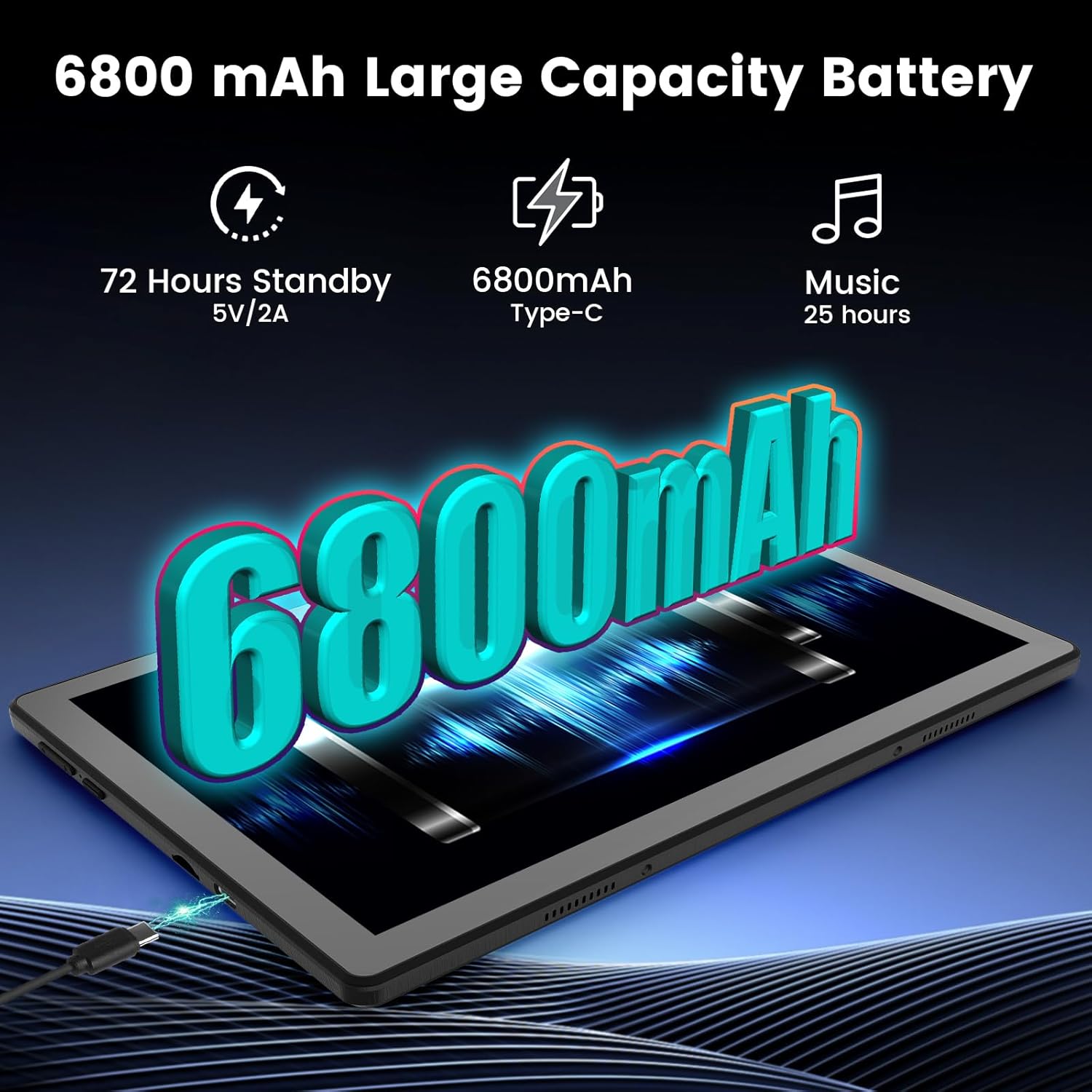
Image 6.1: Visual representation of the tablet's 6800mAh battery.
6.2 Cleaning
Use a soft, lint-free cloth to clean the screen and body of the tablet. Avoid abrasive materials or harsh chemicals.
6.3 Software Updates
Regularly check for and install system updates to ensure your tablet has the latest features, security patches, and performance improvements. Go to Settings > System > System update.
7. Troubleshooting
- Tablet not turning on: Ensure the battery is charged. Connect the charger and wait a few minutes before attempting to power on again.
- Wi-Fi connection issues: Check if Wi-Fi is enabled. Restart your router and the tablet. Ensure you are within range of the Wi-Fi signal.
- Bluetooth accessory pairing failure: Ensure the accessory is in pairing mode and within range. Check the tablet's Bluetooth settings to ensure it's enabled and visible.
- Slow performance: Close unnecessary apps running in the background. Clear cache for frequently used apps. Consider restarting the tablet.
- MicroSD card not detected: Ensure the card is inserted correctly into the slot. Restart the tablet. Try another MicroSD card to rule out card issues.
8. Specifications
| Feature | Specification |
|---|---|
| Model Name | A7L |
| Operating System | Android 14 |
| Screen Size | 11 Inches |
| Screen Resolution | 1280 x 800 pixels |
| Processor | Octa-Core (Allwinner) |
| RAM | 14 GB |
| Internal Storage (ROM) | 64 GB |
| Expandable Storage | Up to 1 TB (MicroSD) |
| Battery Capacity | 6800 mAh (Lithium Ion) |
| Wireless Type | 802.11ax (Wi-Fi 6) |
| Bluetooth | Bluetooth 5.3 |
| Main Camera | 8 MP |
| Front Camera | 5 MP |
| Dimensions (LxWxH) | 8.64 x 4.98 x 0.35 inches |
| Item Weight | 2.88 pounds |
| Color | Black |

Image 8.1: Tablet's memory and storage capabilities.
9. Warranty and Support
9.1 Product Warranty
Your HiGrace tablet comes with a manufacturer's warranty, typically covering 1 to 2 years from the date of purchase. Please refer to the warranty card included in your package or contact customer support for specific terms and conditions.
9.2 Customer Support
For any questions, technical assistance, or warranty claims, please contact HiGrace customer support. Contact information can usually be found on the product packaging, the official HiGrace website, or through your purchase platform. Please have your model number (A7L) and purchase details ready when contacting support.