
4858158570656
4 Channel Hidden Tachograph 4K HD Dash Cam User Manual
Brand: Generic | Model: 4858158570656
1. Introduction
Thank you for choosing the Generic 4 Channel Hidden Tachograph 4K HD Dash Cam. This advanced vehicle recording system is designed to provide comprehensive surveillance of your vehicle's surroundings, both inside and out. Featuring four high-definition cameras, a 3.0-inch IPS display, and intelligent monitoring functions, it ensures your driving and parking experiences are securely documented.
Key Features:
- Four-Camera System: Simultaneously monitors the front, rear, left, and right of your vehicle.
- 4K HD Recording: Captures clear, high-resolution video footage.
- 3.0-inch IPS Display: Provides real-time viewing and intuitive control.
- 360° Rotatable Side Cameras: Allows flexible adjustment of shooting angles.
- 24-Hour Parking Monitoring: Automatically records collisions when parked (requires step-down line).
- Loop Recording: Overwrites oldest footage when the memory card is full, preserving important events.
- G-Sensor: Automatically locks video footage during sudden impacts or events.
- HDR Processing: Enhances image clarity in varying light conditions.
- Waterproof Design: Ensures reliable operation in rainy conditions.

Figure 1.1: Overview of the 4 Channel Hidden Tachograph Dash Cam.
2. Setup and Installation
Proper installation is crucial for the optimal performance of your dash cam. Follow these steps carefully:
2.1 Package Contents
- Main Dash Cam Unit (with integrated front camera)
- Rear Camera
- Left Side Camera
- Right Side Camera
- Power Cable (Car Charger)
- Mounting Brackets/Adhesives
- User Manual (this document)
- Note: TF (MicroSD) card is not included and must be purchased separately.
2.2 Camera Placement
- Front Camera: Mount the main dash cam unit on your windshield, ideally behind the rearview mirror, to ensure a clear view of the road ahead without obstructing your driving vision.
- Rear Camera: Install the rear camera on the rear windshield, ensuring it has an unobstructed view of the road behind.
- Left and Right Side Cameras: Position these cameras to cover the side views of your vehicle. The 360° rotation feature allows you to adjust their angle for optimal coverage.
- Cable Routing: Carefully route all camera cables along the vehicle's interior trim to keep them tidy and out of the way.
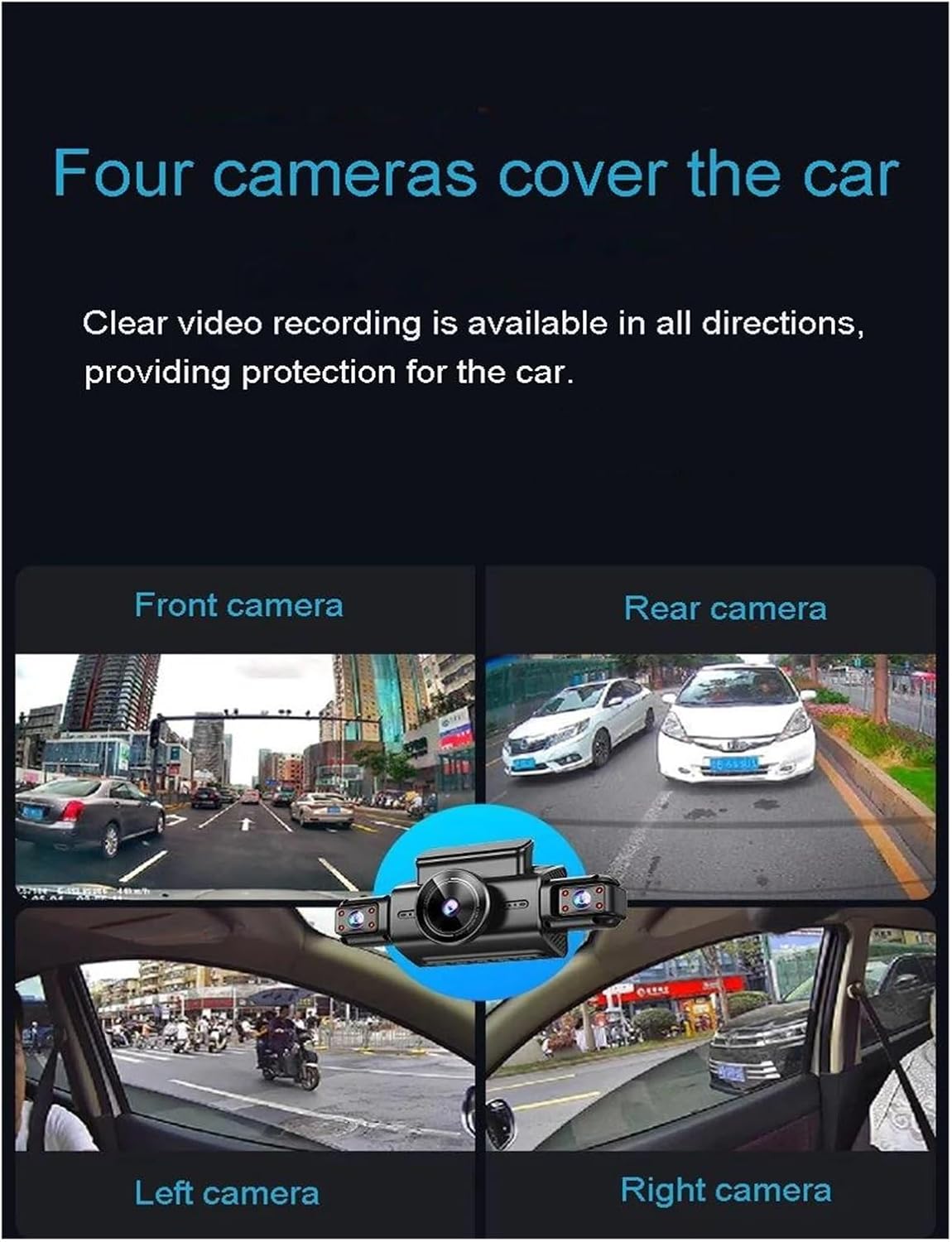
Figure 2.1: Illustration of the four-camera coverage for comprehensive vehicle monitoring.
2.3 Power Connection
- Insert the provided car charger into your vehicle's 12V power outlet (cigarette lighter socket).
- Connect the other end of the power cable to the main dash cam unit.
- For 24-hour parking monitoring, a dedicated step-down line (hardwire kit) is required. This must be purchased and installed separately, connecting the dash cam directly to your vehicle's fuse box for continuous power. Consult a professional for hardwire kit installation if unsure.
2.4 Inserting the TF Card
Locate the TF card slot on the main dash cam unit. Gently insert a high-speed (Class 10 or higher) MicroSD card (up to 128GB recommended) with the gold contacts facing the correct direction until it clicks into place. Format the card via the dash cam's settings menu before first use.
3. Operating Instructions
This section details the primary functions and how to operate your dash cam.
3.1 Power On/Off
- The dash cam will automatically power on and begin recording when your vehicle's ignition is turned on (if connected to the car charger).
- It will automatically power off shortly after the ignition is turned off.
- To manually power on/off, press and hold the power button on the unit.
3.2 Recording Modes
- Normal Recording: Once powered on, the dash cam continuously records video from all four cameras. The 3.0-inch IPS display can show all four camera feeds simultaneously or switch between individual camera views.
- Loop Recording: When the TF card is full, the oldest unlocked video files will be overwritten by new recordings. This ensures continuous recording without manual intervention.
- G-Sensor (Emergency Recording): The built-in G-sensor detects sudden impacts or rapid acceleration/deceleration. When triggered, it automatically locks the current video segment, preventing it from being overwritten by loop recording. These files are stored in a separate, protected folder.
- Parking Monitoring: If the dash cam is connected via a step-down line, it will automatically activate and record if a collision or significant vibration is detected while the vehicle is parked.
3.3 Display and Menu Navigation
- Use the physical buttons next to the 3.0-inch IPS display to navigate through the menu options.
- Common settings include video resolution, loop recording duration, G-sensor sensitivity, date/time, and TF card formatting.

Figure 3.1: The high-definition glass lenses ensure clear imaging even in challenging environments.
4. Maintenance and Care
To ensure the longevity and optimal performance of your dash cam, follow these maintenance guidelines:
- Cleaning: Use a soft, dry cloth to clean the dash cam body and lenses. Do not use abrasive cleaners or solvents, as they may damage the device.
- TF Card Formatting: Regularly format your TF card (e.g., once a month) to prevent data corruption and ensure smooth recording. Back up any important files before formatting.
- Temperature: Avoid exposing the dash cam to extreme temperatures for prolonged periods. While designed for vehicle environments, excessive heat or cold can affect battery life and component integrity. Operating temperature: -20°C to 70°C (-4°F to 158°F). Storage temperature: -30°C to 80°C (-22°F to 176°F).
- Firmware Updates: Check the manufacturer's website periodically for firmware updates. Updates can improve performance, add features, or fix bugs.
- Cable Inspection: Periodically inspect all cables for signs of wear or damage. Replace any damaged cables immediately.
5. Troubleshooting
If you encounter issues with your dash cam, refer to the following common problems and solutions:
| Problem | Possible Cause | Solution |
|---|---|---|
| Dash cam does not power on. | No power, faulty cable, or vehicle power outlet issue. | Check power cable connection. Ensure vehicle's 12V outlet is working. Try a different power source if available. |
| Recording stops or freezes. | TF card full, faulty TF card, or low-speed TF card. | Format the TF card. Replace with a new, high-speed (Class 10 or U3) TF card. |
| Video footage is blurry or unclear. | Dirty lens, protective film on lens, or incorrect focus. | Clean the camera lenses. Remove any protective film. Ensure cameras are securely mounted and not vibrating. |
| Parking monitor not working. | Not connected via step-down line, or feature not enabled. | Ensure a step-down line is installed. Check settings to confirm parking monitoring is enabled. |
| Dash cam restarts frequently. | Unstable power supply, faulty TF card, or firmware issue. | Check power connection. Format or replace TF card. Check for firmware updates. |
If the problem persists after trying these solutions, please contact customer support.
6. Product Specifications
| Feature | Specification |
|---|---|
| Brand | Generic |
| Model Number | 4858158570656 |
| Color/Lens Configuration | Full HD Three Lens (Note: Product title indicates Four Camera, description mentions Four cameras, but variant is Three Lens. Please verify actual product configuration.) |
| Display Size | 3.0-inch IPS |
| Video Resolution | 4K HD (Main Camera), Full HD (Other Cameras) |
| Storage | Supports MicroSD (TF) Card (Not included) |
| G-Sensor | Built-in Three-axis gravity sensing |
| Parking Monitor | 24-hour (requires separate step-down line) |
| Operating Temperature | -20°C ~ 70°C (-4°F ~ 158°F) |
| Storage Temperature | -30°C ~ 80°C (-22°F ~ 176°F) |
| Manufacturer | WXHHSM |
| ASIN | B0F8N62F4Q |
7. Warranty and Support
Specific warranty information for this Generic product is not provided in the available data. Please refer to the product packaging or the seller's website for detailed warranty terms and conditions.
Customer Support:
For technical assistance, troubleshooting beyond this manual, or warranty inquiries, please contact the seller or manufacturer directly through the platform where the product was purchased. Provide your order number and product model for faster service.
Ask a question about this manual
Ask about setup, troubleshooting, compatibility, parts, safety, or missing instructions. Manuals+ will review the question and use this page’s manual context to help answer it.