1. Setup Guide
This section provides instructions for the initial setup of your MAXLEGEN Android 15 Tablet.
1.1 Unboxing and Package Contents
Carefully unbox your tablet and verify all included accessories. The package should contain:
- MAXLEGEN Android 15 Tablet
- Bluetooth Keyboard
- Wireless Mouse
- Stylus
- Headphones
- SIM Tool
- Protective Case
- USB-C Cable
- Charger
- User Manual (this document)

Image: The MAXLEGEN Android 15 Tablet displayed with its full suite of accessories, including the keyboard, mouse, stylus, and protective case.
1.2 Charging the Tablet
Before first use, fully charge the tablet. Connect the USB-C cable to the tablet's charging port and the other end to the provided charger. Plug the charger into a power outlet. The charging indicator will show the charging status.
1.3 Initial Power-On and Basic Configuration
Press and hold the power button until the MAXLEGEN logo appears. Follow the on-screen prompts to select your language, connect to a Wi-Fi network, and complete the initial Android 15 setup.
1.4 Connecting Accessories
The tablet supports Bluetooth connectivity for the keyboard and mouse. To pair:
- Enable Bluetooth on your tablet via Settings > Connected devices > Bluetooth.
- Put the keyboard/mouse into pairing mode (refer to their individual manuals if needed).
- Select the device from the list of available Bluetooth devices on your tablet to pair.
The stylus does not require Bluetooth pairing and can be used directly on the screen.
2. Operating Instructions
This section details the key features and functionalities of your MAXLEGEN Android 15 Tablet.
2.1 Android 15 Operating System
Your tablet runs on Android 15, offering enhanced privacy features, optimized performance, and a user-friendly interface. Navigate through apps, settings, and notifications using intuitive gestures and taps.

Image: A visual representation of the Android 15 operating system interface on the tablet, showcasing various app icons and the home screen layout.
2.2 Display and Visuals
The tablet features an 11-inch 2K IPS display (2000 x 1200 resolution) with a 90Hz refresh rate, providing smooth animations and vibrant colors. A blue light reduction mode is available to protect your eyes during extended use.

Image: A graphic illustrating the 11-inch display size compared to a 10-inch screen, highlighting the 90Hz refresh rate, camera specifications, battery capacity, and connectivity options.
2.3 Performance and Storage
Equipped with a Unisoc T606 Octa-Core processor and Mali-G57 GPU, the tablet ensures smooth multitasking and gaming. It comes with 36GB RAM (12GB physical + 24GB virtual) and 256GB internal storage, expandable up to 1TB via a microSD card.

Image: A visual detailing the tablet's 36GB RAM (12GB+24GB) and 256GB ROM, with an emphasis on its expandability up to 1TB via microSD, alongside processor specifications.
2.4 Connectivity
The tablet supports dual-band Wi-Fi (5G/2.4G) for fast and stable internet connections, Bluetooth 5.0 for efficient wireless data transfer, and precise GPS (Beidou, GLONASS, Galileo, AGPS) for navigation.
2.5 Camera Functionality
Capture moments with the 13MP rear camera and conduct clear video calls with the 8MP front camera. The tablet is suitable for online meetings, selfies, and family videos.

Image: A split image showing the tablet's audio capabilities with a 3.5mm headset interface and dual speakers, alongside its camera specifications including a 16MP rear camera (note: product description states 13MP) and 8MP front camera.
2.6 Multimedia and Productivity
Enjoy immersive audio with dual stereo speakers. The tablet is Widevine L1 certified, enabling high-definition streaming on platforms like Netflix and Prime Video.
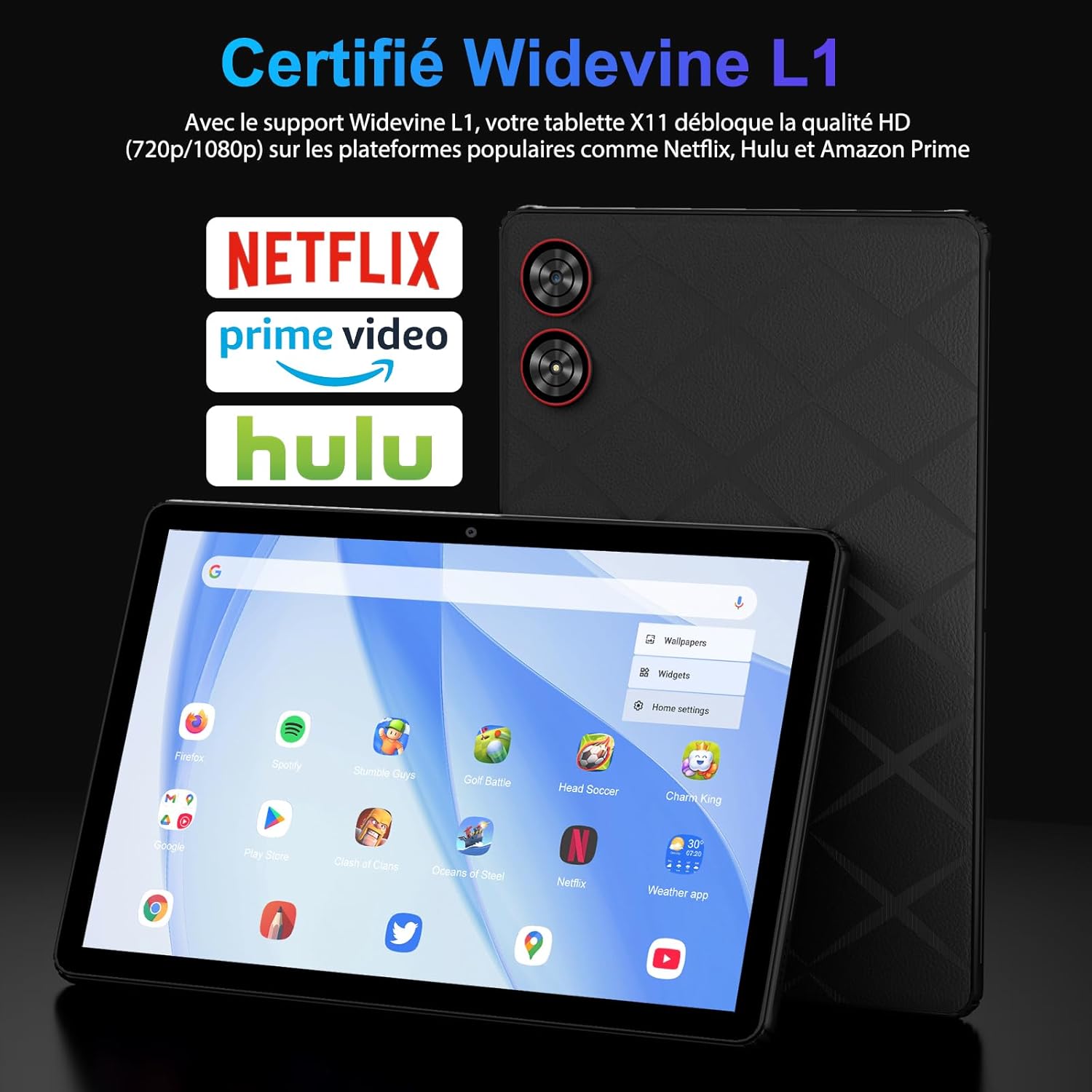
Image: The tablet screen displaying various streaming service logos (Netflix, Prime Video, Hulu) and the Widevine L1 certification, indicating support for HD content playback.
The tablet supports OTG (On-The-Go) for connecting external USB devices. Utilize the multi-window (split-screen) mode for enhanced productivity, allowing you to run two applications simultaneously.

Image: A collage of images demonstrating the tablet's productivity features, including PC mode with keyboard, split-screen multitasking, stylus interaction, USB-C charging, fast Wi-Fi connectivity, and GPS navigation.
3. Maintenance
Proper maintenance ensures the longevity and optimal performance of your tablet.
3.1 Battery Care
The tablet is equipped with an 8580 mAh battery. To maximize battery life:
- Avoid extreme temperatures.
- Do not fully discharge the battery regularly.
- Use the provided charger and cable.
- Adjust screen brightness to a comfortable level.
3.2 Cleaning the Device
Use a soft, lint-free cloth to clean the screen and body of the tablet. For stubborn smudges, slightly dampen the cloth with water or a screen cleaner. Avoid harsh chemicals or abrasive materials.
3.3 Software Updates
Regularly check for and install system updates to ensure your tablet has the latest features, security patches, and performance improvements. Go to Settings > System > System update.
3.4 Storage Management
Periodically review your stored files and applications. Delete unnecessary data to free up space. Utilize the microSD card slot for additional storage of media files.
3.5 Device Protection
Use the included protective case to shield your tablet from scratches, impacts, and dust.
4. Troubleshooting
This section addresses common issues you might encounter with your tablet.
4.1 Tablet Not Powering On
- Ensure the tablet is sufficiently charged. Connect it to the charger for at least 30 minutes.
- Press and hold the power button for 10-15 seconds to perform a forced restart.
4.2 Wi-Fi Connectivity Issues
- Toggle Wi-Fi off and on in Settings.
- Restart your Wi-Fi router.
- Forget the network in tablet settings and reconnect.
4.3 Slow Performance
- Close unused applications running in the background.
- Clear cache data for frequently used apps.
- Ensure sufficient storage space is available.
- Restart the tablet.
4.4 Accessories Not Connecting
- For Bluetooth accessories, ensure they are in pairing mode and within range.
- Check battery levels of the accessories.
- Try restarting both the tablet and the accessory.
4.5 Factory Reset (Last Resort)
If issues persist, a factory reset can resolve many software-related problems. Warning: This will erase all data on your tablet. Back up important files before proceeding. Go to Settings > System > Reset options > Erase all data (factory reset).
5. Specifications
Detailed technical specifications for the MAXLEGEN Android 15 Tablet (Model: T606).
| Feature | Specification |
|---|---|
| Brand | MAXLEGEN |
| Model Name | X11 |
| Item Model Number | T606 |
| Operating System | Android 15 |
| Standing Screen Display Size | 11 Inch |
| Screen Resolution | 2000 x 1200 Pixels |
| Processor Brand | Unisoc |
| Processor Speed | 1.6 GHz |
| RAM Memory | 36 GB |
| Memory Storage Capacity | 256 GB (Expandable up to 1 TB via microSD) |
| Connectivity Type | Bluetooth, Wi-Fi (802.11ax, Dual-band 5G/2.4G) |
| Front Webcam Resolution | 8 MP |
| Rear Camera Resolution | 13 MP |
| Batteries | 1 9V battery required (included) |
| Lithium Battery Energy Content | 5 Watt-hour |
| Product Dimensions | 27 x 17 x 0.9 cm; 900 g |
| Color | Black |
| Special Features | USB OTG Support, Stylus Holder, Expandable Storage, 2K IPS Display, Widevine L1 |
6. Warranty and Support
MAXLEGEN products are manufactured to high-quality standards. For information regarding warranty coverage and terms, please refer to the warranty card included in your product packaging or visit the official MAXLEGEN support website.
6.1 Customer Support
If you encounter any issues not covered in this manual or require further assistance, please contact MAXLEGEN customer support. Have your product model number (T606) and purchase details ready when contacting support.
For the most up-to-date support information, including FAQs and contact methods, please visit the manufacturer's official website.