
Panasonic 55Z95BP
Panasonic Z95 Series 55-inch OLED 4K Smart Fire TV Instruction Manual
Model: 55Z95BP
1. Introduction
Welcome to the Panasonic Z95 Series 55-inch OLED 4K Smart Fire TV. This manual provides essential information for setting up, operating, maintaining, and troubleshooting your new television. Please read this manual thoroughly before use and retain it for future reference.
2. What's in the Box
- Panasonic Z95 Series 55-inch OLED 4K Smart Fire TV
- Power Cable
- Remote Control
- TV Stand
- User Manual (this document)
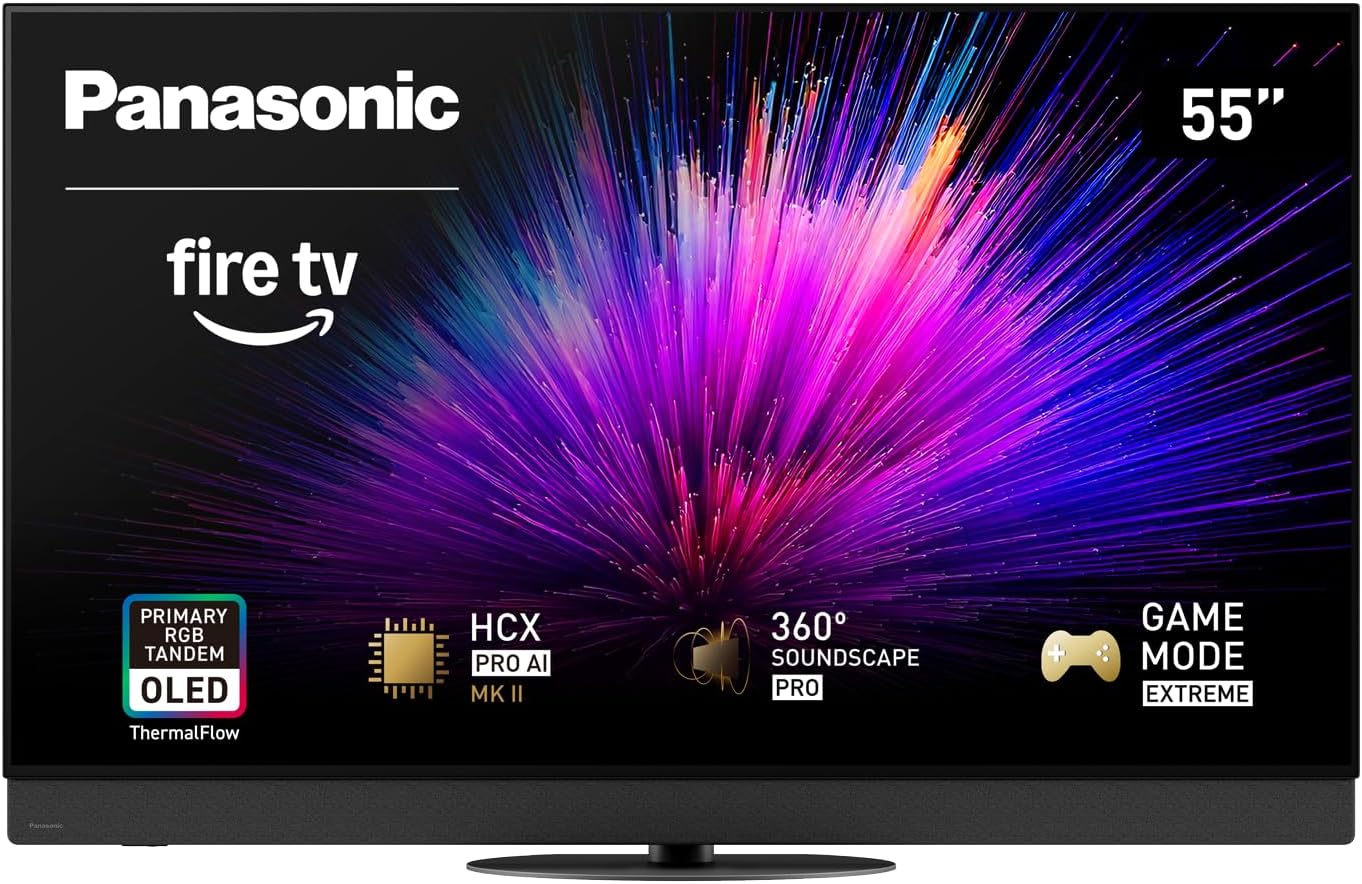
Image: Front view of the Panasonic Z95 Series 55-inch OLED 4K Smart Fire TV, showcasing its slim design and vibrant display.
3. Setup Guide
3.1. Unpacking and Placement
Carefully remove the TV from its packaging. It is recommended that two people handle the TV due to its size and weight. Place the TV on a stable, flat surface or mount it on a wall using a compatible VESA mount (sold separately).

Image: A diagram illustrating the dimensions of the 55-inch Panasonic Z95B TV with and without its stand, along with a detailed view of the remote control and available input ports (HDMI, Ethernet, USB, TV Tuner, Optical Audio Out, Headphone Jack).
3.2. Attaching the Stand (Optional)
If using the included stand, follow the instructions provided in the separate stand assembly guide. Ensure all screws are securely fastened.
3.3. Connecting Peripherals
Connect your external devices (e.g., cable box, Blu-ray player, gaming console) to the appropriate HDMI ports. The TV features HDMI 2.1 for high-speed connections, supporting 144Hz refresh rates for gaming.
Connect the power cable to the TV and then to a power outlet.

Image: Rear view of the Panasonic Z95 Series TV, highlighting the various input/output ports and the VESA mounting points for wall installation.
3.4. Initial Power On and Fire TV Setup
Press the power button on the remote control. Follow the on-screen instructions to complete the initial setup, including network connection, Fire TV account login, and channel scanning.
4. Operating Your TV
4.1. Remote Control
The included remote control provides access to all TV functions. Use it to navigate menus, adjust volume, change channels, and access Fire TV features.
4.2. Fire TV Interface
The Panasonic Z95 Series integrates Fire TV, offering a unified platform for streaming services, live TV, and apps. Navigate using the remote or hands-free Alexa.

Image: A screenshot of the Fire TV interface, showing logos for popular streaming services like Prime Video, Apple TV, Disney+, YouTube, and Max, indicating a wide range of entertainment options.
4.3. Hands-Free Alexa
With built-in microphones, you can control your TV and smart home devices using voice commands without the remote. Simply say "Alexa" followed by your command.

Image: The Fire TV interface displaying various Alexa widgets, including weather, calendar, and smart home controls, demonstrating hands-free operation.
5. Key Features
5.1. Primary RGB Tandem OLED with ThermalFlow
This technology enhances brightness and color gamut, delivering vivid and accurate visuals. The ThermalFlow cooling system ensures optimal performance and panel longevity.

Image: A visual explanation of Primary RGB Tandem OLED technology compared to conventional Micro Lens Array OLED, showing how the ThermalFlow system cools the panel for superior brightness and color.
5.2. HCX Pro AI Processor MK II
The advanced processor optimizes picture and sound quality in real-time, adapting to content type (e.g., sports, movies) for an enhanced viewing experience.

Image: A close-up view of the HCX Pro AI Processor MK II chip on a circuit board, symbolizing its role in professional picture performance.
5.3. Multi HDR Format Support
Supports HDR10+, HDR10, Dolby Vision, and HLG. HDR10+ Adaptive and Dolby Vision IQ adjust picture settings based on room brightness for optimized viewing.
5.4. 360° Soundscape Pro Tuned by Technics
Integrated upward and side-firing speakers, combined with improved bass, create an immersive audio experience. Tuned by Technics for high-fidelity sound.

Image: A graphic illustrating 360-degree immersive sound waves emanating from the TV, enveloping a viewer on a couch, highlighting the 360° Soundscape Pro feature tuned by Technics.
5.5. Game Mode Extreme
Designed for gamers, this mode offers features like HDMI 2.1, 144Hz refresh rate, VRR (Variable Refresh Rate), and AMD FreeSync Premium. The Game Control Board provides quick access to gaming settings.

Image: A screen capture of the Game Mode Extreme interface during a video game, showing various settings like Picture Mode, Sound Mode, Input Lag, VRR, and Refresh Rate, with a person holding a game controller.
5.6. Fire TV Ambient Experience
Transform your TV into a dynamic display for artwork, personal photos, or helpful Alexa widgets when not actively watching content.
6. Maintenance and Care
6.1. Cleaning the Screen
Gently wipe the screen with a soft, dry microfiber cloth. For stubborn marks, lightly dampen the cloth with water or a screen-specific cleaning solution. Avoid harsh chemicals or abrasive materials.
6.2. Cleaning the TV Body
Use a soft, dry cloth to clean the TV's frame and stand. Ensure no liquids enter the ventilation openings.
6.3. Ventilation
Ensure adequate airflow around the TV. Do not block ventilation slots on the back of the TV.
7. Troubleshooting
7.1. No Power
Check if the power cable is securely connected to both the TV and the power outlet. Ensure the outlet is functional.
7.2. No Picture/Poor Picture Quality
Verify that the correct input source is selected. Check all cable connections (HDMI, antenna). Adjust picture settings in the TV menu. If using an external device, check its power and output settings.
7.3. No Sound/Poor Sound Quality
Check the volume level and mute status. Ensure external audio systems are correctly connected and powered on. Verify audio output settings in the TV menu.
7.4. Remote Control Not Working
Replace the batteries. Ensure there are no obstructions between the remote and the TV's IR sensor. If using a Bluetooth remote, re-pair it with the TV.
7.5. Network Connection Issues
Restart your router and modem. Check Wi-Fi password. If using Ethernet, ensure the cable is connected properly. Perform a network test in the TV settings.
7.6. Fire TV Lag or Unresponsiveness
Restart the TV by unplugging it for a minute and plugging it back in. Clear cache for problematic apps. A factory reset can sometimes improve Fire OS responsiveness, but this will erase all settings and data.
8. Technical Specifications
| Feature | Specification |
|---|---|
| Brand | Panasonic |
| Model Number | 55Z95BP |
| Screen Size | 55 Inches |
| Display Technology | OLED, 4K UHD, Primary RGB Tandem, ThermalFlow |
| Resolution | 4K (3840 x 2160) |
| Refresh Rate | 144Hz |
| HDR Support | HDR10+, HDR10, Dolby Vision, HLG, HDR10+ Adaptive, Dolby Vision IQ |
| Processor | HCX Pro AI Processor MK II |
| Audio System | 360° Soundscape Pro Tuned by Technics, Dolby Atmos |
| Smart TV Platform | Fire TV Built-in |
| Voice Assistant | Hands-Free Alexa |
| Gaming Features | HDMI 2.1, 144Hz, VRR, AMD FreeSync Premium, Game Mode Extreme |
| Connectivity | Bluetooth, Ethernet, HDMI (x4), USB (x3), Wi-Fi |
| Product Dimensions (with stand) | 13.7"D x 48.3"W x 31"H |
| Item Weight | 68.4 Pounds |
| Color | Black |
9. Warranty and Support
For warranty information, please refer to the warranty card included with your product or visit the official Panasonic support website. For technical assistance, product registration, or to download the full user manual, please visit the Panasonic support portal or contact customer service.
Online Support: www.panasonic.com/support
Related Documents - 55Z95BP
 |
Panasonic OLED TV Operating Instructions TH-55MZ2000Z TH-65MZ2000Z Comprehensive operating instructions for Panasonic OLED TV models TH-55MZ2000Z and TH-65MZ2000Z. Covers setup, connections, features, safety precautions, maintenance, and specifications. |
 |
Panasonic MZ1000G/MZ1000K Series OLED TV Operating Instructions Comprehensive operating instructions for Panasonic MZ1000G and MZ1000K series OLED TVs. Covers setup, safety precautions, connections, remote control identification, voice controls, panel maintenance, troubleshooting FAQs, and detailed specifications. |
 |
Panasonic OLED TV Operating Instructions: TV-48Z80AEZ, TV-55Z80AEZ, TV-65Z80AEZ Comprehensive operating instructions and user manual for Panasonic OLED TV models TV-48Z80AEZ, TV-55Z80AEZ, and TV-65Z80AEZ. Covers setup, features, settings, troubleshooting, and safety information. |
 |
Panasonic TX-75JX940E LED TV Operating Instructions Comprehensive operating instructions for the Panasonic TX-75JX940E LED TV, covering setup, usage, safety precautions, and troubleshooting. |
 |
Panasonic TX-48MZ800E LED TV: Operating Instructions and User Guide Comprehensive guide to operating your Panasonic TX-48MZ800E LED TV. Learn about setup, features, connections, safety, and troubleshooting for an optimal viewing experience. |
 |
Panasonic LED TV Operating Instructions and User Guide Comprehensive operating instructions and user guide for Panasonic TB-43W60AEZ, TB-50W60AEZ, TB-55W60AEZ, and TB-65W60AEZ LED TVs. Covers setup, features like Ultra HD, HDR, Dolby Vision, TiVo OS, maintenance, and troubleshooting. |
Ask a question about this manual
Ask about setup, troubleshooting, compatibility, parts, safety, or missing instructions. Manuals+ will review the question and use this page’s manual context to help answer it.