
Aixiqee A80aa1
Aixiqee Inkless Portable Printer
User Manual
Introduction
The Aixiqee Inkless Portable Printer, Model A80aa1, is a compact and lightweight thermal printer designed for on-the-go printing. It offers high-resolution output without the need for ink, toner, or ribbons, making it a cost-effective and eco-friendly solution. With versatile connectivity options including Bluetooth and USB-C, and a long-lasting 4200mAh battery, this printer supports various paper sizes for diverse printing needs.
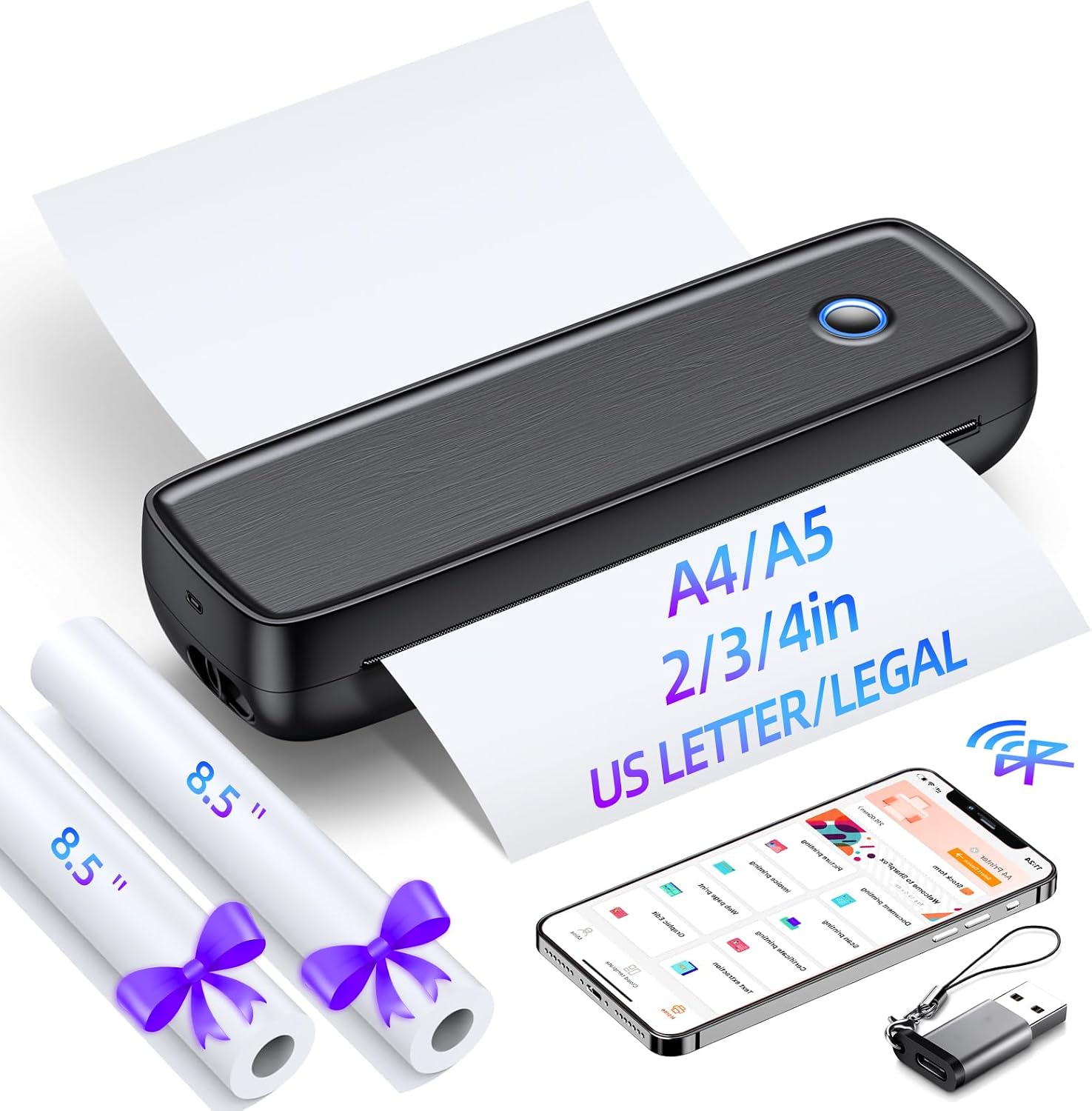
The Aixiqee Inkless Portable Printer, a sleek black device, is shown printing a document. Two rolls of thermal paper are visible, along with a smartphone displaying the printer's companion app. The image highlights the printer's compact size and its ability to handle various paper sizes, including A4, A5, 2/3/4 inch, and US Letter/Legal.
Key Features
- Ultra-Portable & Lightweight Design: Weighing only 756g (1.67 lbs), this compact printer fits easily in your bag for work, travel, or home use. Enjoy on-the-go printing anytime, anywhere.
- Wireless Printing & Long-Lasting Battery: Connects seamlessly via Bluetooth/USB-C to iOS, Android, and computers. The 4200mAh battery supports 600+ prints per charge and features auto-shutdown to save power.
- High-Quality Thermal Printing (No Ink!): Uses inkless, low-noise thermal tech—no messy ink, toner, or ribbons! Just load thermal paper for crisp prints in 7 sizes (A4, A5, US Letter, Legal, and more).
- Multi-Device Compatibility: Works with smartphones, tablets, and laptops (via app/driver). Set up in 2 minutes—perfect for quick, hassle-free printing at home or the office.
- Reliable Support & Eco-Friendly: No ink costs or waste! Includes 24/7 customer service. Note: Keep away from children; avoid sharp edges.
Setup Guide
1. Unboxing and Components
Your package should include:
- Aixiqee Portable Printer (Model A80aa1)
- USB-C Charging Cable
- Thermal Paper Rolls (quantity may vary)
- User Manual
2. Loading Paper
The Aixiqee printer supports both folded paper and roll paper. To load paper:
- For folded paper: Open the printer cover by pressing the open keys on both sides. Insert the folded paper into the paper slot, ensuring it is aligned correctly. Close the cover.
- For roll paper: Open the printer cover. Place the thermal paper roll into the designated compartment. Pull a small length of paper out and align it with the print path. Close the cover.

A diagram showing how to load folded paper into the Aixiqee portable printer. The paper is fed from the top, indicating the automatic paging feature for multiple paper printing.

An image displaying the internal compartment of the printer designed for roll paper, alongside several rolls of thermal paper in different sizes (US Letter/Legal, A4/A5, 4in, 3in, 2in). This illustrates the printer's versatility with various paper types and dimensions.
3. Charging the Printer
Connect the supplied USB-C cable to the printer's USB-C port and to a power source (e.g., wall adapter, computer USB port, power bank). The 4200mAh battery provides extended usage.

An illustration highlighting the printer's large 4200mAh battery capacity, capable of printing up to 600 sheets on a full charge. It also shows the USB-C fast charge port.
4. App Installation (Sharpfox App)
For wireless printing, download the "Sharpfox" app from your device's app store (available on iOS and Android).

A smartphone screen displaying the "Sharpfox" app interface, with icons for document printing, picture printing, scan printing, and other functions. The image emphasizes the app's role in managing print tasks.
5. Initial Connection
Bluetooth Connection (for iOS & Android):
- Ensure Bluetooth is enabled on your smartphone or tablet.
- Open the Sharpfox app and follow the on-screen instructions to connect to your Aixiqee printer. The printer will appear as "A80_XXXX_XX" or similar.
USB-C Connection (for Computers):
- Connect the printer to your computer using the USB-C cable.
- Download and install the necessary drivers from the official website (refer to the included manual for specific URL or driver location).

A split image demonstrating both Bluetooth and wired USB connections. The top half shows a smartphone connected via Bluetooth to the printer, while the bottom half shows the printer connected to a laptop via a USB cable, indicating wide compatibility.
Operating Instructions
1. Powering On/Off
To turn on the printer, press and hold the power key (circular button on top) for 3 seconds. The indicator light will illuminate. To turn off, press and hold the power key again.

A detailed view of the printer, highlighting its minimalist design and compact size (11.2 in length, 3.5 in width, 2.3 in height). Key features like the power key, USB interface, and open key are clearly labeled.
2. Printing from Mobile Devices (Bluetooth)
Once connected via Bluetooth through the Sharpfox app, select the document or image you wish to print within the app. Adjust print settings (e.g., paper size, density) as needed, then tap the print button.

An image illustrating the "One Click Connection" feature within the Sharpfox app, showing a Bluetooth icon and the app's device list, making it easy to pair with the printer.
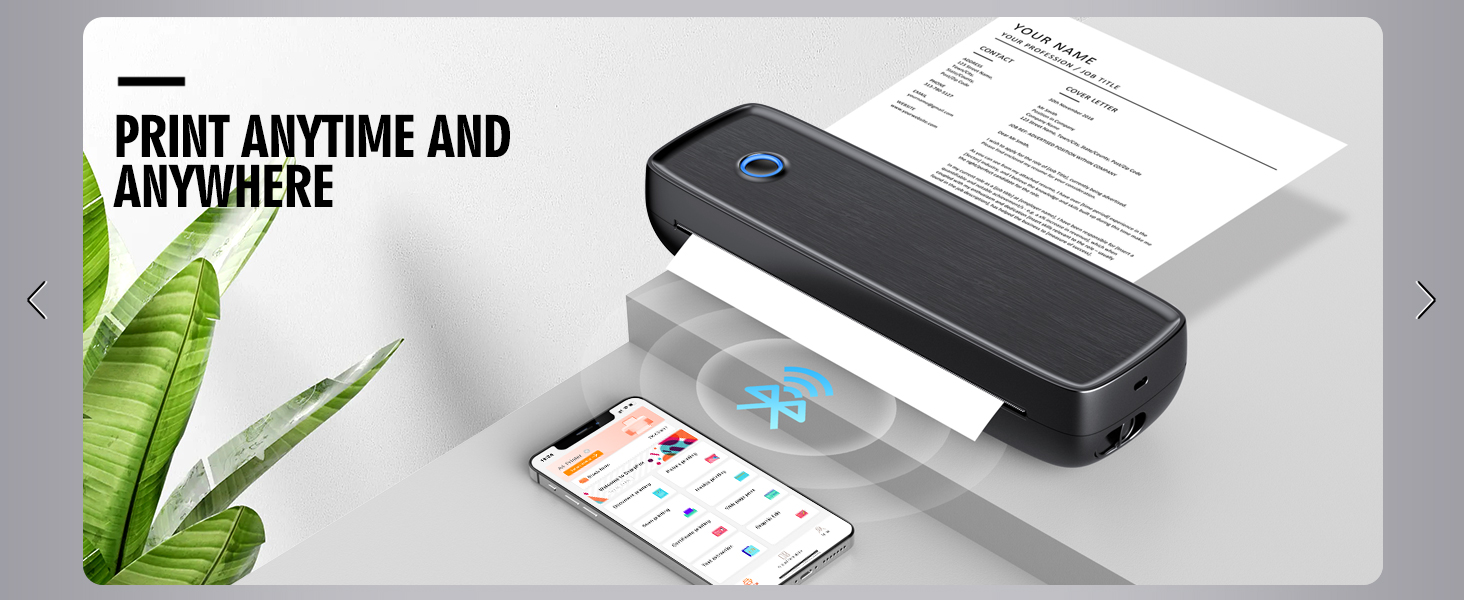
The portable printer is shown in an outdoor setting, printing a document from a smartphone, emphasizing its "Print Anytime and Anywhere" capability.
3. Printing from Computers (USB-C)
After installing the drivers and connecting the printer via USB-C, you can print documents directly from your computer's applications. Select the Aixiqee printer from your printer options and proceed with printing.

A setup showing the Aixiqee printer connected to a laptop via USB-C, with icons for Apple, Android, and Windows, indicating multi-platform compatibility for wired printing.

A person is shown printing a document from a laptop using the Aixiqee portable printer, demonstrating the ease of printing directly from a computer.
4. Supported Paper Sizes
The printer supports various thermal paper sizes, including A4, A5, US Letter, Legal, and rolls of 2-inch, 3-inch, and 4-inch width.

A comparison chart highlighting that the Aixiqee printer supports 2/3/4 inch, A4/A5, US Letter/Legal paper sizes, unlike other printers that may only support individual sizes. It emphasizes the printer's compact, convenient, mute, ink-less, and low-cost attributes.
Maintenance
1. Cleaning the Print Head
Regularly clean the thermal print head to ensure optimal print quality. Use a soft, lint-free cloth lightly dampened with isopropyl alcohol. Gently wipe the print head surface. Ensure the printer is off and completely dry before use.
2. Paper Storage
Store thermal paper in a cool, dry place away from direct sunlight and heat to prevent discoloration and preserve print quality.
Troubleshooting
Common Issues and Solutions:
- Printer Not Connecting:
- Ensure Bluetooth is enabled on your device and the printer is powered on.
- Restart the printer and your device.
- Verify the Sharpfox app is up to date.
- For USB connection, ensure drivers are correctly installed and the cable is securely connected.
- Poor Print Quality:
- Check if the thermal paper is loaded correctly and is not old or damaged.
- Clean the print head as described in the Maintenance section.
- Ensure the battery is sufficiently charged.
- Paper Jams:
- Turn off the printer immediately.
- Carefully open the paper compartment and gently remove any jammed paper. Do not force it.
- Ensure paper is loaded straight and not creased.
- Printer Not Responding:
- Perform a hard reset by holding the power button for an extended period (e.g., 10-15 seconds) until the printer powers off and then restart it.
- If issues persist, contact customer support.
Specifications
| Feature | Detail |
|---|---|
| Model Name | A80aa1 |
| Product Dimensions | 11.6 x 5 x 8.6 inches |
| Item Weight | 2.92 pounds |
| Connectivity Technology | Bluetooth, USB-C |
| Printing Technology | Thermal |
| Battery | 4200mAh Lithium Ion |
| Printer Output | Monochrome |
| Max Print Speed (Monochrome) | 1 ppm |
| Supported Print Media | Paper (plain), A4, A5, US Letter, Legal, 2/3/4 inch rolls |
| Special Feature | Portable, Inkless |
Warranty and Support
The Aixiqee Inkless Portable Printer comes with dedicated customer support. For any technical assistance, troubleshooting, or warranty inquiries, please contact Aixiqee customer service. 24/7 customer service is available to assist you.
Please refer to your purchase documentation for specific warranty terms and contact information.
Ask a question about this manual
Ask about setup, troubleshooting, compatibility, parts, safety, or missing instructions. Manuals+ will review the question and use this page’s manual context to help answer it.