
ZOSKVEE DR06
ZOSKVEE Smart Watch DR06 User Manual
Model: DR06
Comprehensive guide for setup, operation, and maintenance of your ZOSKVEE Smart Watch.
1. Product Overview
The ZOSKVEE Smart Watch DR06 is a versatile 41mm fitness tracker designed for comprehensive health monitoring and smart communication. It features a 1.27-inch digital display, heart rate, stress, and sleep monitoring, AI voice assistance, and IP68 water resistance.

Image: Front view of the ZOSKVEE Smart Watch DR06, showcasing its round dial and vibrant display.
Key Features:
- Stylish Design & Customizable Watch Faces: 41mm round dial, 1.27-inch full touch screen with 360x360 resolution, 450 nits brightness, and 16-bit color. Features dynamic watch faces and 3 app view modes.
- Professional Sports Monitoring: Over 100 sports modes, automatic recognition for running, walking, elliptical training, and rowing machine. IP68 water resistance suitable for swimming (not for hot baths, saunas, or diving).
- Comprehensive Health Monitoring: Tracks heart rate, blood oxygen (SpO2), stress levels, and sleep quality. Includes menstrual cycle tracking with reminders.
- Smart Communication & Message Management: HD speaker for calls, call history, and contact storage. Real-time notifications for social media. Quick message replies for Android users.
- Long-Lasting Battery & Wide Compatibility: 290mAh battery provides 7-10 days of use on a 2-hour charge. Compatible with iOS 9.0+ and Android 6.0+ (not for tablets/computers).
- Convenient Voice Control: AI Voice Assistance for managing tasks, getting information, and controlling smart devices.
- Music Playback: Use as a music player or control phone music remotely (requires phone connection; watch does not store music independently).
- Multi-Functional Tools: Mini-games, calculator, calendar, weather forecast, stopwatch, timer, flashlight, alarm, find my phone, power-saving mode, screen on settings, brightness adjustment, and wrist-raise-to-wake.
2. Getting Started: Setup
2.1. Charging the Device
For first-time use, fully charge the watch using the provided magnetic charging cable to activate the product. A full charge typically takes 2 hours.
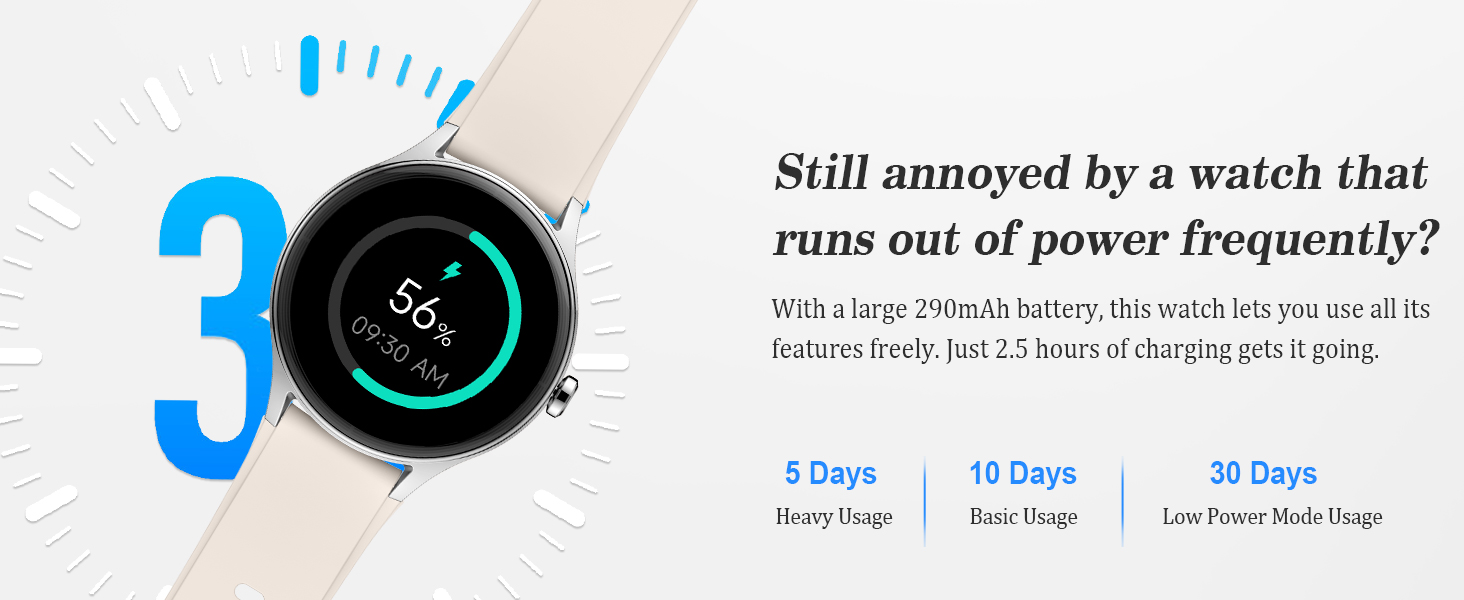
Image: Illustration of the smartwatch charging process, highlighting battery life.
2.2. App Installation and Pairing
The ZOSKVEE Smart Watch uses the VeryFit app for full functionality. Download the app from your smartphone's app store (compatible with iOS 9.0+ and Android 6.0+).
- Download and install the "VeryFit" app on your smartphone.
- Ensure Bluetooth is enabled on your smartphone.
- Open the VeryFit app and follow the on-screen instructions to create an account or log in.
- In the app, navigate to "Device" or "Add Device" and select your ZOSKVEE Smart Watch from the list of discoverable devices.
- Confirm the pairing request on both your watch and smartphone.
3. Operating the Smart Watch
3.1. Basic Navigation
- Touch Screen: Swipe up, down, left, or right to navigate through menus and features. Tap to select.
- Side Button: Press to return to the home screen or wake the device.
- Wrist-Raise-to-Wake: Enable this feature in settings to automatically turn on the screen when you raise your wrist.
3.2. Making and Answering Calls
Once connected via Bluetooth to your smartphone, the watch allows you to make and answer calls directly. The watch features an HD speaker for clear audio.
- To make a call, access the dial pad or contacts list on the watch.
- To answer an incoming call, tap the green answer icon on the watch screen.
- View call history and store frequent contacts directly on the watch.
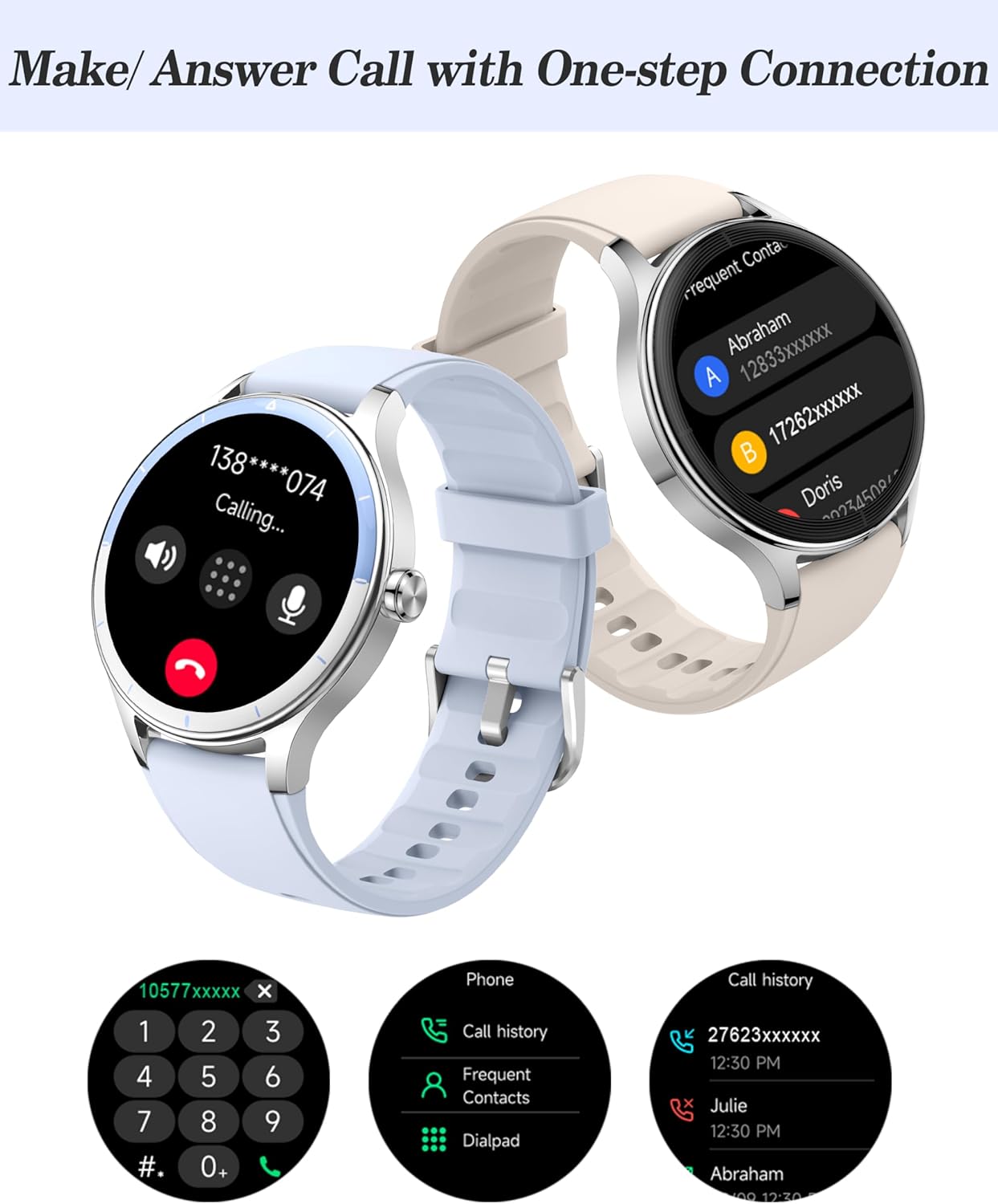
Image: The smartwatch showing an incoming call, with options for dial pad, call history, and contacts.
3.3. Message Notifications
Receive real-time notifications from various social media platforms (e.g., WhatsApp, Twitter, Facebook, Instagram) directly on your watch. For Android users, quick message replies are supported via the VeryFit app.

Image: The smartwatch screen showing a message notification and icons of supported social media apps.
3.4. Health Monitoring
The watch provides continuous monitoring of key health metrics:
- Heart Rate Monitor: Tracks your heart rate throughout the day.
- SpO2 Monitor: Measures blood oxygen saturation levels.
- Stress Monitor: Assesses your stress levels.
- Sleep Monitor: Analyzes sleep quality, including light sleep, REM, deep sleep, and awake times.
- Women's Health: Provides menstrual cycle tracking and reminders.

Image: Visual representation of the smartwatch's health monitoring capabilities, including heart rate, SpO2, stress, and sleep tracking.
3.5. Sports Modes and Activity Tracking
The watch supports over 100 sports modes and automatically recognizes four types of activities: running, walking, elliptical training, and rowing machine. It tracks distance, calories, steps, and heart rate during workouts.

Image: The smartwatch interface showing real-time workout data and icons representing various sports modes.
3.6. AI Voice Assistant
Connect to your phone to activate the AI Voice Assistant, allowing hands-free control for tasks, information retrieval, and smart device management.
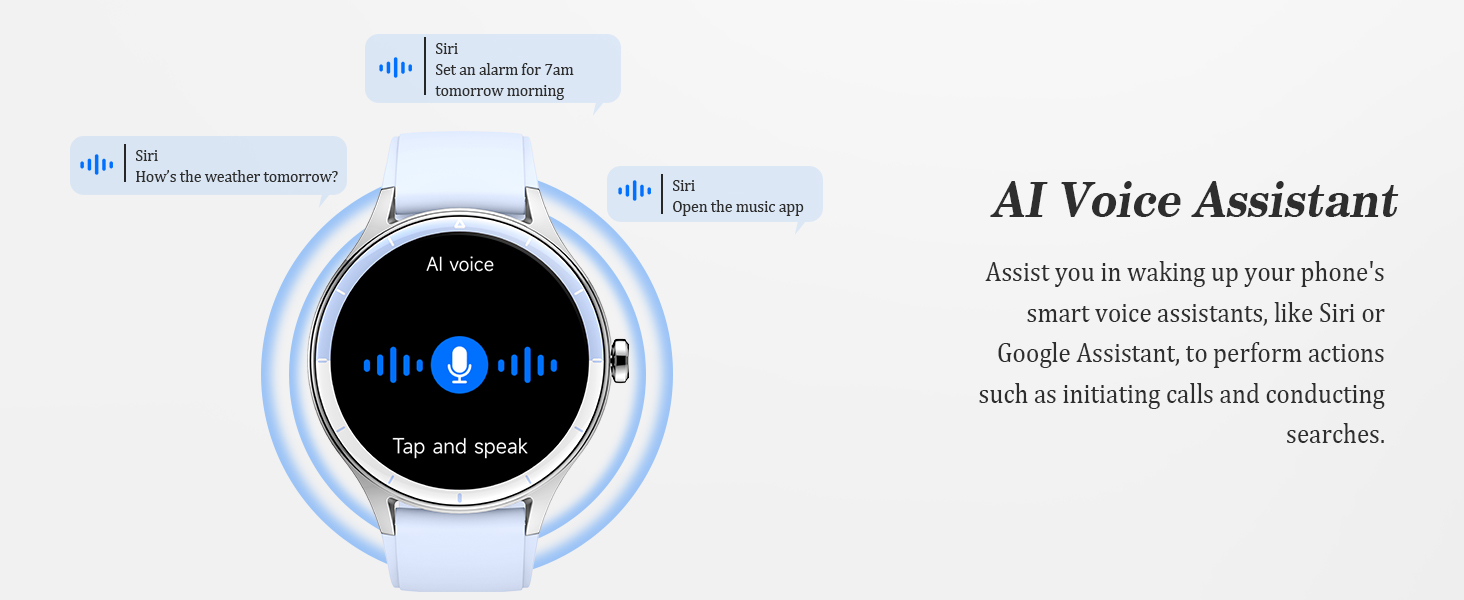
Image: The smartwatch displaying the AI voice assistant interface, with examples of voice commands.
3.7. Music Control
The watch can play music through its speaker or control music playback on your connected phone. Note that the watch does not store music independently; it requires a phone connection for music functions.
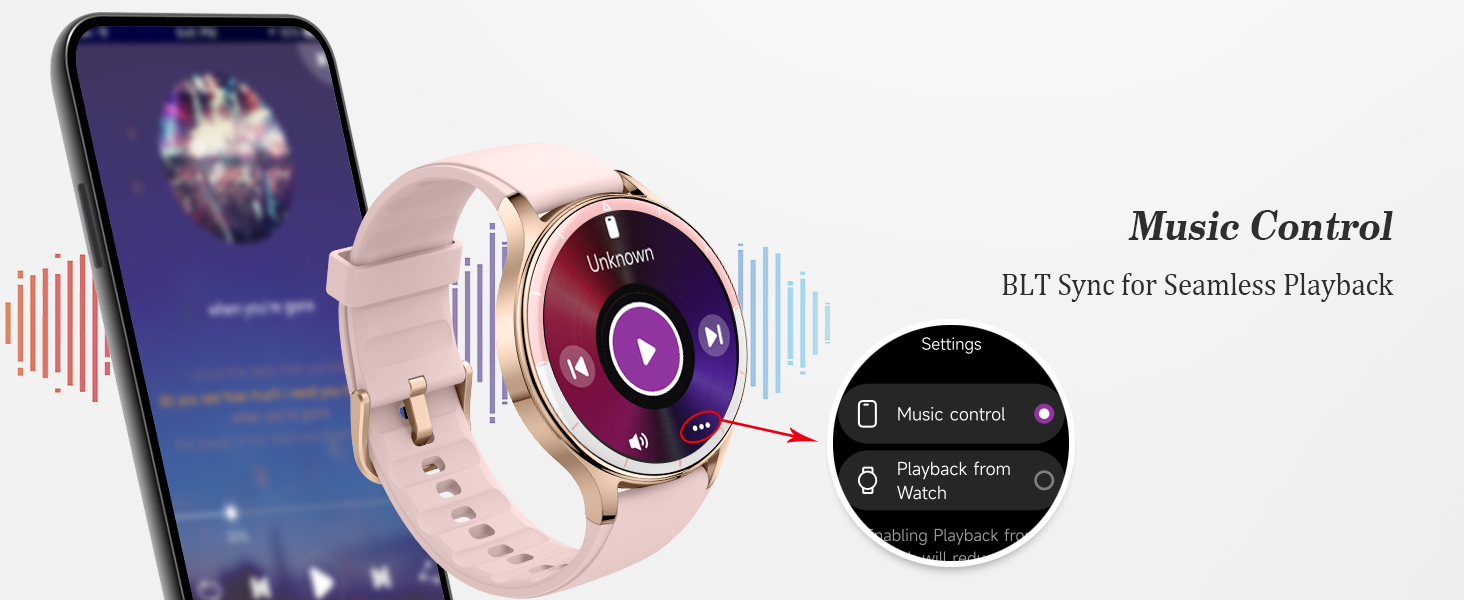
Image: The smartwatch screen showing music playback controls and settings.
3.8. Other Utilities
The watch includes several built-in tools for daily convenience:
- Calculator: Perform basic calculations.
- Calendar: View dates and schedule.
- Weather Forecast: Get real-time weather updates.
- Stopwatch & Timer: For timing activities.
- Flashlight: Use the screen as a light source.
- Alarm: Set alarms and reminders.
- Find My Phone: Locate your paired smartphone.
- Remote Photography: Control your phone's camera remotely.

Image: A collage of smartwatch screens showing various utility functions such as calendar, games, calculator, and AI voice assistant.
4. Maintenance and Care
4.1. Water Resistance
The ZOSKVEE Smart Watch is IP68 water-resistant, making it suitable for swimming and daily wet conditions. However, it is not recommended for use during hot showers, in saunas, or during deep-sea diving, as extreme temperatures or pressure can compromise the seal.

Image: A person in a swimming pool wearing the smartwatch, demonstrating its water resistance. Warnings against hot water and saunas are also shown.
4.2. Cleaning
Wipe the watch and strap regularly with a soft, damp cloth. Avoid using harsh chemicals or abrasive materials that could damage the finish.
4.3. Battery Life Optimization
To maximize battery life (up to 7-10 days on default settings):
- Reduce screen brightness.
- Limit frequent screen-on time.
- Disable continuous heart rate or SpO2 monitoring if not needed constantly.
- Use power-saving mode when available.
5. Troubleshooting
| Problem | Possible Solution |
|---|---|
| Watch not turning on/charging. | Ensure the charging cable is securely connected to both the watch and a power source. For first-time use, ensure it's charged for at least 2 hours to activate. Try a different USB port or power adapter. |
| Cannot pair with smartphone. | Make sure Bluetooth is enabled on your phone. Ensure the watch is within range. Restart both the watch and your phone. Clear Bluetooth cache on your phone. Reinstall the VeryFit app. |
| Notifications not received. | Check app permissions for VeryFit on your phone to ensure notification access. Verify that notifications are enabled within the VeryFit app settings for specific applications. Ensure the watch is connected via Bluetooth. |
| Inaccurate health data. | Ensure the watch is worn snugly on your wrist, not too tight or too loose. Clean the sensor on the back of the watch. Avoid excessive movement during measurements. Consult a medical professional for accurate health assessments. |
| Short battery life. | Reduce screen brightness and screen-on time. Disable continuous health monitoring if not required. Turn off unnecessary features like continuous GPS (if applicable) or excessive notifications. |
| Voice assistant not responding. | Ensure the watch is properly connected to your phone's Bluetooth. Verify that the voice assistant feature is enabled in the VeryFit app. Check your phone's internet connection. |
6. Specifications
- Model Number: DR06
- Display: 1.27-inch, 360x360 pixel, 450 nits brightness, 16-bit color TFT-LCD
- Case Size: 41mm
- Material: Stainless Steel Bezel
- Battery: 290mAh Lithium Ion (up to 7-10 days typical use)
- Charging Time: Approximately 2 hours
- Water Resistance: IP68 (5M waterproof)
- Connectivity: Bluetooth
- Compatibility: iOS 9.0+ and Android 6.0+ smartphones
- Memory Storage: 128 MB
- Item Weight: 48 Grams (1.69 ounces)
7. Support and Warranty
For further assistance or inquiries, please visit the official ZOSKVEE store on Amazon or refer to the digital user manual available for download.
- Official ZOSKVEE Store: Visit Store
- Digital User Manual (PDF): Download PDF
Information regarding specific warranty terms and conditions may be available through your point of purchase or the official brand channels.
Related documentsDR06


Ask a question about this manual
Ask about setup, troubleshooting, compatibility, parts, safety, or missing instructions. Manuals+ will review the question and use this page’s manual context to help answer it.