
MENDOCK UF02L-GW-B
MENDOCK UF02L-GW-B Smart Lock Instruction Manual
Model: UF02L-GW-B | Brand: MENDOCK
1. Product Overview
The MENDOCK UF02L-GW-B is a keyless-entry deadbolt smart lock designed for front doors, offering multiple access methods including fingerprint, keypad, key fob, and traditional physical keys. It features IP56 waterproof and dustproof ratings, ensuring durability in various weather conditions. This smart lock is equipped with advanced security features such as auto-lock, one-touch locking, virtual code, temporary password, and low battery alerts to enhance home security.
2. Package Contents
Before beginning installation, please verify that all components are present in your package:
- UF02 Fingerprint deadbolt door lock
- Deadbolt mechanism
- Strike Plate
- Gateway (for WiFi connectivity)
- 2 Standard Keys
- 2 Key Fobs
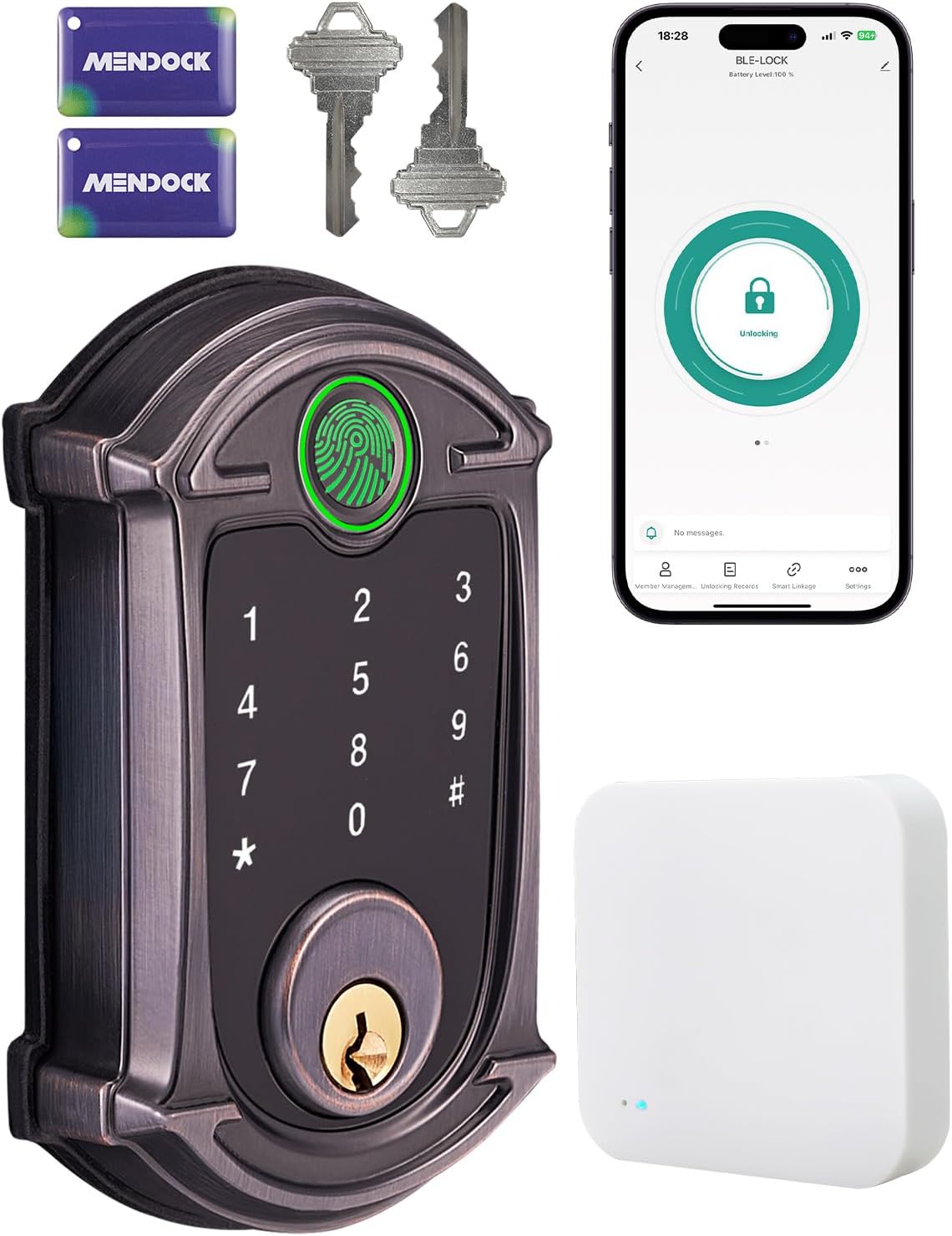
Image: Main components of the MENDOCK UF02L-GW-B Smart Lock, showing the exterior keypad unit, key fobs, physical keys, a smartphone displaying the lock's app interface, and the WiFi gateway.
3. Installation Guide
The MENDOCK UF02L-GW-B smart lock is designed for straightforward installation and can replace existing locks in minutes with basic tools. It is compatible with both left and right-hand doors, accommodating door thicknesses from 1.38" to 2.16".
3.1. Door Compatibility Check
Ensure your door meets the following dimensions and lock type requirements:
- Door thickness: 1.38" to 2.16" (35mm to 55mm)
- Hole diameter: 2-1/8" (54mm)
- Backset: 2-3/8" to 2-3/4" (60mm to 70mm)
- Compatible with single cylinder deadbolts. Not compatible with mortise or integrated handle sets unless chiseled.
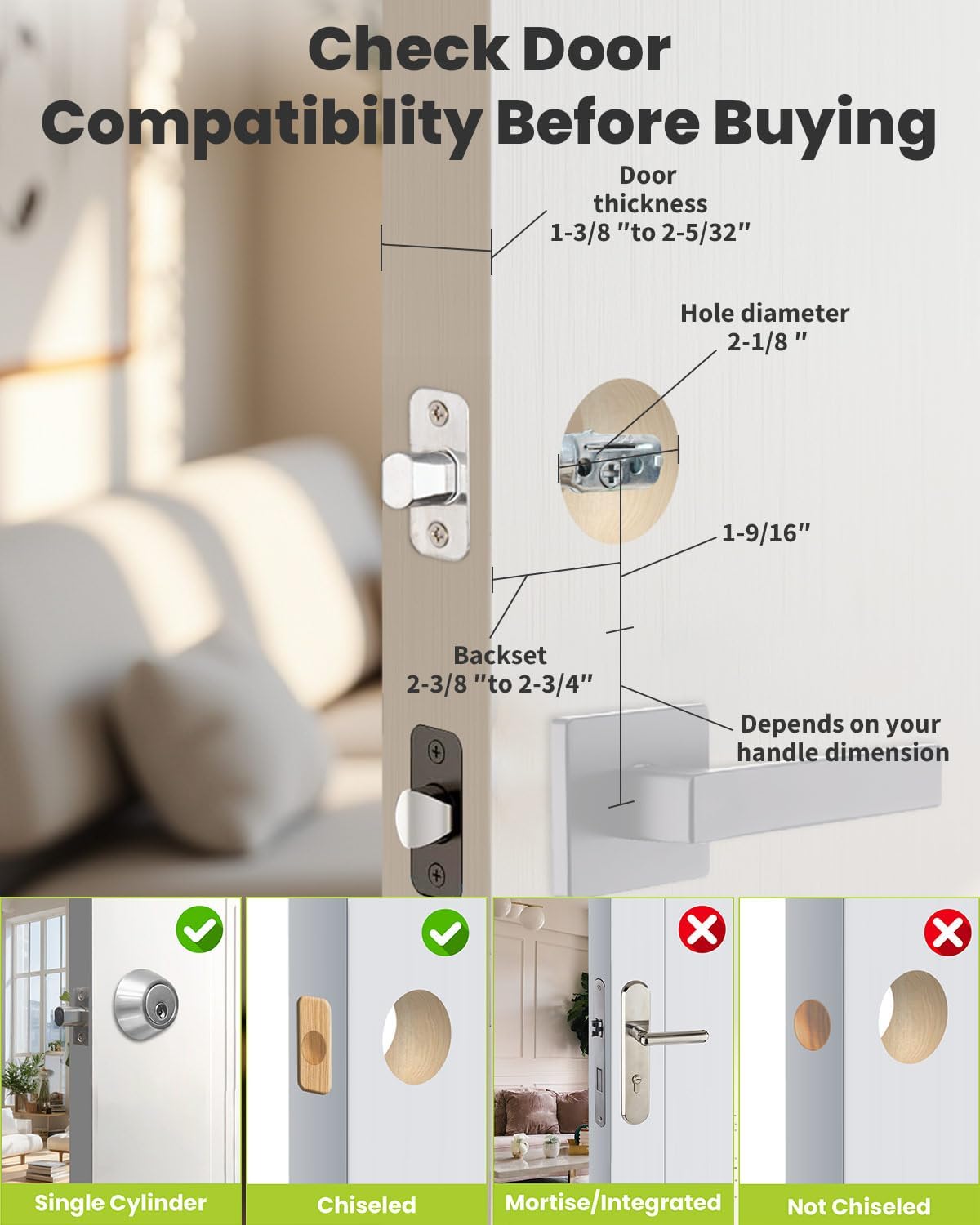
Image: A diagram illustrating the required door dimensions (hole diameter, backset, thickness) and compatible lock types (single cylinder, chiseled) for proper installation of the smart lock.
3.2. Step-by-Step Installation
For a detailed visual guide, please refer to the installation video below. Follow these steps carefully:
Video: An official MENDOCK installation guide for the UF02 smart lock, demonstrating the complete setup process from preparing the door to final assembly.
- Install the Deadbolt: Adjust the deadbolt to fit your door's backset (60mm or 70mm). Ensure the "UP" arrow on the deadbolt is facing upwards. Insert the deadbolt into the door edge and secure it with screws.
- Install the Exterior Plate: Route the wire below the flat rod and ensure the flat rod is vertical. The lock should be in the unlocked state. Carefully align the exterior plate with the deadbolt and the door hole.
- Install the Interior Mounting Plate: Place the interior mounting plate over the flat rod and wire, ensuring proper alignment. Secure it with the provided screws.
- Connect and Secure the Interior Assembly: Connect the wire from the exterior plate to the interior assembly. Ensure the wires are not pinched. Secure the interior assembly to the mounting plate using the designated screws.
- Install Batteries: Open the battery cover on the interior assembly and insert 4 AA alkaline batteries, observing correct polarity. Close the battery cover.
- Test Operation: After installation, test the lock's functionality using a physical key and by manually turning the thumb turn to ensure smooth operation of the deadbolt.
4. Setup and Programming
The MENDOCK UF02L-GW-B smart lock offers flexible setup options, including local keypad programming and Bluetooth app control for enhanced convenience.
4.1. Initial Setup via Keypad
You can set up basic functions directly from the keypad. Refer to your included manual for specific keypad codes to add/delete user codes and manage settings.
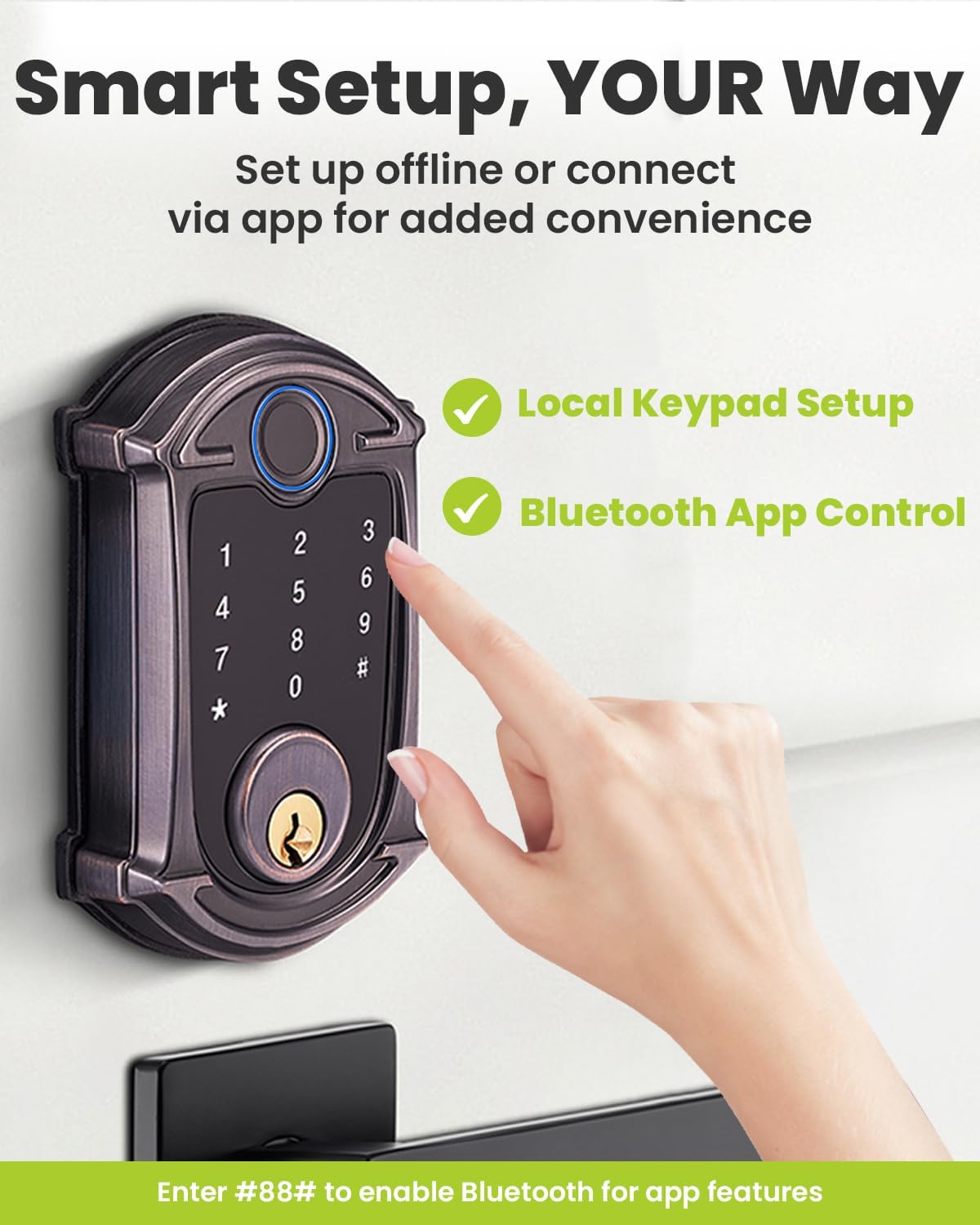
Image: The smart lock's exterior unit, highlighting the keypad for local setup and indicating Bluetooth app control capabilities. To enable Bluetooth for app features, enter #88# on the keypad.
4.2. App Control (Tuya Smart)
For advanced features and remote management, download the Tuya Smart app. The lock connects via Bluetooth for local control. For remote access from anywhere, the gateway (included with this model) is required.
- Download App: Search for "Tuya Smart" on your smartphone's app store (iOS or Android).
- Pairing: Follow the in-app instructions to pair your smart lock.
- Features: The app allows for member management, unlocking records, battery display, and real-time notifications.
- Gateway Usage:
- Ensure the gateway is within 10 meters of the lock for optimal connection.
- Restart the gateway if connection issues occur.
- Update firmware in-app for optimal performance.

Image: A smartphone displaying the Tuya Smart app interface for the lock, showcasing features such as member management, unlocking records, battery display, and real-time notifications. It also indicates that the lock connects via Bluetooth and that a gateway is needed for remote access.
4.3. Adding Access Methods
The lock supports up to 250 user codes, 100 fingerprints, and includes 2 key fobs.
- Fingerprints: Follow app instructions to enroll fingerprints. The lock boasts 99.9% fingerprint recognition and less than 1-second unlocking time.
- User Codes: Set personal passcodes (6 to 10 digits). Virtual code feature allows adding random numbers before or after your actual code for enhanced security.
- One-Time Passwords: Generate temporary passwords for guests via the app.
- Key Fobs: The included key fobs can be programmed for quick access.

Image: An illustration depicting the various unlocking methods for the smart lock, including fingerprint recognition (99.9% accuracy, <1s unlocking time), password entry, physical key, key fob (card), and remote control via the app.
5. Operating Instructions
- Unlocking: Use your registered fingerprint, enter your user code on the keypad, tap a programmed key fob, use a physical key, or unlock via the Tuya Smart app.
- Locking: The lock features an automatic door lock function that can be set to auto-lock within 0 to 30 seconds. You can also manually lock the deadbolt from the interior thumb turn or via the app.
- Emergency Power: In case of a battery drain, the Type-C USB connector on the exterior plate can connect to a power bank for emergency power, preventing lockout.
- Night Operation: The glowing fingerprint sensor and backlit touchscreen keypad improve visibility and ease of use in the dark.

Image: The smart lock's keypad illuminated, demonstrating its glowing fingerprint sensor and backlit touchscreen keypad for clear visibility and easy unlocking in low-light conditions.
6. Maintenance
- Battery Replacement: The lock is powered by 4 AA batteries, which can last for more than 1 year. Replace batteries when the low battery alert is triggered.
- Cleaning: Clean the keypad and fingerprint sensor regularly with a soft, dry cloth to ensure optimal performance. Avoid abrasive cleaners or solvents.
- Weather Resistance: The lock boasts IP56 dustproof and waterproof ratings, making it weather-resistant for extreme conditions. However, prolonged exposure to direct heavy rain or submersion should be avoided.

Image: The interior view of the smart lock's battery compartment, showing the placement of 4 AA batteries, which provide up to 12 months of nonstop power.
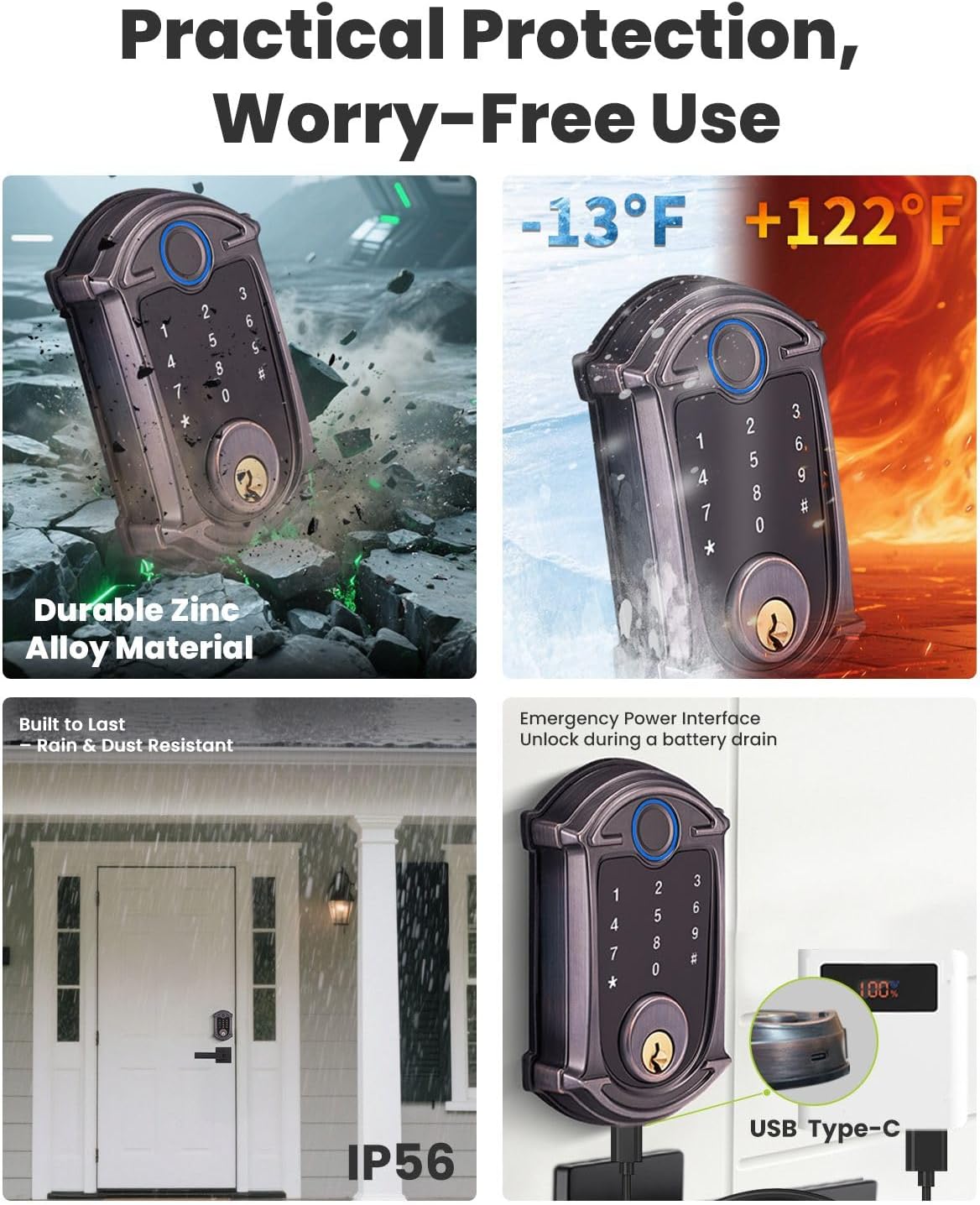
Image: A collage illustrating the smart lock's practical protection features, including its durable zinc alloy material, IP56 rain and dust resistance, and the emergency Type-C USB port for power during battery drain.
7. Troubleshooting
| Problem | Possible Cause | Solution |
|---|---|---|
| Lock not responding / Dead battery | Batteries are depleted. | Connect a power bank to the Type-C USB port on the exterior plate for emergency power. Replace batteries immediately. |
| Fingerprint sensor temperamental | Fingerprint not registered correctly, dirty sensor, or dry/wet finger. | Ensure finger is clean and dry. Re-enroll fingerprint if issues persist. Clean the sensor surface. |
| Keypad not responding | Incorrect code, multiple incorrect attempts, or keypad malfunction. | Ensure correct code is entered. After five incorrect attempts, the lock will trigger an alarm and lock for one minute. Wait for the lockout period to end. Check battery level. |
| App connection issues | Bluetooth range exceeded, gateway offline, or app glitch. | Ensure you are within Bluetooth range (approx. 50ft). Verify gateway is powered on and connected to Wi-Fi (2.4Ghz only). Restart gateway if necessary. Update app firmware. |
| Auto-lock not functioning | Auto-lock feature is disabled or set to a long delay. | Adjust auto-lock settings via the app or keypad to your desired delay (0 to 30 seconds). |
8. Specifications
| Feature | Detail |
|---|---|
| Brand | MENDOCK |
| Model Name | UF02L-GW-B |
| Lock Type | Biometric, Deadbolt, Keypad |
| Special Features | Auto-Lock, Back-Lit Keypad, Battery Indicator, Fingerprint, Weather Resistant (IP56) |
| Material | Plastic, Zinc |
| Item Dimensions (L x W x H) | 4.67 x 2.99 x 0.93 inches |
| Item Weight | 3.34 pounds |
| Power Source | 4 AA Batteries (not included) |
| Battery Life | More than 1 year (varies by usage) |
| Control Method | App (Tuya Smart), Touch (Keypad) |
| User Capacity | Up to 250 user codes, 100 fingerprints |
| Door Thickness Compatibility | 1.38" to 2.16" |
| UPC | 850068594849 |
9. Warranty and Support
MENDOCK is committed to providing quality products and excellent customer service. We rigorously check and control every aspect of our products.
For any questions, technical assistance, or warranty claims regarding your MENDOCK UF02L-GW-B smart lock, please contact MENDOCK customer support. Refer to the product packaging or the official MENDOCK website for the most current contact information.