
1. Product Overview
This manual provides detailed instructions for the installation, operation, and maintenance of your Driauto 4G+64G Android Stereo head unit. This unit is designed to upgrade the in-car entertainment and navigation system for compatible Chevrolet Colorado and GMC Canyon models from 2015 to 2019.
Key features include a 9-inch 1280x720 HD touch screen, 4GB RAM and 64GB ROM for smooth performance, an advanced Android operating system, wireless Apple CarPlay and Android Auto integration, built-in GPS navigation, WiFi connectivity, Digital Signal Processing (DSP), Bluetooth for hands-free calls and audio streaming, FM/RDS radio, dual USB ports, support for original steering wheel controls, and an included AHD backup camera.
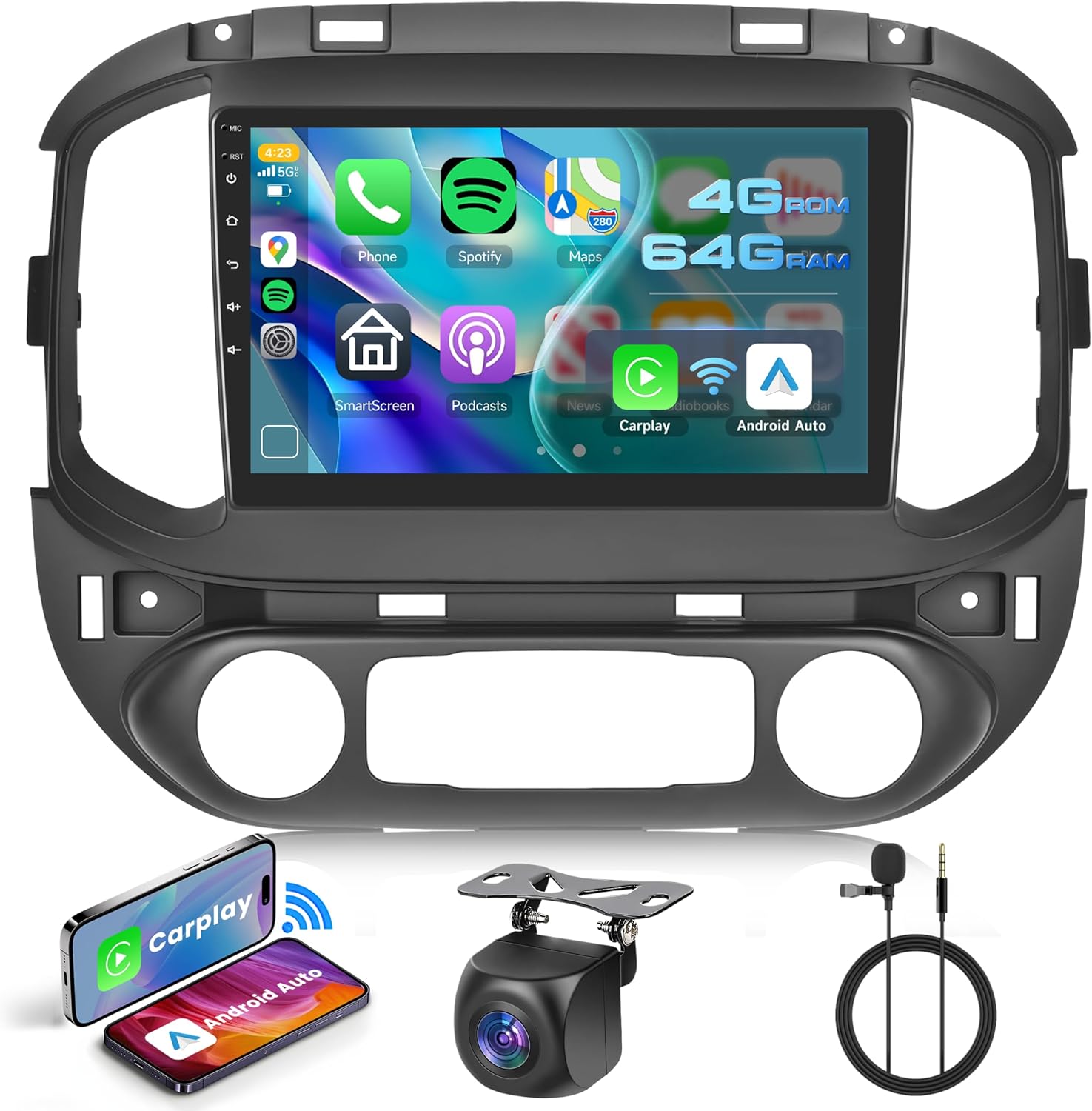
Figure 1.1: Driauto Android Stereo Head Unit and Accessories
2. Important Compatibility Notes
- This head unit is specifically designed for Chevrolet Colorado and GMC Canyon models manufactured between 2015 and 2019.
- Installation requires the vehicle to have a 'big screen' center console. It is not compatible with vehicles equipped with a 'small screen' center console.
- The unit is not compatible with vehicles originally equipped with a BOSE amplifier.

Figure 2.1: Vehicle Console Compatibility Guide
3. Package Contents
Please verify that all items listed below are included in your package:
- Driauto Android Stereo Head Unit
- Power Cable
- RCA Cables (multiple)
- GPS Antenna
- Rear Camera Input Cable
- Radio Antenna
- Extension Cable
- Rear Camera (AHD imaging sensor)
- Installation Tool
- USB Cables (2)
- Canbus Decoder
- Horn
- User Manual (this document)
- Microphone (MIC)

Figure 3.1: Product Dimensions and Package List
4. Setup and Installation
Installation of the Driauto Android Stereo involves replacing the factory head unit. It is recommended that installation be performed by a qualified professional or an individual with experience in car audio systems. Refer to vehicle-specific online tutorials for detailed steps relevant to your Chevy Colorado or GMC Canyon model (2015-2019).
4.1 Pre-Installation Checklist
- Ensure the vehicle's battery is disconnected before starting installation.
- Confirm all package contents are present.
- Review your vehicle's specific dashboard disassembly instructions.
4.2 Wiring Connections
The unit comes with a dedicated adapter cable designed for your vehicle, simplifying the main power and speaker connections. Connect the provided harnesses to the corresponding ports on the head unit and your vehicle's wiring system.
4.3 Backup Camera Installation
The included AHD backup camera requires specific wiring:
- Connect the Red Cable (1) from the camera to the positive (+) terminal of your car's reverse light power supply.
- Connect the Black Cable (2) from the camera to the negative (-) terminal of your car's reverse light power supply.
- Connect the video signal cable (typically yellow RCA) from the camera to the 'CAM IN' or 'REAR VIEW' input on the head unit.
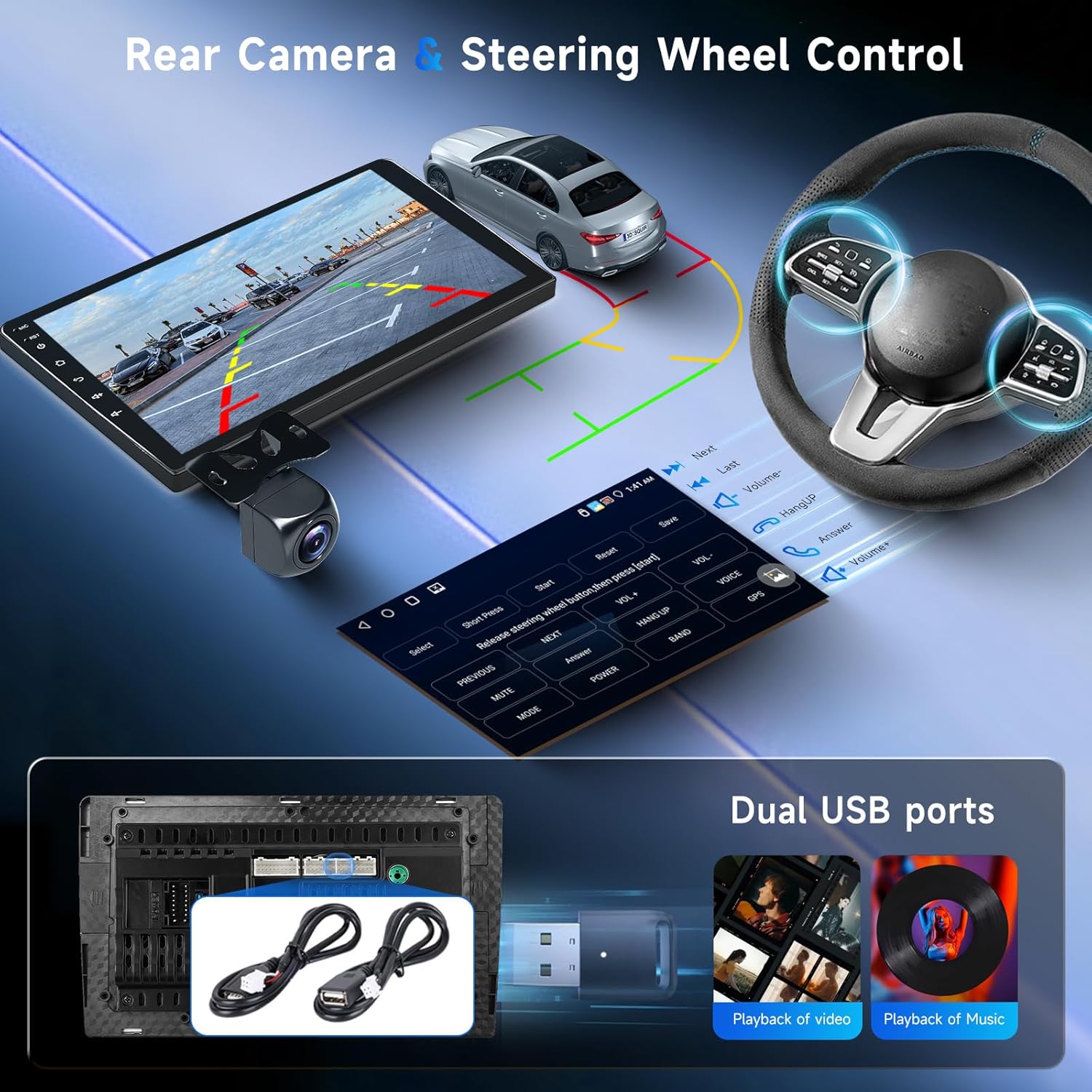
Figure 4.1: Backup Camera Wiring and Steering Wheel Control Interface
5. Operating Instructions
5.1 Power On/Off
The unit will power on automatically when the vehicle's ignition is turned on. To power off, turn off the vehicle's ignition. A long press on the power button (if available) may put the unit into standby mode.
5.2 Touch Screen Interface
The 9-inch 1280x720 resolution HD touch screen provides a clear and responsive interface. You can customize your homepage by selecting which applications to display. The unit supports split-screen functionality, allowing two applications to run simultaneously.

Figure 5.1: HD Screen Features: Split Screen and Customizable Homepage
5.3 Wireless Apple CarPlay & Android Auto
Connect your iOS or Android smartphone wirelessly to access compatible apps, make calls, send messages, play music, and navigate using voice commands or the touch screen. Ensure Bluetooth and WiFi are enabled on your smartphone for connection.

Figure 5.2: Wireless CarPlay, Android Auto, and Mirror Link
5.4 GPS Navigation
The built-in GPS module supports both online and offline maps. Download offline maps for areas with limited network coverage. Utilize voice guidance and real-time traffic information for efficient navigation.
5.5 WiFi Connectivity
Connect the head unit to the internet via a WiFi hotspot from your smartphone or a dedicated car WiFi device. This enables online content streaming, app downloads, and real-time data services.

Figure 5.3: WiFi and GPS Navigation Features
5.6 Bluetooth
Pair your smartphone or other Bluetooth-enabled devices to the head unit for hands-free calling, audio streaming, and file transfer. Access your phone's contact list and call history directly from the unit.
5.7 FM/RDS Radio
Tune into various radio stations with clear sound quality. The RDS (Radio Data System) feature displays station information, song titles, and other relevant data where available.
5.8 DSP Audio Processing
The built-in Digital Signal Processor (DSP) enhances sound quality by reducing noise, distortion, and interference. A 32-band equalizer allows for precise customization of audio output to match personal preferences.

Figure 5.4: Bluetooth, FM/RDS Radio, and DSP Features
5.9 USB Ports
Two USB ports are provided for connecting USB flash drives or external hard drives to play music, videos, or view photos. These ports also support charging for compatible devices.
5.10 Steering Wheel Controls
The unit supports integration with your vehicle's original steering wheel controls, allowing you to manage audio playback, answer calls, and navigate menus without taking your hands off the wheel. Configuration may be required in the unit's settings.
5.11 Backup Camera
When the vehicle is shifted into reverse, the display automatically switches to the view from the included AHD imaging sensor backup camera, providing assistance for parking and maneuvering.
6. Maintenance
6.1 Cleaning the Screen
Use a soft, lint-free cloth to gently wipe the screen. For stubborn smudges, slightly dampen the cloth with water or a screen-cleaning solution specifically designed for electronics. Avoid harsh chemicals or abrasive materials.
6.2 Software Updates
Periodically check the manufacturer's website or the unit's settings for available software updates. Updates can improve performance, add new features, and enhance security. Follow the provided instructions carefully when performing updates.
6.3 General Care
Avoid exposing the unit to extreme temperatures, direct sunlight for prolonged periods, or excessive moisture. Ensure proper ventilation around the unit to prevent overheating.
7. Troubleshooting
This section addresses common issues you might encounter. If a problem persists, contact customer support.
- No Power:
- Check all power connections and fuses. Ensure the vehicle's ignition is on.
- Verify the vehicle's battery is charged. - No Sound:
- Check speaker connections. Ensure the volume is not muted or set too low.
- Verify audio source selection (e.g., Radio, Bluetooth, USB).
- If sound quality is poor (muddier with less defined treble), adjust the DSP equalizer settings. - Touch Screen Unresponsive:
- Restart the unit by turning the vehicle's ignition off and on.
- Ensure the screen is clean and free of debris. - GPS Not Working/Inaccurate:
- Ensure the GPS antenna is properly connected and has a clear view of the sky.
- Check GPS settings within the unit. - Bluetooth/CarPlay/Android Auto Connection Issues:
- Ensure Bluetooth and WiFi are enabled on both the unit and your smartphone.
- Delete previous pairings and attempt to reconnect.
- Update your smartphone's operating system and the head unit's software. - Poor UI Responsiveness:
- Close unnecessary background applications.
- Perform a factory reset (note: this will erase all user data and settings). - Backup Camera Not Displaying:
- Check the camera's power and video signal connections. Ensure the vehicle is in reverse.
8. Specifications
| Feature | Specification |
|---|---|
| Screen Size | 9 inches (23 cm) |
| Screen Resolution | 1280 x 720 pixels |
| Operating System | Android |
| RAM | 4GB |
| Internal Storage (ROM) | 64GB |
| Output Power | 4 x 45W (Audio Output) / 180 Watts (Total Output) |
| Number of Channels | 4 |
| Connectivity Technology | Auxiliary, Bluetooth, USB, Wi-Fi |
| Special Features | Android Auto, Apple CarPlay, Built-In Bluetooth, Built-In Wi-Fi, GPS Navigation, DSP |
| Compatible Devices | Smartphone |
| Connector Type | RCA, USB |
| Audio Output Mode | Stereo |
| Video Encoding Support | MKV, RMVB, AVI, MP4, MDV |
| Item Weight | 4.27 pounds |
| Package Dimensions | 15.39 x 12.01 x 4.49 inches |
9. Warranty and Support
Driauto is committed to product quality and customer satisfaction. Your product is covered by the following:
- 2 Years Replacement: In case of product defects or malfunctions, a replacement will be provided within two years from the date of purchase.
- Lifetime Support: Driauto offers lifetime technical support for your product.
- 60 Days Return: Products can be returned within 60 days of purchase, subject to return policy conditions.
- Customer Service Response: Expect a reply to inquiries within 18 hours.
For technical assistance, warranty claims, or any other support needs, please refer to the contact information provided with your purchase or visit the official Driauto support channels.

Figure 9.1: Driauto Customer Support Information


