
Product Overview
This manual provides detailed instructions for the Bobuluo 9-inch touch screen Android stereo, designed specifically for Mini Cooper R56 models manufactured between 2007 and 2014. This advanced car radio features an Android 13 system, 2GB RAM, 32GB ROM, wireless CarPlay, Android Auto, GPS navigation, Bluetooth, FM radio, and AHD backup camera support. Please read this manual thoroughly before installation and operation to ensure proper use and optimal performance.
Compatibility and Installation
This car radio is compatible with Mini Cooper R56 models from 2007 to 2014. Please ensure your vehicle's dashboard matches the compatible configuration shown below before installation. Professional installation is recommended.

Figure 1: Compatible (top) and incompatible (bottom) Mini Cooper R56 dashboard configurations.
The package includes all necessary components for installation. Familiarize yourself with the components before beginning the installation process.

Figure 2: Included components for the Bobuluo Car Radio Stereo.

Figure 3: Rear view of the main unit showing cable connections.
Setup and Connectivity
This section details the steps for connecting your smartphone to the car radio via Bluetooth and ZLINK for Wireless CarPlay or Android Auto, and manual WiFi connection if needed.
Video 1: Step-by-step guide on connecting your smartphone to the car radio for CarPlay and Android Auto functionality.
1. Bluetooth Connection
- On the car radio, navigate to the Bluetooth settings.
- On your smartphone, enable Bluetooth and search for available devices.
- Select "CarBT" from the list of devices on your phone.
- Enter the PIN "0000" (or as displayed on the car radio) to pair the devices.
- Once connected, "phone audio, music audio" will be displayed on the car radio, indicating a successful Bluetooth connection. If not, restart Bluetooth on both devices.
2. ZLINK Connection (Wireless CarPlay/Android Auto)
- Ensure Bluetooth is connected as described above.
- On the car radio, open the "Apps" menu and select "ZLINK".
- The ZLINK application will attempt to connect to your phone.
- Follow any on-screen prompts on your phone to confirm the connection for CarPlay or Android Auto.
3. Manual WiFi Connection (If ZLINK fails)
If the ZLINK connection is not successful automatically, you may need to manually connect to the car radio's WiFi hotspot.
- On the car radio, go to "Settings" > "Android Settings" > "Network & Internet" > "Hotspot & tethering" > "Wi-Fi hotspot".
- Note the "Network name" (e.g., AndroidAP_B442) and "Password" displayed on the car radio.
- On your smartphone, go to WiFi settings and connect to the car radio's hotspot using the noted network name and password.
- Once connected, delete any previous ZLINK history records on the car radio (if applicable) and then re-open the ZLINK application.
- The second connection attempt should automatically connect via Bluetooth.
Operating Instructions and Key Features
The Bobuluo car radio offers a range of features to enhance your driving experience.
Wireless CarPlay & Android Auto
Seamlessly integrate your smartphone with the car radio. Access navigation, make calls, send messages, and play music directly from the 9-inch touch screen. Control is available via Siri or Google Assistant.
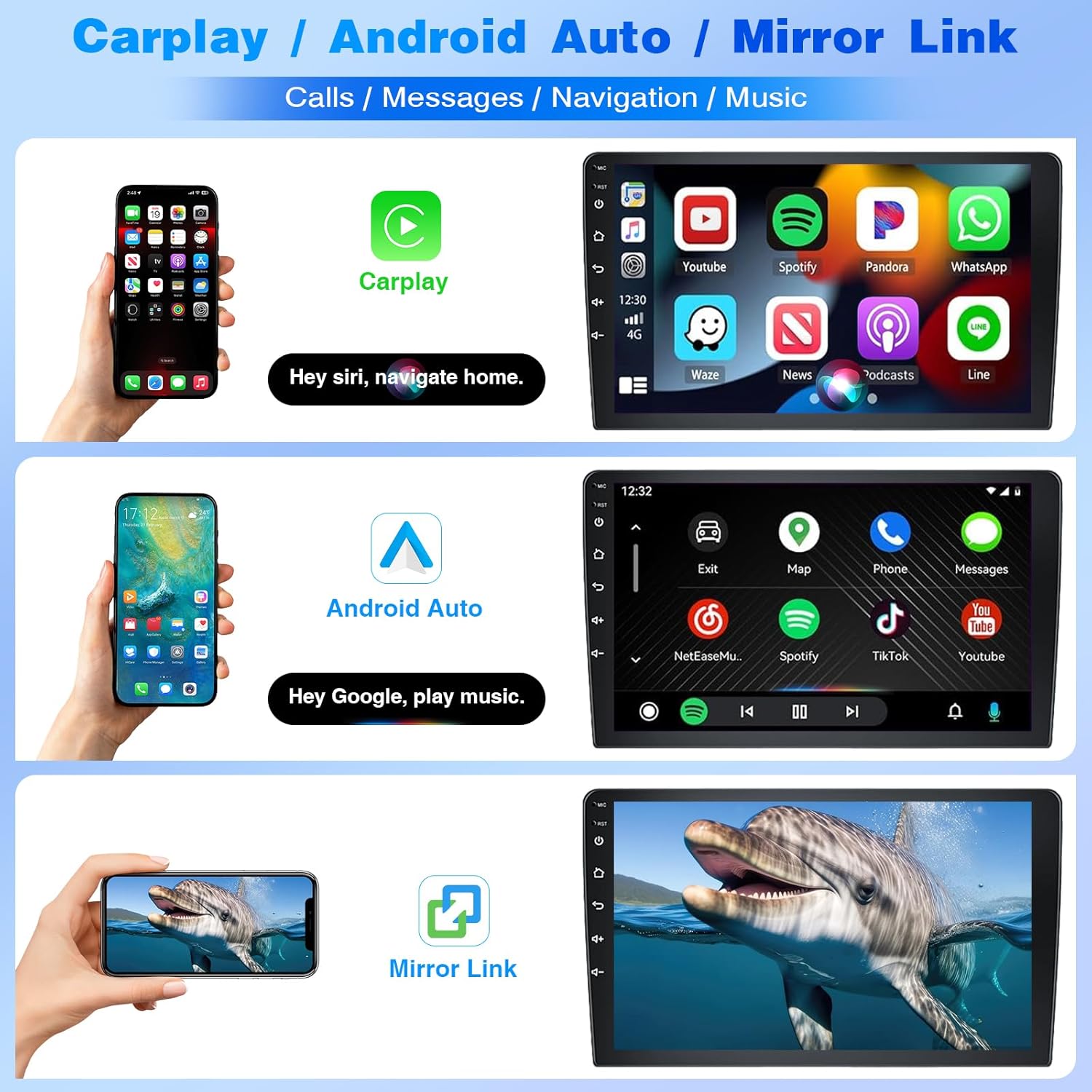
Figure 4: Wireless CarPlay, Android Auto, and Mirror Link interfaces.
GPS Navigation & WiFi Connectivity
Utilize dual navigation with both offline and online map support. Connect to a Wi-Fi network or your phone's hotspot to access online maps and other internet-dependent applications.
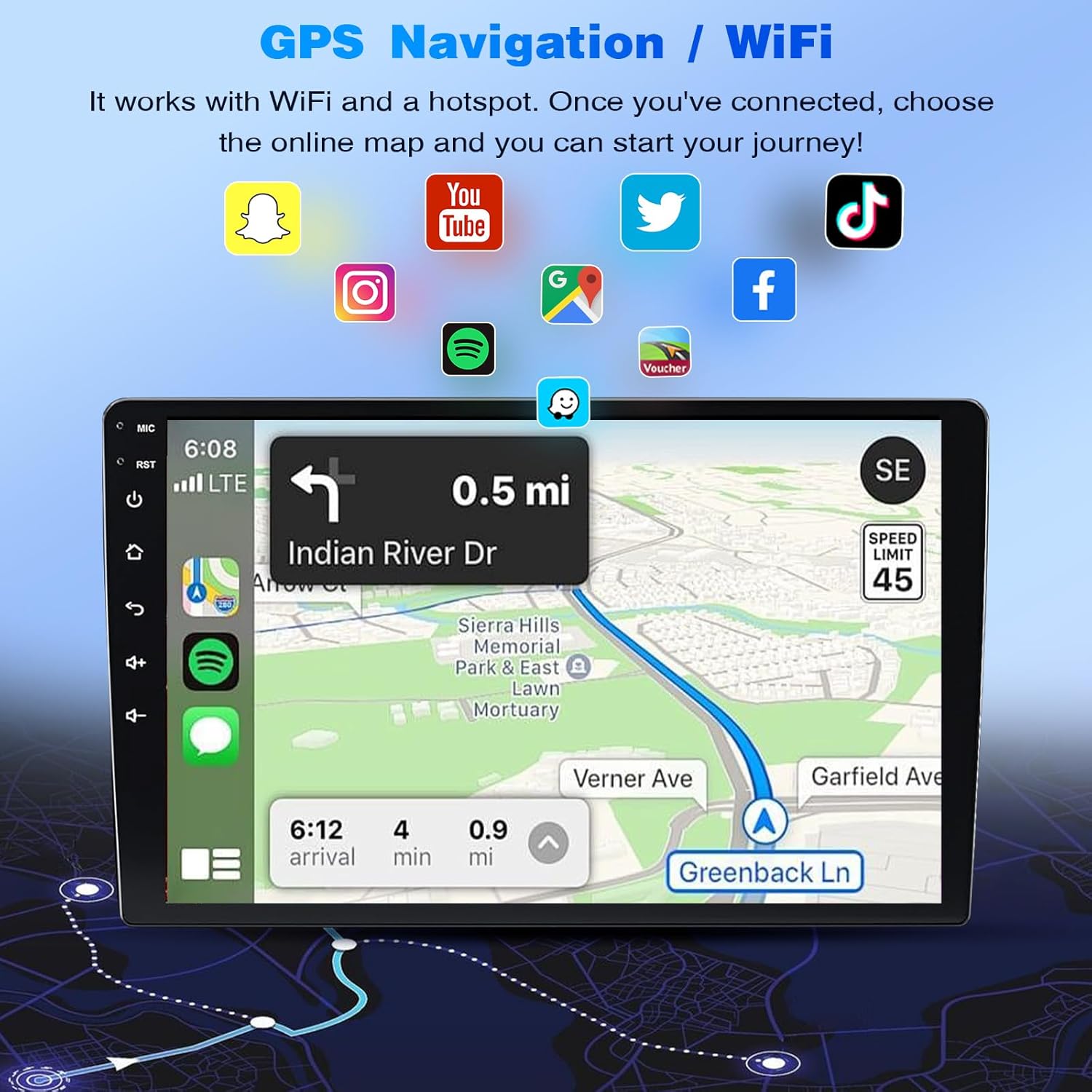
Figure 5: GPS Navigation and WiFi connectivity features.
Steering Wheel Control & Backup Camera
The unit supports existing steering wheel controls for convenient operation. The included AHD backup camera provides a 170° wide-angle view with IP68 waterproofing and night vision for safe parking.
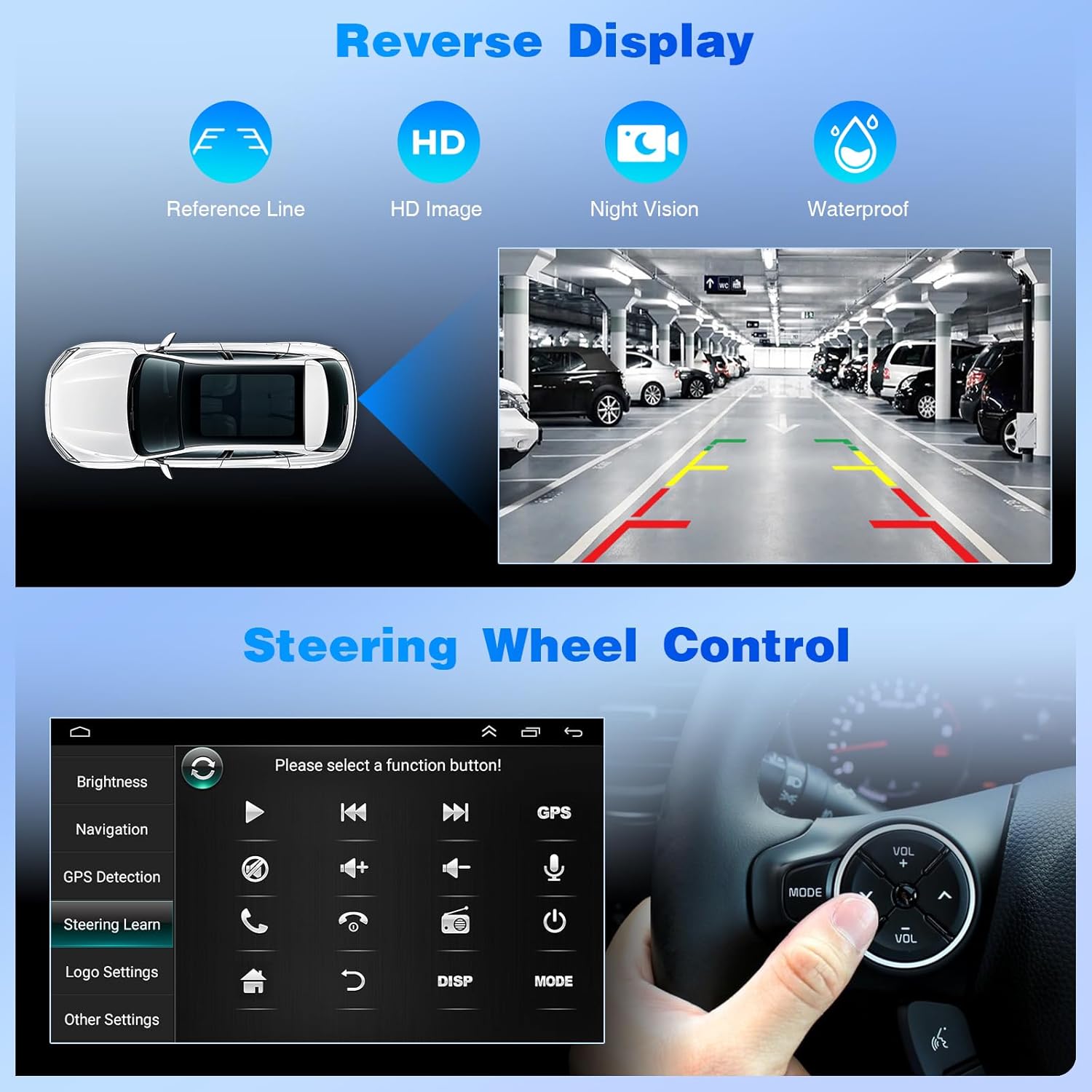
Figure 6: Reverse display and steering wheel control setup.
Bluetooth & FM Radio
Make hands-free calls and stream music via Bluetooth. The built-in microphone ensures clear communication. Enjoy your favorite radio stations with the integrated FM radio function.

Figure 7: Bluetooth, FM Radio, Split Screen, and Voice Control features.
High Definition Display
The 9-inch IPS touch screen features a 1024*600 resolution, delivering clear and vibrant visuals with bright colors and enhanced detail.

Figure 8: High definition 2.5D IPS Touch Screen display quality.
Product Specifications
| Feature | Detail |
|---|---|
| Model Compatibility | Mini Cooper R56 (2007-2014) |
| Operating System | Android 13 |
| RAM | 2GB |
| ROM | 32GB |
| Screen Size | 9-inch IPS Touch Screen |
| Screen Resolution | 1024*600 |
| Connectivity Technology | Bluetooth, USB, Wi-Fi |
| Special Features | Android Auto, Apple CarPlay, Built-In Bluetooth, GPS Navigation, Touchscreen |
| Compatible Devices | Smartphone |
| Connector Type | USB Type A |
| Audio Output Mode | Stereo |
What's in the Box
- 1 x Car Stereo Radio Set
Troubleshooting
This section addresses common issues you might encounter with your Bobuluo car radio.
No Power / Unit Not Turning On
- Check all power connections to ensure they are securely fastened.
- Verify the vehicle's fuse box for any blown fuses related to the car stereo.
- Ensure the vehicle's ignition is on or in accessory mode.
Bluetooth / CarPlay / Android Auto Connection Issues
- Ensure Bluetooth is enabled on both the car radio and your smartphone.
- Forget the device from your phone's Bluetooth settings and re-pair.
- Restart both the car radio and your smartphone.
- For ZLINK issues, try the manual WiFi connection method described in the "Setup and Connectivity" section.
- Ensure your phone's operating system is up to date.
No Sound
- Check the volume levels on both the car radio and your smartphone.
- Verify speaker wire connections are correct and secure.
- Ensure the correct audio source is selected on the car radio.
GPS Signal Loss
- Ensure the GPS antenna is properly installed and has a clear view of the sky.
- Check GPS settings on the car radio to ensure GPS is enabled.
Backup Camera Not Displaying
- Verify the camera input cable is securely connected to the car radio.
- Ensure the camera is receiving power and is properly installed.
- Check the car radio's settings for camera input configuration.
Warranty and Support
Bobuluo is committed to providing high-quality products and customer service. For any questions or technical assistance, please contact the seller directly through Amazon.
Protection Plans
Optional protection plans are available for purchase:
- 2-Year Protection Plan: $24.99 (one-time)
- 3-Year Protection Plan: $33.99 (one-time)
- Complete Protect: $16.99 (monthly) - Covers eligible past and future purchases.
For specific warranty details or to inquire about product compatibility with your vehicle, please provide your car model and a photo of your car's center console to the seller. They aim to respond within 24 hours.