
ASRock 9060 XT Challenger 16GB
ASRock Radeon RX 9060 XT Challenger 16GB OC Graphics Card User Manual
Model: 9060 XT Challenger 16GB
1. Introduction
This user manual provides detailed instructions for the installation, operation, and maintenance of your ASRock Radeon RX 9060 XT Challenger 16GB OC Graphics Card. Designed for demanding gamers and content creators, this GPU features AMD’s RDNA 4 architecture, a blazing 3300 MHz Boost Clock, and a massive 16GB GDDR6 VRAM, ensuring exceptional performance for 1440p and 4K gaming, as well as multitasking.
The card is engineered for efficiency with a dual-fan 0dB Silent Cooling system and a durable metal backplate, providing both quiet operation and long-term reliability. With PCIe 5.0 support and advanced display outputs, it is ready for the next generation of gaming and high-resolution displays.
2. What's in the Box
Please verify that all items are present in the package:
- 1 x Quick Installation Guide
- 1 x ASRock Radeon RX 9060 XT Challenger 16GB OC Graphics Card
3. Hardware Installation
Follow these steps to properly install your graphics card:
- Prepare your PC: Turn off your PC and unplug the power cord from the wall outlet.
- Open the PC case: Open your computer case and locate an available PCI Express x16 slot on your motherboard.
- Remove slot covers: Remove the corresponding slot covers on the back of your PC case for the graphics card.
- Insert the graphics card: Carefully insert the graphics card into the PCI Express x16 slot until it is fully seated. Ensure the card is aligned correctly with the slot.
- Secure the card: Secure the graphics card to the PC case using screws.
- Connect external power (if required): If your graphics card requires an external power source, connect the appropriate power cables from your power supply unit (PSU) to the graphics card. Refer to your PSU manual for correct cable identification.
- Close the case: Close your PC case.
- Connect display cables: Plug your display cable (DisplayPort or HDMI) into the corresponding port on the graphics card.
- Power on: Plug in the power cord and turn on your PC.
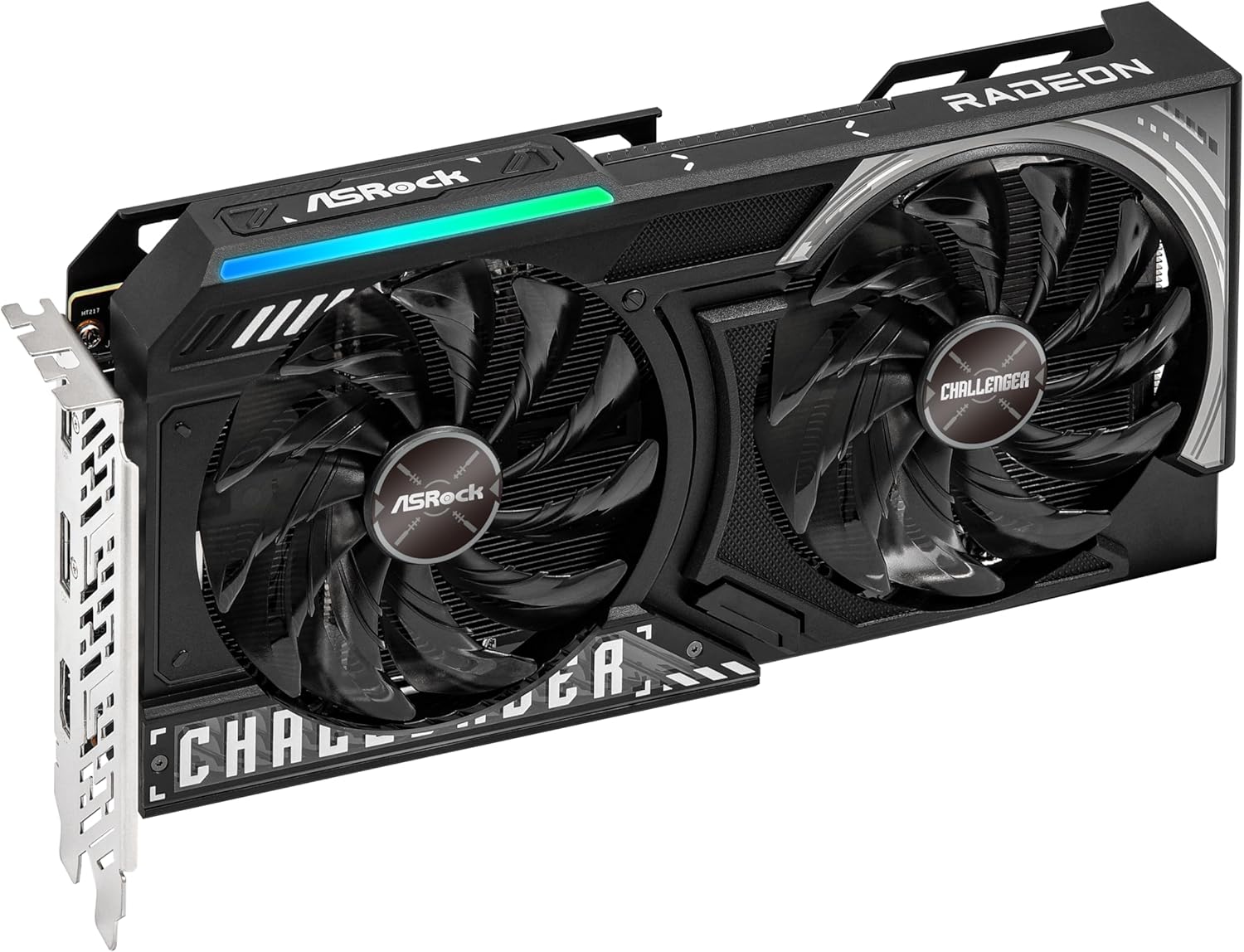
Front view of the ASRock Radeon RX 9060 XT Challenger graphics card, showcasing its dual-fan design.

Side view of the graphics card, highlighting its thickness and cooling fins.

Rear view of the graphics card, showing the DisplayPort and HDMI output connectors.

Close-up of the PCIe connector on the graphics card, essential for motherboard connection.
4. Driver Installation
After installing the hardware, you need to install the latest drivers for optimal performance:
- Download drivers: Go to the official ASRock website (www.asrock.com). Navigate to the product page for your graphics card (ASRock Radeon RX 9060 XT Challenger 16GB OC).
- Select Support > Download: Find the 'Support' or 'Download' section and select the latest graphics drivers compatible with your operating system.
- Install drivers: Follow the on-screen instructions to complete the driver installation. Restart your PC if prompted.
5. Operating Modes and Cooling
The ASRock Radeon RX 9060 XT Challenger 16GB OC features advanced cooling technologies:
- 0dB Silent Cooling: For light workloads or idle states, the fans will completely stop spinning, providing a silent computing experience. The fans will automatically activate when the GPU temperature rises during gaming or demanding tasks.
- Dual Fan Design with Ultra-fit Heatpipes: The dual Striped Ring Fans are optimized to maximize airflow and static pressure, working in conjunction with Ultra-fit Heatpipes to efficiently dissipate heat from the GPU, ensuring stable performance even under heavy loads.
- Boost Clock: The card is factory overclocked with a Boost Clock of up to 3300 MHz, delivering enhanced performance out-of-the-box for smoother gameplay and faster rendering.
6. Connectivity
Your graphics card supports the latest display standards:
- DisplayPort 2.1a: Provides high-bandwidth connectivity for next-generation displays, supporting resolutions up to 8K at 120Hz or 4K at 240Hz.
- HDMI 2.1b: Offers broad compatibility with modern displays and TVs, supporting resolutions up to 8K at 120Hz or 4K at 240Hz.
- PCIe 5.0: Ensures maximum bandwidth for communication with your motherboard, optimizing data transfer speeds for high-performance applications and games.
7. Specifications
| Feature | Description |
|---|---|
| Brand | ASRock |
| Model Number | 9060 XT Challenger 16GB |
| Graphics Coprocessor | AMD Radeon RX 9060 XT |
| Graphics RAM Size | 16 GB GDDR6 |
| Boost Clock | 3300 MHz |
| Architecture | AMD RDNA 4 |
| Ray Tracing | 3rd Gen Ray Tracing |
| AI Acceleration | 2nd Gen AI Acceleration |
| PCIe Interface | PCIe 5.0 |
| Video Output Interface | DisplayPort 2.1a, HDMI 2.1b |
| Cooling System | Dual Fan, 0dB Silent Cooling |
| Dimensions (L x W x H) | 14.17 x 2.52 x 0.04 inches |
| Item Weight | 2.16 pounds |
8. Troubleshooting
If you encounter issues with your graphics card, consider the following common solutions:
- No display/Black screen: Ensure all power cables are securely connected to the graphics card and the PSU. Verify that the display cable is firmly connected to both the graphics card and the monitor. Try a different display cable or monitor if possible.
- Driver issues: Ensure you have installed the latest drivers from the ASRock website. If issues persist, try performing a clean installation of the drivers (uninstall existing drivers before installing new ones).
- Performance issues: Check your PC's power supply to ensure it meets the minimum wattage requirements for the graphics card. Monitor GPU temperatures during gaming to ensure it's not overheating. Ensure your operating system and games are up to date.
- System instability: Ensure the graphics card is properly seated in the PCIe slot and secured with screws. Check for any loose connections inside your PC case.
9. Maintenance
To ensure the longevity and optimal performance of your graphics card:
- Keep it clean: Regularly clean dust from the fans and heatsink using compressed air. Ensure your PC case has good airflow to prevent dust buildup.
- Ensure proper ventilation: Make sure your PC case has adequate ventilation to allow hot air to escape and cool air to enter.
- Software updates: Keep your graphics drivers and operating system updated to benefit from performance improvements and bug fixes.
10. Warranty and Support
Your ASRock Radeon RX 9060 XT Challenger 16GB OC Graphics Card is covered by a manufacturer's warranty. For detailed warranty terms and conditions, please refer to the warranty information included with your product or visit the official ASRock website.
For technical support, driver downloads, or further assistance, please visit the ASRock support page on their official website or contact their customer service directly. If you have any questions about the product, contact us on Amazon.