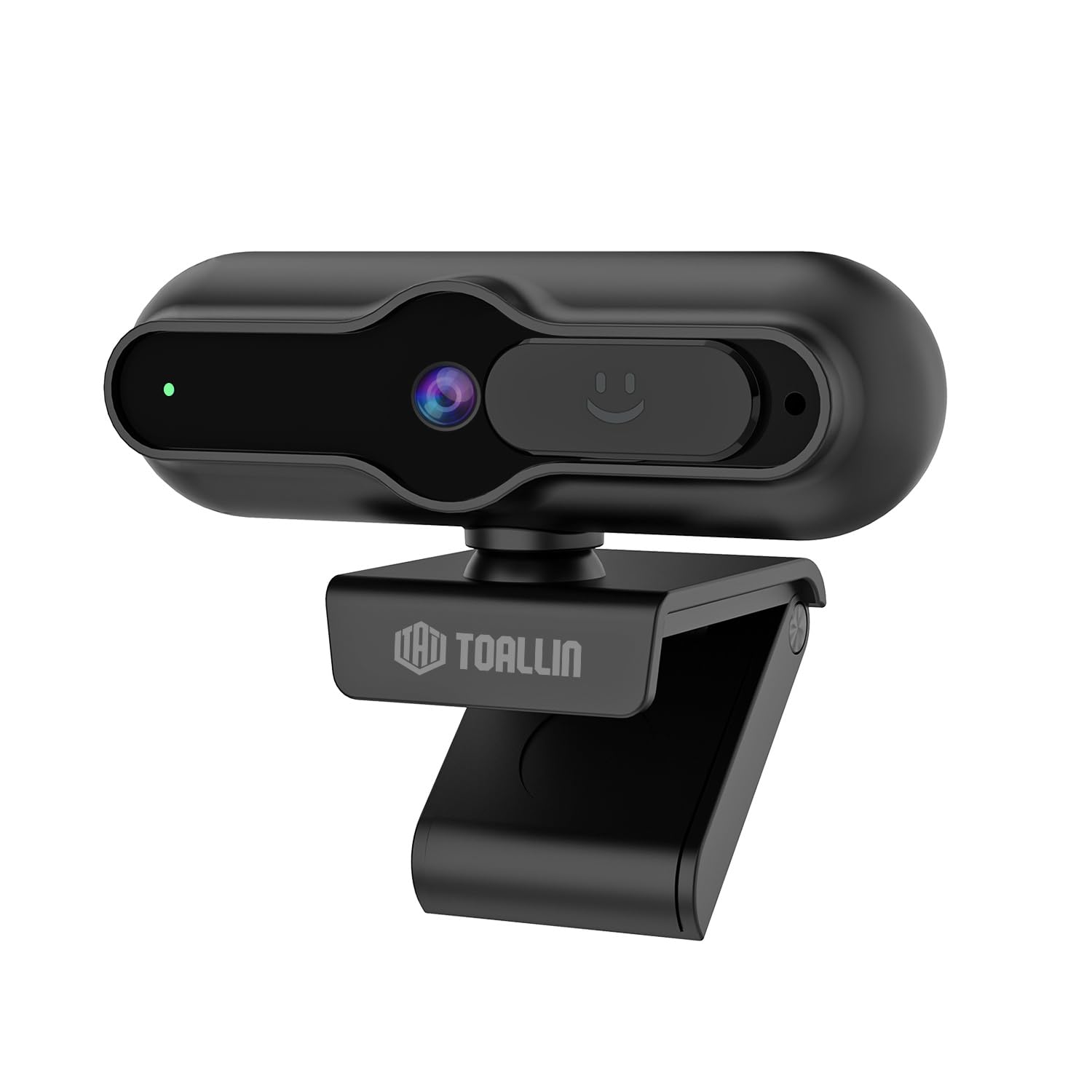
The TOALLIN SC90 4K Webcam is designed for high-quality video communication, streaming, and conferencing. It features a 4K 1/2.5" CMOS sensor, PDAF autofocus, a built-in noise-reducing microphone, and a sliding privacy cover. This manual provides instructions for setting up, operating, and maintaining your webcam.
Image: Front view of the TOALLIN SC90 4K Webcam.
Setup
The TOALLIN SC90 webcam offers a simple plug-and-play setup, requiring no additional drivers or software installation for most operating systems.
1. Connecting the Webcam
Unpack the webcam, USB A-C cable, and USB adapter from the box.
Connect the USB A-C cable to the webcam.
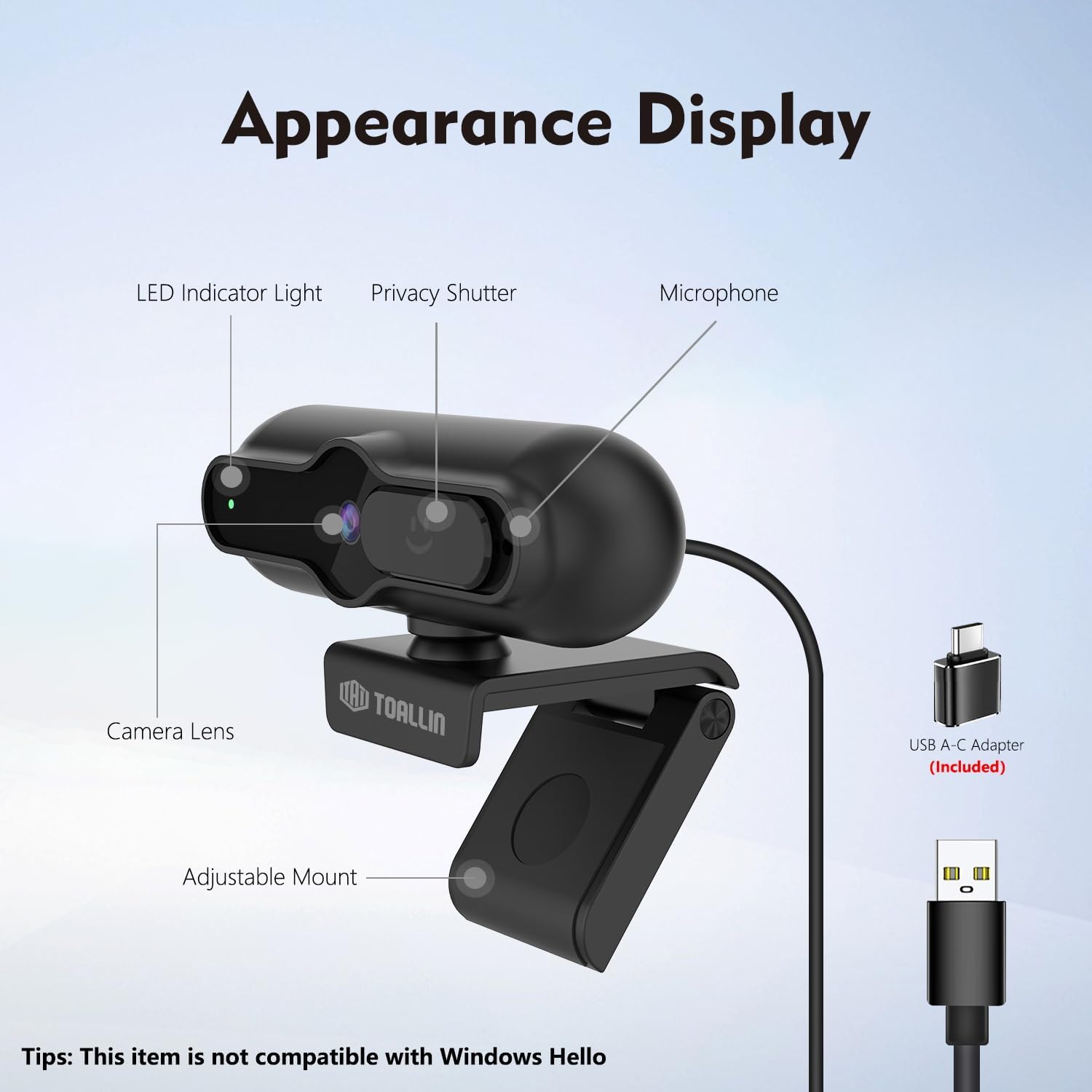
If your computer has a USB-A port, connect the USB-A end of the cable directly. If your computer has a USB-C port, use the provided USB adapter to convert the USB-A end to USB-C, then plug it into your computer.
Place the webcam securely on top of your monitor or laptop screen using its adjustable mount. Ensure the camera lens is facing you.
The webcam will be automatically recognized by your operating system (Windows 7 or above, macOS, Android).
Image: The TOALLIN SC90 webcam connected to a laptop.
2. Initial Use
Once connected, open any video conferencing or streaming application (e.g., Zoom, Skype, Webex, GoToMeeting, Microsoft Teams) and select the TOALLIN SC90 as your preferred camera and microphone device in the application's settings.
Setup Video Guide
Video: A demonstration of connecting and using the TOALLIN SC90 4K Webcam.
Operating Instructions
Video Quality and Resolution
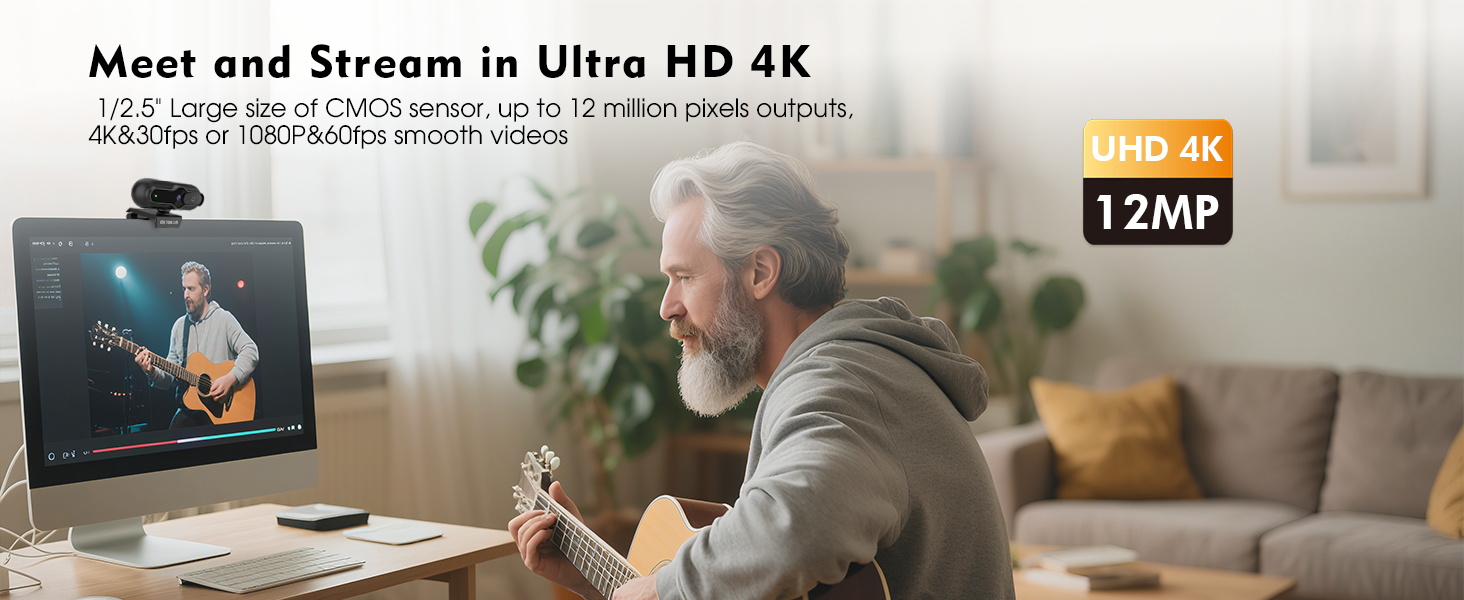
The webcam features a 1/2.5" CMOS sensor capable of capturing up to 12 million pixels. It supports Ultra HD 4K resolution at 30 frames per second (fps) and 1080p resolution at 60 fps, providing clear and smooth video output for various applications.
Image: Visual comparison of 4K@30FPS/1080P@60FPS output versus standard video.
PDAF Autofocus
The advanced Phase Detection Auto Focus (PDAF) system ensures rapid and precise focusing. This feature automatically adjusts the focus to keep you or other specific objects clear and sharp, even during movement, making it ideal for live streaming and video calls.
Image: PDAF autofocus maintaining clarity on both a person and an object.
Built-in Noise-Reducing Microphone
The integrated microphone utilizes a noise reduction algorithm to minimize background noise and automatically amplify your voice, ensuring clear conversations. It is designed for far-field voice pickup.
Image: The webcam's noise-reducing microphone in action.
Sliding Privacy Cover
For enhanced privacy, the webcam includes a sliding privacy cover. Simply slide the cover over the lens when the webcam is not in use to prevent unauthorized access and protect your privacy without needing to disconnect the device or exit applications.
Image: The sliding privacy cover in both open and closed states.
Adjustable Mount and Mini Design
The webcam features a mini, lightweight design, making it portable and easy to attach to various displays. The adjustable mount allows for flexible positioning on laptops, desktop monitors, or even tripods (tripod not included).
Image: The compact design of the TOALLIN SC90 webcam.
Maintenance
Cleaning the Lens: Use a soft, lint-free cloth specifically designed for camera lenses to gently wipe the lens. Avoid using harsh chemicals or abrasive materials that could scratch the lens.
Cleaning the Body: Wipe the webcam's body with a soft, dry cloth. If necessary, a slightly damp cloth can be used, but ensure no moisture enters the device.
Storage: When not in use, especially during transport, ensure the sliding privacy cover is closed to protect the lens from dust and scratches. Store the webcam in a clean, dry environment.
Cable Care: Avoid sharp bends or excessive pulling on the USB cable to prevent damage.
Troubleshooting
Webcam Not Detected / No Image
Check Connection: Ensure the USB cable is securely plugged into both the webcam and your computer. Try a different USB port.
USB Adapter: If using the USB-A to USB-C adapter, ensure it is correctly connected and functioning.
Privacy Cover: Verify that the sliding privacy cover is open and not obstructing the lens.
Application Settings: In your video conferencing or streaming software, check that the TOALLIN SC90 webcam is selected as the active video device.
Restart Computer: Sometimes a simple restart can resolve detection issues.
Poor Video Quality / Blurry Image
Clean Lens: Gently clean the webcam lens with a soft, lint-free cloth.
Lighting Conditions: Ensure adequate lighting in your environment. Poor lighting can significantly impact video quality.
Autofocus: The PDAF autofocus system is designed to keep you in focus. If the image appears blurry, try moving slightly to allow the autofocus to re-engage.
Application Resolution: Check the video resolution settings within your application. Ensure it is set to 4K or 1080p for optimal quality.
No Audio / Poor Audio Quality
Microphone Selection: In your application's audio settings, ensure the TOALLIN SC90 webcam's microphone is selected as the input device.
Volume Levels: Check the microphone input volume in your operating system and application settings.
Background Noise: While the webcam has noise reduction, excessive background noise can still affect clarity. Try to use the webcam in a quieter environment.
Not Compatible with Windows Hello
Please note that the TOALLIN SC90 webcam is not compatible with Windows Hello facial recognition features. This is a known limitation of the product.
Specifications
Brand
TOALLIN
Model Name
SC90
Camcorder Type
Webcam
Connectivity Technology
USB
Video Capture Resolution
4K (3840 Pixels)
Effective Still Resolution
12 MP
Photo Sensor Technology
CMOS
Photo Sensor Size
1/2.5-inch
Focus Type
Auto Focus (PDAF)
Lens Type
Wide Angle
Maximum Aperture
1.7 f
Operating System
Windows (7 or above), macOS, Android
Compatible Devices
Laptop, Personal Computer, Smartphone, Tablet
Item Weight
0.1 Kilograms
Built-In Media
Webcam, USB A-C Cable, USB Adapter, User Manual
Warranty & Support
Warranty Information
The TOALLIN SC90 4K Webcam comes with a 1-year warranty from the date of purchase. This warranty covers manufacturing defects and malfunctions under normal use. Please retain your proof of purchase for warranty claims.
Customer Support
For technical assistance, troubleshooting, or warranty inquiries, please contact TOALLIN customer support. You can typically find contact information on the TOALLIN official website or through the retailer where you purchased the product.