
CAMECHO 9.66" 4K Mirror Dash Cam
CAMECHO 9.66" 4K Mirror Dash Cam User Manual
Model: 9.66" 4K Mirror Dash Cam
Introduction
Thank you for choosing the CAMECHO 9.66" 4K Mirror Dash Cam. This advanced device is engineered to enhance your driving safety and provide comprehensive recording capabilities. Equipped with a 4K front camera, 1080P rear camera, Wi-Fi, GPS, and advanced driver assistance systems (ADAS, BSD, LCA), this mirror dash cam offers superior video quality and intelligent features for a secure and informed driving experience. Please read this manual thoroughly before installation and operation to ensure proper use and optimal performance.
Package Contents
Please verify that all items listed below are included in your package:
- 1 x Mirror Dash Camera
- 1 x Rear View Camera
- 1 x GPS Antenna
- 1 x Camera Extended Line
- 1 x Power Cable
- 1 x Bandage (for mounting)
- 1 x User Manual
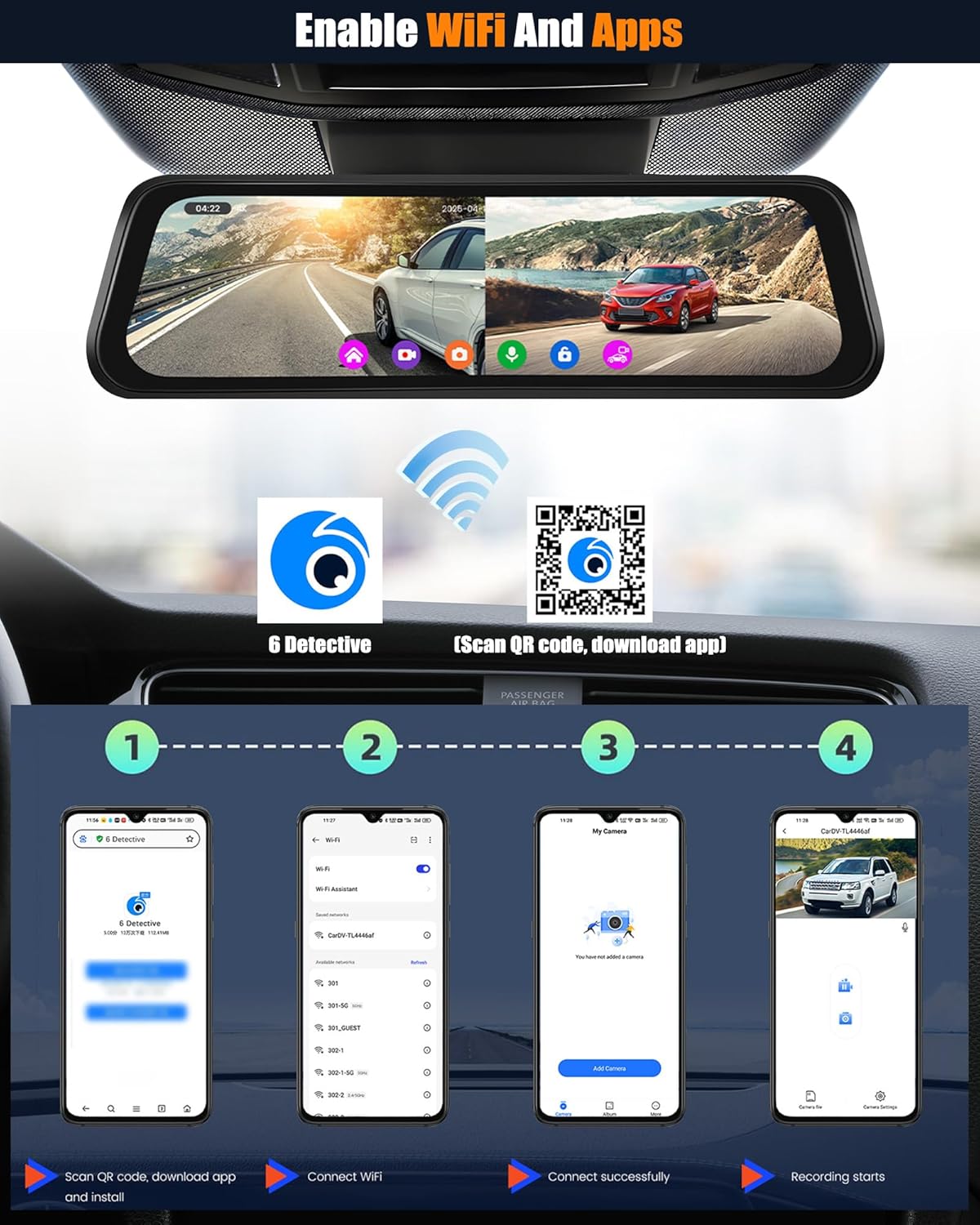
Image: The CAMECHO 9.66 inch 4K Mirror Dash Cam, illustrating the main unit, rear camera, GPS antenna, power cable, extended line, bandage, and user manual, along with product dimensions.
Specifications
| Product Dimensions | 2 x 10.1 x 2.8 inches (5.08 x 25.65 x 7.11 cm) |
| Item Weight | 1.1 pounds (0.5 kg) |
| Brand | CAMECHO |
| Connectivity Technology | Wi-Fi |
| Special Features | Built-In WiFi, G-Sensor, BSD, ADAS, Built-In GPS |
| Compatible Devices | Smartphone (Android/iOS) |
| Screen Diagonal | 9.66 inches (25 cm) IPS Touch Screen |
| Front Camera Resolution | 4K (Ultra HD) |
| Rear Camera Resolution | 1080P (HD) |
| Front Camera View Angle | 150° |
| Rear Camera View Angle | 120° |
Installation Guide
The CAMECHO Mirror Dash Cam is designed for easy installation, fitting securely over your existing rearview mirror. Follow these steps for proper setup:
Step 1: Mount the Mirror Dash Cam
- Secure the main mirror dash cam unit over your vehicle's existing rearview mirror using the provided elastic bandages. Ensure it is firmly attached and centered for optimal viewing.
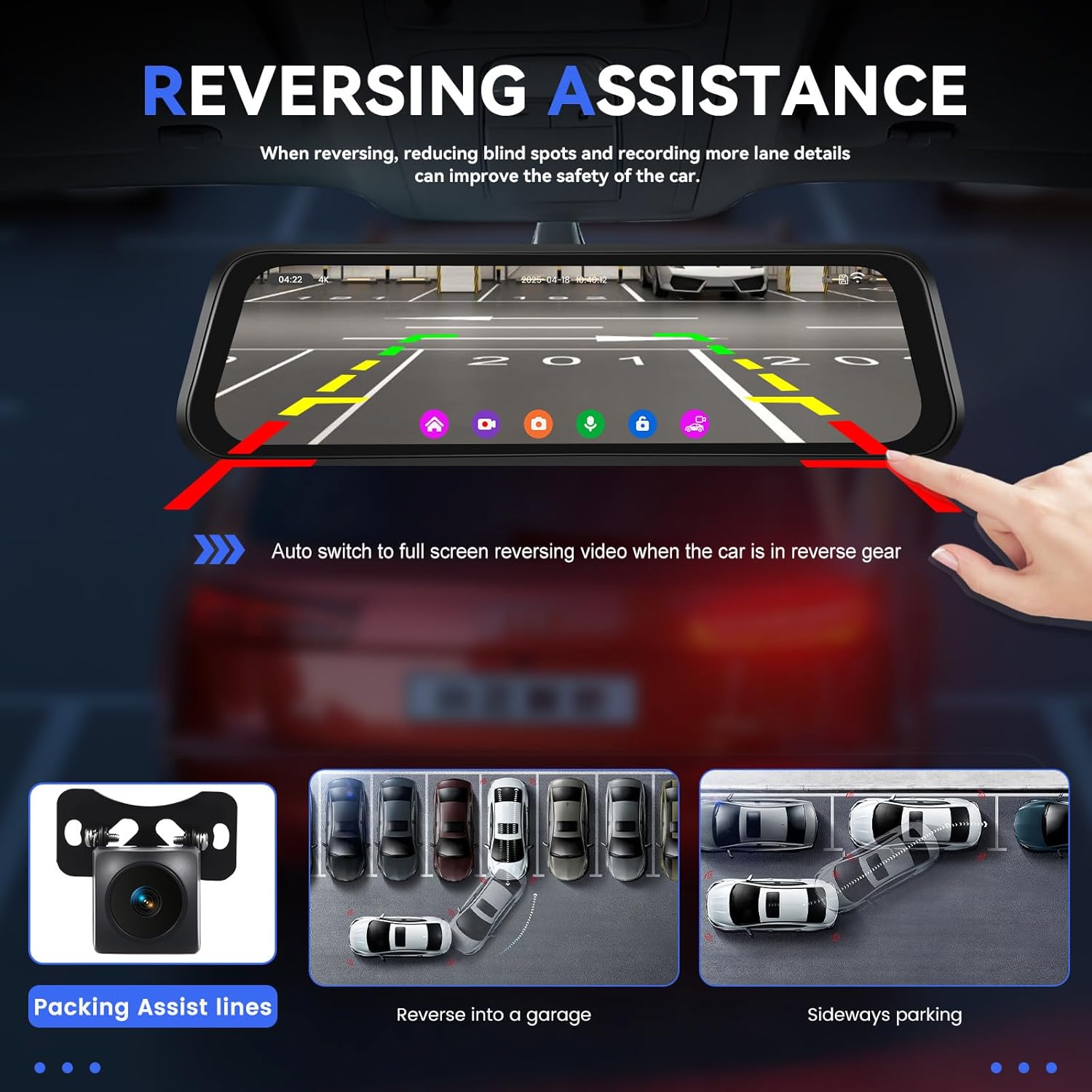
Image: The dash cam unit securely mounted over the vehicle's rearview mirror, showing its integration.
Step 2: Install the Rear View Camera
- Determine the optimal mounting location for the rear camera, typically above the license plate or inside the rear window. Clean the surface thoroughly before mounting.
- Attach the rear camera using the adhesive pad or screws (if applicable).
- Route the rear camera's extended cable to the main mirror dash cam unit. Conceal the cable along the vehicle's trim for a neat installation.
- Connect the rear camera cable to the designated port on the main unit.

Image: Wiring diagram illustrating the connection of the front camera (integrated into mirror), rear camera, and power cable to the cigarette lighter socket.
Step 3: Connect Power and GPS Antenna
- Plug the power cable into the main unit and route it to your vehicle's cigarette lighter socket.
- Connect the GPS antenna to its dedicated port on the main unit. Position the GPS antenna on the dashboard or a location with a clear view of the sky for optimal signal reception.

Image: Illustration of the dash cam's WiFi connectivity to a smartphone and the placement of the external GPS antenna for accurate location tracking.
Operating Instructions
4K Front & HD Rear Recording
The dash cam is equipped with a 4K (3840x2160P) front camera with a 150° wide-angle lens and a 1080P (1920x1080P) waterproof rear camera with a 120° viewing angle. It records clear video simultaneously from both perspectives, capturing license plates and road details. The system automatically starts recording when the vehicle is powered on.
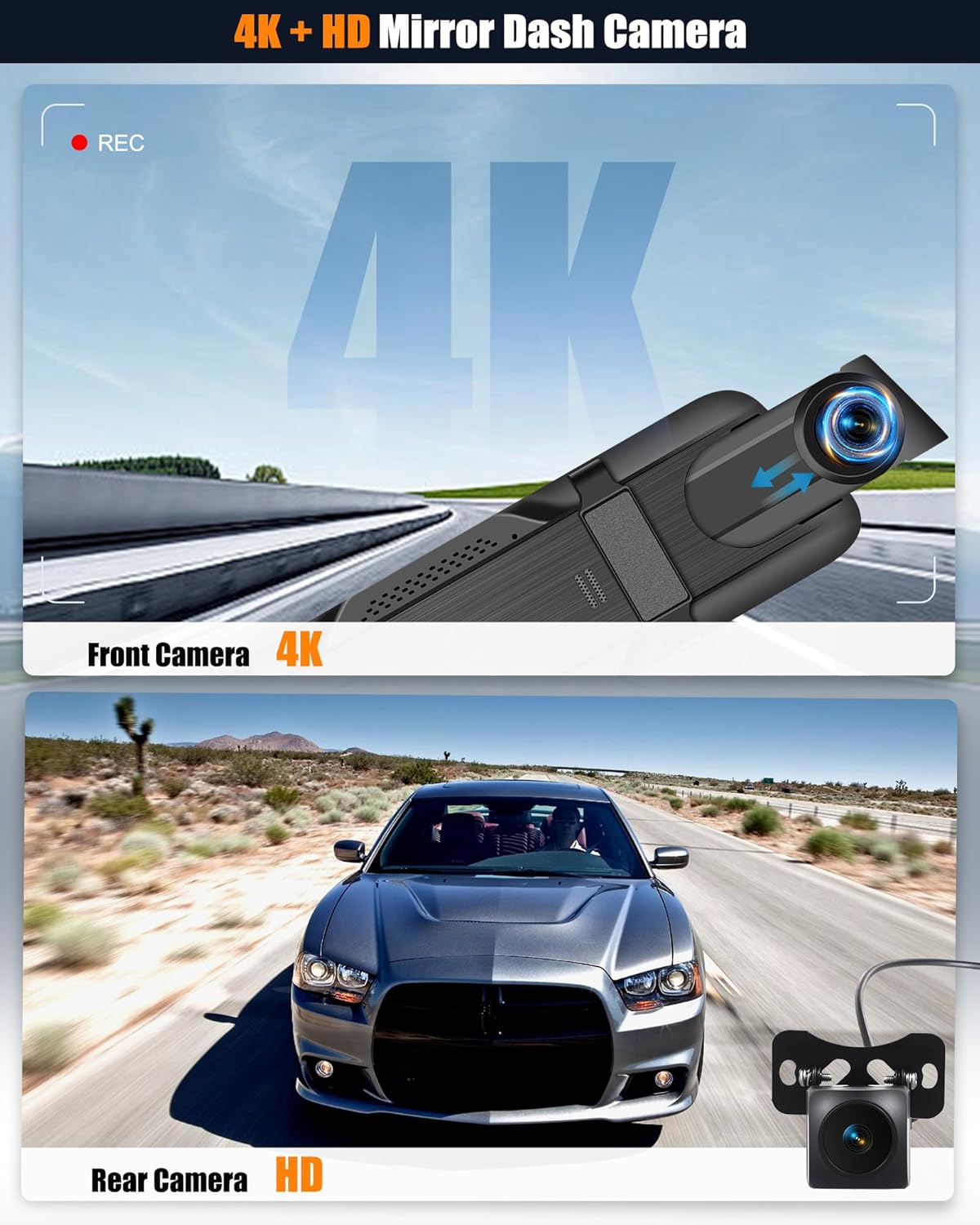
Image: Visual representation of the 4K front camera and HD rear camera recording capabilities.
9.66'' IPS Streaming Media Full Touch Screen
The 9.66-inch IPS touch screen provides excellent visibility and intuitive control. You can switch between front and rear camera views by swiping left and right, adjust the viewing angle by swiping up and down, and access video recording/playback and split-screen functions directly on the screen.
Super Night Vision
The upgraded cameras deliver clear videos even in low-light conditions, thanks to super night vision technology. This enhances details such as license plate numbers and road signs, ensuring reliable recording day or night.

Image: The dash cam display showcasing its ability to capture crisp and clear footage in low-light scenarios, demonstrating super night vision.
Parking Assistance
When reversing, the rear camera automatically displays a full-screen view with adjustable guide lines to assist you in parking safely and accurately. This feature helps reduce blind spots and improves overall parking safety.
Image: The dash cam screen displaying the reversing assistance view with adjustable parking guide lines, aiding in safe parking maneuvers.
Built-in Wi-Fi & GPS Antenna
Connect the dash cam to your smartphone (Android or iOS) via the built-in Wi-Fi using the dedicated app. This allows you to preview real-time images, download recorded videos, and manage settings wirelessly. The external GPS antenna enables accurate tracking of your vehicle's location and speed, which can be reviewed during video playback using a compatible GPS player.

Image: Step-by-step guide on how to enable Wi-Fi and connect the dash cam to a smartphone app for viewing and managing recordings.
Advanced Driver Assistance Systems (ADAS, BSD, LCA)
These intelligent systems enhance driving safety by providing real-time alerts:
- ADAS (Advanced Driver Assistance System): Provides alerts for potential collisions, pedestrian collisions, lane departures, and forward vehicle starts, along with distance monitoring.
- BSD (Blind Spot Detection): Monitors your blind spots and alerts you to vehicles in adjacent lanes, helping prevent side collisions.
- LCA (Lane Change Assist): Works with BSD to enhance safety during lane changes by providing warnings if a vehicle is detected in your blind spot.
Image: Visual explanations of Blind Spot Detection (BSD), Lane Change Assist (LCA), and Advanced Driver Assistance System (ADAS) functionalities.
Loop Recording & G-Sensor
- Loop Recording: The dash cam continuously records video, overwriting the oldest footage with new recordings once the memory card (not included) reaches its capacity. This ensures uninterrupted recording.
- G-Sensor: The built-in G-sensor automatically detects sudden impacts or collisions. When an event is detected, the dash cam locks the current video footage, preventing it from being overwritten by loop recording, thus preserving critical evidence.

Image: Diagram showing how loop recording continuously records and overwrites old footage.

Image: Illustration of the G-sensor detecting a collision and automatically locking the video file to prevent overwriting.
Troubleshooting
If you encounter any issues with your CAMECHO Mirror Dash Cam, please refer to the following common problems and solutions:
- Dash Cam not powering on:
- Ensure the power cable is securely connected to both the dash cam and the vehicle's cigarette lighter socket.
- Check if the vehicle's cigarette lighter socket is receiving power. Test with another device if possible.
- Verify that the vehicle's ignition is on (if required by your vehicle's power outlet).
- Recording issues (e.g., not recording, corrupted files):
- Ensure a compatible microSD card (Class 10 or higher, up to 128GB recommended) is inserted correctly.
- Format the microSD card regularly within the dash cam's settings to prevent data corruption.
- Check if the loop recording function is enabled.
- If the G-sensor sensitivity is too high, it might lock too many files, filling the card. Adjust sensitivity if necessary.
- Rear camera not displaying or showing distorted image:
- Check the connection of the rear camera cable to the main unit. Ensure it is firmly plugged in.
- Inspect the rear camera cable for any damage or kinks.
- Ensure the rear camera lens is clean and free from obstructions.
- GPS signal not found or inaccurate:
- Ensure the GPS antenna is connected and placed in a location with a clear view of the sky (e.g., dashboard, not under metal).
- Allow a few minutes for the GPS to acquire a signal after powering on, especially in new locations.
- Wi-Fi connection issues:
- Ensure Wi-Fi is enabled on the dash cam and your smartphone.
- Make sure you are within close proximity to the dash cam for a stable connection.
- Restart both the dash cam and your smartphone, then try connecting again.
- Ensure you have downloaded the correct companion app for the dash cam.
Maintenance
To ensure the longevity and optimal performance of your CAMECHO Mirror Dash Cam, follow these maintenance guidelines:
- Clean Lenses: Regularly clean the front and rear camera lenses with a soft, lint-free cloth to ensure clear video quality. Avoid abrasive materials that could scratch the lenses.
- Screen Care: Use a microfiber cloth to gently wipe the touch screen. Do not use harsh chemicals or sprays directly on the screen.
- MicroSD Card Maintenance: Format the microSD card monthly to prevent data corruption and ensure smooth recording. Back up any important footage before formatting. Replace the microSD card periodically (e.g., every 6-12 months) as they have a limited lifespan due to continuous overwriting.
- Temperature Control: Avoid exposing the dash cam to extreme temperatures for prolonged periods. If parked in direct sunlight, consider removing the dash cam or using a sunshade.
- Firmware Updates: Check the official CAMECHO website or app periodically for any available firmware updates. Keeping your device updated can improve performance and add new features.
Warranty and Support
CAMECHO products are designed for reliability and performance. For warranty information, please refer to the documentation included with your purchase or contact our customer support.
For technical assistance, troubleshooting, or any questions regarding your CAMECHO 9.66" 4K Mirror Dash Cam, please contact our support team:
- Email Support: yanningqiu2021@163.com
- Online Help: Contact Dongguan Yanningqiu Trading Company via the Amazon platform for direct assistance.

Image: A customer support representative, indicating available online help and user manual support via email.
Ask a question about this manual
Ask about setup, troubleshooting, compatibility, parts, safety, or missing instructions. Manuals+ will review the question and use this page’s manual context to help answer it.