
GarveeLife 3ncTOne5LMyx1JDYBtsLlApBdx
GarveeLife Metal Printer Stand with File Storage Cabinet Instruction Manual
Model: 3ncTOne5LMyx1JDYBtsLlApBdx
Brand: GarveeLife
1. Introduction
This manual provides instructions for the proper setup, operation, and maintenance of your GarveeLife Metal Printer Stand with File Storage Cabinet. This unit is designed to provide a stable platform for printers and other office equipment, along with secure storage for files and supplies. Please read this manual thoroughly before use to ensure safe and efficient operation.
2. Safety Information
- Do not overload the cabinet beyond its 100-pound capacity.
- Always use the cabinet on a stable, level surface to prevent tipping.
- Keep the cabinet away from heat sources and do not place heavy objects on the doors.
- Use caution when moving the cabinet on its wheels to prevent injury.
3. Package Contents
Please verify that all components are present before proceeding with setup.
- GarveeLife Metal Printer Stand with File Storage Cabinet (main unit)
- Wheels (4 units)
- Adjustable Shelf (1 unit)
- Assembly Hardware (screws for wheels, shelf pins)
4. Specifications
| Brand | GarveeLife |
| Model Number | 3ncTOne5LMyx1JDYBtsLlApBdx |
| Color | Black |
| Product Dimensions | 23.62"D x 23.62"W x 23.62"H |
| Item Weight | 31.5 Pounds |
| Material | Metal |
| Number of Shelves | 1 (Adjustable) |
| Mounting Type | Floor Stand |
| Assembly Required | No (for main cabinet), Minimal (for wheels) |
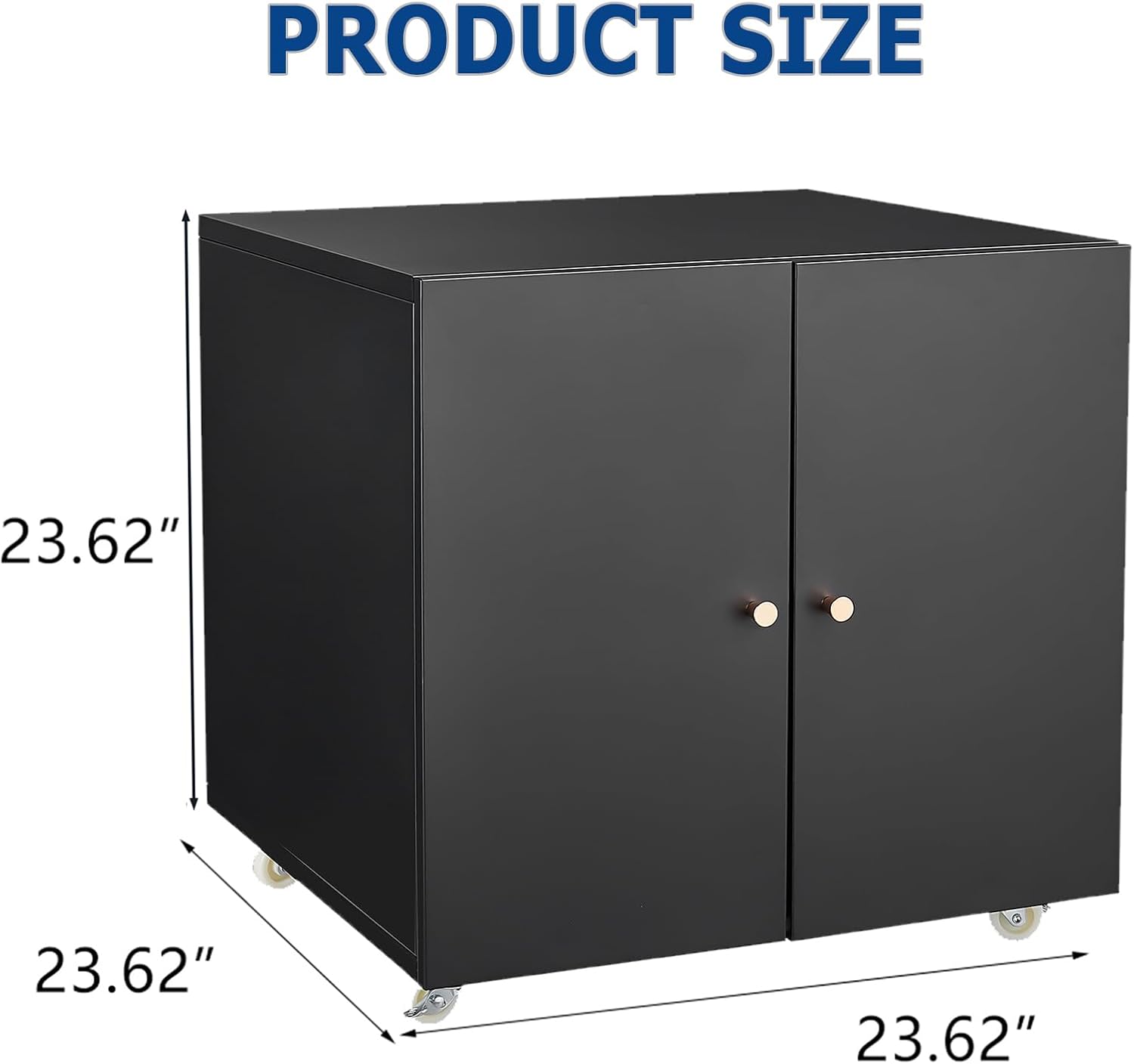
Figure 1: Product Dimensions. The diagram shows the cabinet with measurements of 23.62 inches in height, width, and depth.
5. Setup
5.1 Unpacking
- Carefully remove all components from the packaging.
- Inspect all parts for any damage. If any parts are damaged or missing, do not proceed with assembly and contact customer support.
- Retain packaging materials until you are satisfied with the product.
5.2 Attaching the Wheels
The main cabinet unit is pre-assembled. Only the wheels need to be attached for mobility.
- Carefully lay the cabinet on its side on a soft, protective surface to avoid scratching.
- Locate the pre-drilled holes on the bottom corners of the cabinet.
- Align each wheel with the holes and secure them using the provided screws. Ensure they are tightened firmly.
- Once all four wheels are attached, carefully return the cabinet to an upright position.

Figure 2: Caster Wheel Detail. A close-up view of one of the locking casters, demonstrating its design for mobility and stability.
5.3 Adjusting the Shelf
- Open the cabinet doors.
- Remove the shelf by lifting it and pulling it out.
- Identify the desired shelf height by locating the corresponding shelf pin holes on the interior sides of the cabinet.
- Insert the shelf pins into the chosen holes, ensuring they are securely seated.
- Place the shelf onto the pins, ensuring it is level and stable.

Figure 3: Adjustable Shelf. Interior view of the cabinet with doors open, highlighting the adjustable shelf. Blue dashed lines indicate the range of height adjustment for the shelf.
5.4 Placement
Position the printer stand in your desired location, ensuring it is on a stable and level surface. If using it as a mobile unit, ensure the path is clear of obstructions.

Figure 4: Product in Use. The GarveeLife Metal Printer Stand with File Storage Cabinet, featuring a printer on its top surface and the cabinet doors open to reveal organized storage space for office supplies and files.
6. Operating Instructions
6.1 Using the Casters
The cabinet is equipped with four 360-degree rotating casters for easy mobility. To move the cabinet, unlock the casters by flipping the lever on each wheel. Once in the desired position, lock the casters to secure the cabinet in place and prevent unintended movement.
6.2 Utilizing Storage Space
The top surface of the cabinet is designed to hold a printer, 3D printer, scanner, or other office equipment, up to the specified weight capacity. The interior adjustable shelf allows for customized storage of files, paper, books, and other office supplies. Organize items to maintain balance and avoid exceeding the shelf's weight limit.

Figure 5: Organized Storage. The printer stand with a printer positioned on its top surface. The cabinet doors are open, showcasing the interior with various office items and files neatly stored on the adjustable shelf.

Figure 6: Key Features Overview. An overview image of the printer stand with a printer on top, accompanied by a list of key features: strong steel construction, adjustable shelf height, and quality storage space.
7. Maintenance
7.1 Cleaning
To clean the metal surfaces, use a soft, damp cloth with a mild detergent. Avoid abrasive cleaners or harsh chemicals, as these can damage the finish. Dry thoroughly after cleaning to prevent rust.
7.2 General Care
- Periodically check all screws and fasteners to ensure they remain tight.
- Ensure casters are free of debris to maintain smooth movement.
- Avoid placing extremely hot or cold items directly on the cabinet surface without protection.
8. Troubleshooting
8.1 Cabinet is Difficult to Move
- Check Casters: Ensure all four casters are unlocked.
- Inspect Wheels: Verify that no debris (e.g., hair, dust) is caught in the wheels. Clean if necessary.
- Overload: Confirm the cabinet is not overloaded beyond its weight capacity.
8.2 Doors Do Not Close Properly
- Obstruction: Check if any items inside the cabinet are blocking the doors from closing fully.
- Level Surface: Ensure the cabinet is on a level surface. Uneven surfaces can cause doors to misalign.
- Hinge Check: Inspect hinges for any damage or loose screws. Tighten if needed.
8.3 Cabinet Appears Unstable
- Caster Locks: Ensure all casters are locked when the cabinet is stationary.
- Level Surface: Verify the cabinet is placed on a flat, level surface.
- Weight Distribution: Redistribute contents evenly within the cabinet to maintain balance.
9. Warranty and Support
For warranty information or technical support, please refer to the product packaging or contact GarveeLife customer service through the retailer where the product was purchased. Please have your model number (3ncTOne5LMyx1JDYBtsLlApBdx) and purchase date available when contacting support.
Ask a question about this manual
Ask about setup, troubleshooting, compatibility, parts, safety, or missing instructions. Manuals+ will review the question and use this page’s manual context to help answer it.