
1. Introduction
This manual provides comprehensive instructions for the installation, operation, and maintenance of your SIXWIN Android 13 Car Stereo. This unit is specifically designed for Honda Fit Jazz models manufactured between 2008 and 2013, for right-hand drive vehicles. It features a 10.1-inch touch screen with Android 13 operating system, 4G+64G memory, and integrates advanced functionalities such as Wireless CarPlay, Android Auto, Bluetooth 5.0, GPS Navigation, Wi-Fi, FM/Network Radio, and support for a backup camera and steering wheel controls.
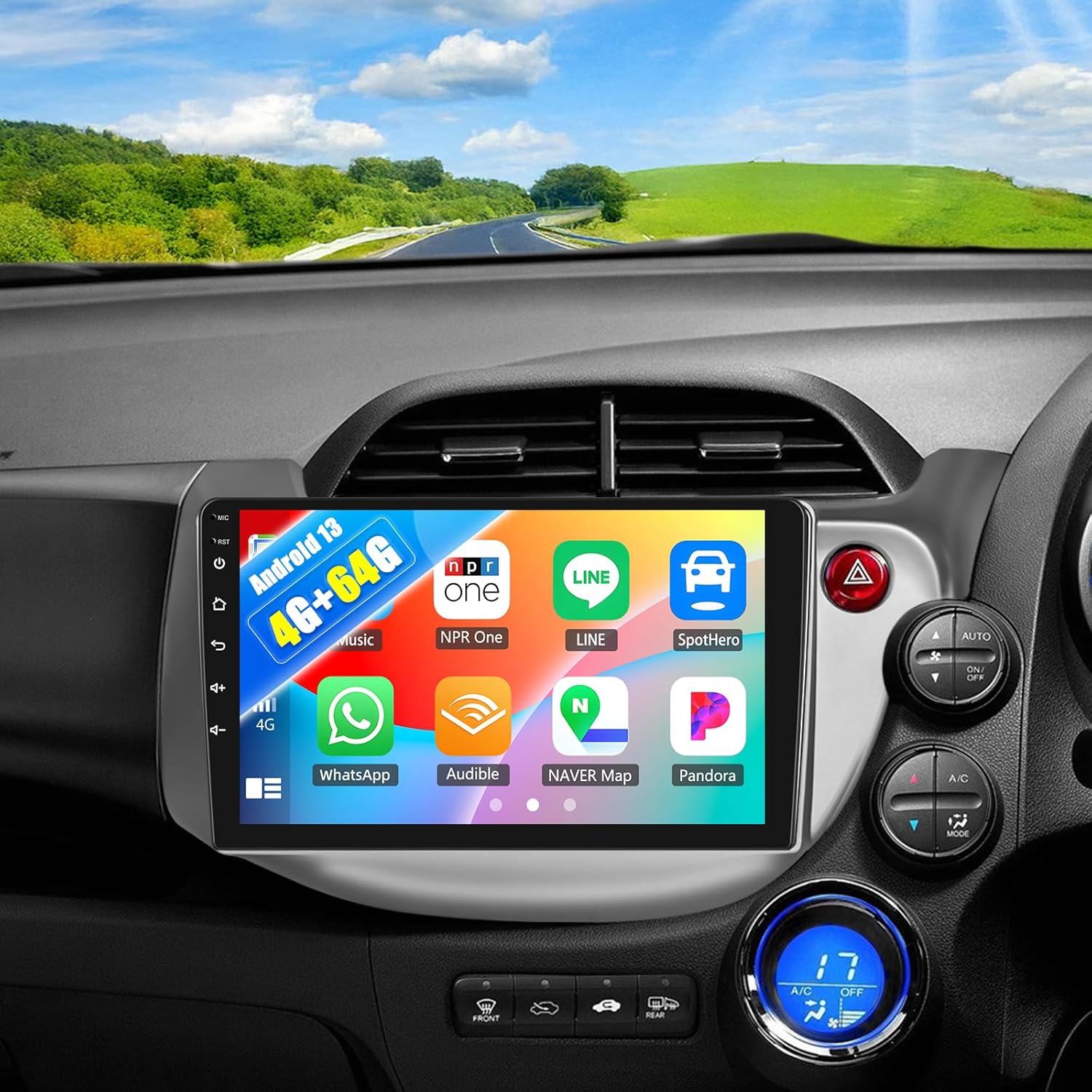
Image 1.1: SIXWIN Android 13 Car Stereo integrated into a Honda Fit Jazz dashboard.
2. Setup and Installation
2.1. Package Contents
Before beginning installation, verify that all components are present in the package:
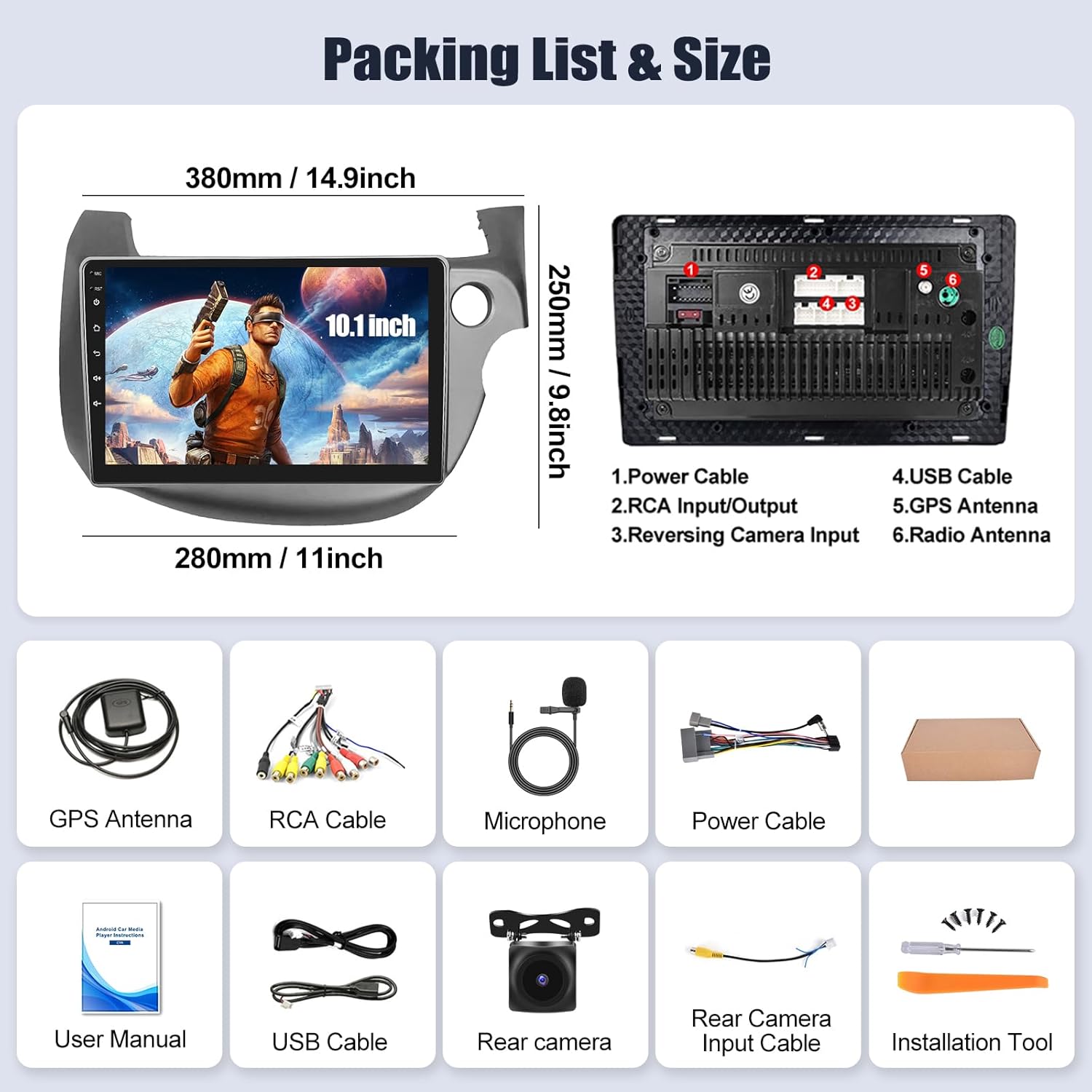
Image 2.1: Packing List and Unit Dimensions.
- 1 x SIXWIN Android 13 Car Stereo Unit (10.1 Inch)
- 1 x Power Cable
- 1 x RCA Input/Output Cable
- 1 x Reversing Camera Input Cable
- 1 x USB Cable
- 1 x GPS Antenna
- 1 x Radio Antenna
- 1 x Microphone
- 1 x Rear Camera
- 1 x Installation Tool
- 1 x User Manual
2.2. Pre-Installation Check
Ensure your vehicle is a Honda Fit Jazz (2008-2013) with right-hand drive. The unit is designed for a direct fit. Professional installation is recommended.
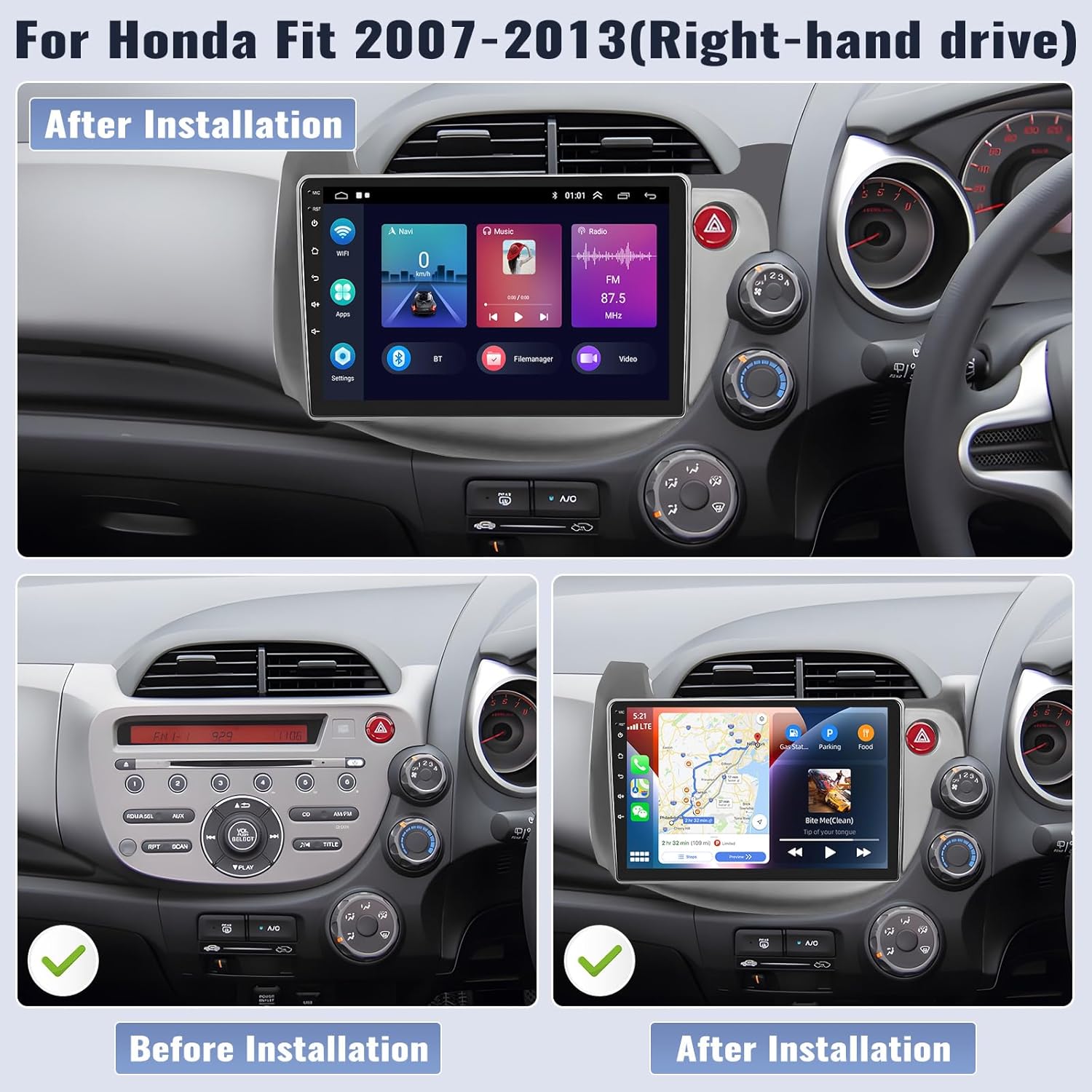
Image 2.2: Before and After Installation in Honda Fit Jazz.
2.3. Wiring Connections
Connect the provided cables to the corresponding ports on the car stereo and your vehicle's wiring harness. Ensure all connections are secure.
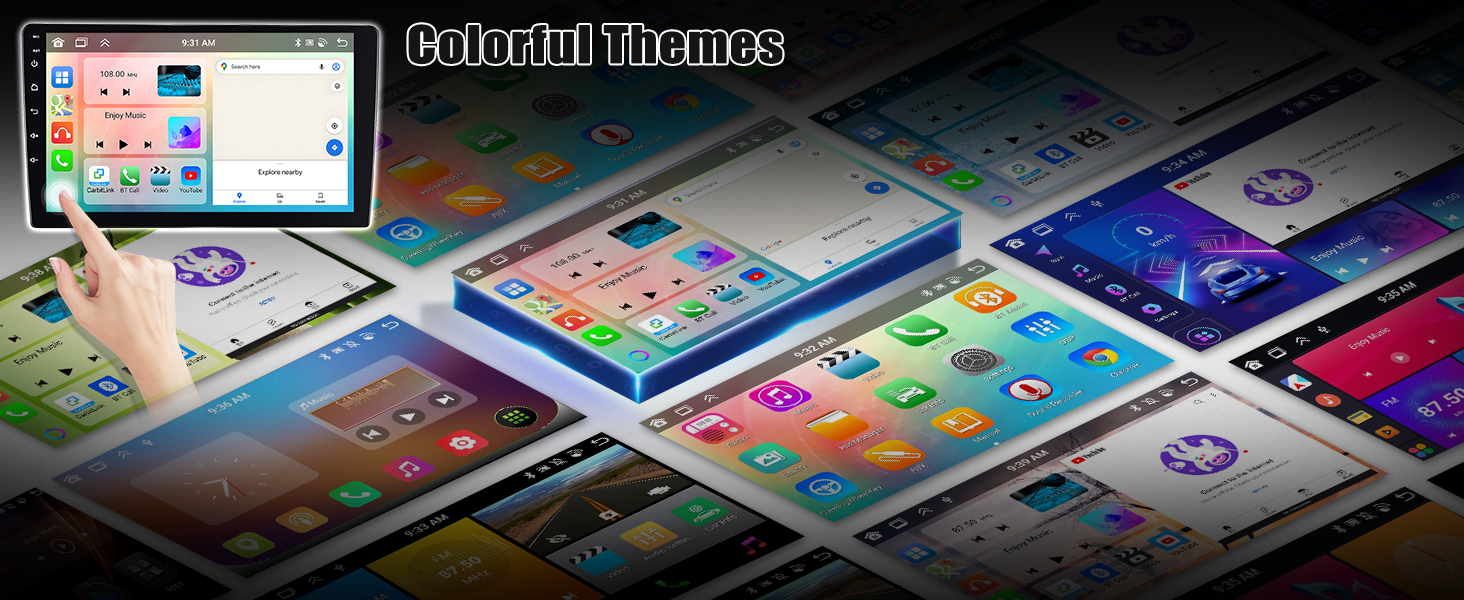
Image 2.3: Product Display and Connection Ports.
2.3.1. Backup Camera Connection
The reversing input must be plugged in even if a reversing camera is not used. Follow these steps for camera wiring:
- Red Cable (1): Connect to the positive pole of the car reversing light cable.
- Black Cable (2): Connect to the negative pole of the car reversing light cable.
- The other two red extension cables (3 & 4) do not need to be connected.
- The white plug must be connected to the main device to ensure Bluetooth and Wi-Fi functionality.
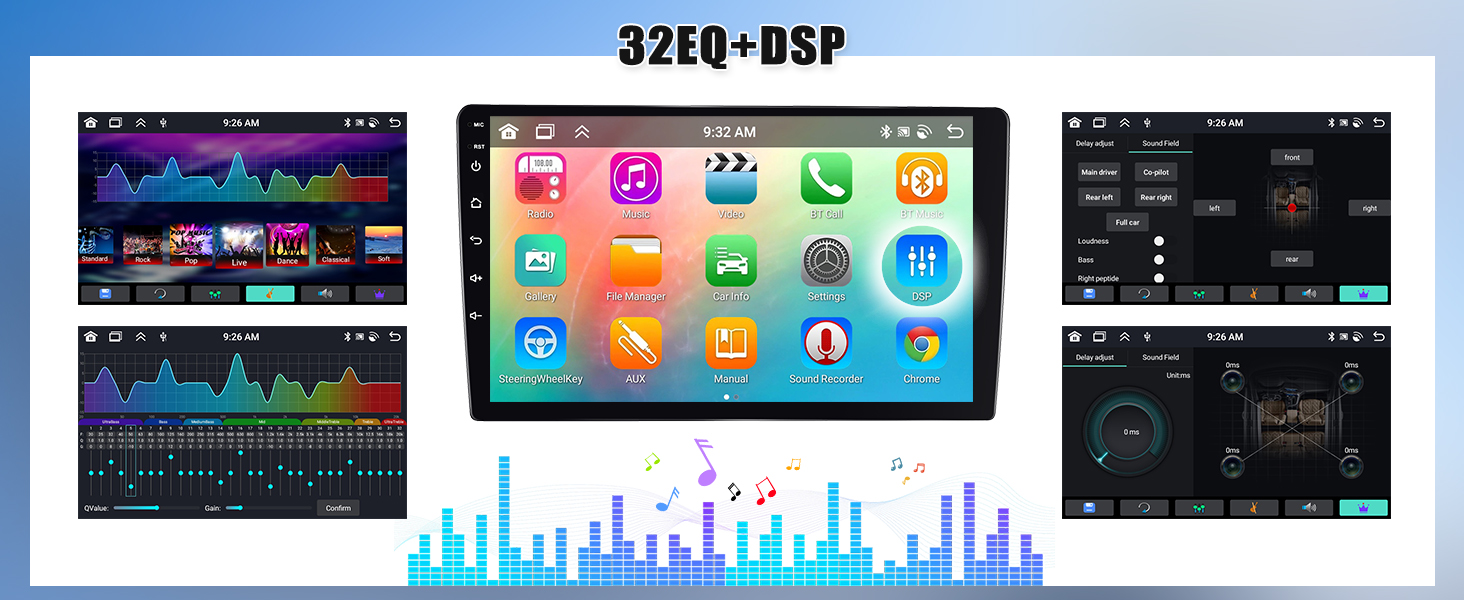
Image 2.4: Backup Camera and CANbus Connection Diagram.
2.3.2. Steering Wheel Control (SWC) Setup
After physical installation, ensure to configure the CANbus settings within the stereo's system to enable steering wheel control functionality.
3. Operating Instructions
3.1. User Interface and Customization
The stereo runs on Android 13, offering a customizable interface with 59 UI desktop themes and 19 wallpaper options. You can personalize the look and feel of your car stereo to match your preferences.

Image 3.1: Weather Forecast, Split Screen, and Wallpaper Options.
3.2. Wireless CarPlay and Android Auto
The unit supports both wireless and wired CarPlay and Android Auto. Connect your smartphone to access navigation, contacts, email, notifications, and music directly on the stereo display. Voice control via Siri or Google Assistant is also supported.
- For CarPlay: Establish a Bluetooth connection between the car stereo and your iPhone. Open the 'Zlink5' app on the car stereo to enjoy wireless Apple CarPlay.
- For Android Auto: Download the Android Auto app on your phone. Establish a Bluetooth connection between the car stereo and your Android phone. Open the 'Zlink5' app on the car stereo to enjoy wireless Android Auto. Note: Samsung phones are not supported for Android Auto.

Image 3.2: Wireless CarPlay and Android Auto Interfaces.
3.3. Bluetooth 5.0
Utilize Bluetooth 5.0 for hands-free calling, streaming Bluetooth music, and downloading phonebooks. An external microphone ensures clear communication during calls.
3.4. GPS Navigation and Wi-Fi
The stereo supports both online and offline navigation. The pre-installed 'Here We Go' app allows for offline map usage after downloading necessary data. Connect to Wi-Fi to use online navigation, browse the internet, and download additional applications.

Image 3.3: Wi-Fi, GPS Navigation, and Network Radio Features.
3.5. Radio Functions
- FM/RDS Radio: Features automatic station search and storage for up to 18 radio stations.
- Network Radio: Access mainstream radio stations from various countries, even when not local.
3.6. Mirror Link
Mirror Link functionality allows you to display your smartphone screen on the car stereo. For iOS devices, it offers one-way control via Wi-Fi. For Android devices, it supports two-way control via Wi-Fi or USB.

Image 3.4: Mirror Link, Steering Wheel Control, and Backup Camera.
3.7. Backup Camera Display
When reversing your vehicle, the unit automatically displays the image from the equipped AHD backup camera, assisting with safer parking maneuvers.
3.8. Steering Wheel Control (SWC)
Once configured, use your vehicle's steering wheel controls to manage functions such as switching songs, adjusting volume, and answering calls, enhancing driving safety and convenience.
3.9. Digital Sound Processor (DSP) with 32-Band EQ
The integrated DSP features a 32-band equalizer for precise audio tuning. It includes 7 preset sound modes to optimize your listening experience.

Image 3.5: Bluetooth, FM/RDS Radio, and DSP 32EQ Controls.
3.10. Weather Forecast
The car radio can display a weekly weather forecast, providing useful information for travel planning.
4. Maintenance
To ensure the longevity and optimal performance of your SIXWIN car stereo, follow these general maintenance guidelines:
- Cleaning: Use a soft, dry cloth to clean the screen and exterior surfaces. Avoid abrasive cleaners or solvents that could damage the finish.
- Temperature: Avoid exposing the unit to extreme temperatures, both hot and cold, for extended periods.
- Moisture: Keep the unit dry. Do not expose it to water or excessive humidity.
- Software Updates: Periodically check for available software updates to ensure the system runs efficiently and securely.
5. Troubleshooting
If you encounter issues with your SIXWIN car stereo, consider the following basic troubleshooting steps:
- No Power: Check all power connections. Ensure the vehicle's ignition is on.
- No Sound: Verify speaker connections. Check volume levels and audio settings (e.g., DSP equalizer).
- Touchscreen Unresponsive: Try restarting the unit. If the issue persists, a factory reset might be necessary (consult support before performing a factory reset).
- GPS Not Working: Ensure the GPS antenna is properly connected and has a clear view of the sky. Check GPS settings within the system.
- Bluetooth/Wi-Fi Issues: Ensure the white plug for the reversing camera input is connected to the main device, as it can affect wireless functionality. Re-pair Bluetooth devices or reconnect to Wi-Fi networks.
- Backup Camera Not Displaying: Check the camera's power and video signal connections. Ensure the reversing input cable is correctly connected to the main unit.
- Steering Wheel Controls Not Working: Verify CANbus settings are correctly configured in the system menu.
For persistent issues, please refer to the support section for contact information.
6. Specifications
| Feature | Specification |
|---|---|
| Model Number | A7246A3454A4MI2 |
| Operating System | Android 13 |
| Display Size | 10.1 Inches |
| Memory | 4GB RAM + 64GB Storage |
| Connectivity | Wireless (Bluetooth 5.0, Wi-Fi) |
| Special Features | Bluetooth, GPS Navigation, Wi-Fi, Rear View Camera Input, Touchscreen, Wireless CarPlay, Android Auto, DSP 32EQ, Network Radio, Weather Forecast, Split Screen, Voice Control |
| Product Dimensions | 1 x 1 x 1 inches |
| Item Weight | 3.99 pounds |
7. Warranty Information
The SIXWIN Android 13 Car Stereo comes with a 1-year warranty from the date of purchase. This warranty covers manufacturing defects and malfunctions under normal use. Please retain your proof of purchase for warranty claims. The warranty does not cover damage caused by improper installation, misuse, accidents, or unauthorized modifications.
8. Support
For online assistance, technical support, or to request a digital copy of the user manual, please contact us via email:
Email: sixwin_vip@163.com

Image 8.1: SIXWIN Customer Support Contact.