1. Introduction
This manual provides detailed instructions for the installation, operation, and maintenance of your Rimoody 9-inch Android Car Stereo. Please read this manual thoroughly before installation and use to ensure proper functionality and safety.
This car stereo is specifically designed for Renault Megane 3 Export models manufactured between 2009 and 2014.

Image 1.1: The Rimoody 9-inch Android Car Stereo unit, rear camera, and external microphone.
2. Package Contents
Verify that all items listed below are included in your package:
- 1 x Car Stereo Unit
- 1 x Power Cable
- 1 x GPS Antenna
- 1 x Rear Camera Input Cable
- 1 x RCA Cable
- 2 x USB Cables
- 2 x Mounting Brackets
- 4 x Screws
- 1 x User Manual (this document)
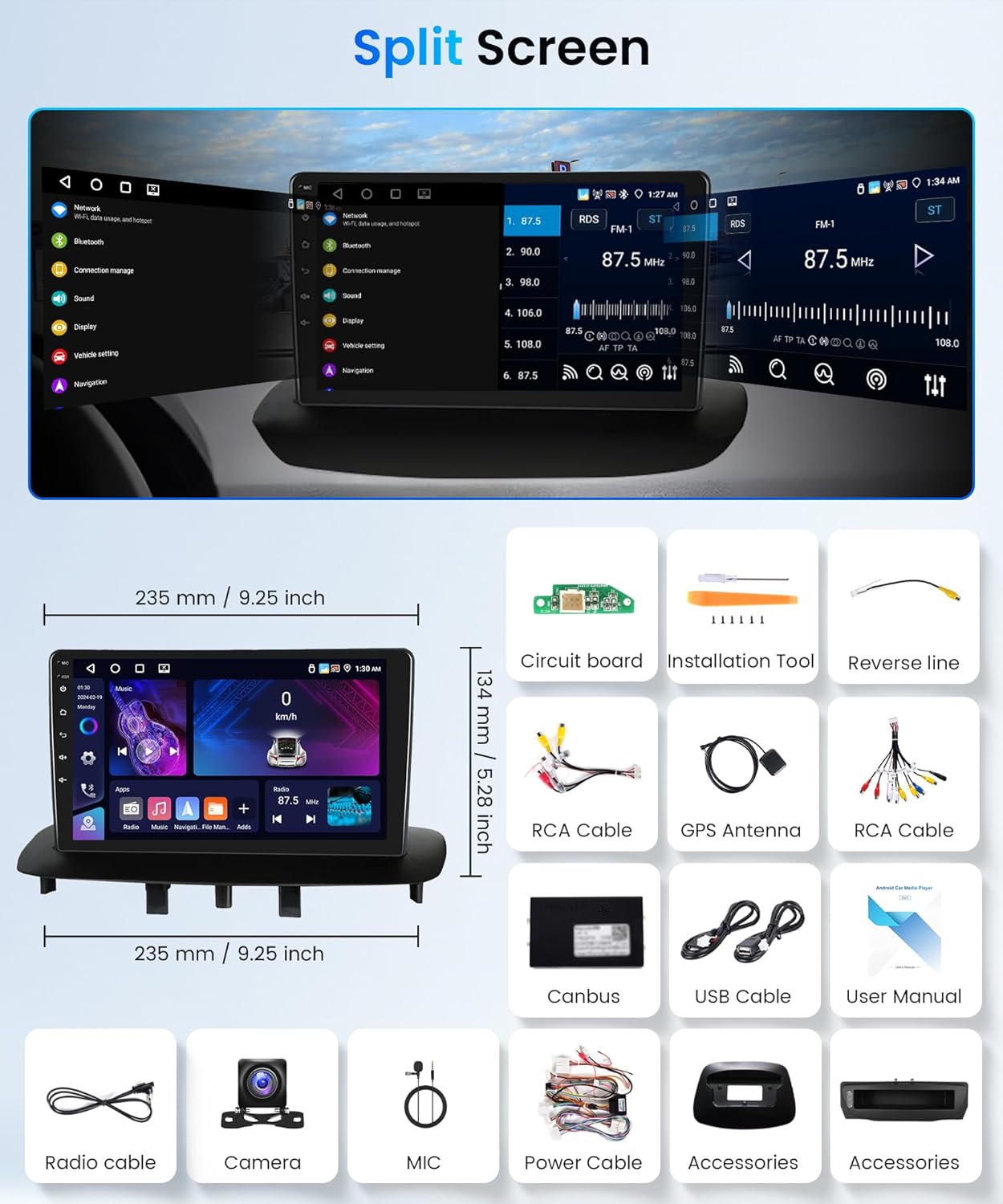
Image 2.1: Overview of the car stereo unit, its dimensions, and all included accessories such as cables, brackets, and the user manual.
3. Safety Information
- Do not operate the device in a manner that distracts you from driving.
- Ensure all wiring is correctly connected to prevent short circuits or damage.
- Consult a professional for installation if you are unsure about any steps.
- Keep the device away from water and extreme temperatures.
4. Installation Guide
4.1. Compatibility Check
Before proceeding with installation, verify that your vehicle's central control panel matches Option A as shown in the image below. This product is compatible only with dashboard configurations similar to Option A. If your vehicle has a dashboard similar to Option B, please contact customer service for suitable recommendations.

Image 4.1: Car dashboard compatibility check. The product is compatible with dashboard type A (left).
4.2. Wiring Connections
Refer to the included wiring diagram for detailed connection instructions. Ensure all cables are securely connected to their corresponding ports:
- Power Cable: Connect to the vehicle's power supply.
- GPS Antenna: Mount in a location with a clear view of the sky for optimal signal reception.
- Rear Camera Input Cable: Connect the rear camera to this input for automatic reverse image display.
- RCA Cable: For audio/video output to external devices (if applicable).
- USB Cables: Connect for media playback or charging devices.
- External Microphone: Connect for improved call quality.
4.3. Mounting the Unit
Use the provided mounting brackets and screws to secure the car stereo unit into the dashboard. Ensure the unit is firmly in place and does not obstruct any vehicle controls.

Image 4.2: Visual comparison of the car's dashboard before and after the installation of the new Android car stereo.
5. Initial Setup & Basic Operation
5.1. Powering On/Off
Press and hold the power button (usually located on the front panel or side) to turn the device on or off. A short press typically toggles the screen on/off or mutes audio.
5.2. Language Settings
Navigate to the system settings menu to select your preferred language. The device supports multiple languages including English, French, German, Spanish, Italian, etc.
5.3. Factory Settings Keyword
The factory settings menu can be accessed using the keyword: 8888. This menu is for advanced configurations and should be used with caution.
6. Key Features & Operation
6.1. Touch Screen Interface
The 9-inch HD touch screen (1280x720 resolution) provides a responsive and intuitive user experience. Navigate through menus and applications by tapping, swiping, and pinching.
6.2. Wireless Carplay & Android Auto
Connect your iOS or Android smartphone wirelessly to access navigation, music, calls, messages, and other apps directly on the car stereo screen. This feature supports voice control for hands-free operation.

Image 6.1: Examples of the user interface for Wireless Carplay, Android Auto, and Mirror Link.
6.3. Mirror Link
Wirelessly project your smartphone's screen content onto the car stereo display. This allows you to view maps, videos, and other applications from your phone on the larger screen.
6.4. GPS Navigation & WiFi
The unit features integrated GPS navigation. You can download offline maps for use without an internet connection. Connect to a Wi-Fi network to access online maps, stream content from apps like YouTube and Spotify, and download applications from the App Store.

Image 6.2: Demonstrates online and offline GPS navigation capabilities and Wi-Fi connectivity for online services.
6.5. Bluetooth 5.0
Pair your mobile phone via Bluetooth 5.0 for hands-free calling and wireless audio streaming. The system supports phonebook access and call history.
6.6. FM/RDS Radio
Tune into FM radio stations. The Radio Data System (RDS) provides additional information such as station name and program type. The system supports automatic, semi-automatic, and precise channel tuning.
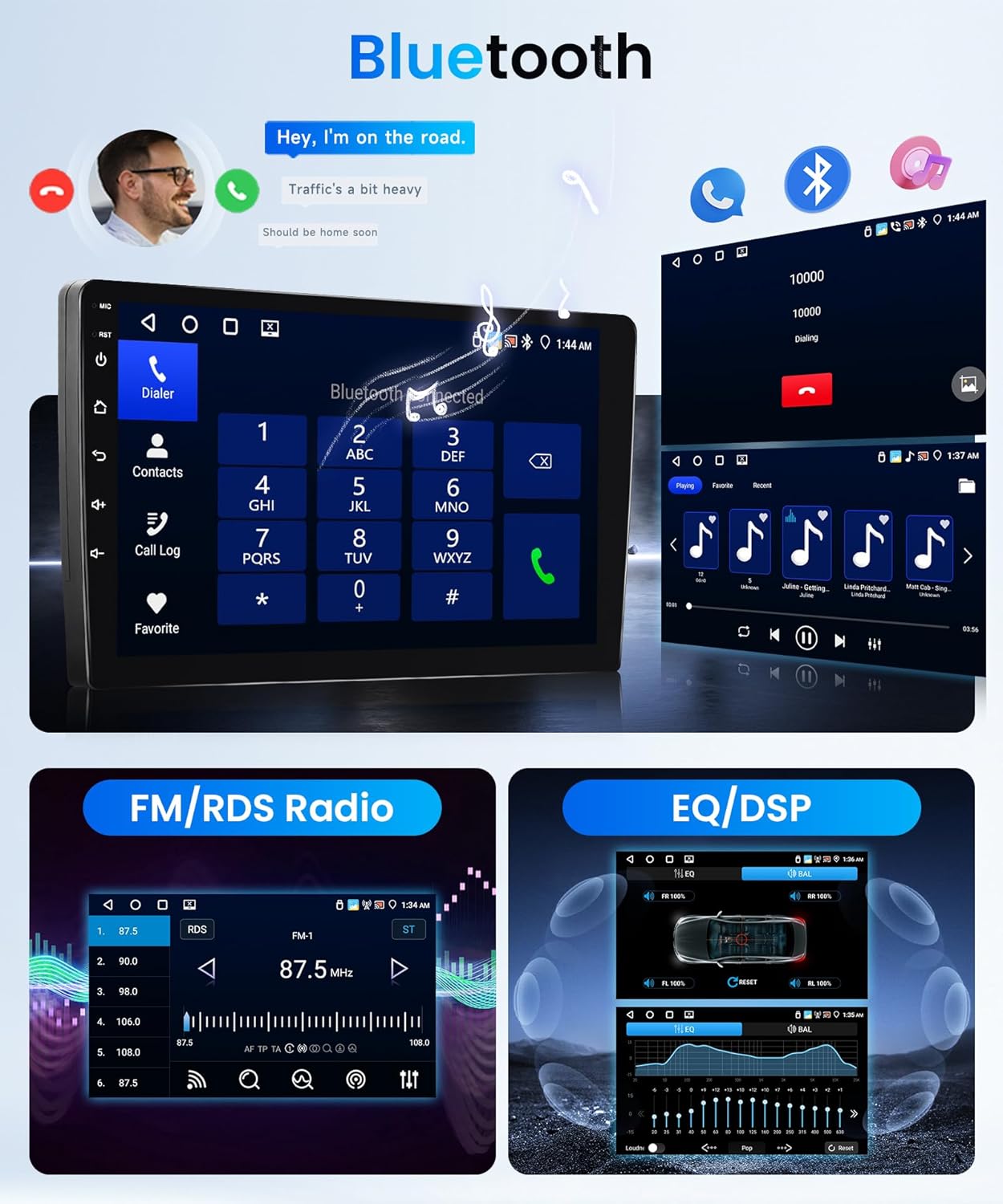
Image 6.3: User interfaces for Bluetooth calls, music playback, FM/RDS radio, and audio equalizer settings.
6.7. Steering Wheel Control (SWC)
The unit supports integration with your vehicle's existing steering wheel controls. This allows you to manage audio playback, answer calls, and navigate menus without taking your hands off the steering wheel. Configuration may be required in the system settings.
6.8. Rear Camera Input
When the vehicle is shifted into reverse, the car stereo automatically displays the feed from the connected rear camera (AHD/CVBS compatible). This enhances safety during parking and reversing maneuvers.

Image 6.4: Display of the reverse camera view with guidelines and an example of the steering wheel control setup menu.
6.9. Split Screen Functionality
The split-screen feature allows you to run two applications simultaneously on the display, such as navigation and music playback.
7. Maintenance
7.1. Cleaning the Screen
Use a soft, lint-free cloth to gently wipe the screen. For stubborn smudges, slightly dampen the cloth with water or a screen-cleaning solution. Avoid harsh chemicals or abrasive materials.
7.2. Software Updates
Periodically check for software updates to ensure optimal performance and access to new features. Updates can typically be performed via a Wi-Fi connection.
8. Troubleshooting
- No Power: Check all power connections and the vehicle's fuse box.
- No Sound: Verify speaker connections, volume settings, and audio source selection.
- GPS Not Working: Ensure the GPS antenna is properly installed and has a clear view of the sky. Download offline map data if necessary.
- Bluetooth Connection Issues: Ensure Bluetooth is enabled on both the car stereo and your phone. Try unpairing and re-pairing the devices.
- Rear Camera Not Displaying: Check the camera's power and video input connections. Ensure the vehicle is in reverse gear.
- Touch Screen Unresponsive: Try restarting the unit. If the issue persists, a factory reset (using keyword 8888) might be necessary, but this will erase all settings.
9. Specifications
| Feature | Specification |
|---|---|
| Brand | Rimoody |
| Model Name | 4G+64G |
| System | Android |
| CPU | RK3326S (4 Cores) |
| Screen Size | 9 Inches |
| Memory | 4GB RAM + 64GB ROM |
| Screen Resolution | 1280*720 |
| Output Power | 4*45W |
| Bluetooth Version | 5.0 |
| Radio Band | FM/RDS |
| Connectivity Technology | Bluetooth, USB, Wi-Fi |
| Carplay/Android Auto | Wireless Connection Only |
| Mirror Link | Wireless Connection Only |
| GPS | Integrated (Offline maps, requires internet for download) |
| Rear Camera Input | AHD/CVBS Support |
| Steering Wheel Control | Supported |
| Split Screen | Supported |
| Operating Temperature | -20℃ to 75℃ |
| Mounting Type | Dashboard Mount |
10. Warranty Information
This product comes with a 2-year manufacturer warranty. Please retain your proof of purchase for warranty claims. The warranty covers defects in materials and workmanship under normal use.
11. Support
For further assistance, technical support, or specific inquiries not covered in this manual, please contact Rimoody customer service. Refer to your purchase documentation for contact details.


