
Bluetooth Touchpad Keyboard Leather Flip Case Cover for iPad Pro 12.9 (6th Generation 2022)
Generic Bluetooth Touchpad Keyboard Leather Flip Case Cover for iPad Pro 12.9-inch (6th Generation 2022) Instruction Manual
Introduction
This manual provides comprehensive instructions for the setup, operation, and maintenance of your Generic Bluetooth Touchpad Keyboard Leather Flip Case Cover, designed for the iPad Pro 12.9-inch (6th Generation 2022). Please read this manual carefully before use to ensure proper functionality and to maximize your product experience.

Figure 1: Product overview showing the case, detachable keyboard, and wireless mouse.
Package Contents
- 1 x Leather Flip Case for iPad Pro 12.9-inch (6th Generation 2022)
- 1 x Detachable Bluetooth Keyboard with Touchpad
- 1 x Bluetooth Wireless Mouse
- 1 x USB Charging Cable (for keyboard and mouse)
- 1 x User Manual (this document)
Setup
1. Installing Your iPad
- Gently align your iPad Pro 12.9-inch with the case's interior frame.
- Press the iPad firmly into the case, ensuring all corners and edges are securely seated. The case is designed with precise cutouts for all buttons, ports, and the camera.
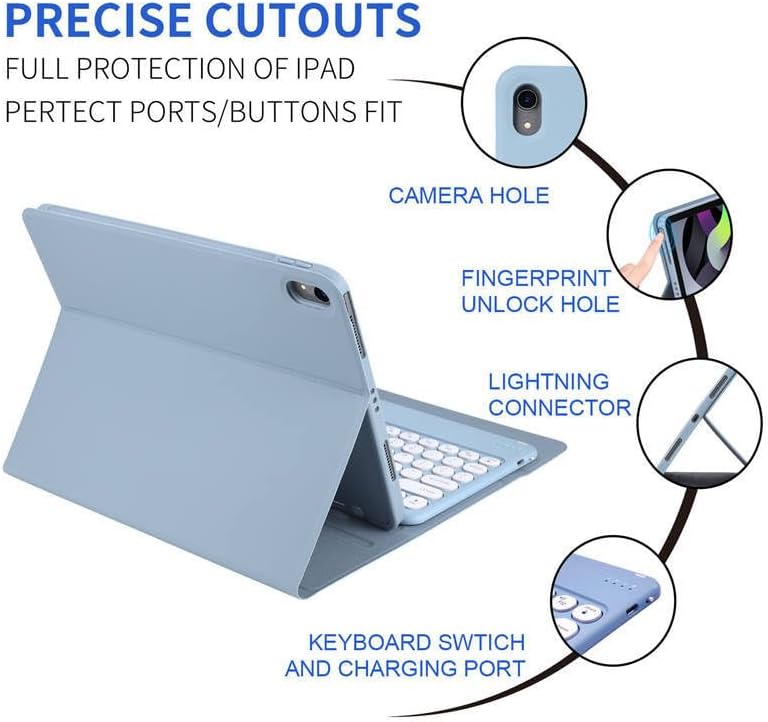
Figure 2: Illustration of precise cutouts for device access.
2. Charging the Keyboard and Mouse
Before initial use, ensure both the keyboard and mouse are fully charged.
- Connect the provided USB charging cable to the charging port on the keyboard and mouse.
- Connect the other end of the cable to a USB power adapter (not included) or a computer's USB port.
- An indicator light will show charging status and turn off or change color when fully charged.
3. Pairing the Bluetooth Keyboard
- Turn on the keyboard by sliding the power switch, usually located on the side or back. An indicator light will flash.
- Press the "Connect" or "Pairing" button on the keyboard (refer to specific keyboard markings if available). The Bluetooth indicator light will start flashing rapidly.
- On your iPad, go to Settings > Bluetooth.
- Ensure Bluetooth is turned On.
- Your iPad will search for nearby Bluetooth devices. Select "Bluetooth Keyboard" or a similar name from the list of available devices.
- If prompted, enter the pairing code displayed on your iPad onto the keyboard and press Enter.
- Once paired, the Bluetooth indicator light on the keyboard will stop flashing and remain solid or turn off.

Figure 3: Detachable Bluetooth keyboard with integrated touchpad.
4. Pairing the Bluetooth Mouse
- Turn on the mouse by sliding the power switch, usually on the bottom.
- Press and hold the pairing button on the bottom of the mouse until the indicator light flashes.
- On your iPad, go to Settings > Bluetooth.
- Ensure Bluetooth is turned On.
- Select "Bluetooth Mouse" or a similar name from the list of available devices.
- Once paired, the indicator light on the mouse will stop flashing.
Operating Instructions
1. Using the Keyboard
- Typing: The keyboard functions like a standard QWERTY keyboard.
- Special Function Keys: Many keys along the top row (F1-F12 equivalents) are dedicated function keys for iPad controls such as volume, media playback, screen lock, and home screen access. Refer to the key icons for their specific functions.
- Quiet Keycaps: The keyboard features round keycaps designed for quiet operation and a responsive typing experience.
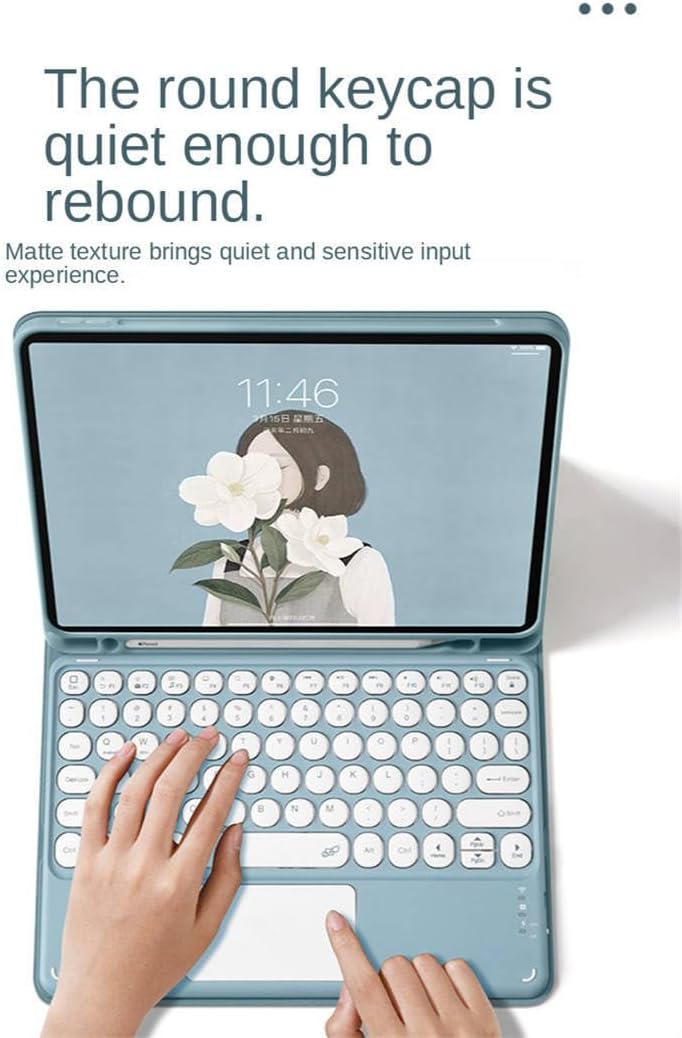
Figure 4: Keyboard design highlighting quiet round keycaps.
2. Using the Touchpad
The integrated touchpad supports multi-touch gestures for navigation and interaction with your iPad. Common gestures include:
- Single Finger Tap: Click/Select
- Two Finger Scroll: Scroll up/down or left/right
- Pinch to Zoom: Zoom in/out
- Swipe with Three Fingers: Switch between open applications (direction may vary based on iPadOS settings).
3. Case Functionality
- Detachable Keyboard: The keyboard attaches magnetically to the case and can be removed for independent use or when only the case is desired.
- Viewing Stand: The case can be folded into various angles to create a stable viewing stand for your iPad, suitable for typing, watching videos, or drawing.
- Protection: The case provides protection for all four corners against bumps and scratches, while allowing full access to all buttons, ports, and the camera.
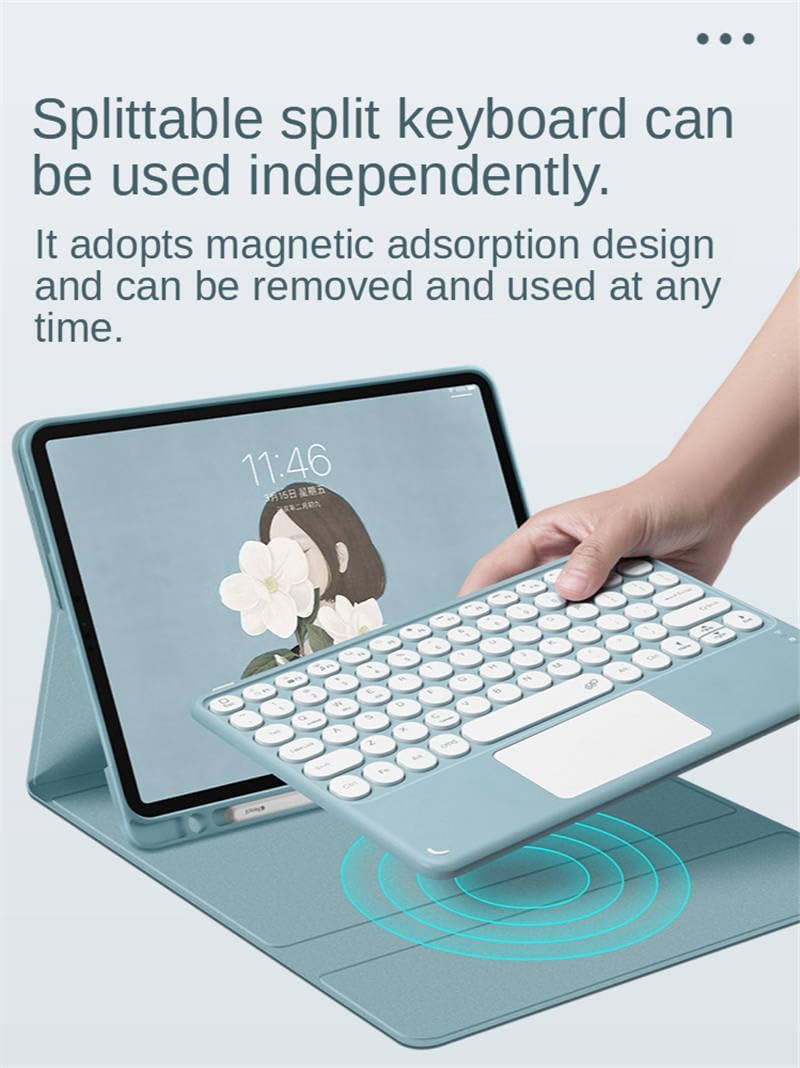
Figure 5: Magnetic detachable keyboard feature.

Figure 6: iPad case configured as a viewing stand with the keyboard.
Maintenance
- Cleaning the Case: Wipe the leather flip case with a soft, damp cloth. Avoid harsh chemicals or abrasive cleaners.
- Cleaning the Keyboard/Mouse: Use a soft, dry cloth to clean the keyboard and mouse. For stubborn dirt, a slightly damp cloth can be used, ensuring no moisture enters the device.
- Charging: Recharge the keyboard and mouse when their battery indicator lights show low power to ensure uninterrupted use.
- Storage: When not in use for extended periods, store the product in a cool, dry place.
Troubleshooting
| Problem | Solution |
|---|---|
| Keyboard/Mouse not connecting to iPad. |
|
| Keys are not responding. |
|
| Touchpad not working. |
|
Specifications
- Compatibility: iPad Pro 12.9-inch (6th Generation 2022)
- Connectivity: Bluetooth Wireless
- Keyboard Features: Detachable, Touchpad, Round Keycaps
- Case Material: Synthetic Leather, Silicon, Rubber, Polycarbonate
- Product Dimensions: 0.1 x 1.97 x 0.79 inches (Note: These dimensions may refer to a component or packaging. The actual case dimensions will be larger to accommodate the iPad.)
- ASIN: B0F897L966
- Manufacturer: Generic CASE
Warranty and Support
This product is covered by a standard manufacturer's warranty. For specific warranty details, please refer to the documentation provided at the time of purchase or contact your retailer. For technical support or further assistance, please contact the seller through the platform where the product was purchased.
Ask a question about this manual
Ask about setup, troubleshooting, compatibility, parts, safety, or missing instructions. Manuals+ will review the question and use this page’s manual context to help answer it.