
Introduction
This manual provides detailed instructions for the setup, operation, and maintenance of your GTORCZDF X60 Professional Live Sound Card DJ Mixer. Please read this manual thoroughly before using the device to ensure proper functionality and to maximize your experience.
Setup Guide
Package Contents
Before you begin, please ensure all items are present in the package:
- 1 x GTORCZDF X60 Live Sound Card
- 1 x Audio Cable
- 1 x USB Type-C Cable
- 1 x User Manual
Connecting the Device
The X60 Live Sound Card is designed for wired transmission and can be connected to various devices for live streaming, recording, and mixing. Refer to the back panel diagram for port identification.

- Condenser Mic (mic1, mic2, mic3): Connect up to three condenser microphones to these 3.5mm input jacks.
- Headset: Plug in your headset for monitoring audio output and microphone input.
- Live1 / Live2: Use these 3.5mm output jacks to connect to your mobile device or computer for live streaming.
- Accompany: Connect an external audio source (e.g., a phone or tablet) to this 3.5mm input for background music or accompaniment.
- OTG/PC Live: Use the USB Type-C port to connect the sound card to a computer or an OTG-compatible mobile device for digital audio transmission and live streaming.
- Charging (5V=1A): Connect the provided USB Type-C cable to a 5V/1A power adapter (not included) for charging the built-in battery.
Operating Instructions
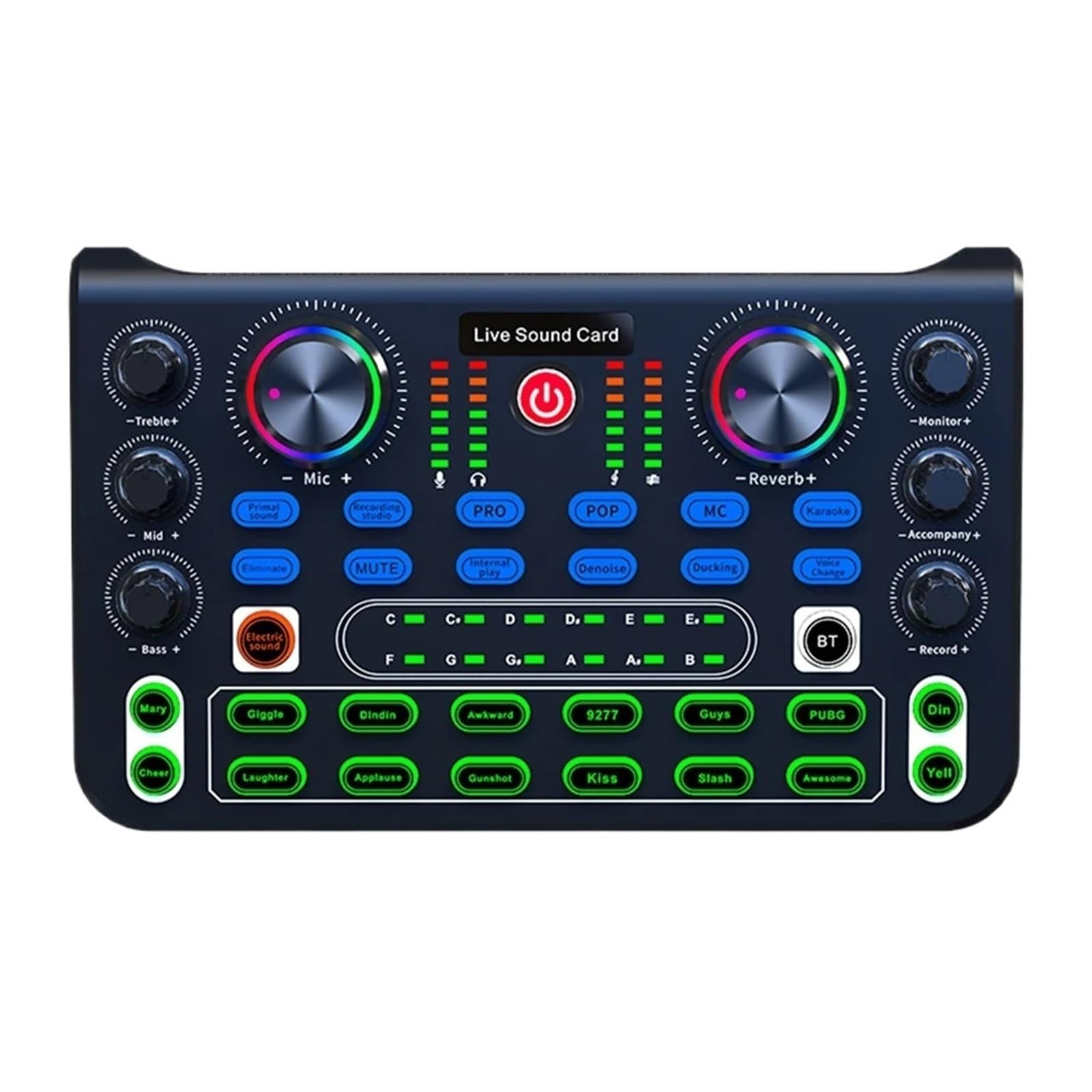
The X60 Live Sound Card features a comprehensive set of controls for audio mixing and effects. Familiarize yourself with the front panel layout.

Main Controls
- Power Button: Press and hold to turn the device on or off.
- Treble / Mid / Bass Knobs: Adjust the high, mid, and low frequencies of your microphone input.
- Mic+ Knob: Controls the overall microphone input volume.
- Reverb+ Knob: Adjusts the intensity of the reverb effect.
- Monitor+ Knob: Controls the volume of the monitoring output (headset).
- Accompany+ Knob: Adjusts the volume of the external accompaniment input.
- Record+ Knob: Controls the recording output volume.
Sound Effects and Modes
The X60 offers 8 kinds of sound effects and 16 kinds of effect modes for enhanced audio performance:
- Sound Effects Buttons (e.g., Primal Sound, Recording Studio, POP, MC, Karaoke): Select different sound modes to suit your performance.
- Eliminate: One-key function to effectively remove vocals from a song, making it suitable for karaoke.
- MUTE: Mutes all audio output.
- Internal Play: Activates internal playback mode.
- Denoise: Reduces background noise for clearer audio.
- Ducking: Automatically lowers background music volume when speaking into the microphone.
- Voice Change: Modifies your voice with various effects.
- BT (Bluetooth): Activates Bluetooth pairing for wireless accompaniment input.
- Effect Buttons (e.g., Mary, Giggle, Din, Yell, Laughter, Applause, Gunshot, Kiss, Slash, Awesome): Trigger various short sound effects during your live stream or recording.
Maintenance
To ensure the longevity and optimal performance of your GTORCZDF X60 Live Sound Card, follow these maintenance guidelines:
- Cleaning: Use a soft, dry cloth to wipe the surface of the device. Avoid using liquid cleaners or abrasive materials, as they may damage the finish or internal components.
- Storage: Store the sound card in a cool, dry place away from direct sunlight, extreme temperatures, and high humidity.
- Handling: Handle the device with care. Avoid dropping it or subjecting it to strong impacts.
- Connections: Always insert and remove cables gently to prevent damage to the ports.
Troubleshooting
If you encounter issues with your GTORCZDF X60 Live Sound Card, refer to the following common troubleshooting steps:
- No Power: Ensure the device is fully charged or connected to a stable 5V/1A power source. Press and hold the power button to turn it on.
- No Sound Output: Check all audio cable connections. Ensure volume knobs (Mic+, Reverb+, Monitor+, Accompany+, Record+) are not set to minimum. Verify that the MUTE button is not active.
- Microphone Not Working: Confirm the microphone is correctly plugged into a Condenser Mic input. Check microphone volume settings on the device.
- Bluetooth Connection Issues: Ensure Bluetooth is enabled on both the sound card and your pairing device. Try restarting both devices and attempting to pair again.
- Distorted Audio: Reduce input volumes (Mic+, Accompany+) to prevent clipping. Check cable integrity.
Specifications
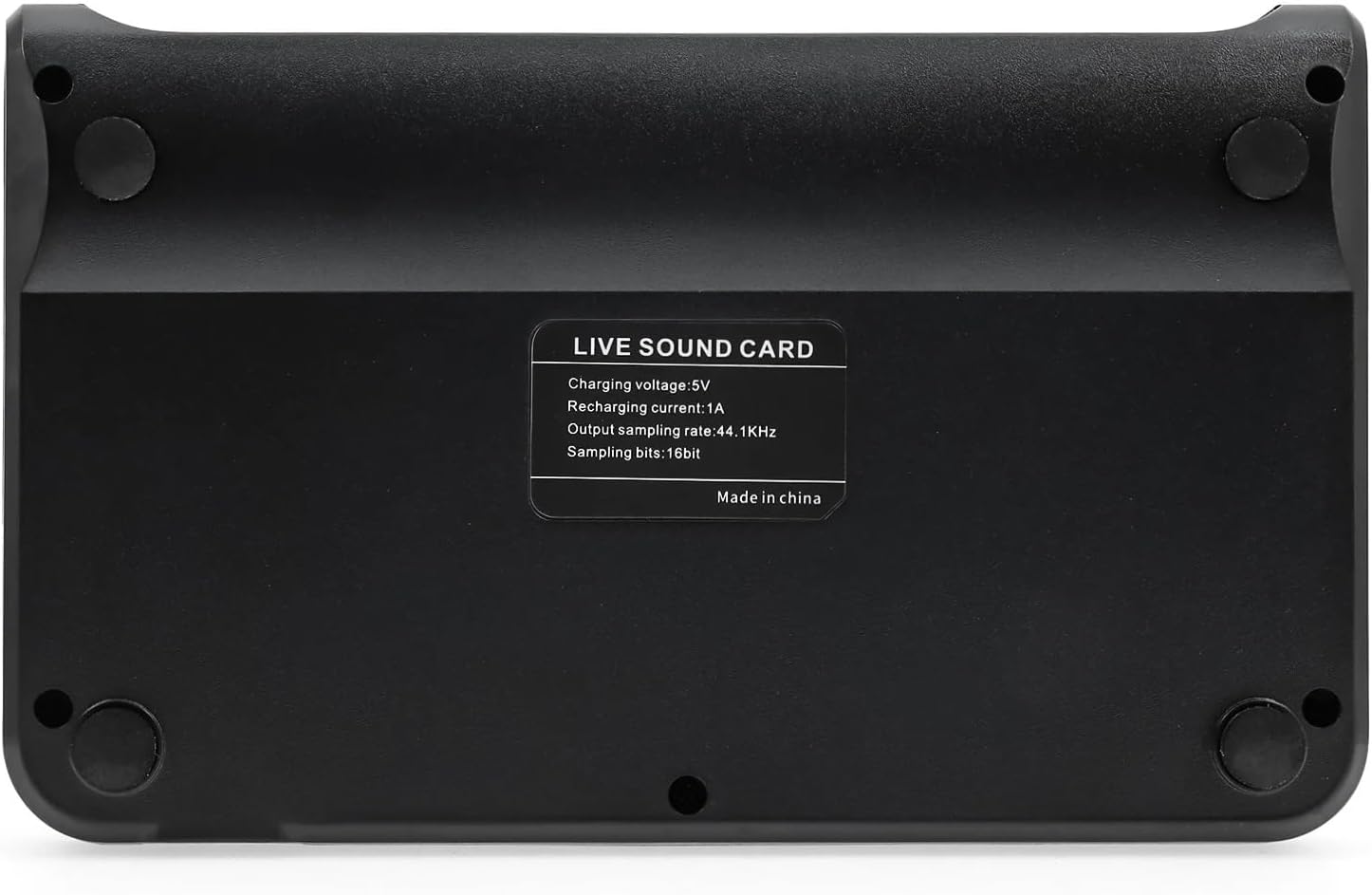
Detailed technical specifications for the GTORCZDF X60 Live Sound Card DJ Mixer:

| Feature | Specification |
|---|---|
| Transmission Method | Wired |
| Applicable Scenario | Live Streaming |
| Power Supply Mode | 800mAh Built-In 18650 Lithium Battery |
| Pointing Features | Omnidirectional/Non-Directional |
| Charging Voltage | 5V |
| Recharging Current | 1A |
| Output Sampling Rate | 44.1KHz |
| Sampling Bits | 16bit |
| Dimensions (W x D x H) | 175mm x 108mm x 40mm (approx. 6.89" x 4.25" x 1.57") |


