
Introduction
Thank you for purchasing the HUO JI Wireless Keyboard and Mouse Set. This manual provides detailed instructions for setup, operation, maintenance, and troubleshooting to ensure optimal performance and longevity of your device. Please read this manual thoroughly before use.
Package Contents
- Wireless Keyboard (English US Layout, 106-key)
- Wireless Mouse
- USB Receiver (stored inside the mouse)
- AAA Battery (for mouse, 1 piece)
- AA Battery (for keyboard, 1 piece)
Setup Instructions
1. Battery Installation
The keyboard requires one AA battery and the mouse requires one AAA battery. Batteries are included in the package.
- For the Mouse: Open the battery compartment cover on the bottom of the mouse. Insert one AAA battery, ensuring correct polarity (+/-). Close the cover.
- For the Keyboard: Open the battery compartment cover on the bottom of the keyboard. Insert one AA battery, ensuring correct polarity (+/-). Close the cover.
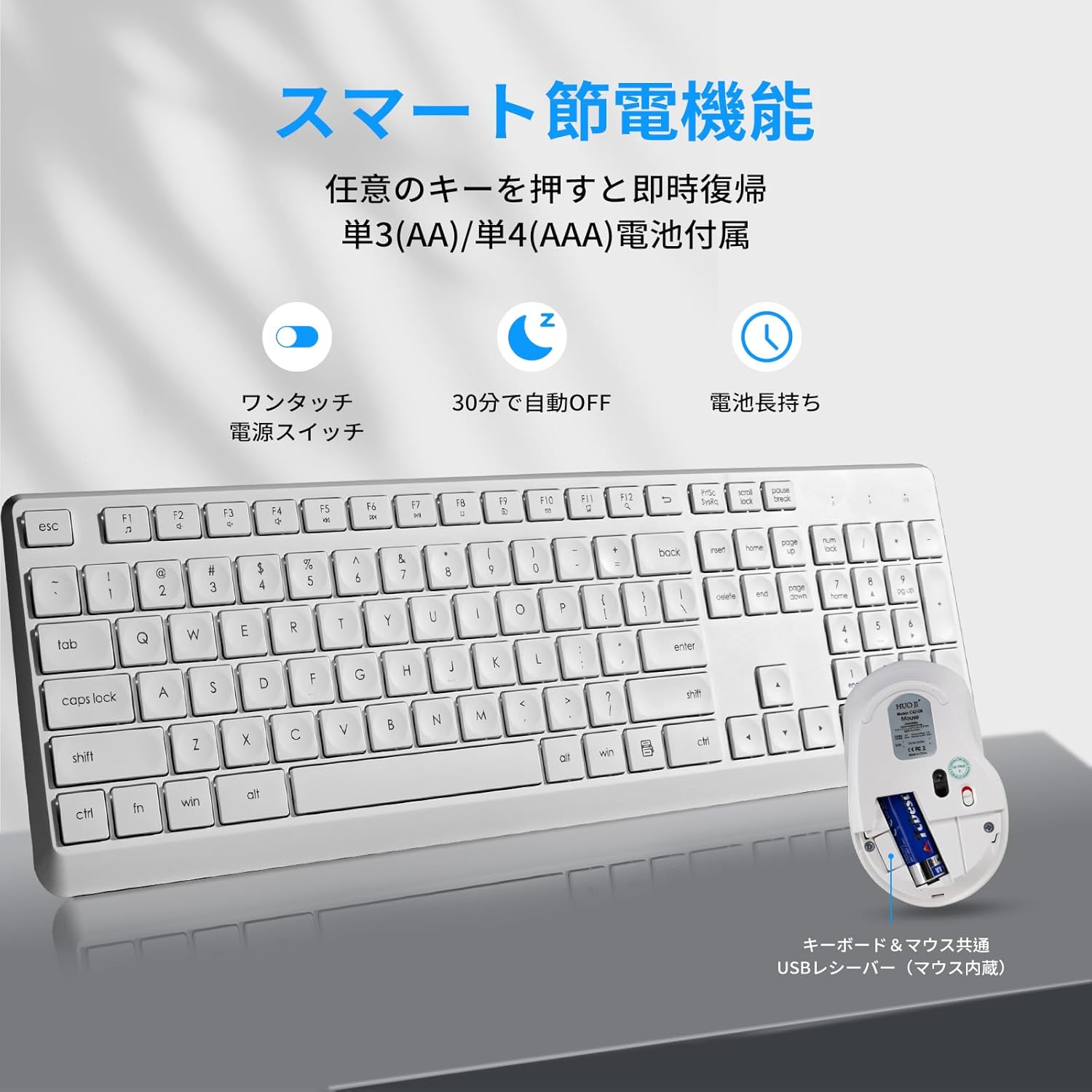
Figure 1: Battery installation for both the keyboard and mouse. The mouse battery compartment also houses the USB receiver.

Figure 2: Close-up of the mouse's underside, showing the AAA battery and the USB receiver slot.
2. USB Receiver Connection
The keyboard and mouse share a single USB receiver for connection.
- Locate the USB receiver, which is stored in the battery compartment of the mouse.
- Plug the USB receiver into an available USB port on your computer.
- The system will automatically detect and install the necessary drivers. No manual driver installation is required.
- Turn on the power switch located on the bottom of the mouse.

Figure 3: The USB receiver is shared between the keyboard and mouse and is conveniently stored within the mouse.

Figure 4: Simply insert the ultra-small USB receiver into your computer for immediate use.
3. System Compatibility
This wireless keyboard and mouse set is compatible with various operating systems, including Windows, Mac OS, and Chrome OS.
Important Note for Mac Users: While compatible, some multimedia shortcut keys may have limited functionality on Mac OS.

Figure 5: The keyboard and mouse offer wide compatibility with various operating systems.
Operating Instructions
1. Keyboard Functions
The keyboard features a full-size 106-key English (US) layout. It includes a numeric keypad for efficient data entry.
Ergonomic Design: The keyboard is designed with an ergonomic tilt to reduce wrist fatigue during prolonged typing. It features foldable stands to adjust the typing angle.

Figure 6: The ergonomic design with adjustable tilt provides a comfortable typing experience.
2. Multimedia Shortcut Keys
The keyboard is equipped with 12 multimedia shortcut keys (F1-F12) that can be activated by pressing the 'Fn' key in combination with the respective F-key. These keys allow for quick access to functions such as email, browser, volume control, and media playback.
- Fn + F1: Media Player
- Fn + F2: Volume Down
- Fn + F3: Volume Up
- Fn + F4: Mute
- Fn + F5: Previous Track
- Fn + F6: Next Track
- Fn + F7: Play/Pause
- Fn + F8: Stop
- Fn + F9: Home Page
- Fn + F10: Email
- Fn + F11: My Computer
- Fn + F12: Calculator

Figure 7: The 12 multimedia hotkeys provide quick access to common functions.
3. Silent Operation
Both the keyboard and mouse are designed for silent operation, minimizing click and typing noise. This makes them suitable for quiet environments such as offices, libraries, or late-night work.

Figure 8: The silent design ensures minimal noise during use.
4. Smart Power Saving Function
The device features a smart power-saving mode. After 10 minutes of inactivity, the keyboard and mouse will automatically enter sleep mode to conserve battery life. Press any key or move the mouse to wake them up instantly.
Figure 9: Smart power saving features extend battery life significantly.
Maintenance
1. Cleaning
To clean your keyboard and mouse, use a soft, dry cloth. For stubborn dirt, slightly dampen the cloth with water or a mild cleaning solution. Avoid using harsh chemicals or abrasive materials.
2. Battery Replacement
When the battery low indicator light on the keyboard illuminates, or if the mouse responsiveness decreases, it is time to replace the batteries. Follow the battery installation steps outlined in the 'Setup Instructions' section.
3. Storage
When not in use for extended periods, remove the batteries from both the keyboard and mouse to prevent leakage. Store the devices in a cool, dry place away from direct sunlight and extreme temperatures.
Troubleshooting
- Device not responding:
Ensure the USB receiver is securely plugged into a working USB port. Check if the batteries in both the keyboard and mouse are correctly installed and have sufficient charge. Turn the mouse power switch ON. - Intermittent connection:
Move the keyboard and mouse closer to the USB receiver. Avoid placing the receiver near other wireless devices or large metal objects that might cause interference. - Keyboard layout issues (e.g., @ key, Enter key shape):
This product uses an English (US) layout keyboard. The physical layout of certain keys (e.g., Enter key shape, location of @ and backslash) differs from a Japanese layout. If you are using a Japanese OS environment, you may need to add "English" as an input language in your OS settings to ensure correct key mapping. - Mouse cursor erratic or unresponsive:
Ensure the mouse sensor is clean and free from obstructions. Use the mouse on a suitable surface (not highly reflective or transparent). Replace the mouse battery if necessary. - Battery low indicator:
The keyboard has a battery low warning light. When it illuminates, replace the AA battery in the keyboard.

Figure 10: Keyboard dimensions and layout. Note the English (US) layout which may differ from Japanese layouts.

Figure 11: Keyboard indicator lights for Num Lock, Caps Lock, and Battery Low.
Specifications
| Brand | HUO JI |
| Model | B0F87XQFJG |
| Color | White |
| Connectivity Technology | 2.4GHz Wireless |
| Special Features | Ergonomic, Lightweight, Silent Design, Multimedia Keys |
| Compatible Devices | Laptop, Desktop PC |
| Operating System | Mac OS, Windows, Chrome OS |
| Number of Keys | 106 |
| Keyboard Layout | QWERTY (English US Layout) |
| Required Batteries | 1x AA (Keyboard), 1x AAA (Mouse) |
| Battery Life | Up to 12 months (typical use) |
Warranty and Support
HUO JI provides a 1-year quality guarantee for this product, including repair or replacement for defects. Dedicated support is available 365 days a year to assist with any questions or issues.
Contacting Support:
For assistance, please follow these steps:
- Log in to your Amazon account.
- Go to 'Your Orders'.
- Select the relevant order for this product.
- Click the 'Contact Seller' button.

Figure 12: HUO JI offers comprehensive long-term warranty and customer support services.