1. Introduction
This manual provides detailed instructions for the installation, operation, and maintenance of your new 12.3-inch Android Car Stereo. Designed for Toyota RAV4 models from 2023 to 2025, this head unit offers advanced features including Android 14 OS, a 1920x720 QLED touchscreen, Wireless Apple CarPlay, Android Auto, built-in DSP, Bluetooth 5.0, AM/FM radio, and GPS navigation. Please read this manual thoroughly before installation and use to ensure proper functionality and safety.
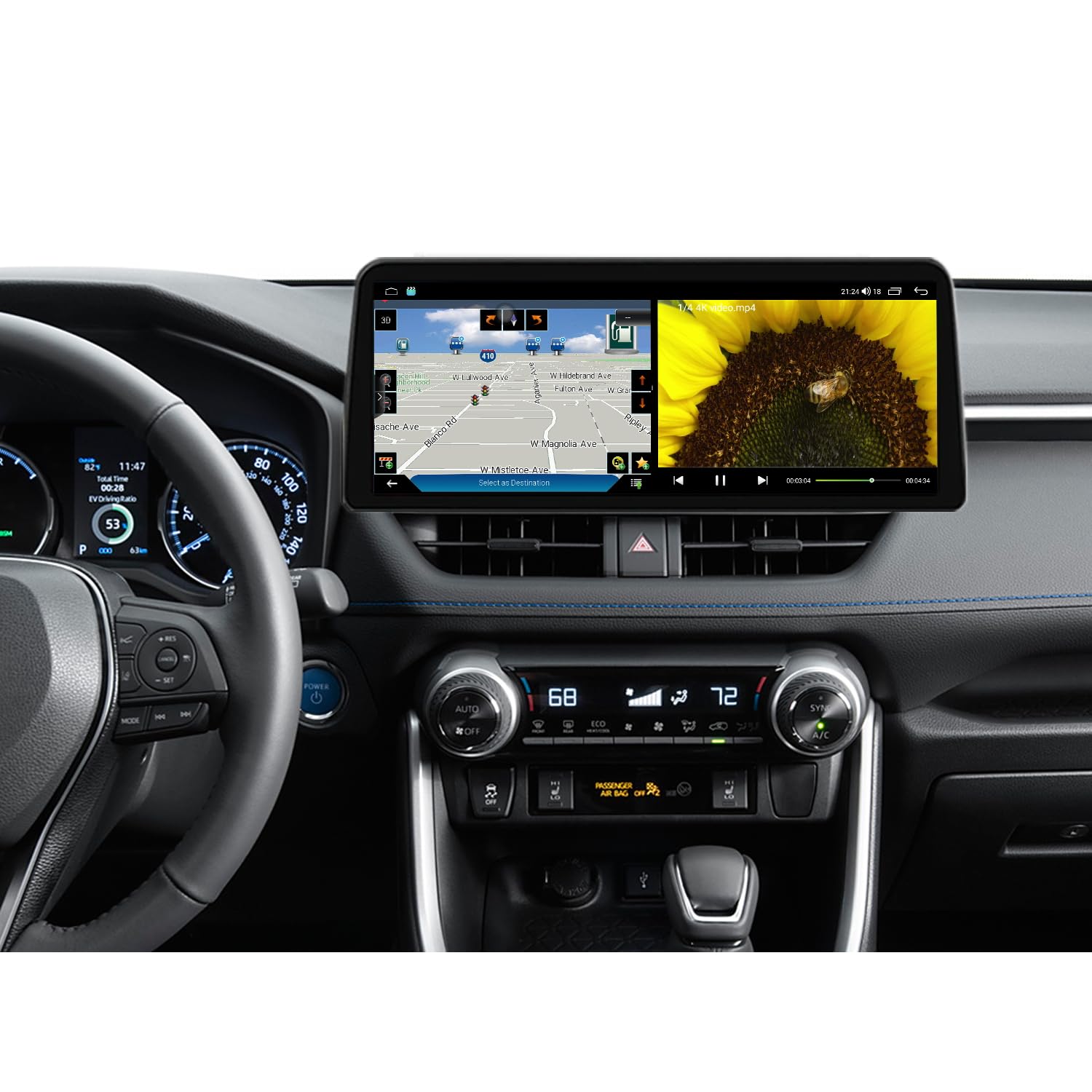
Image: The 12.3-inch Android Car Stereo seamlessly integrated into the dashboard of a Toyota RAV4, showcasing its large display and user interface.
2. Package Contents
Verify that all items listed below are included in your package:
- 12.3-inch Android Car Stereo Head Unit
- Power Cable (Plug and Play)
- GPS Antenna
- Microphone
- Dual USB Cable
- Audio Output Cables
- Camera Input Cable
- CANBUS Decoder
- User Manual (this document)

Image: A visual representation of all included accessories and cables, such as the main unit, power cable, GPS antenna, USB cables, and various audio/video connectors.
3. Setup and Installation
Professional installation is recommended. Ensure the vehicle's battery is disconnected before starting the installation process. Refer to your vehicle's service manual for specific dashboard disassembly instructions.
3.1. Wiring Connections
Connect the provided wiring harness to the corresponding ports on the back of the head unit and to the vehicle's factory wiring. Ensure all connections are secure.
Video: This video demonstrates the process of connecting the various cables and harnesses to the back of the car stereo unit, including USB, camera, and power connections. It highlights the plug-and-play nature of the wiring for Toyota RAV4 models.
3.2. Head Unit Installation
After connecting all necessary wires, carefully mount the head unit into the dashboard. Secure it using the original screws and clips. Reassemble the dashboard trim panels.
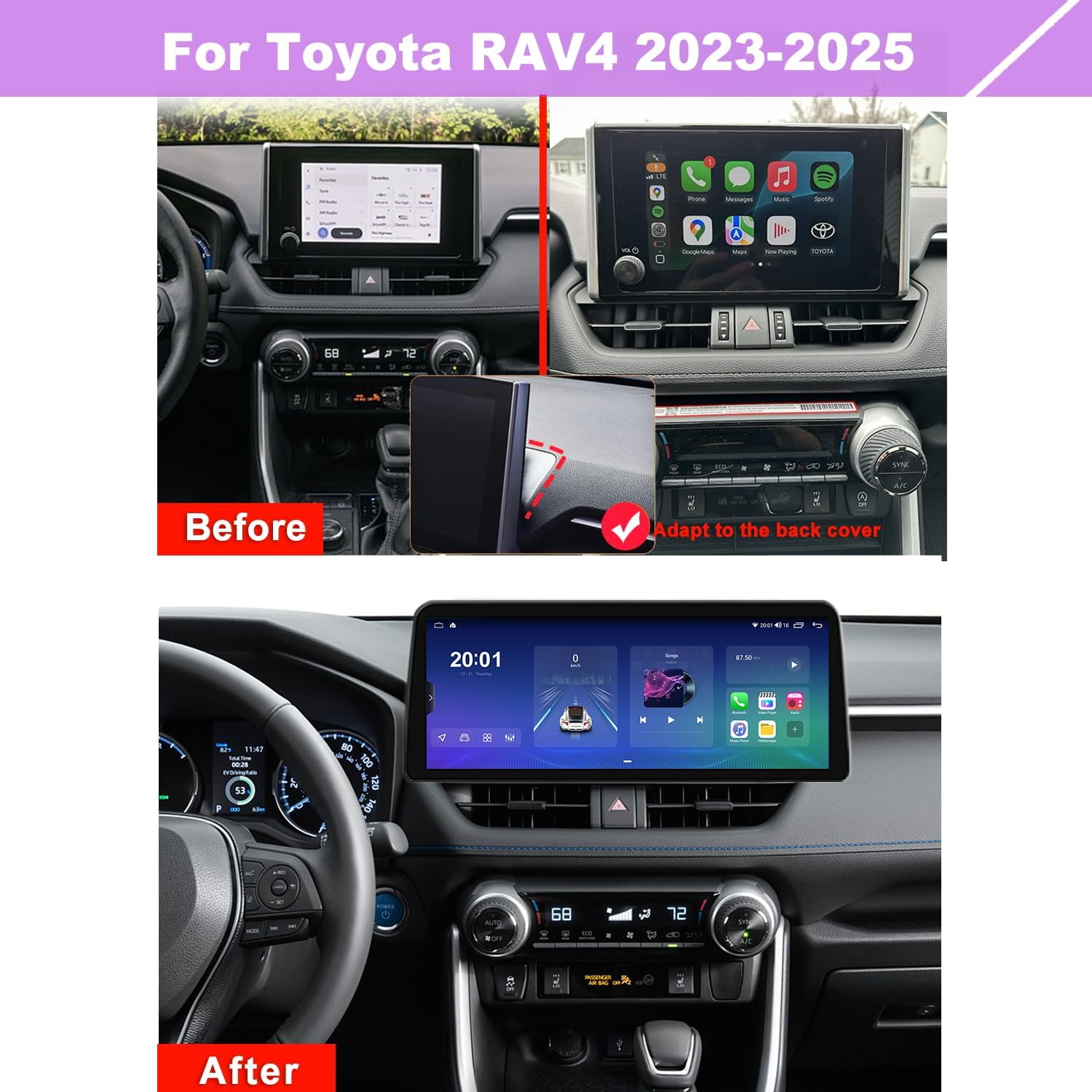
Image: A comparison showing the original smaller display in a Toyota RAV4 and the new larger 12.3-inch Android Car Stereo installed, demonstrating the improved visual integration.
Video: This video provides a step-by-step guide on how to install a similar Android head unit in a Toyota RAV4 (2019-2022 models). While the specific model year may vary, the general installation principles and dashboard disassembly process are applicable.
4. Operating Instructions
4.1. Power On/Off
Turn the vehicle ignition to the ACC or ON position. The head unit will power on automatically. To power off, turn the vehicle ignition to the OFF position.
4.2. 12.3-inch QLED Touchscreen
Navigate through menus and applications using the responsive QLED touchscreen. The 1920x720 high-resolution display offers clear viewing with a 178° full-viewing angle. Adjust screen brightness for day and night modes for optimal visibility.
4.3. Split Screen Functionality
Utilize the split-screen feature to run two applications simultaneously, such as navigation and music playback, for enhanced multitasking.

Image: The car stereo display in split-screen mode, showing a navigation map on one side and a radio interface on the other, illustrating simultaneous application usage.
4.4. Apple CarPlay & Android Auto
Connect your smartphone wirelessly or via USB to access Apple CarPlay or Android Auto. Use voice commands (Siri/Hey Google) or the touchscreen for calls, messages, navigation, and media playback from supported apps like Spotify and Pandora.
Video: A brief demonstration of Apple CarPlay functionality on a similar car stereo unit, showing the user interacting with various apps like Phone, Maps, and Music directly from the car's display.
4.5. GPS Navigation
The unit features built-in GPS for online and offline navigation. Download offline maps for use without an internet connection. The system provides real-time traffic conditions and voice route information.

Image: The car stereo displaying a detailed GPS navigation map, highlighting features like real-time traffic and optimal route selection.
Video: A short clip demonstrating the navigation system in action, showing a map with a route being followed while driving.
4.6. AM/FM Radio
Access local AM/FM radio stations. The unit includes a built-in AM antenna and supports FM/AM functions for real-time radio, weather forecasts, and news.

Image: The car stereo's radio interface, displaying various FM frequencies and options for tuning and saving stations.
4.7. Built-in DSP & Equalizer
The integrated DSP (Digital Signal Processing) with a Rohm 32107 chip provides 32-band equalization and surround sound features. Adjust sound frequencies and speaker balance for a customized audio experience.
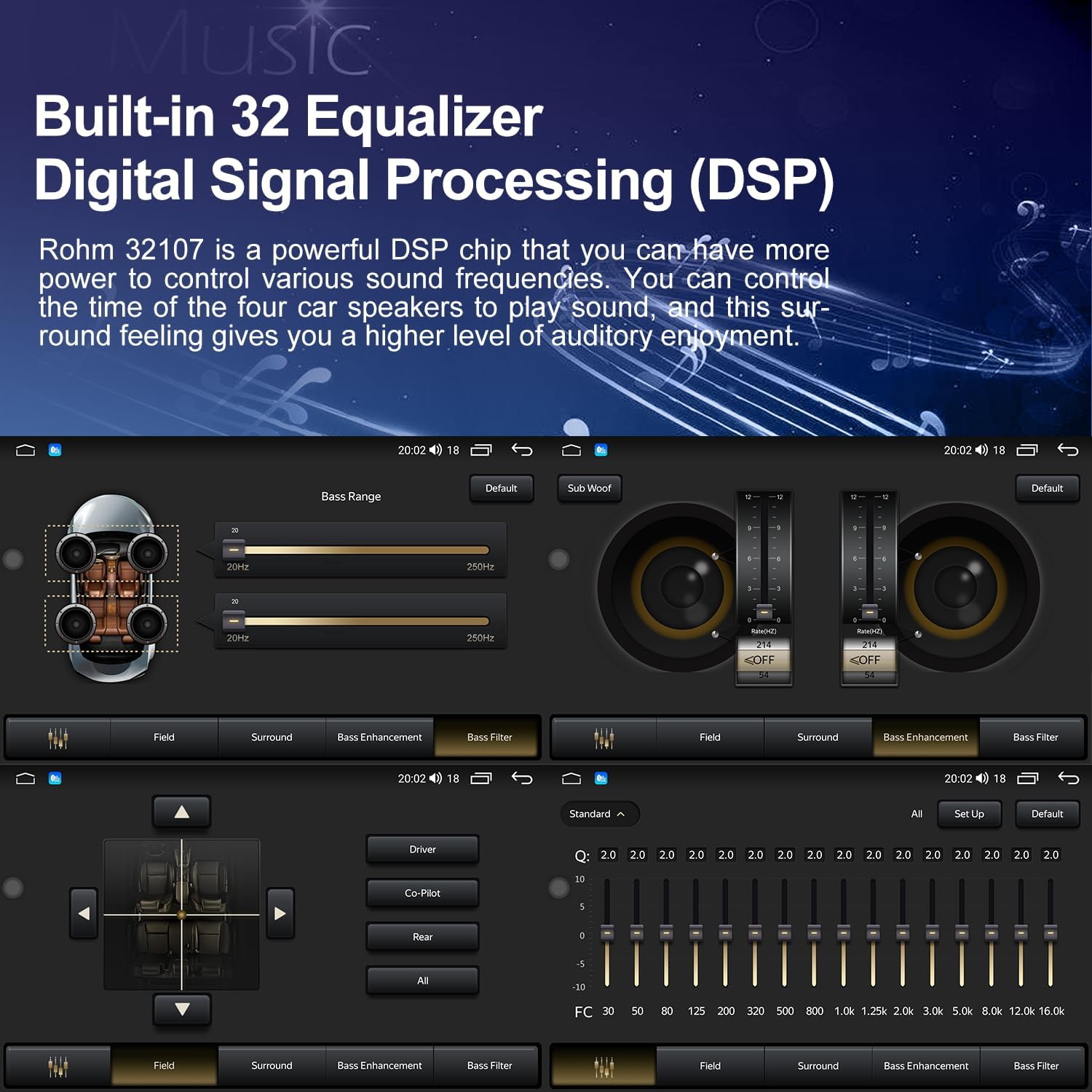
Image: The car stereo's audio settings interface, featuring a 32-band equalizer and controls for sound positioning and enhancement.
4.8. Steering Wheel Control
The head unit retains factory steering wheel control functionality, allowing safe operation of audio and other features without taking your hands off the wheel.

Image: A view of the car's steering wheel with its control buttons, alongside the car stereo display showing the interface for configuring steering wheel controls.
5. Specifications
- Product Dimensions: 13.4 x 1.6 x 5.9 inches
- Display Size: 12.3 Inches
- Screen Resolution: 1920x720
- Operating System: Android 14
- Connectivity Technology: Auxiliary, Bluetooth 5.0, USB, Wi-Fi
- Special Feature: Built-In AM Antenna, QLED Touchscreen, Steering Wheel Control, HD Radio Ready
- Map Type: Worldwide (Online & Offline)
- Mounting Type: Dashboard Mount
- Manufacturer: Huizhou Jilaika Electronic Technology Co., Ltd
6. Maintenance
- Cleaning: Use a soft, dry cloth to clean the screen and unit. Avoid abrasive cleaners or solvents.
- Software Updates: Periodically check for software updates through the unit's settings to ensure optimal performance and access to new features.
- Temperature: Avoid exposing the unit to extreme temperatures for prolonged periods.
7. Troubleshooting
- No Power: Ensure all power cables are securely connected. Check the vehicle's fuse box for any blown fuses.
- No Sound: Verify speaker connections. Check audio settings (volume, mute, DSP settings).
- GPS Signal Issues: Ensure the GPS antenna is properly installed and has a clear line of sight to the sky.
- Bluetooth Connection Problems: Ensure Bluetooth is enabled on both the head unit and your smartphone. Try unpairing and re-pairing the devices.
- CarPlay/Android Auto Not Connecting: Check USB cable connection (if wired). Ensure your phone's software is up to date. Try restarting both the phone and the head unit.
8. Warranty and Support
This product comes with a 1-Year Warranty from the date of purchase. For warranty claims, technical support, or any inquiries, please contact the seller directly through your purchase platform. Keep your proof of purchase for warranty validation.


