
1. Introduction
This manual provides detailed instructions for the operation and maintenance of your Generic 2.7K Wearable Video Camera for Glasses, Model GTX-09. This device is designed for hands-free video recording and photo capture, offering a first-person perspective for various activities. Please read this manual thoroughly before using the product to ensure proper function and longevity.

Image 1.1: Wearable Video Camera and Accessories
The image displays the Generic 2.7K Wearable Video Camera attached to a pair of glasses, alongside its essential accessories: a USB charging cable, a protective pouch, a 64GB TF card, and a user manual. This setup highlights the compact design and readiness for use.
2. Product Overview
2.1. Included Components
Verify that all the following items are included in your package:
- Wearable Video Camera Device
- USB Cable (Type-C)
- 64GB TF Memory Card
- User Manual
- Protective Pouch
- Glasses Giftbox (Optional, may vary)
- Anti-blue light glasses with zero prescription (Optional, may vary)
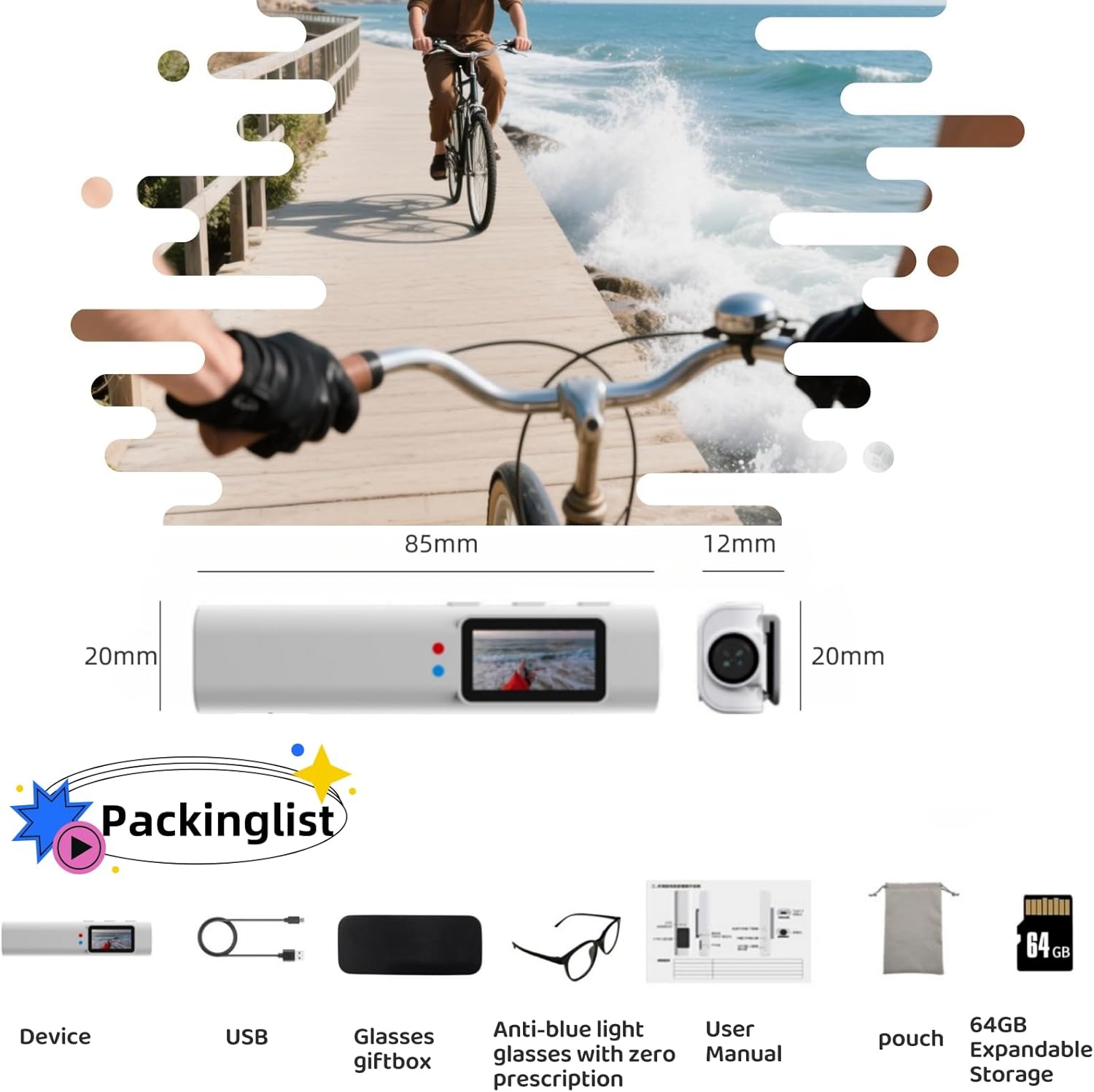
Image 2.1: Packing List and Dimensions
This image illustrates the complete packing list, including the camera device, USB cable, glasses giftbox, anti-blue light glasses, user manual, protective pouch, and the 64GB TF card. It also provides a dimensional overview of the camera unit.
2.2. Key Features
- 2.7K HD Video Recording: Captures high-resolution video at 2.7K for clear and detailed footage.
- 110° Wide-Angle Lens: Provides a broad field of view to capture more of your surroundings.
- Intelligent Noise Cancellation: Enhances audio clarity by reducing background noise.
- Lightweight Design: Weighs approximately 21g for comfortable, extended wear.
- Universal Glasses Compatibility: Designed to clip securely onto most types of eyewear.
- 60-Minute Battery Life: Supports up to 60 minutes of continuous recording on a full charge.
- 64GB TF Card Included: Provides ample storage for videos and photos.
- WiFi App Control: Allows for real-time preview, file management, and sharing via a dedicated mobile application.
- 0.96" IPS Color Display: An integrated screen for easy navigation and framing.

Image 2.2: Lightweight Design
This image emphasizes the camera's minimal weight, stating "NET WEIGHT 21g," indicating its comfortable design for extended wear on glasses.

Image 2.3: Battery Life
The image highlights the camera's battery capacity, indicating up to 60 minutes of continuous recording time.
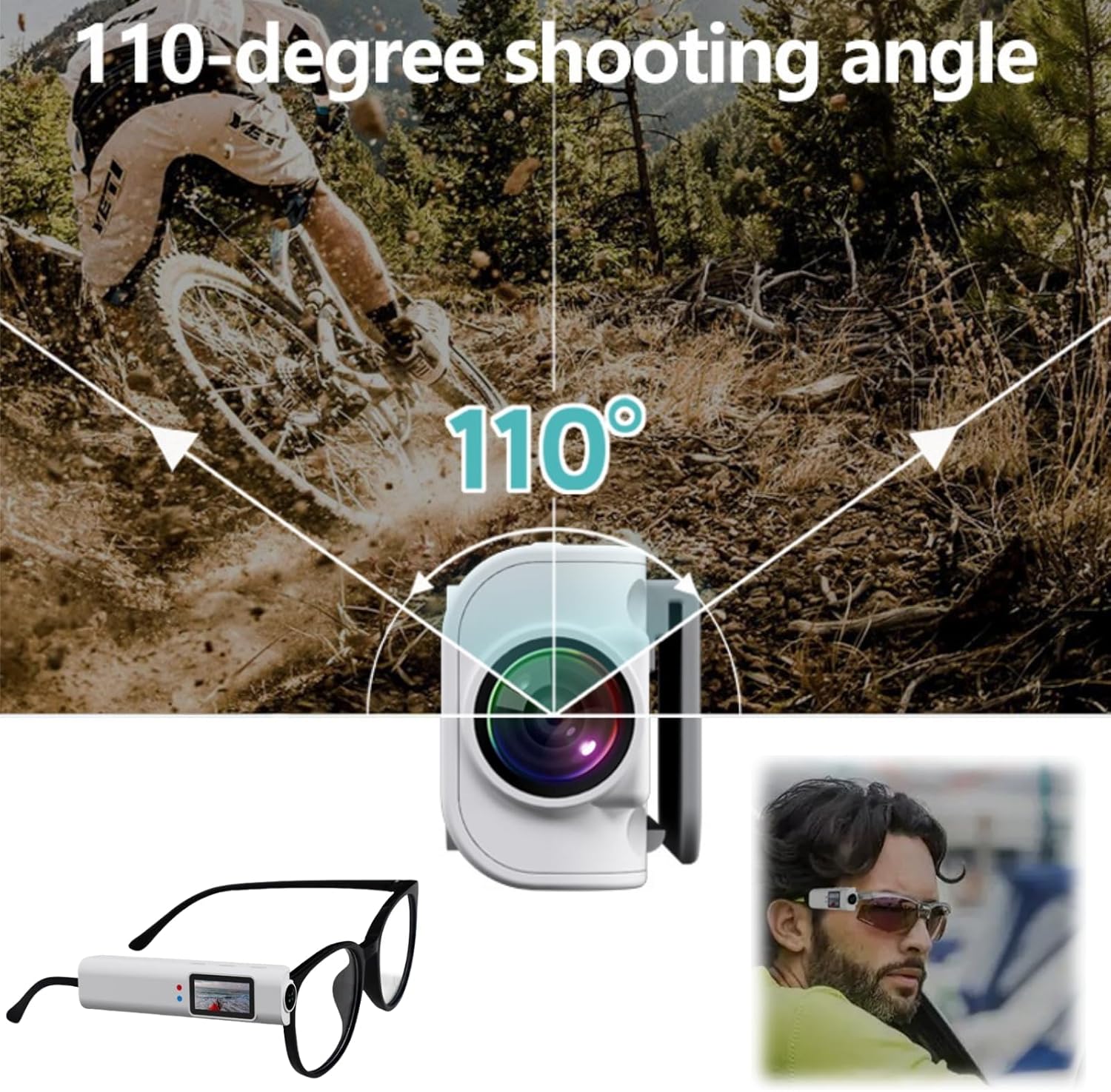
Image 2.4: 110-Degree Wide Angle Lens
This graphic demonstrates the camera's 110-degree shooting angle, showcasing its ability to capture a wide field of view, ideal for dynamic activities.
3. Setup
3.1. Charging the Device
- Connect the provided USB Type-C cable to the camera's charging port.
- Connect the other end of the USB cable to a standard USB power adapter (not included) or a computer's USB port.
- The charging indicator light will illuminate. Once fully charged, the light will change or turn off (refer to device display for exact status).
- A full charge typically takes approximately 1-2 hours.
3.2. Inserting the TF Card
- Locate the TF card slot on the side of the camera device.
- Gently insert the included 64GB TF card into the slot with the gold contacts facing down (or as indicated by a diagram on the device).
- Push the card in until it clicks into place. To remove, push it in again until it springs out.
- Ensure the device is powered off before inserting or removing the TF card to prevent data corruption.
3.3. Attaching to Glasses
- Identify the clip mechanism on the camera device.
- Carefully align the camera with the temple (arm) of your glasses.
- Gently slide or clip the camera onto the glasses temple, ensuring it is secure and stable. The camera lens should face forward, aligning with your line of sight.
- Adjust the position for optimal comfort and recording angle. The device is compatible with most glasses types.

Image 3.1: Attaching to Glasses
This image illustrates how the camera discreetly and securely attaches to various types of eyewear, including prescription glasses and sunglasses, ensuring a stable fit for recording.
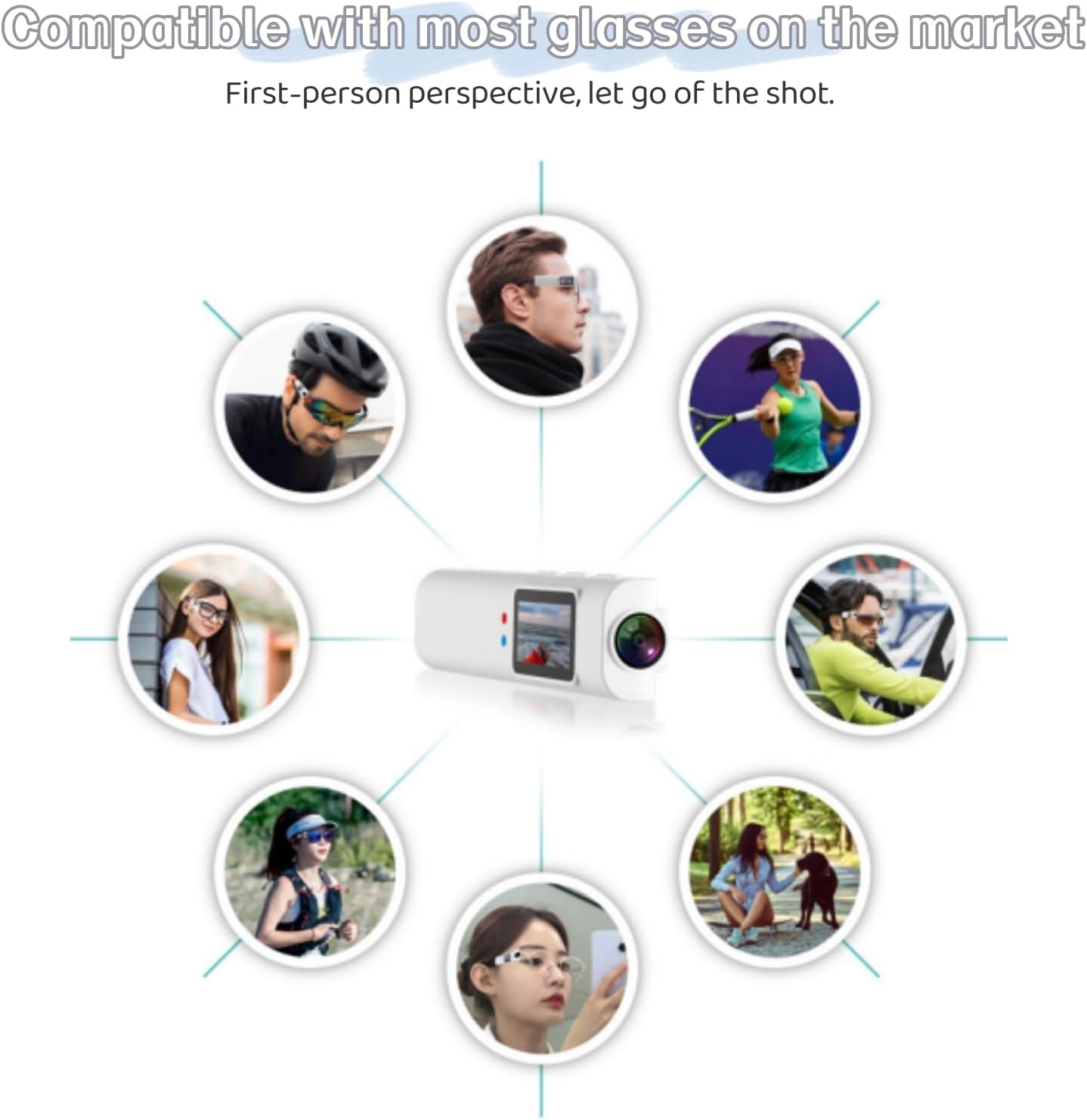
Image 3.2: Universal Compatibility
This graphic highlights the camera's compatibility with a wide range of glasses, showing it being used with sports glasses, regular spectacles, and sunglasses by various individuals.
4. Operating Instructions
4.1. Power On/Off
- Power On: Press and hold the Power button (usually located on the side) for a few seconds until the display screen illuminates.
- Power Off: Press and hold the Power button again for a few seconds until the display turns off.
4.2. Video Recording
- Ensure the device is powered on and a TF card is inserted.
- Press the Record button (often marked with a camera icon or 'REC') once to start video recording. A recording indicator (e.g., red light, 'REC' on screen) will appear.
- Press the Record button again to stop recording. The video file will be saved to the TF card.
4.3. Photo Capture
- With the device powered on, navigate to photo mode using the mode button (if available) or by a short press of the record button when not recording.
- Press the Photo button (or a designated button) once to capture a still image. The image will be saved to the TF card.

Image 4.1: Device Controls
This image illustrates the primary controls of the camera, including buttons for starting and stopping recording, taking pictures, and activating the WiFi function.
4.4. WiFi App Control
- Download the dedicated mobile application from your smartphone's app store (refer to the manual or product packaging for app name/QR code).
- Power on the camera and activate its WiFi function (usually by pressing a dedicated WiFi button or navigating through the menu).
- On your smartphone, go to WiFi settings and connect to the camera's WiFi network (SSID and password will be displayed on the camera screen or in the manual).
- Open the mobile application. You should now be able to see a real-time preview, manage files, and control recording functions remotely.

Image 4.2: WiFi App Interface
This image shows the mobile application interface, demonstrating how users can replay and manage recorded content directly from their smartphone via WiFi.
4.5. Using the 0.96" IPS Color Display
- The integrated 0.96-inch IPS color display provides visual feedback for camera status, recording mode, battery level, and basic menu navigation.
- Use the side buttons to scroll through menu options and confirm selections.
- The display can assist in framing your shots before recording.

Image 4.3: IPS Color Display
A detailed view of the camera's 0.96-inch IPS color screen, showing its live preview capabilities and indicators for recording resolution and audio capture.
5. Maintenance
5.1. Cleaning
- Use a soft, dry, lint-free cloth to clean the camera body.
- For the lens, use a specialized lens cleaning cloth and solution. Avoid abrasive materials that could scratch the lens.
- Do not use harsh chemicals or solvents.
5.2. Storage
- Store the camera in a cool, dry place away from direct sunlight and extreme temperatures.
- When not in use, store the camera in its protective pouch or case to prevent dust and scratches.
- If storing for extended periods, ensure the battery is partially charged (around 50%) to maintain battery health.
5.3. TF Card Management
- Regularly back up important files from the TF card to a computer or cloud storage.
- Format the TF card periodically (after backing up data) to maintain optimal performance and prevent data corruption. This can usually be done via the camera's menu or a computer.
6. Troubleshooting
| Problem | Possible Cause | Solution |
|---|---|---|
| Device does not power on. | Low battery; device frozen. | Charge the device fully. If frozen, press and hold the power button for 10-15 seconds to force a restart. |
| Cannot record video/take photos. | TF card full or not inserted correctly; TF card error. | Ensure TF card is inserted correctly. Check available space. Format the TF card (after backing up data). Try a different TF card. |
| Poor video/audio quality. | Lens dirty; microphone blocked; environmental noise. | Clean the lens. Ensure microphone is not obstructed. Intelligent noise cancellation helps, but extreme noise may still affect quality. |
| WiFi connection issues. | WiFi not enabled on camera; incorrect password; app issues. | Ensure camera WiFi is active. Verify WiFi password. Restart camera and phone. Reinstall the app. |
| Device gets warm during use. | Normal operation; prolonged recording. | A slight warmth is normal. If it becomes excessively hot, power off the device and allow it to cool down. Avoid direct sunlight. |
7. Specifications
| Feature | Detail |
|---|---|
| Brand | Generic |
| Model Name | S110 |
| Item Model Number | GTX-09 |
| Video Capture Resolution | 2.7K (as per title), 1080p (as per specifications data) - Note: Please refer to product packaging for exact resolution. |
| Photo Sensor Technology | CMOS |
| Maximum Focal Length | 85 Millimeters |
| Maximum Aperture | 2.4 f |
| Flash Memory Type | SD (TF Card) |
| Video Capture Format | MOV |
| Screen Size | 0.96 Inches (IPS Color Display) |
| Battery Life | Up to 60 minutes continuous recording |
| Weight | Approximately 21g |
8. Warranty and Support
For specific warranty information, please refer to the warranty card included with your product packaging or contact the retailer/manufacturer directly.
For technical support or inquiries, please refer to the contact information provided on the product packaging or the official brand website.