
1. Introduction
This manual provides essential information for setting up, operating, maintaining, and troubleshooting your SANSHREUNI C25 Ultra smartphone. Please read this guide thoroughly to ensure proper use and to maximize the device's performance and longevity.
2. What's in the Box
Upon unboxing your SANSHREUNI C25 Ultra, please verify that all the following items are included:
- SANSHREUNI C25 Ultra Smartphone
- Charger (US/UK/AU/EU, one type included)
- USB Cable
- Phone Case
- Protective Screen (pre-applied or separate)
- Headphones
- SIM Ejector Tool (Card Pin)
- Mobile Manual (this document)

Image: Contents of the SANSHREUNI C25 Ultra retail package.
3. Device Layout
Familiarize yourself with the physical components of your SANSHREUNI C25 Ultra smartphone.
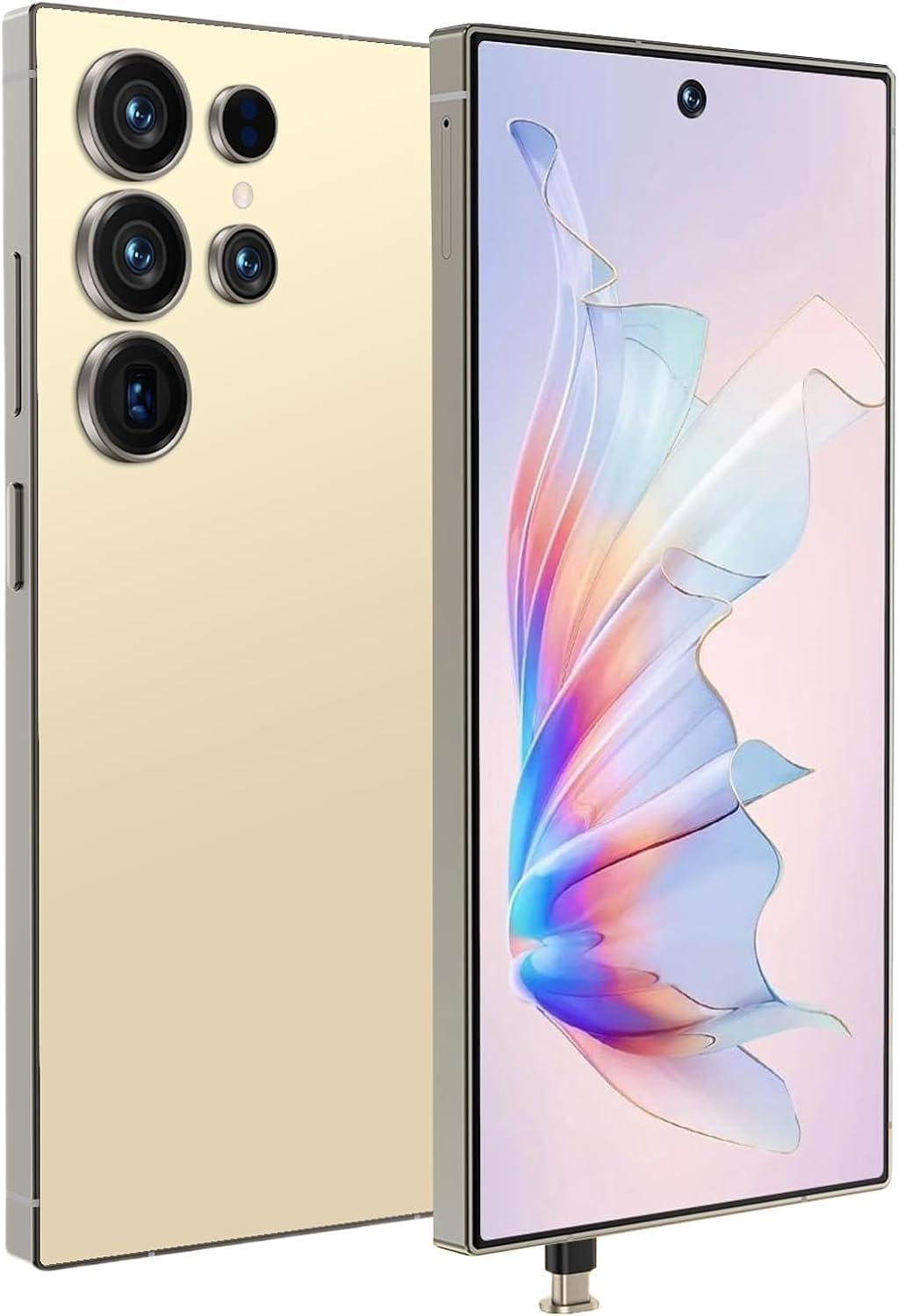
Image: Front and rear view of the SANSHREUNI C25 Ultra.
Key Components:
- Front Camera: Located at the top center of the display.
- Display: 6.9-inch screen.
- Power Button: Typically on the right side.
- Volume Buttons: Typically on the right side, above the power button.
- USB-C Port: For charging and data transfer, located at the bottom.
- Speaker: Located at the bottom.
- Microphone: Located at the bottom.
- SIM/SD Card Tray: Located on the side.
- Rear Cameras: Multiple lenses located on the back.
- Stylus Slot: Integrated slot for the built-in pen.
4. Setup Guide
4.1. SIM and SD Card Installation
- Locate the SIM card tray on the side of your phone.
- Insert the SIM ejector tool into the small hole on the tray to open it.
- Place your Nano-SIM card(s) and/or microSD card into the designated slots on the tray. Ensure the gold contacts face downwards. The device supports two SIM cards and one TF (microSD) card simultaneously.
- Carefully push the tray back into the phone until it clicks into place.

Image: Dual SIM and dedicated microSD card slot.
4.2. Initial Power On and Setup
- Press and hold the Power button until the SANSHREUNI logo appears.
- Follow the on-screen prompts to select your language, connect to a Wi-Fi network, and set up your Google account.
- You will be guided through setting up security features like Face Recognition or a PIN/pattern/password.
4.3. Charging the Device
Before first use, fully charge your smartphone using the provided USB cable and charger. Connect the USB cable to the phone's USB-C port and the charger to a power outlet.

Image: 6800mAh Battery and charging indicator.
5. Basic Operation
5.1. Screen and Display
Your SANSHREUNI C25 Ultra features a 6.9-inch HD display with a resolution of 1440*3040 and a 120Hz refresh rate for smooth visuals and responsive touch interactions.

Image: Display specifications of the SANSHREUNI C25 Ultra.
5.2. Operating System
The device runs on Android 14.0 OS, providing access to a wide range of applications and features through the Google Play Store. Navigate using gestures or the traditional three-button navigation bar.
5.3. Security Features: Face Recognition
Unlock your phone quickly and securely using Face Recognition. During initial setup, register your face by following the on-screen instructions. Ensure good lighting conditions for optimal performance.

Image: Face Recognition in action.
5.4. Connectivity
The SANSHREUNI C25 Ultra supports global 5G networks for high-speed data transmission and Wi-Fi for local network access. To enable 5G, ensure your SIM card supports 5G and that you are in a 5G coverage area. Wi-Fi can be enabled and configured via the Settings menu.
5.5. Stylus Functionality
The device includes a built-in pen for enhanced interaction. Use the stylus for precise input, drawing, note-taking, and editing photos. To remove the pen, gently press its top end until it pops out slightly, then pull it out.
Image: Built-in pen functionality.
5.6. GPS Navigation
The integrated GPS functionality allows for accurate location tracking and navigation. Utilize mapping applications to find directions, explore new places, and track your movements.
Image: GPS navigation interface.
6. Battery Management
The SANSHREUNI C25 Ultra is equipped with a 6800mAh battery. To optimize battery life:
- Adjust screen brightness.
- Close unused applications running in the background.
- Enable battery saver mode when needed.
- Avoid extreme temperatures.
The device supports 12W charging for quick power replenishment.
7. Maintenance and Care
- Cleaning: Use a soft, lint-free cloth to clean the screen and body. Avoid harsh chemicals.
- Protection: Use the provided phone case and screen protector to guard against scratches and minor impacts.
- Temperature: Avoid exposing the phone to extreme heat or cold.
- Water Exposure: The device is not waterproof. Avoid contact with liquids.
8. Troubleshooting
If you encounter issues with your SANSHREUNI C25 Ultra, refer to the following common solutions:
- Device is Slow/Unresponsive: Try restarting the phone. Close unnecessary background applications. Clear cache from apps.
- No Network Service: Ensure SIM card is correctly inserted. Check network settings. Restart the phone. If issues persist, contact your service provider.
- Low Volume: Check volume settings for media, calls, and alarms. Ensure speakers are not obstructed.
- Screen Blank/Frozen: Force restart the device by holding the Power button for approximately 10-15 seconds. If the issue persists, ensure the battery is charged.
- Battery Drains Quickly: Refer to the Battery Management section for tips. Reduce screen brightness, disable unused features like GPS or Bluetooth.
9. Specifications
Detailed technical specifications for the SANSHREUNI C25 Ultra smartphone:
| Feature | Specification |
|---|---|
| Model Name | C25 Ultra |
| Operating System | Android 14 |
| CPU Model | Snapdragon 8 Gen2 |
| CPU Speed | 2.6 GHz |
| RAM Memory | 8 GB |
| Storage Capacity | 256 GB |
| Screen Size | 6.9 Inches |
| Resolution | 1440 x 3040 |
| Refresh Rate | 120 Hz |
| Battery Capacity | 6800 mAh |
| Connectivity | 5G, Wi-Fi |
| Special Features | Face ID, Dual Camera, Dual SIM, GPS, Built-in Pen |
| Item Weight | 12 ounces |
| Dimensions | 6.79 x 3 x 0.29 inches |
Image: Key display specifications.
Image: Snapdragon 8 Gen2 processor details.
Image: Memory and storage capacity.
10. Warranty and Support
Your SANSHREUNI C25 Ultra smartphone comes with a manufacturer's warranty. Please refer to the warranty card included in your package for specific terms and conditions.
For any questions regarding the use, setup, or troubleshooting of your phone, please contact SANSHREUNI customer support. We are committed to resolving any issues within 24 hours.
Contact information can typically be found on the official SANSHREUNI website or on the warranty card.