1. Introduction
Thank you for choosing the InnoView 23.8" 2K Dual Portable Monitor. This device is designed to enhance your productivity and viewing experience with its dual QHD screens, foldable design, and versatile connectivity. This manual provides essential information for setting up, operating, and maintaining your monitor.
2. What's in the Box
Please verify that all items are present in your package:
- Multifunctional Type-C Data Cable (x2)
- DisplayPort Cable 1.4
- Ultra High Speed HDMI Cable 2.1
- 65W Power Adapter
3. Product Overview and Features
The InnoView 23.8" 2K Dual Portable Monitor offers a range of features designed for optimal performance and user comfort.

Key features: 2K QHD resolution, 1000:1 contrast ratio, 10-bit color, 0-315° adjustable foldable design, blue light filter, and 100% sRGB color gamut.
High-Resolution Display
Both screens feature 2K QHD (2560 x 1440P) resolution with 100% sRGB wide color gamut and 10-bit color depth, providing precise color reproduction, sharp clarity, and exquisite detail. The IPS panel ensures true colors from a 178° viewing angle.

Visual comparison of 2K QHD versus 1080P resolution, highlighting superior detail.
Adjustable and Foldable Design
The monitor features a foldable and stackable design with 315° screen adjustment and a 180° stand, allowing for flexible viewing angles and space-saving storage. This design facilitates various work and collaboration scenarios.
Eye-Care Technology
An integrated blue light filter reduces eye strain during extended use, promoting a more comfortable viewing experience.
Ports and Buttons
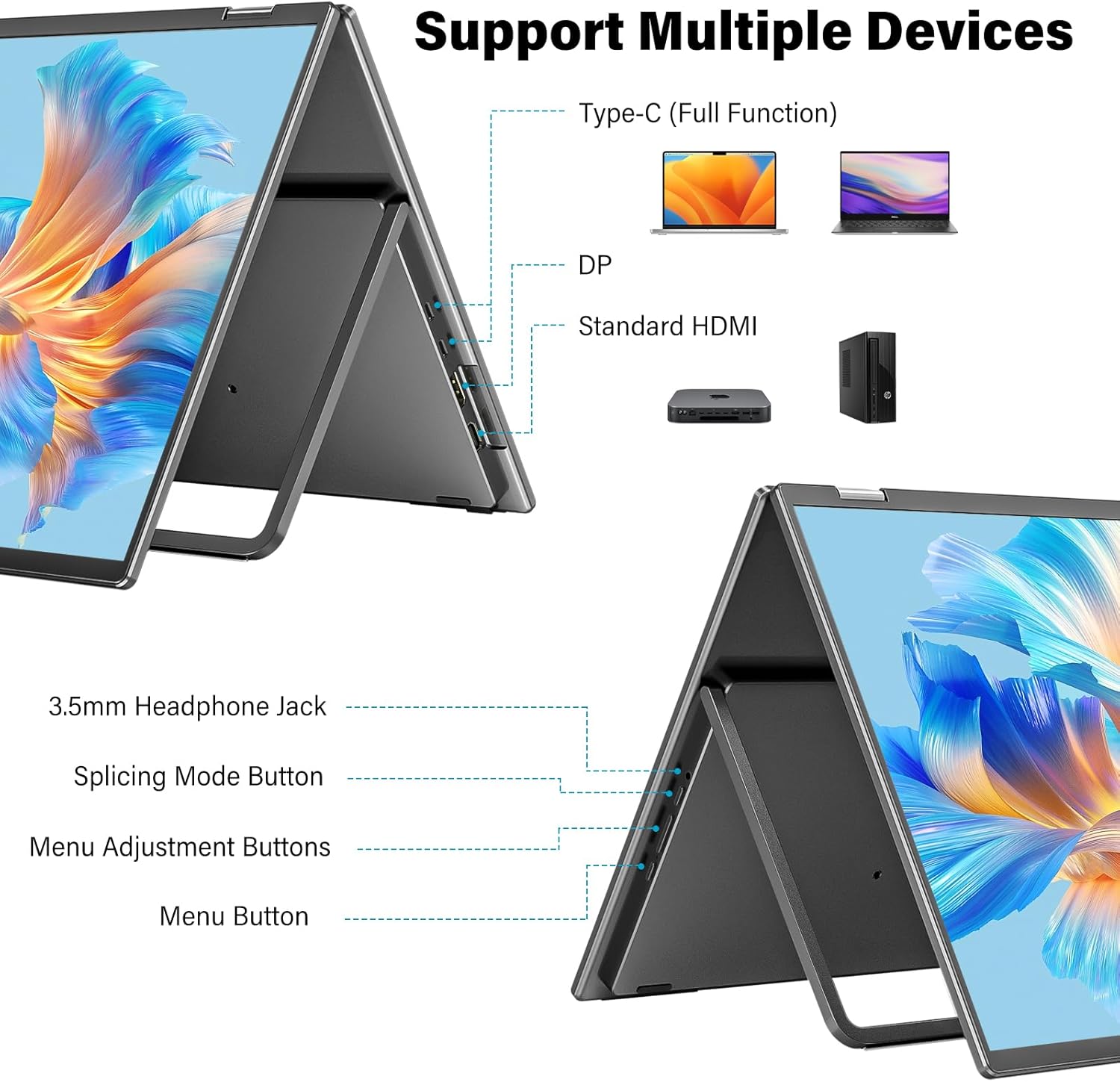
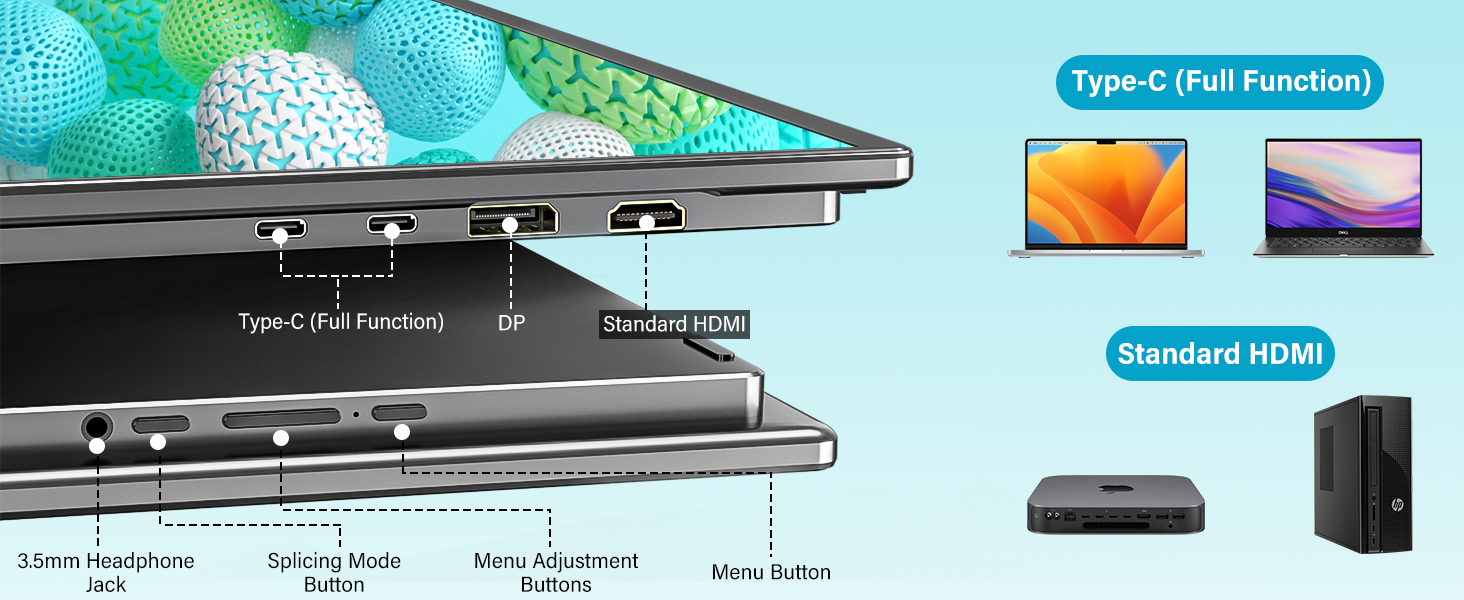
Overview of the monitor's connectivity ports and control buttons.
- Type-C (Full Function): For power, video, and data transmission.
- DP (DisplayPort): For video input.
- Standard HDMI: For video input.
- 3.5mm Headphone Jack: For audio output.
- Splicing Mode Button: To toggle between display modes.
- Menu Adjustment Buttons: For navigating and adjusting OSD settings.
- Menu Button: To access the On-Screen Display (OSD) menu.
4. Setup and Connection
This section guides you through connecting your InnoView dual monitor to your devices.
Power Connection
- Connect the provided 65W power adapter to a power source.
- Plug the other end of the power cable into one of the monitor's full-feature Type-C ports.
Device Connection (Windows)
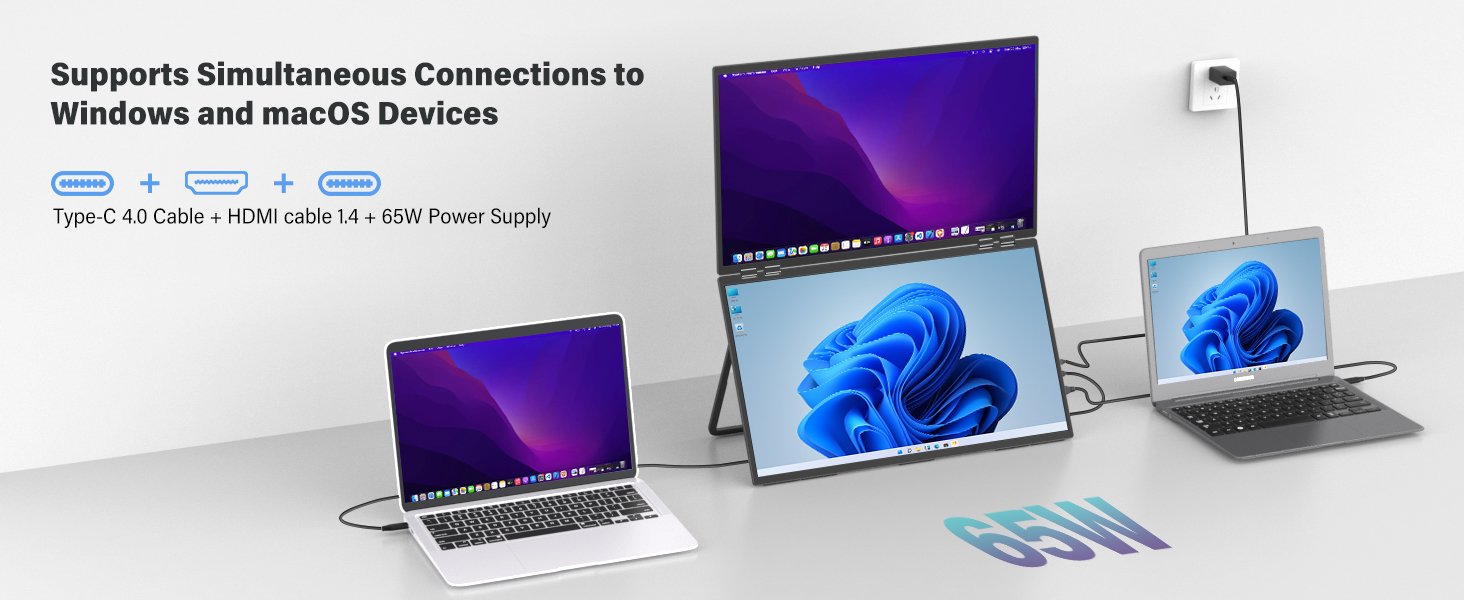
For Windows laptops, you can use a single full-feature Type-C cable for both video and power, or a combination of DP/HDMI and a Type-C power cable.
Windows connection options for the dual monitor.
Device Connection (macOS)
For macOS devices, extended mode typically requires both a full-feature Type-C cable and an HDMI cable for dual video outputs. With a single source, you are limited to Combine or Duplicate modes.

macOS connection options for the dual monitor.
Video Guide: Connecting to MacBook
This video demonstrates how to connect the InnoView 23.8 inch 2K Dual Portable Monitor to a MacBook, including cable connections and display settings configuration.
Identifying Compatible USB-C Ports
Ensure your computer's USB-C port supports video output. Look for symbols next to the port:
Symbols indicating compatible USB-C ports for video output.
If you see a Thunderbolt symbol, your port is compatible. If unsure, consult your computer's manufacturer website or technical specifications.
5. Operating Modes
The InnoView dual monitor supports several display modes to suit your needs:
Visual representation of the different display modes.
- Copy Mode (Mirror): Both the upper and lower screens display the same content.
- Splice Mode (Ultra-Wide): Combines the upper and lower screens into one larger, continuous display.
- Extended Mode (Dual-Screen): The upper and lower screens display different content, extending your desktop.
- Flip Mode: The top screen can be flipped 180° for face-to-face collaboration, displaying the same content as the bottom screen.
Use the Splicing Mode Button on the monitor to cycle through these modes.
6. Display Settings
After connecting, you may need to adjust your computer's display settings to optimize your dual monitor setup.
Windows Display Settings
- Right-click on your desktop and select "Display settings."
- Under "Multiple displays," choose your preferred option (e.g., "Extend these displays," "Duplicate these displays").
- Drag and drop the display icons to match your physical monitor arrangement.
- Adjust resolution, orientation, and brightness as needed.
macOS Display Settings
- Go to "System Settings" (or "System Preferences" on older macOS versions).
- Click on "Displays."
- Click "Arrange Displays" to drag and drop the display icons to match your physical setup.
- Select "Extended Display" or "Mirror for Built-in Display" based on your requirement.
- Adjust resolution, refresh rate, and color profile as desired.
Monitor OSD Menu
Use the Menu Adjustment Buttons and Menu Button on the monitor to access and navigate the On-Screen Display (OSD) menu. Here you can fine-tune settings such as brightness, contrast, color temperature, and input source.
7. Usage Scenarios
The InnoView dual monitor is versatile for various applications:
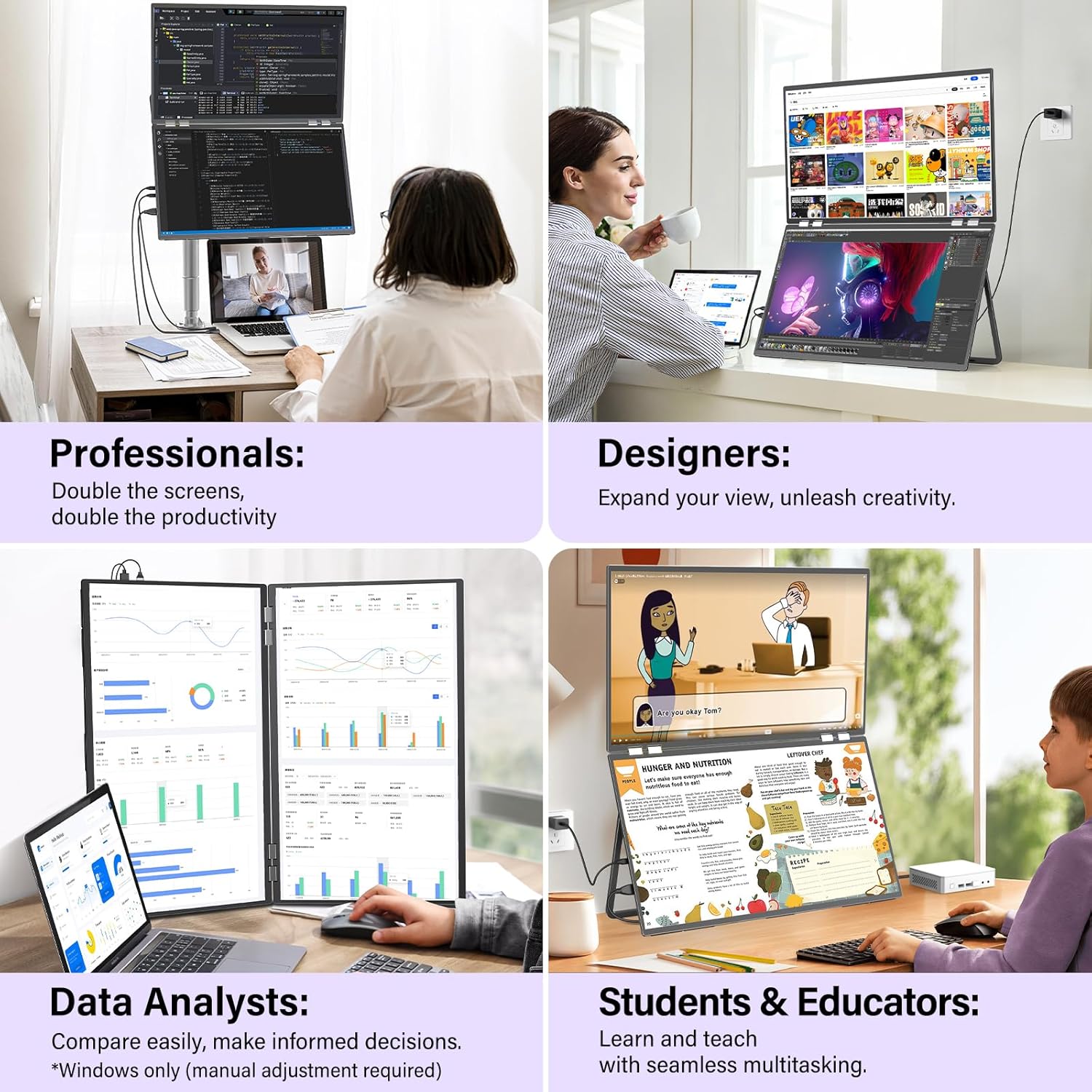
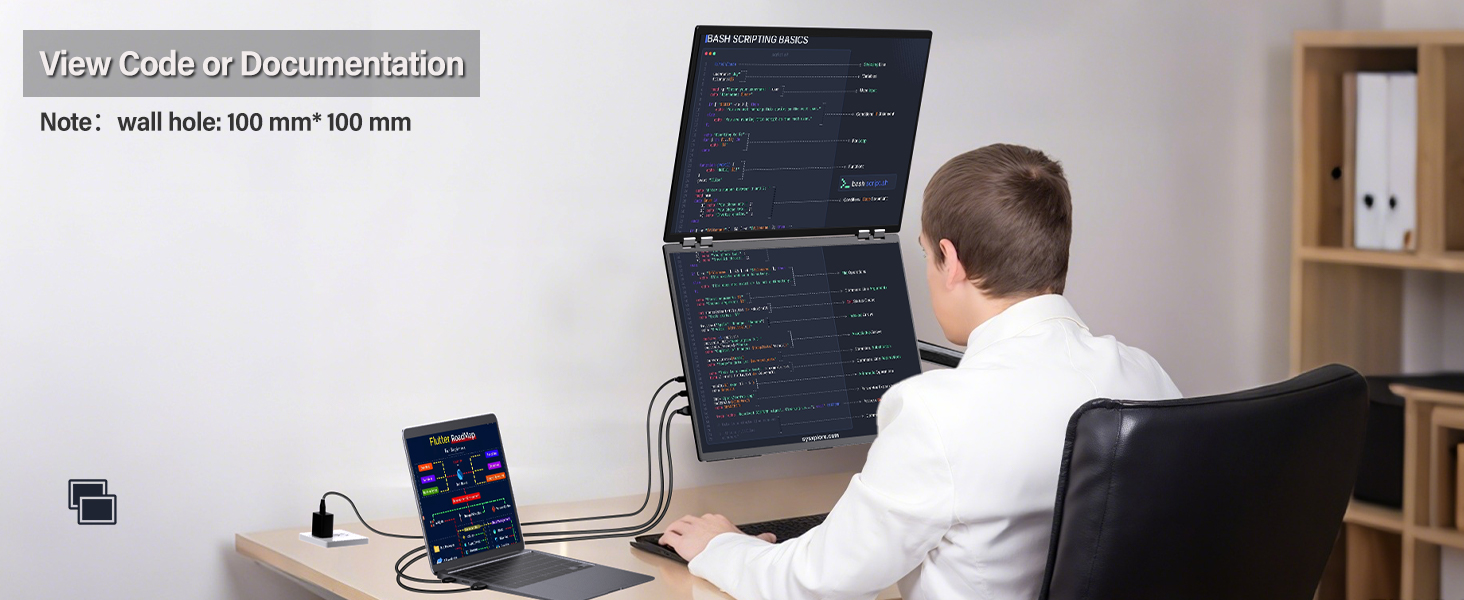
- Professionals: Double your workspace for documents, code, and previews side-by-side.
- Designers: Expand your view for creative projects, ensuring precise color reproduction.
- Data Analysts: Compare data easily and make informed decisions with extensive screen real estate.
- Students & Educators: Learn and teach with seamless multitasking, viewing videos and documents simultaneously.
The dual monitor enhances productivity for various professional and educational tasks.
Portability Considerations
Note that while the monitor has a foldable design, its 23.8-inch size and power requirements make it more suitable for fixed office or home use rather than frequent travel.
The monitor is designed for fixed placement, not for frequent travel.
8. Specifications
| Feature | Specification |
|---|---|
| Product Dimensions | 0.65 x 21.33 x 12.71 inches |
| Item Weight | 12.82 pounds |
| ASIN | B0F83RGKDV |
| Item Model Number | INVPM609 01B |
| Standing Screen Display Size | 23.8 Inches |
| Aspect Ratio | 16:9 |
| Resolution | 2560 x 1440 Pixels (QHD Wide 1440p) |
| Image Brightness | 300 Candela |
| Total USB Ports | 2 (Type-C Full Function) |
| Screen Surface Description | Matte |
9. Troubleshooting
If you encounter issues with your InnoView dual monitor, refer to these common troubleshooting steps:
No Signal / Black Screen
- Check Connections: Ensure all cables (power, USB-C, HDMI, DP) are securely connected to both the monitor and your device.
- Verify Power: Confirm the monitor is receiving power from the 65W adapter. The power indicator light should be on.
- Input Source: Use the monitor's OSD menu to manually select the correct input source (USB-C, HDMI, or DP).
- Compatible Port: Ensure your computer's USB-C port supports video output (look for the Thunderbolt or DisplayPort Alt Mode symbol).
- Restart Devices: Restart your laptop/PC and the monitor.
Incorrect Display Mode / Resolution
- Adjust Display Settings: Access your computer's display settings (as described in Section 6) to configure Extend, Duplicate, or Combine modes.
- Splicing Mode Button: Press the Splicing Mode Button on the monitor to cycle through available display modes.
- Resolution: In your computer's display settings, ensure the resolution is set to 2560 x 1440 for optimal clarity.
Flickering or Unstable Display
- Cable Quality: Use the provided high-quality cables. Faulty or low-quality cables can cause display issues.
- Power Supply: Ensure the monitor is receiving sufficient power from the 65W adapter.
- Graphics Driver: Update your computer's graphics drivers to the latest version.
10. Warranty and Support
InnoView is committed to providing reliable products and excellent customer service.
Warranty Information


Your InnoView monitor comes with an 18-month full warranty. We also offer 30-day no-questions-asked returns and 60-day free returns.
Brand Logo Update

InnoView has updated its brand logo. During this transition, products with either the old or new logo may be shipped. This does not affect product quality or functionality.
Customer Support
For any questions, technical assistance, or warranty claims, please contact InnoView customer support through the retailer where you purchased the product or visit the official InnoView website.
11. Product Video Overview
Watch this short video for a visual overview of the InnoView 23.8" 2K Dual Monitor's features and capabilities.
A brief overview showcasing the InnoView 23.8 inch 2K Dual Monitor's design, display modes, and key features.